# My Documentation
> Comprehensive guide to our platform
## docs
Description will go into a meta tag in
- [Documentation](/index.md): Description will go into a meta tag in
### android
- [Activity history](/android/configuration-and-data/activity-history.md): Shake tracks user's interaction with your app, their network traffic, notifications, logs and system events,
- [Auto attach files](/android/configuration-and-data/auto-attach-files.md): Automatically attach a log file to each ticket, or user's profile photo, or whatever will help you resolve the ticket faster when you receive it. Files you attach automatically are not visible to your users.
- [Auto screen recording](/android/configuration-and-data/auto-screen-recording.md): You can rely on your testers to record a video of their screen and attach it to their feedback and crash reports.
- [Auto screenshot](/android/configuration-and-data/auto-screenshot.md): When Shake's New ticket screen is invoked, a screenshot is automatically attached to it.
- [Black box](/android/configuration-and-data/black-box.md): Just like before an airplane crash, Shake records a detailed environment
- [Callbacks](/android/configuration-and-data/callbacks.md): Execute a block of a code when a certain action is executed by Shake
- [Custom branding](/android/configuration-and-data/custom-branding.md): This feature enables you to customize the look and feel of the Shake SDK. You can reflect your brand's identity by modifying colors, fonts, and other attributes of screen elements.
- [Custom forms](/android/configuration-and-data/custom-forms.md): Learn how to create or modify a form displayed on the New ticket screen.
- [Data attached by default](/android/configuration-and-data/data-attached-by-default.md): This is the data Shake automatically attaches to every ticket you receive, whether it's user feedback or a crash report.
- [Data privacy disclosure](/android/configuration-and-data/data-privacy-disclosure.md): When users send you tickets, Shake "magically" and automatically captures a lot of other data, too. Although it feels like magic, it's not. We want you to fully understand and control it.
- [Home screen](/android/configuration-and-data/home-screen.md): Shake enables you to customize home screen according to your preferences and needs.
- [Protect sensitive data](/android/configuration-and-data/manage-sensitive-data.md): As with any third-party service, it’s important for you to understand and have the ability to manage
- [Overview](/android/configuration-and-data/overview.md): Customize both the elements of Shake's New ticket screen and the data Shake collects.
- [Ticket metadata](/android/configuration-and-data/ticket-metadata.md): Every app is unique so the Data attached by default sent with each ticket are often not enough.
- [Ticket tags](/android/configuration-and-data/ticket-tags.md): Sometimes you'll want to tag your tickets for easier management and organization on the dashboard.
- [ANRs](/android/crash-reports/anrs.md): Shake also detects ANRs — moments when your app's main thread freezes and stops responding to input.
- [Ask for a description](/android/crash-reports/ask-for-description.md): On the first app launch after the crash, you decide whether or not you want Shake to ask your user to describe the crash.
- [Deobfuscate](/android/crash-reports/deobfuscation.md): Crash reports are a lot more useful when you see your deobfuscated stack traces.
- [Enable](/android/crash-reports/enable.md): The Crash reports module is enabled by default.
- [Handling error](/android/crash-reports/handling-error.md): Make great use of error handling and document these errors.
- [Overview](/android/crash-reports/overview.md): The Crashes module tracks crashes and uncaught exceptions in your app. They are then intelligently grouped on your Shake dashboard,
- [Test it](/android/crash-reports/test-it-out.md): Let's crash your app to see what the crash report looks like on your Shake dashboard.
- [Import from Instabug](/android/import-from-instabug.md): Shake offers an option to easily migrate your bugs from Instabug to our platform.
- [Installation](/android/installation.md): Learn how to add Shake to your Android app using Gradle.
- [Overview](/android/overview.md): Modules
- [Release notes](/android/releases.md): This page lists all updates to the Shake Android SDK.
- [Network requests](/android/releases/network-requests.md): Unlike session data, network request tracking requires you to forward requests to Shake first.
- [Overview](/android/releases/overview.md): Shake automatically tracks app sessions to give you visibility into how each release of your app is performing, right from your Shake dashboard.
- [Session data](/android/releases/session-data.md): Each session carries a lightweight snapshot of the device it ran on.
- [Chat screen](/android/shake-ui/chat-screen.md): You and your app users can live chat about every ticket they have submitted to you.
- [Drawing screen](/android/shake-ui/drawing-screen.md): Users can draw on images attached to the ticket, and blur their parts.
- [Home screen](/android/shake-ui/home-screen.md): The Home screen is a central part of the Shake UI.
- [Inspect section](/android/shake-ui/inspect-section.md): Before submitting a ticket, your users can freely inspect Data attached by default,
- [New ticket screen](/android/shake-ui/new-ticket-screen.md): Your users submit tickets from this screen.
- [Overview](/android/shake-ui/overview.md): Shake's user interface explained and instructions on how to customize it.
- [Enable](/android/user-feedback/enable.md): The Feedback module is enabled by default.
- [Intro message](/android/user-feedback/intro-message.md): There's a simple way to let all your app users or testers know how to send you feedback.
- [Invoke](/android/user-feedback/invoke.md): Decide how you want Shake user feedback to be invoked.
- [Overview](/android/user-feedback/overview.md): The Feedback module allows your users and testers to seamlessly report their feedback to you.
- [Silent user feedback](/android/user-feedback/silent-user-feedback.md): Send yourself feedback from the app background, without showing Shake UI.
- [Advanced usage](/android/users/advanced-usage.md): Some apps might want to register the device itself as an app user or make a transition from the anonymous
- [Chat](/android/users/chat.md): If needed, your app users can chat with you to provide you more details
- [Overview](/android/users/overview.md): The Users module enables you to see a list of your app users, their attributes and tickets on your Shake dashboard. In parallel, it allows them to see their previously submitted tickets.
- [Register app user](/android/users/register-user.md): Register your app users with Shake by calling the Shake.registerUser method.
- [Unregister app user](/android/users/unregister-user.md): Unregistering an app user should be done when your app user decides to log out and use your app as a guest or when you no longer
- [Update app user identifier](/android/users/update-user-identifier.md): You can update the app user identifier you had used to register the app user. In most app flows, this is a method that's rarely called.
- [Update app user metadata](/android/users/update-user-metadata.md): Once you have registered your app user, you can attach a map with key-value pairs which contain
### chrome-extension
- [Data attached by default](/chrome-extension/configuration-and-data/data-attached-by-default.md): This is the data Shake automatically attaches to every ticket you receive.
- [Data privacy disclosure](/chrome-extension/configuration-and-data/data-privacy-disclosure.md): When users send you tickets, Shake "magically" and automatically captures a lot of other data, too. Although it feels like magic, it's not. We want you to fully understand and control it.
- [Keyboard shortcuts (Coming soon)](/chrome-extension/configuration-and-data/keyboard-shortcuts.md): Use keyboard shortcuts to trigger Shake actions
- [Ticket metadata (Coming soon)](/chrome-extension/configuration-and-data/ticket-metadata.md): Automatically attach any custom data from your app to the ticket.
- [Incognito mode](/chrome-extension/incognito-mode.md): Using Shake in Incognito Mode
- [Installation](/chrome-extension/installation.md): Learn how to use Shake with the Chrome extension.
- [Mobile inspector](/chrome-extension/mobile-inspector.md): Using Shake with inspection tool
- [Overview](/chrome-extension/overview.md): Learn how to use Shake Chrome extension.
- [Release notes](/chrome-extension/releases.md): This page lists all updates to the Shake Chrome extension.
- [Settings](/chrome-extension/settings.md): Shake Chrome extension use cases explained and instructions on how to use it.
- [Shake UI](/chrome-extension/shake-ui.md): Shake's user interface explained and instructions on how to use it.
### flutter
- [Activity history](/flutter/configuration-and-data/activity-history.md): Shake tracks user's interaction with your app, their network traffic, notifications, logs and system events,
- [Auto attach files](/flutter/configuration-and-data/auto-attach-files.md): Automatically attach a log file to each ticket, or user's profile photo, or whatever will help you resolve the ticket faster when you receive it. Files you attach automatically are not visible to your users.
- [Auto screen recording](/flutter/configuration-and-data/auto-screen-recording.md): You can rely on your testers to record a video of their screen and attach it to their feedback and crash reports.
- [Auto screenshot](/flutter/configuration-and-data/auto-screenshot.md): When Shake's New ticket screen is invoked, a screenshot is automatically attached to it.
- [Black box](/flutter/configuration-and-data/black-box.md): Just like before an airplane crash, Shake records a detailed environment
- [Callbacks](/flutter/configuration-and-data/callbacks.md): Execute a block of a code when a certain action is executed by Shake
- [Custom branding](/flutter/configuration-and-data/custom-branding.md): This feature enables you to customize the look and feel of the Shake SDK. You can reflect your brand's identity by modifying colors, fonts, and other attributes of screen elements.
- [Custom forms](/flutter/configuration-and-data/custom-forms.md): Learn how to create or modify a form displayed on the New ticket screen.
- [Data attached by default](/flutter/configuration-and-data/data-attached-by-default.md): This is the data Shake automatically attaches to every ticket you receive.
- [Data privacy disclosure](/flutter/configuration-and-data/data-privacy-disclosure.md): When users send you tickets, Shake "magically" and automatically captures a lot of other data, too. Although it feels like magic, it's not. We want you to fully understand and control it.
- [Home screen](/flutter/configuration-and-data/home-screen.md): Shake enables you to customize home screen according to your preferences and needs.
- [Protect sensitive data](/flutter/configuration-and-data/manage-sensitive-data.md): As with any third-party service, it’s important for you to understand and have the ability to manage
- [Overview](/flutter/configuration-and-data/overview.md): Customize both the elements of Shake's New ticket screen and the data Shake collects.
- [Ticket metadata](/flutter/configuration-and-data/ticket-metadata.md): Every app is unique so the Data attached by default sent with each ticket are often not enough.
- [Ticket tags](/flutter/configuration-and-data/ticket-tags.md): Sometimes you'll want to tag your tickets for easier management and organization on the dashboard.
- [Import from Instabug](/flutter/import-from-instabug.md): Shake offers an option to easily migrate your bugs from Instabug to our platform.
- [Installation](/flutter/installation.md): Learn how to add Shake to your Flutter app.
- [Overview](/flutter/overview.md): Modules
- [Release notes](/flutter/releases.md): This page lists all updates to the Shake Flutter SDK.
- [Network requests](/flutter/releases/network-requests.md): Unlike session data, network request tracking requires you to forward requests to Shake first.
- [Overview](/flutter/releases/overview.md): Shake automatically tracks app sessions to give you visibility into how each release of your app is performing, right from your Shake dashboard.
- [Session data](/flutter/releases/session-data.md): Each session carries a lightweight snapshot of the device it ran on.
- [Chat screen](/flutter/shake-ui/chat-screen.md): You and your app users can live chat about every ticket they have submitted to you.
- [Drawing screen](/flutter/shake-ui/drawing-screen.md): Users can draw on images attached to the ticket, and blur their parts.
- [Home screen](/flutter/shake-ui/home-screen.md): The Home screen is a central part of the Shake UI.
- [Inspect section](/flutter/shake-ui/inspect-section.md): Before submitting a ticket, your users can freely inspect Data attached by default,
- [New ticket screen](/flutter/shake-ui/new-ticket-screen.md): Your users submit tickets from this screen.
- [Overview](/flutter/shake-ui/overview.md): Shake's user interface explained and instructions on how to customize it.
- [Enable](/flutter/user-feedback/enable.md): The Feedback module is enabled by default.
- [Intro message](/flutter/user-feedback/intro-message.md): There's a simple way to let all your app users or testers know how to send you feedback.
- [Invoke](/flutter/user-feedback/invoke.md): Decide how you want Shake user feedback to be invoked.
- [Overview](/flutter/user-feedback/overview.md): The Feedback module allows your users and testers to seamlessly report their feedback to you.
- [Silent user feedback](/flutter/user-feedback/silent-user-feedback.md): Send yourself feedback from the app background, without showing Shake UI.
- [Advanced usage](/flutter/users/advanced-usage.md): Some apps might want to register the device itself as an app user or make a transition from the anonymous
- [Chat](/flutter/users/chat.md): If needed, your app users can chat with you to provide you more details
- [Overview](/flutter/users/overview.md): The Users module enables you to see a list of your app users, their attributes and tickets on your Shake dashboard. In parallel, it allows them to see their previously submitted tickets.
- [Register app user](/flutter/users/register-user.md): Register your app users with Shake by calling the Shake.registerUser method.
- [Unregister app user](/flutter/users/unregister-user.md): Unregistering an app user should be done when your app user decides to log out and perhaps use your application as a guest, or when you no longer
- [Update app user identifier](/flutter/users/update-user-identifier.md): You can update the app user identifier you had used to register the app user. In most app flows, this is a method that's rarely called.
- [Update app user metadata](/flutter/users/update-user-metadata.md): Once you have registered your app user, you can attach a map with key-value pairs which contain
### ios
- [Activity history](/ios/configuration-and-data/activity-history.md): Shake tracks user's interaction with your app, their network traffic, notifications, logs and system events,
- [Auto attach files](/ios/configuration-and-data/auto-attach-files.md): Automatically attach a log file to each ticket, or user's profile photo, or whatever will help you resolve the ticket faster when you receive it. Files you attach automatically are not visible to your users.
- [Auto screen recording](/ios/configuration-and-data/auto-screen-recording.md): You can rely on your testers to record a video of their screen and attach it to their feedback and crash reports.
- [Auto screenshot](/ios/configuration-and-data/auto-screenshot.md): When Shake's New ticket screen is invoked, a screenshot is automatically attached to it.
- [Black box](/ios/configuration-and-data/black-box.md): Just like before an airplane crash, Shake records a detailed environment
- [Callbacks](/ios/configuration-and-data/callbacks.md): Execute a block of a code when a certain action is executed by Shake
- [Custom branding](/ios/configuration-and-data/custom-branding.md): This feature enables you to customize the look and feel of the Shake SDK. You can reflect your brand's identity by modifying colors, fonts, and other attributes of screen elements.
- [Custom forms](/ios/configuration-and-data/custom-forms.md): Learn how to create or modify a form displayed on the New ticket screen.
- [Data attached by default](/ios/configuration-and-data/data-attached-by-default.md): This is the data Shake automatically attaches to every ticket you receive, whether it's user feedback or a crash report.
- [Data privacy disclosure](/ios/configuration-and-data/data-privacy-disclosure.md): When users send you tickets, Shake "magically" and automatically captures a lot of other data, too. Although it feels like magic, it's not. We want you to fully understand and control it.
- [Home screen](/ios/configuration-and-data/home-screen.md): Shake enables you to customize home screen according to your preferences and needs.
- [Protect sensitive data](/ios/configuration-and-data/manage-sensitive-data.md): As with any third-party service, it’s important for you to understand and have the ability to manage
- [Overview](/ios/configuration-and-data/overview.md): Customize both the elements of Shake's New ticket screen and the data Shake collects.
- [Ticket metadata](/ios/configuration-and-data/ticket-metadata.md): Every app is unique so the Data attached by default sent with each ticket are often not enough.
- [Ticket tags](/ios/configuration-and-data/ticket-tags.md): Sometimes you'll want to tag your tickets for easier management and organization on the dashboard.
- [App hangs](/ios/crash-reports/app-hangs.md): Shake also detects app hangs — moments when your app's main thread freezes and stops responding to input.
- [Ask for a description](/ios/crash-reports/ask-for-description.md): On the first app launch after the crash, you decide whether or not you want Shake to ask your user to describe the crash.
- [Enable](/ios/crash-reports/enable.md): The Crash reports module is enabled by default.
- [Handling error](/ios/crash-reports/handling-error.md): Make great use of error handling and document these errors.
- [Overview](/ios/crash-reports/overview.md): The Crashes module tracks crashes and uncaught exceptions in your app. They are then intelligently grouped on your Shake dashboard,
- [Symbolicate](/ios/crash-reports/symbolicate.md): Crash reports are a lot more useful when you see your symbolicated application frames.
- [Test it](/ios/crash-reports/test-it-out.md): Let's crash your app to see what the crash report looks like on your Shake dashboard.
- [Import from Instabug](/ios/import-from-instabug.md): Shake offers an option to easily migrate your bugs from Instabug to our platform.
- [CocoaPods](/ios/install/cocoapods.md): Learn how to add Shake to your iOS app using CocoaPods.
- [Manually](/ios/install/manually.md): A guide to add Shake to your app without a dependency manager or a build automation tool.
- [Swift Package Manager](/ios/install/spm.md): Learn how to add Shake to your iOS app using Swift Package Manager.
- [Overview](/ios/overview.md): Modules
- [Release notes](/ios/releases.md): This page lists all updates to the Shake iOS SDK.
- [Network requests](/ios/releases/network-requests.md): Unlike session data, network request tracking requires you to forward requests to Shake first.
- [Overview](/ios/releases/overview.md): Shake automatically tracks app sessions to give you visibility into how each release of your app is performing, right from your Shake dashboard.
- [Session data](/ios/releases/session-data.md): Each session carries a lightweight snapshot of the device it ran on.
- [Chat screen](/ios/shake-ui/chat-screen.md): You and your app users can live chat about every ticket they have submitted to you.
- [Drawing screen](/ios/shake-ui/drawing-screen.md): Users can draw on images attached to the ticket, and blur their parts.
- [Home screen](/ios/shake-ui/home-screen.md): The Home screen is a central part of the Shake UI.
- [Inspect section](/ios/shake-ui/inspect-section.md): Before submitting a ticket, your users can freely inspect Data attached by default,
- [New ticket screen](/ios/shake-ui/new-ticket-screen.md): Your users submit tickets from this screen.
- [Overview](/ios/shake-ui/overview.md): Shake's user interface explained and instructions on how to customize it.
- [Enable](/ios/user-feedback/enable.md): The Feedback module is enabled by default.
- [Intro message](/ios/user-feedback/intro-message.md): There's a simple way to let all your app users or testers know how to send you feedback.
- [Invoke](/ios/user-feedback/invoke.md): Decide how you want Shake user feedback to be invoked.
- [Overview](/ios/user-feedback/overview.md): The Feedback module allows your users and testers to seamlessly report their feedback to you.
- [Silent user feedback](/ios/user-feedback/silent-user-feedback.md): Send yourself feedback from the app background, without showing Shake UI.
- [Advanced usage](/ios/users/advanced-usage.md): Some apps might want to register the device itself as an app user or make a transition from the anonymous
- [Chat](/ios/users/chat.md): If needed, your app users can chat with you to provide you more details
- [Overview](/ios/users/overview.md): The Users module enables you to see a list of your app users, their attributes and tickets on your Shake dashboard. In parallel, it allows them to see their previously submitted tickets.
- [Register app user](/ios/users/register-user.md): Register your app users with Shake by calling the Shake.registerUser method.
- [Unregister app user](/ios/users/unregister-user.md): Unregistering an app user should be done when your app user decides to log out and use your app as a guest or when you no longer
- [Update app user identifier](/ios/users/update-user-identifier.md): You can update the app user identifier you had used to register the app user. In most app flows, this is a method that's rarely called.
- [Update app user metadata](/ios/users/update-user-metadata.md): Once you have registered your app user, you can attach a map with key-value pairs which contain
### mcp
- [ChatGPT](/mcp/connect/chatgpt.md): Here’s how to connect ChatGPT to your Shake workspace.
- [Claude Code](/mcp/connect/claude-code.md): Here's how to connect Claude Code to your Shake workspace.
- [Claude Desktop](/mcp/connect/claude-desktop.md): Here's how to connect Claude Desktop to your Shake workspace.
- [Cursor](/mcp/connect/cursor.md): Here’s how to connect Cursor to your Shake workspace.
- [VS Code](/mcp/connect/vscode.md): Here’s how to connect VS Code to your Shake workspace.
- [Windsurf](/mcp/connect/windsurf.md): Here’s how to connect Windsurf to your Shake workspace.
- [MCP server](/mcp/overview.md): The Shake MCP (Model Context Protocol) server connects your AI agents and tools to the tickets, crashes and end users you have collected in Shake — to read them, triage them, reply to the people who reported them, and set up new apps.
- [Release Notes](/mcp/releases.md): This page lists all updates to the Shake MCP server.
- [Shake MCP server](/mcp/tools-resources-prompts.md): The Shake MCP server lets your AI agent read your tickets, crashes and end users, triage and update them, reply to the people who reported them, and set up new apps — without leaving your editor.
### react
- [Activity history](/react/configuration-and-data/activity-history.md): Shake tracks user's interaction with your app, their network traffic, notifications, logs and system events,
- [Auto attach files](/react/configuration-and-data/auto-attach-files.md): Automatically attach a log file to each ticket, or user's profile photo, or whatever will help you resolve the ticket faster when you receive it. Files you attach automatically are not visible to your users.
- [Auto screen recording](/react/configuration-and-data/auto-screen-recording.md): You can rely on your testers to record a video of their screen and attach it to their feedback and crash reports.
- [Auto screenshot](/react/configuration-and-data/auto-screenshot.md): When Shake's New ticket screen is invoked, a screenshot is automatically attached to it.
- [Black box](/react/configuration-and-data/black-box.md): Just like before an airplane crash, Shake records a detailed environment
- [Callbacks](/react/configuration-and-data/callbacks.md): Execute a block of a code when a certain action is executed by Shake
- [Custom branding](/react/configuration-and-data/custom-branding.md): This feature enables you to customize the look and feel of the Shake SDK. You can reflect your brand's identity by modifying colors, fonts, and other attributes of screen elements.
- [Custom forms](/react/configuration-and-data/custom-forms.md): Learn how to create or modify a form displayed on the New ticket screen.
- [Data attached by default](/react/configuration-and-data/data-attached-by-default.md): This is the data Shake automatically attaches to every ticket you receive.
- [Data privacy disclosure](/react/configuration-and-data/data-privacy-disclosure.md): When users send you tickets, Shake "magically" and automatically captures a lot of other data, too. Although it feels like magic, it's not. We want you to fully understand and control it.
- [Home screen](/react/configuration-and-data/home-screen.md): Shake enables you to customize home screen according to your preferences and needs.
- [Inspect ticket](/react/configuration-and-data/inspect.md): The Inspect screen allows your user to see the current ticket details — its Essentials and Metadata — before submitting it.
- [Protect sensitive data](/react/configuration-and-data/manage-sensitive-data.md): As with any third-party service, it’s important for you to understand and have the ability to manage
- [Overview](/react/configuration-and-data/overview.md): Customize both the elements of Shake's New ticket screen and the data Shake collects.
- [Ticket metadata](/react/configuration-and-data/ticket-metadata.md): Every app is unique so the Data attached by default sent with each ticket are often not enough.
- [Ticket tags](/react/configuration-and-data/ticket-tags.md): Sometimes you'll want to tag your tickets for easier management and organization on the dashboard.
- [Import from Instabug](/react/import-from-instabug.md): Shake offers an option to easily migrate your bugs from Instabug to our platform.
- [Installation](/react/installation.md): Learn how to add Shake to your React Native app.
- [Overview](/react/overview.md): Modules
- [Release notes](/react/releases.md): This page lists all updates to the Shake React Native SDK.
- [Network requests](/react/releases/network-requests.md): Unlike session data, network request tracking requires you to forward requests to Shake first.
- [Overview](/react/releases/overview.md): Shake automatically tracks app sessions to give you visibility into how each release of your app is performing, right from your Shake dashboard.
- [Session data](/react/releases/session-data.md): Each session carries a lightweight snapshot of the device it ran on.
- [Chat screen](/react/shake-ui/chat-screen.md): You and your app users can live chat about every ticket they have submitted to you.
- [Drawing screen](/react/shake-ui/drawing-screen.md): Users can draw on images attached to the ticket, and blur their parts.
- [Home screen](/react/shake-ui/home-screen.md): The Home screen is a central part of the Shake UI.
- [Inspect section](/react/shake-ui/inspect-section.md): Before submitting a ticket, your users can freely inspect Data attached by default,
- [New ticket screen](/react/shake-ui/new-ticket-screen.md): Your users submit tickets from this screen.
- [Overview](/react/shake-ui/overview.md): Shake's user interface explained and instructions on how to customize it.
- [Enable](/react/user-feedback/enable.md): The Feedback module is enabled by default.
- [Intro message](/react/user-feedback/intro-message.md): There's a simple way to let all your app users or testers know how to send you feedback.
- [Invoke](/react/user-feedback/invoke.md): Decide how you want Shake user feedback to be invoked.
- [Overview](/react/user-feedback/overview.md): The Feedback module allows your users and testers to seamlessly report their feedback to you.
- [Silent user feedback](/react/user-feedback/silent-user-feedback.md): Send yourself feedback from the app background, without showing Shake UI.
- [Advanced usage](/react/users/advanced-usage.md): Some apps might want to register the device itself as an app user or make a transition from the anonymous
- [Chat](/react/users/chat.md): If needed, your app users can chat with you to provide you more details
- [Overview](/react/users/overview.md): The Users module enables you to see a list of your app users, their attributes and tickets on your Shake dashboard. In parallel, it allows them to see their previously submitted tickets.
- [Register app user](/react/users/register-user.md): Register your app users with Shake by calling the Shake.registerUser method.
- [Unregister app user](/react/users/unregister-user.md): Unregistering an app user should be done when your app user decides to log out and use your app as a guest or when you no longer
- [Update app user identifier](/react/users/update-user-identifier.md): You can update the app user identifier you had used to register the app user. In most app flows, this is a method that's rarely called.
- [Update app user metadata](/react/users/update-user-metadata.md): Once you have registered your app user, you can attach a map with key-value pairs which contain
### rest-api
- [Accounts](/rest-api/modules/accounts.md): Manage team members and access control for your organization.
- [Crashes](/rest-api/modules/crash-reporting.md): Access and manage crash reports, crash groups, and related data.
- [Feedback](/rest-api/modules/user-feedback.md): Track and manage user feedback including bug reports, feature requests, and questions.
- [Overview](/rest-api/overview.md): Shake REST API
### web
- [Activity history](/web/configuration-and-data/activity-history.md): Shake tracks user's interaction with your app, their network traffic, logs and system events,
- [Custom branding](/web/configuration-and-data/custom-branding.md): This feature enables you to customize the look and feel of the Shake SDK. You can reflect your brand's identity by modifying colors, fonts, and other attributes of screen elements.
- [Custom forms](/web/configuration-and-data/custom-forms.md): Learn how to create or modify a form displayed on the New ticket screen.
- [Data attached by default](/web/configuration-and-data/data-attached-by-default.md): This is the data Shake automatically attaches to every ticket you receive.
- [Data privacy disclosure](/web/configuration-and-data/data-privacy-disclosure.md): When users send you tickets, Shake "magically" and automatically captures a lot of other data, too. Although it feels like magic, it's not. We want you to fully understand and control it.
- [Language](/web/configuration-and-data/language.md): Configure Shake user interface language
- [Protect sensitive data](/web/configuration-and-data/manage-sensitive-data.md): As with any third-party service, it’s important for you to understand and have the ability to manage
- [Overview](/web/configuration-and-data/overview.md): Customize both the data Shake collects and the way Shake behaves
- [Screen capture](/web/configuration-and-data/screen-capture.md): When Shake's interface is invoked, a screenshot is automatically attached to it. Or it can be attached manually by users.
- [Screen recording](/web/configuration-and-data/screen-recording.md): You can rely on your testers to record a video of their screen and attach it to their feedback reports.
- [Session replay](/web/configuration-and-data/session-replay.md): You can attach replays to each report without requiring any additional action from the user.
- [Ticket metadata](/web/configuration-and-data/ticket-metadata.md): Every app is unique so the Data attached by default sent with each ticket are often not enough.
- [Ticket tags](/web/configuration-and-data/ticket-tags.md): Sometimes you'll want to tag your tickets for easier management and organization on the dashboard.
- [Import from Instabug](/web/import-from-instabug.md): Shake offers an option to easily migrate your bugs from Instabug to our platform.
- [CDN](/web/install/cdn.md): Learn how to add Shake to your Web app using CDN.
- [npm](/web/install/npm.md): Learn how to add Shake to your Web app using npm.
- [Overview](/web/overview.md): Modules
- [Release notes](/web/releases.md): This page lists all updates to the Shake Web SDK.
- [Network requests](/web/releases/network-requests.md): Network request tracking works automatically — there's nothing extra to set up.
- [Overview](/web/releases/overview.md): Shake automatically tracks app sessions to give you visibility into how each release of your app is performing, right from your Shake dashboard.
- [Session data](/web/releases/session-data.md): Each session carries a lightweight snapshot of the device it ran on.
- [Shake UI](/web/shake-ui.md): Shake's user interface explained and instructions on how to customize it.
- [Invoke](/web/user-feedback/invoke.md): Decide how you want Shake user feedback to be invoked.
- [Overview](/web/user-feedback/overview.md): The Feedback module allows your users and testers to seamlessly report their feedback to you.
- [Silent user feedback](/web/user-feedback/silent-user-feedback.md): Send yourself feedback from the app background, without showing Shake UI.
- [Advanced usage](/web/users/advanced-usage.md): Some apps might want to register the device itself as an app user or make a transition from the anonymous
- [Chat](/web/users/chat.md): If needed, your app users can chat with you to provide you more details
- [Overview](/web/users/overview.md): The Users module enables you to see a list of your app users, their attributes and tickets on your Shake dashboard. In parallel, it allows them to see their previously submitted tickets.
- [Register app user](/web/users/register-user.md): Register your app users with Shake by calling the Shake.registerUser method.
- [Unregister app user](/web/users/unregister-user.md): Unregistering an app user should be done when your app user decides to log out and use your app as a guest or when you no longer
- [Update app user identifier](/web/users/update-user-identifier.md): You can update the app user identifier you had used to register the app user. In most app flows, this is a method that's rarely called.
- [Update app user metadata](/web/users/update-user-metadata.md): Once you have registered your app user, you can attach a map with key-value pairs which contain
---
# Full Documentation Content
# Documentation
> Explore guides and examples to integrate Shake into your app.
[](/docs/ios/overview.md)
[iOS](/docs/ios/overview.md)
[](/docs/android/overview.md)
[Android](/docs/android/overview.md)
[](/docs/react/overview.md)
[React Native](/docs/react/overview.md)
[](/docs/flutter/overview.md)
[Flutter](/docs/flutter/overview.md)
[](/docs/web/overview.md)
[Web](/docs/web/overview.md)
[](/docs/chrome-extension/overview.md)
[Chrome extension](/docs/chrome-extension/overview.md)
[](/docs/mcp/overview.md)
[MCP server](/docs/mcp/overview.md)
[](/docs/rest-api/overview.md)
[REST API](/docs/rest-api/overview.md)
🧑💻 You can try Shake without signing up or coding. [See demo Dashboard](https://shk.sh/demo)
⚡️ Shake is improved every week. Stumbled upon a [bug](https://feedback.shakebugs.com/bugs)? Want a [new feature](https://feedback.shakebugs.com/feature-requests) to be added? Create new tickets and upvote existing ones on the Public feedback board.
---
# Activity history
> Shake tracks user's interaction with your app, their network traffic, notifications, logs and system events, and automatically attaches all of those to the ticket.
You're viewing the Android docs. Other platforms → [iOS](/docs/ios/configuration-and-data/activity-history.md) [React Native](/docs/react/configuration-and-data/activity-history.md) [Flutter](/docs/flutter/configuration-and-data/activity-history.md) [Web](/docs/web/configuration-and-data/activity-history.md)
## Setup[](#setup "Direct link to Setup")
### User actions[](#user-actions "Direct link to User actions")
Shake automatically observes taps made on your app's UI elements.
note
This feature is disabled for apps built with Jetpack Compose.
### Network traffic[](#network-traffic "Direct link to Network traffic")
If you want to receive users' network traffic logs, add this line to your `OkHttpClient`:
* Java
* Kotlin
App.java
```
OkHttpClient okHttpClient = new OkHttpClient()
.newBuilder()
Copy
.addInterceptor(new ShakeNetworkInterceptor())
.build();
```
App.kt
```
val okHttpClient = OkHttpClient()
.newBuilder()
Copy
.addInterceptor(ShakeNetworkInterceptor())
.build()
```
If you don’t use OkHttpClient, use this method to forward requests to Shake:
* Java
* Kotlin
App.java
```
Copy
Shake.handleNetworkRequest(
HttpURLConnection connection,
String requestBody,
String responseBody);
```
App.kt
```
Copy
Shake.handleNetworkRequest(
connection: HttpURLConnection,
requestBody: String,
responseBody: String)
```
You can log your own custom network requests too:
* Java
* Kotlin
App.java
```
Copy
NetworkRequestBuilder networkRequestBuilder = new NetworkRequestBuilder()
.setUrl("https://api.github.com")
.setMethod("POST")
.setRequestHeaders(requestHeaders)
.setRequestBody(requestBody)
.setTimestamp(new Date());
Shake.insertNetworkRequest(networkRequestBuilder);
```
App.kt
```
Copy
val networkRequestBuilder = NetworkRequestBuilder()
.setUrl("https://api.github.com")
.setMethod("POST")
.setRequestHeaders(requestHeaders)
.setRequestBody(requestBody)
.setTimestamp(Date())
Shake.insertNetworkRequest(networkRequestBuilder)
```
### System events[](#system-events "Direct link to System events")
System events - also known as app lifecycle events - are tracked automatically and require no additional setup.
### Screen changes[](#screen-changes "Direct link to Screen changes")
Screen changes are tracked automatically and require no additional setup.
note
The SDK will collect just changes of Android *Activities*, adding, removing or replacing Fragments inside an Activity is not tracked.
### Notifications[](#notifications "Direct link to Notifications")
In order for Shake to track notifications throughout your app, add `ShakeNotificationListenerService` to your **AndroidManifest** file inside **application** tag:
AndroidManifest.xml
```
Copy
```
Additionally, app user must manually grant a permission to listen for notifications. You can show notifications permission settings screen using the following method:
* Java
* Kotlin
App.java
```
Copy
startActivity(new Intent("android.settings.ACTION_NOTIFICATION_LISTENER_SETTINGS"));
```
App.kt
```
Copy
startActivity(Intent("android.settings.ACTION_NOTIFICATION_LISTENER_SETTINGS"))
```
note
Keep in mind that notification listener intercepts notifications in your app. This can be a security issue if your notifications contains authorization codes. Make sure that you remove sensitive data using notification filter described on our privacy page.
You can add your own custom notification events at any time:
* Java
* Kotlin
App.java
```
Copy
Shake.insertNotificationEvent(
String notificationTitle,
String notificationDescription
);
```
App.kt
```
Copy
Shake.insertNotificationEvent(
notificationTitle: String,
notificationDescription: String
)
```
### Custom logs[](#custom-logs "Direct link to Custom logs")
You can add your own logs to Activity history too:
* Java
* Kotlin
App.java
```
Copy
Shake.log(LogLevel.INFO, "Log message goes here!");
```
App.kt
```
Copy
Shake.log(LogLevel.INFO, "Log message goes here!")
```
You have these log levels at your disposal:
* Java
* Kotlin
App.java
```
LogLevel.VERBOSE
LogLevel.DEBUG
LogLevel.INFO
LogLevel.WARN
LogLevel.ERROR
```
App.kt
```
LogLevel.VERBOSE
LogLevel.DEBUG
LogLevel.INFO
LogLevel.WARN
LogLevel.ERROR
```
### Console logs[](#console-logs "Direct link to Console logs")
Console logs are recorded automatically and require no additional setup. If you want to disable this feature use the method below:
* Java
* Kotlin
App.java
```
Copy
Shake.getReportConfiguration().setConsoleLogsEnabled(false);
```
App.kt
```
Copy
Shake.getReportConfiguration().isConsoleLogsEnabled = false
```
## Disable[](#disable "Direct link to Disable")
Activity history is enabled by default, use the method below to disable it altogether:
* Java
* Kotlin
App.java
```
Copy
Shake.getReportConfiguration().setEnableActivityHistory(false);
```
App.kt
```
Copy
Shake.getReportConfiguration().isEnableActivityHistory = false
```
---
# Auto attach files
> Automatically attach a log file to each ticket, or user's profile photo, or whatever will help you resolve the ticket faster when you receive it. Files you attach automatically are **not** visible to your users.
You're viewing the Android docs. Other platforms → [iOS](/docs/ios/configuration-and-data/auto-attach-files.md) [React Native](/docs/react/configuration-and-data/auto-attach-files.md) [Flutter](/docs/flutter/configuration-and-data/auto-attach-files.md)
## Auto-attached files vs. Files uploaded by users[](#auto-attached-files-vs-files-uploaded-by-users "Direct link to Auto-attached files vs. Files uploaded by users")
When submitting a ticket from the [New ticket screen](/docs/android/shake-ui/new-ticket-screen.md), your users can also upload their files (images, documents) to tickets. That has nothing to do with these auto-attached files.
## Methods[](#methods "Direct link to Methods")
You can programmatically attach files by using any of the methods described below. To define which files will be attached when a user submits a ticket, call the `Shake.onPrepareData` method overriding the `attachedFiles` method inside, as shown in the examples below.
note
You can call the `Shake.onPrepareData` method anywhere in your app, just be careful to only call it once since any subsequent calls will override the former ones.
### Set a custom filename and then attach a file[](#set-a-custom-filename-and-then-attach-a-file "Direct link to Set a custom filename and then attach a file")
*ShakeFile* can be initialized with a desired filename (String) and an absolute file path (String) to your file. Instead of a file path, you can initialize it with the actual file object (java.io.File) too.
* Java
* Kotlin
App.java
```
Copy
Shake.onPrepareData(new ShakeReportData() {
@Override
public List attachedFiles() {
ShakeFile shakeFileOne = new ShakeFile(new File("PathToYourFile"));
ShakeFile shakeFileTwo = new ShakeFile("AbsolutePathToYourFile");
return Arrays.asList(shakeFileOne, shakeFileTwo);
}
});
```
App.kt
```
Copy
Shake.onPrepareData {
val shakeFileOne = ShakeFile(File("PathToYourFile"))
val shakeFileTwo = ShakeFile("AbsolutePathToYourFile")
listOf(shakeFileOne, shakeFileTwo)
}
```
### Attach a file without the custom filename[](#attach-a-file-without-the-custom-filename "Direct link to Attach a file without the custom filename")
*ShakeFile* can be initialized without a filename, with just an absolute file path (String) to your file. Instead of a file path, you can initialize it with the actual file object (java.io.File), too. If you initialize it this way, the filename shown on your Shake dashboard will be determined automatically from the passed file's name.
* Java
* Kotlin
App.java
```
Copy
Shake.onPrepareData(new ShakeReportData() {
@Override
public List attachedFiles() {
ShakeFile shakeFileOne = new ShakeFile("fileOne", new File("PathToYourFile"));
ShakeFile shakeFileTwo = new ShakeFile("fileTwo", "AbsolutePathToYourFile");
return Arrays.asList(shakeFileOne, shakeFileTwo);
}
});
```
App.kt
```
Copy
Shake.onPrepareData {
val shakeFileOne = ShakeFile("fileOne", File("PathToYourFile"))
val shakeFileTwo = ShakeFile("fileTwo", "AbsolutePathToYourFile")
listOf(shakeFileOne, shakeFileTwo)
}
```
---
# Auto screen recording
> You can rely on your testers to record a video of their screen and attach it to their feedback and crash reports. Or, you can use auto screen recording to always record their screen and automatically attach that video to the ticket.
You're viewing the Android docs. Other platforms → [iOS](/docs/ios/configuration-and-data/auto-screen-recording.md) [React Native](/docs/react/configuration-and-data/auto-screen-recording.md) [Flutter](/docs/flutter/configuration-and-data/auto-screen-recording.md)
note
Turn off this feature in production!
## Enable[](#enable "Direct link to Enable")
Auto screen recording is disabled by default. To enable it:
1. Call `Shake.getReportConfiguration().setAutoVideoRecording(true)`.
2. Then, start Shake with `Shake.start()`.
* Java
* Kotlin
App.java
```
Copy
Shake.getReportConfiguration().setAutoVideoRecording(true);
```
App.kt
```
Copy
Shake.getReportConfiguration().isAutoVideoRecording = true
```
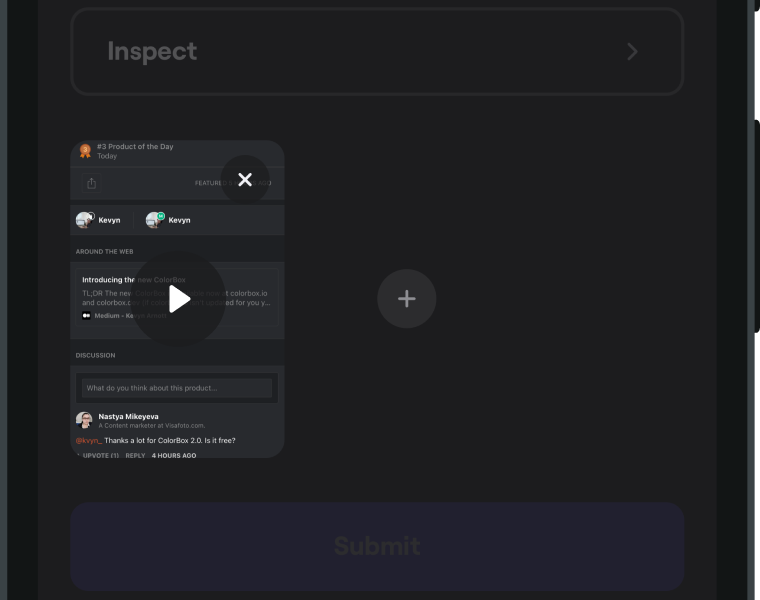
| |
| - |
Duration of the auto-attached screen recording is 15 seconds.
## Privacy[](#privacy "Direct link to Privacy")
With this feature turned on, a system dialog will ask your testers if they want to allow your app to start capturing everything that's displayed on their screen.
Screen recording is automatically paused when your app goes to background so no third-party data is ever recorded.
Visit [Protect sensitive data](/docs/android/configuration-and-data/manage-sensitive-data.md#auto-screen-recording) to learn how to hide sensitive data from the auto screen recording.
---
# Auto screenshot
> When Shake's New ticket screen is invoked, a screenshot is automatically attached to it.
You're viewing the Android docs. Other platforms → [iOS](/docs/ios/configuration-and-data/auto-screenshot.md) [React Native](/docs/react/configuration-and-data/auto-screenshot.md) [Flutter](/docs/flutter/configuration-and-data/auto-screenshot.md)
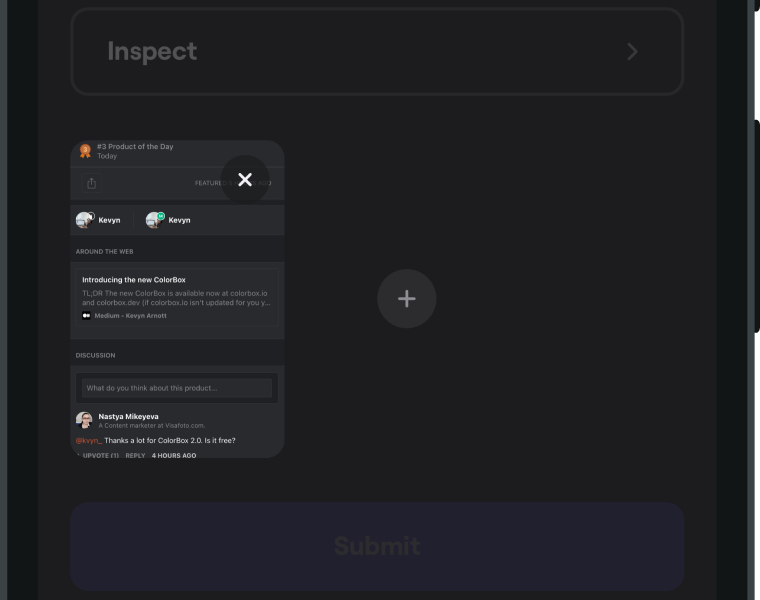
| |
| - |
note
Jetpack Compose is a declarative UI toolkit, a paradigm shift from the current View system. On devices with OS older than Android O, Shake will capture Jetpack Compose screens but not the LazyColumn, LazyRow, Scaffold and Shapes components. On devices with Android O and newer, Shake will capture those components too, if they are not in a dialog.
## Disable[](#disable "Direct link to Disable")
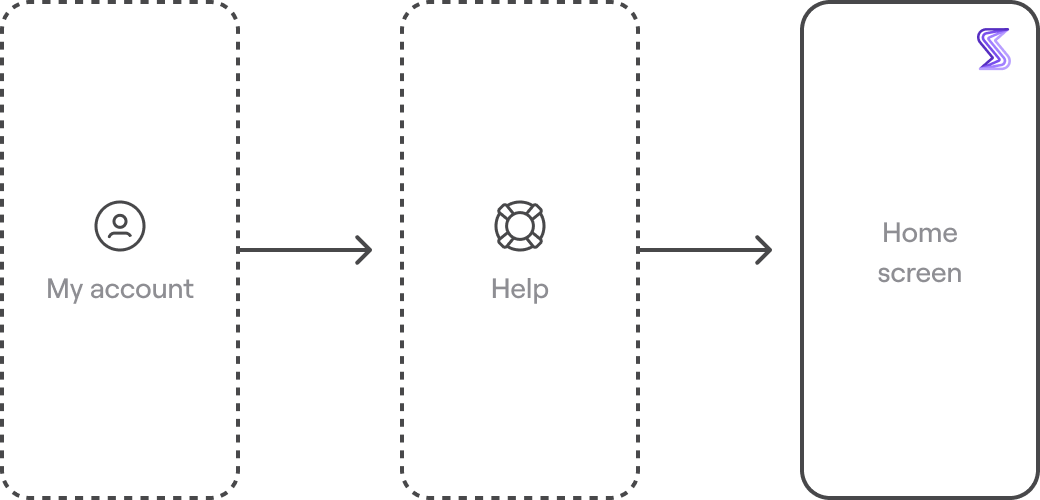
Imagine a case where you leave the auto screenshot enabled and you set up Shake in a way that your users report all their issues and suggestions only by visiting **My account → Help** in your app. Since Shake would always be invoked from that same place, every ticket your users send you would always have the identical screenshot attached. That would be both confusing and useless.
| |
| - |
Disable auto screenshot using the following snippet:
* Java
* Kotlin
App.java
```
Copy
Shake.getReportConfiguration().setScreenshotIncluded(false);
```
App.kt
```
Copy
Shake.getReportConfiguration().isScreenshotIncluded = false
```
## Privacy[](#privacy "Direct link to Privacy")
Visit [Protect sensitive data](/docs/android/configuration-and-data/manage-sensitive-data.md#views) to learn how to easily mark any view as private so it's automatically deleted from the auto screenshot.
---
# Black box
> Just like before an airplane crash, Shake records a detailed environment profile giving you an insight into the last 60 seconds before the ticket was submitted.
You're viewing the Android docs. Other platforms → [iOS](/docs/ios/configuration-and-data/black-box.md) [React Native](/docs/react/configuration-and-data/black-box.md) [Flutter](/docs/flutter/configuration-and-data/black-box.md)
## Automatically recorded charts[](#automatically-recorded-charts "Direct link to Automatically recorded charts")
### Device memory usage[](#device-memory-usage "Direct link to Device memory usage")
This line chart (visible in every ticket on your [Shake dashboard](https://app.shakebugs.com/)) shows the device's total memory usage. When you hover over the chart, the usage percentage and the exact memory usage over the total amount of memory available are shown. For example:
* 9% • 224 out of 2464 MB
Device memory usage is captured every 0.5 seconds.
### App memory usage[](#app-memory-usage "Direct link to App memory usage")
This line chart shows your app's memory usage. When you hover over the chart, the total memory usage of your app is shown. For example:
* 122 MB
Your app's memory usage is captured every 0.5 seconds.
### Disk space usage[](#disk-space-usage "Direct link to Disk space usage")
This line chart shows your device's disk space usage. When you hover over the chart, the percentage of free disk space on your device is shown. For example:
* 51%
Your device's disk space usage is captured every 0.5 seconds.
### Network[](#network "Direct link to Network")
This chart shows the connectivity details of the device. When you hover over the chart, connectivity details are shown. For example:
* WiFi • Office\_Network\_Name
* Cellular 3G
* Offline
Device connectivity details are captured every 2 seconds.
### Device orientation[](#device-orientation "Direct link to Device orientation")
This chart shows the orientation state of your app. When you hover over the chart, the exact state is shown. For example:
* Portrait
* Landscape
App orientation is captured every 2 seconds.
### Battery level[](#battery-level "Direct link to Battery level")
This chart shows the battery level of your app. When you hover over the chart, the exact level is shown. For example:
* 50%
Battery level is captured every 2 seconds.
## Disable[](#disable "Direct link to Disable")
The Black box is enabled by default. Use the method below to disable it, if you prefer:
* Java
* Kotlin
App.java
```
Copy
Shake.getReportConfiguration().setEnableBlackBox(false);
```
App.kt
```
Copy
Shake.getReportConfiguration().isEnableBlackBox = false
```
---
# Callbacks
> Execute a block of a code when a certain action is executed by Shake
You're viewing the Android docs. Other platforms → [iOS](/docs/ios/configuration-and-data/callbacks.md) [React Native](/docs/react/configuration-and-data/callbacks.md) [Flutter](/docs/flutter/configuration-and-data/callbacks.md)
## Shake open callback[](#shake-open-callback "Direct link to Shake open callback")
If you want to perform an action when Shake interface is **opened**, you can do it like shown below:
* Java
* Kotlin
App.java
```
Copy
Shake.getReportConfiguration().setShakeOpenListener(new ShakeOpenListener() {
@Override
public void onShakeOpen() {
Log.i("Shake", "onShakeOpen");
}
});
```
App.kt
```
Copy
Shake.getReportConfiguration().shakeOpenListener = object : ShakeOpenListener {
override fun onShakeOpen() {
Log.i("Shake", "onShakeOpen")
}
}
```
## Shake dismiss callback[](#shake-dismiss-callback "Direct link to Shake dismiss callback")
If you want to perform an action when Shake interface is **closed**, you can do it like shown below:
* Java
* Kotlin
App.java
```
Copy
Shake.getReportConfiguration().setShakeDismissListener(new ShakeDismissListener() {
@Override
public void onShakeDismiss() {
Log.i("Shake", "onShakeDismiss");
}
});
```
App.kt
```
Copy
Shake.getReportConfiguration().shakeDismissListener = object : ShakeDismissListener {
override fun onShakeDismiss() {
Log.i("Shake", "onShakeDismiss")
}
}
```
## Shake submit callback[](#shake-submit-callback "Direct link to Shake submit callback")
To detect when user **pressed a submit button** on the New ticket screen or **New chat** button on the Home screen, add a submit listener like in the example below.
This listener provides **type** and **fields** parameters:
* reportType: **String** - "crash", "feedback" or "chat" depending on the type of the ticket
* fields: **Map\** - key value pairs of submitted form fields
- Java
- Kotlin
App.java
```
Copy
Shake.getReportConfiguration().setShakeSubmitListener(new ShakeSubmitListener() {
@Override
public void onShakeSubmit(@NonNull String reportType, @NonNull Map fields) {
Log.i("Shake", "onShakeSubmit");
}
});
```
App.kt
```
Copy
Shake.getReportConfiguration().shakeSubmitListener = object : ShakeSubmitListener {
override fun onShakeSubmit(reportType: String, fields: Map) {
Log.i("Shake", "onShakeSubmit")
}
}
```
---
# Custom branding
> This feature enables you to customize the look and feel of the Shake SDK. You can reflect your brand's identity by modifying colors, fonts, and other attributes of screen elements.
You're viewing the Android docs. Other platforms → [iOS](/docs/ios/configuration-and-data/custom-branding.md) [React Native](/docs/react/configuration-and-data/custom-branding.md) [Flutter](/docs/flutter/configuration-and-data/custom-branding.md) [Web](/docs/web/configuration-and-data/custom-branding.md)
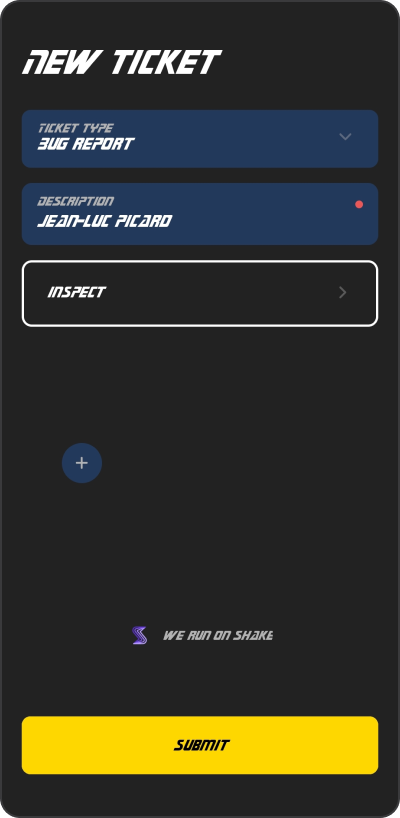
Star Trek style
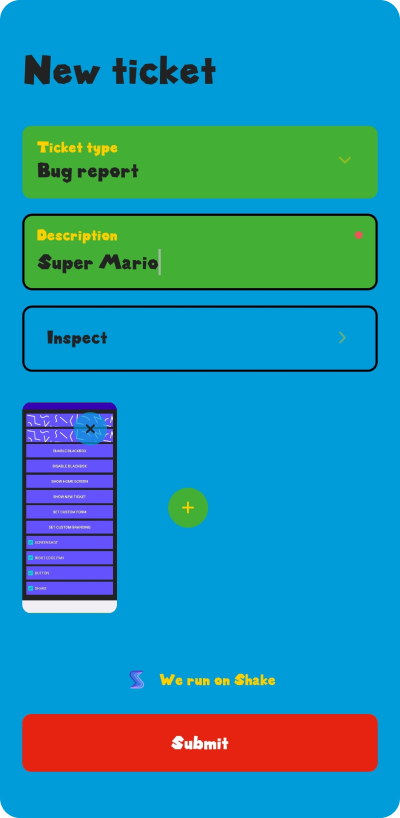
Super Mario vibes
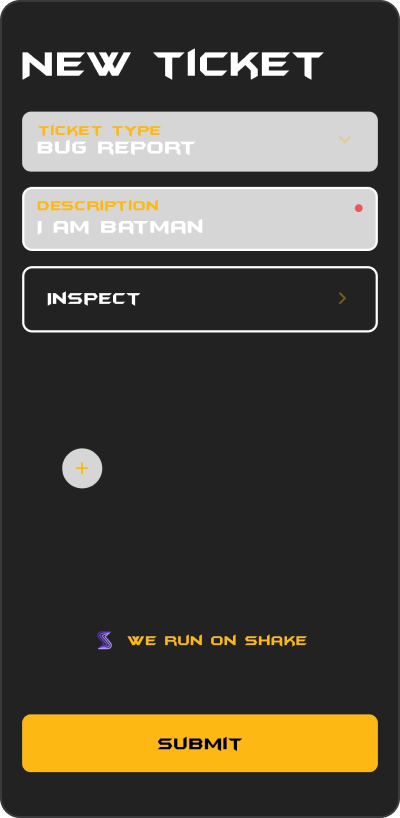
Batman UI
## Setting up a custom theme[](#setting-up-a-custom-theme "Direct link to Setting up a custom theme")
Use *ShakeTheme* instance to customize appearance of the Shake screens. Here is an example how you can create and set a new Shake theme:
* Java
* Kotlin
App.java
```
Copy
ShakeTheme shakeTheme = new ShakeTheme(
R.font.font_medium,
R.font.font_bold,
R.color.background_color,
R.color.secondary_background_color,
R.color.text_color,
R.color.secondary_text_color,
R.color.accent_color,
R.color.accent_text_color,
R.color.outline_color,
R.dimen.border_radius,
R.dimen.card_elevation
);
Shake.getReportConfiguration().setTheme(shakeTheme);
```
App.kt
```
Copy
val shakeTheme = ShakeTheme(
R.font.font_medium,
R.font.font_bold,
R.color.background_color,
R.color.secondary_background_color,
R.color.text_color,
R.color.secondary_text_color,
R.color.accent_color,
R.color.accent_text_color,
R.color.outline_color,
R.dimen.border_radius,
R.dimen.card_elevation
)
Shake.getReportConfiguration().theme = shakeTheme
```
### Dark and light mode[](#dark-and-light-mode "Direct link to Dark and light mode")
If you want to create a different appearance for the dark and light mode, you should use resources like shown below:
* Dark
* Light
values-night/colors.xml
```
Copy
...
#FFFFFF
```
values/colors.xml
```
Copy
...
#000000
```
## Changing the default theme[](#changing-the-default-theme "Direct link to Changing the default theme")
Sometimes you'll want to change just a specific color from the default theme. Let's say you want to change the default accent color on the screens but wants to keep all other default colors.
You can do it like shown in the example below:
* Java
* Kotlin
App.java
```
Copy
Shake.getReportConfiguration().getTheme().setAccentColor(R.color.accent_color);
```
App.kt
```
Copy
Shake.getReportConfiguration().theme.accentColor = R.color.accent_color
```
---
# Custom forms
> Learn how to create or modify a form displayed on the [New ticket screen](/docs/android/shake-ui/new-ticket-screen.md).
You're viewing the Android docs. Other platforms → [iOS](/docs/ios/configuration-and-data/custom-forms.md) [React Native](/docs/react/configuration-and-data/custom-forms.md) [Flutter](/docs/flutter/configuration-and-data/custom-forms.md) [Web](/docs/web/configuration-and-data/custom-forms.md)
## Default form[](#default-form "Direct link to Default form")
Shake provides a default feedback and crash reporting form that enables users to submit valuable input to the reported tickets. This pre-designed form includes a variety of useful elements for collecting detailed information from the user.
* **Title** The form requires the user to provide a title for their ticket, ensuring that the issue is shortly described. This field is mandatory, meaning that users cannot submit a ticket without providing a title.
* **Feedback type** Users can also select the type of feedback they are submitting, choosing from a several categories: bug, question, or suggestion. This categorization helps dashboard users to quickly identify and prioritize tickets based on their type.
* **Inspect button** In addition, users have the option to inspect the data collected by the Shake by clicking the Inspect button. This feature provides users with an overview of the information they have submitted and helps to ensure that all the necessary details have been provided.
* **Attachments** The form includes the option to attach additional files, such as screenshots or video recordings, to the ticket. This allows users to provide more detailed information about the issue they are reporting and can help support devs to quickly identify and resolve the problem.
## Custom form[](#custom-form "Direct link to Custom form")
Depending on your requirements, you may want to customize the form to collect additional or specific data from your users. Shake offers several customizable elements that can be added to the Shake form:
* **[Title](#title)** This element allows users to provide a short and descriptive title for their ticket, helping to quickly identify and understand the nature of the submission.
* **[Text input](#text-input)** This element captures additional information beyond the title, allowing users to provide more detailed information about their submission. This can include descriptions, comments, or other relevant details.
* **[Email input](#email-input)** This element accepts email input only, allowing users to provide their email address for follow-up communication or account verification. This can be particularly useful when addressing account-specific issues or when users want to be kept up-to-date on the status of their submission.
* **[Picker](#picker)** This element allows you to define a set of options for the user to select from, helping to streamline the submission process and ensure that submissions are properly categorized for easier management and resolution.
* **[Inspect button](#inspect-button)** This element lets users easily review and verify the data they have provided for their submission, helping to reduce the need for follow-up questions and ensure that all necessary information has been included.
* **[Attachments](#attachments)** This element allows users to attach files or other relevant materials to their submission, providing additional context and information to help facilitate resolution. This can include images, videos, documents, or other relevant files.
note
Note that the Title, Inspect button, and Attachments elements can only be added to the form one-time. If multiple instances of these components are included, only the first instance will be displayed on the screen
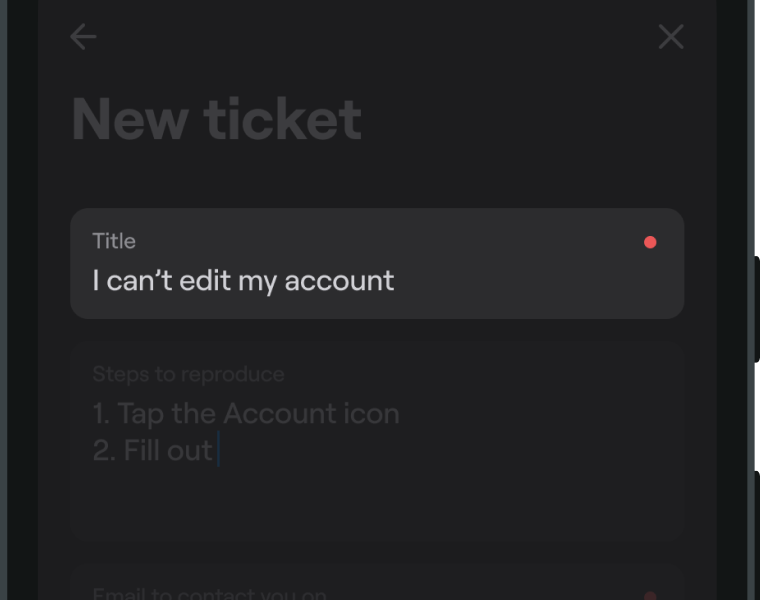
### Title[](#title "Direct link to Title")
| |
| - |
A component that lets users provide a short and descriptive title for their issue or request.
Properties:
* key **String** - represents element on the Shake dashboard
* label **Int** - user facing label, resource id
* initialValue **String** - initial input value
* required **Bool** - if true, user can't submit the ticket while the input is empty
Example:
* Java
* Kotlin
App.java
```
Copy
ShakeTitle title = new ShakeTitle("Title", R.string.shake_title_label, "", true);
```
App.kt
```
Copy
val title = ShakeTitle(key = "Title", label = R.string.shake_title_label, initialValue = "", required = true)
```
note
Here's a tip that quality assurance teams often find helpful. If *#some #hashtags* are added anywhere in the title, they will automatically become tags on your [Shake dashboard](https://app.shakebugs.com/).
### Text input[](#text-input "Direct link to Text input")
| |
| - |
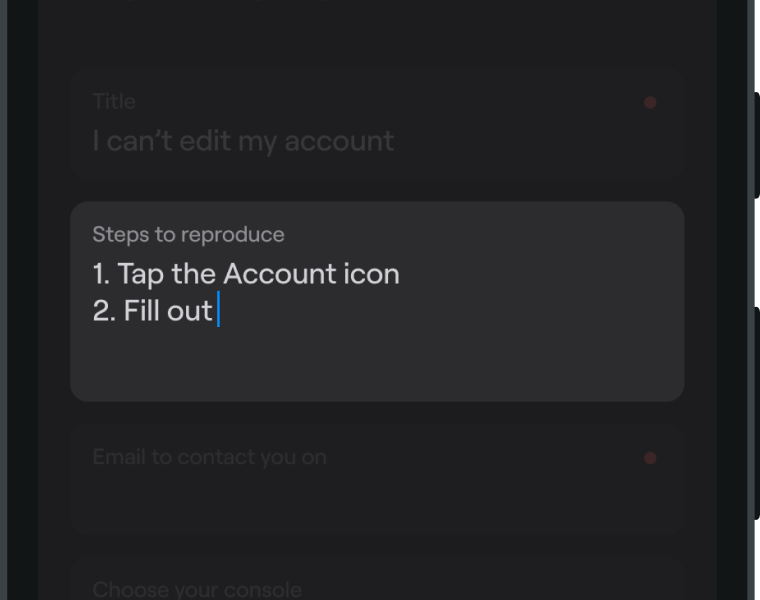
This element allows your users to leave textual input with the ticket they're submitting.
Properties:
* key **String** - represents element on the Shake dashboard
* label **Int** - user facing label, resource id
* initialValue **String** - initial input value
* required **Bool** - if true, user can't submit the ticket while the input is empty
Example:
* Java
* Kotlin
App.java
```
Copy
ShakeTextInput description = new ShakeTextInput("Steps to reproduce", R.string.shake_desc_label, "", false);
```
App.kt
```
Copy
val description = ShakeTextInput(key = "Steps to reproduce", label = R.string.shake_desc_label, initialValue = "", required = false)
```
### Email input[](#email-input "Direct link to Email input")
| |
| - |
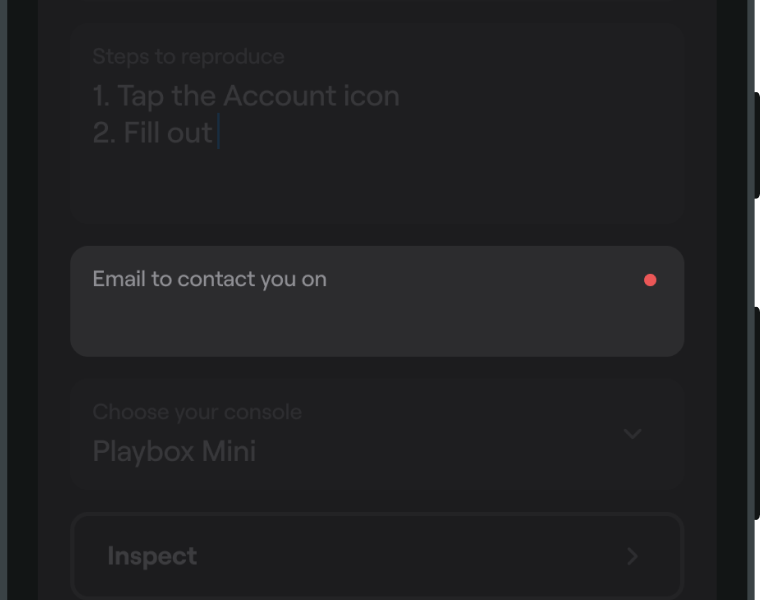
This element allows your users to leave email address with the ticket they're submitting.
Properties:
* key **String** - represents element on the Shake dashboard
* label **Int** - user facing label, resource id
* initialValue **String** - initial input value
* required **Bool** - if true, user can't submit the ticket while the input is empty
Example:
* Java
* Kotlin
App.java
```
Copy
ShakeEmail email = new ShakeEmail("Email to contact you on", R.string.shake_email_label, "", true);
```
App.kt
```
Copy
val email = ShakeEmail(key = "Email to contact you on", label = R.string.shake_email_label, initialValue = "", required = true)
```
### Picker[](#picker "Direct link to Picker")
| |
| - |
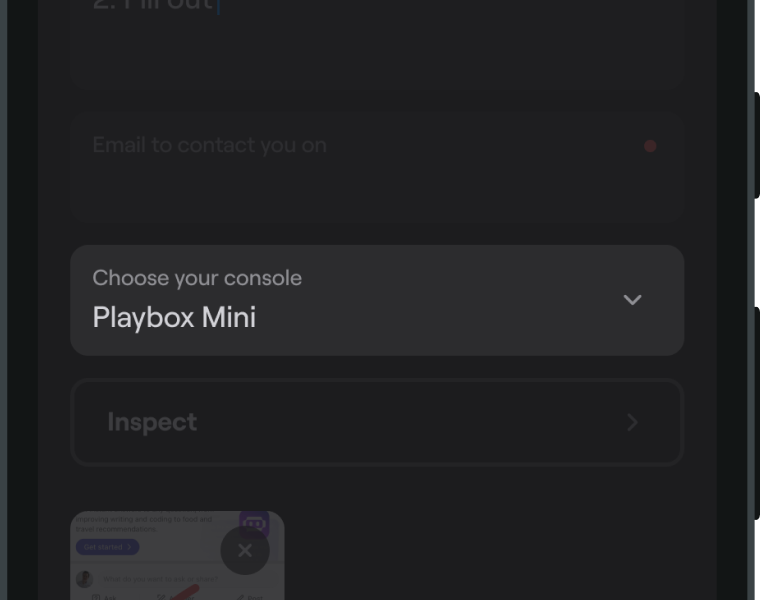
This element enables your users to select an option from a pre-defined list of choices.
#### Picker item[](#picker-item "Direct link to Picker item")
Properties:
* key **String** - represents element on the Shake dashboard
* text **Int** - user facing label, resource id
* icon **Int** - represents picker item icon, resource id
* tag **String** - if item is selected, tag will be automatically added to the ticket
Example:
* Java
* Kotlin
App.java
```
Copy
ShakePickerItem item = new ShakePickerItem("Playbox Mini", R.string.playbox_mini, R.drawable.ic_playbox_mini, "playbox-mini");
```
App.kt
```
Copy
val item = ShakePickerItem(key = "Playbox Mini", text = R.string.playbox_mini, icon = R.drawable.ic_playbox_mini, tag = "playbox-mini")
```
#### Picker[](#picker-1 "Direct link to Picker")
Properties:
* key **String** - represents element on the Shake dashboard
* label **Int** - user facing label, resource id
* items **List** - list of items in the picker
Example:
* Java
* Kotlin
App.java
```
Copy
ShakePicker picker = new ShakePicker("Choose your console", R.string.shake_picker_label, items);
```
App.kt
```
Copy
val picker = ShakePicker(key = "Choose your console", label = R.string.shake_picker_label, items = items)
```
### Inspect button[](#inspect-button "Direct link to Inspect button")
| |
| - |
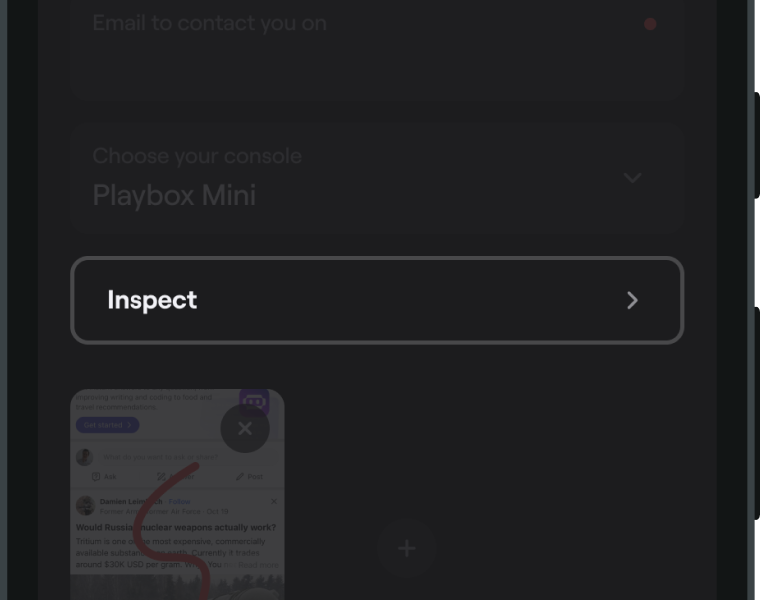
This element allows your users to inspect ticket data, tapping it takes them to the [Inspect section](/docs/android/shake-ui/inspect-section.md).
Example:
* Java
* Kotlin
App.java
```
Copy
ShakeInspectButton inspectButton = new ShakeInspectButton();
```
App.kt
```
Copy
val inspectButton = ShakeInspectButton()
```
### Attachments[](#attachments "Direct link to Attachments")
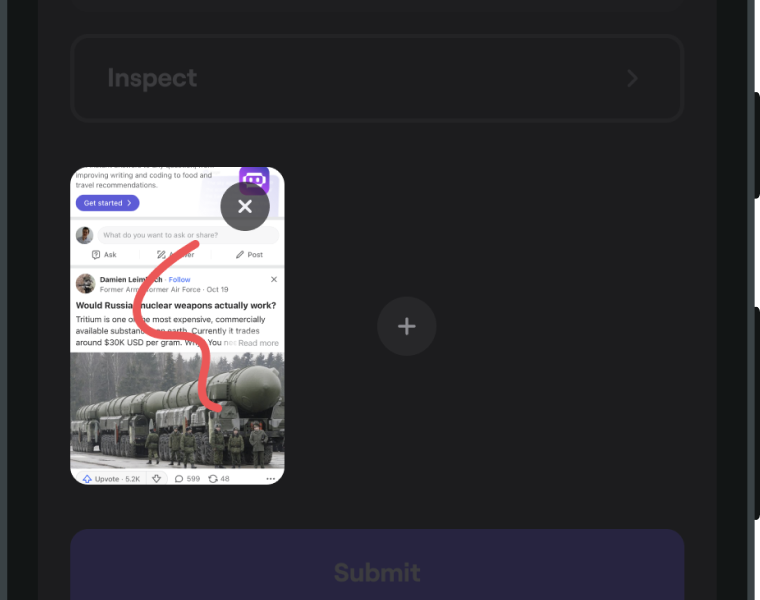
| |
| - |
This element allows your users to attach additional images, videos or files to the ticket.
Example:
* Java
* Kotlin
App.java
```
Copy
ShakeAttachments attachments = new ShakeAttachments();
```
App.kt
```
Copy
val attachments = ShakeAttachments()
```
## Examples[](#examples "Direct link to Examples")
### Creating a custom form[](#creating-a-custom-form "Direct link to Creating a custom form")
The code snippet below provides an example of how to create a custom form with a range of useful elements
* Title
* Description (Text input)
* Email (Email input)
* Category (Picker)
* Inspect button
* Attachments
The Title and Description fields are required and cannot be left blank, while the Email field is optional and includes a predefined value that users can modify or delete as needed. The Category field allows users to select a category for their ticket, which creates a corresponding tag to help with organization and management. The Inspect button allows users to easily review and verify the data they have provided for their submission, while the Attachments enables users to upload additional files or other materials to provide context and support their submission.
* Java
* Kotlin
App.java
```
Copy
ShakeTitle title = new ShakeTitle("Title", R.string.shake_form_title, "", true);
ShakeTextInput desc = new ShakeTextInput("Description", R.string.shake_form_desc, "", true);
ShakeEmail email = new ShakeEmail("Email", R.string.shake_form_email, "john.doe@gmail.com", false);
ShakePickerItem[] pickerItems = new ShakePickerItem[]{
new ShakePickerItem("Bug", R.string.bug_text, R.drawable.ic_bug, "bug"),
new ShakePickerItem("Suggestion", R.string.suggestion_text, R.drawable.ic_suggestion, "suggestion"),
new ShakePickerItem("Question", R.string.question_text, R.drawable.ic_question, "question")
};
ShakePicker picker = new ShakePicker("Feedback type", R.string.shake_form_picker, Arrays.asList(pickerItems));
ShakeInspectButton inspect = new ShakeInspectButton();
ShakeAttachments attachments = new ShakeAttachments();
List components = Arrays.asList(title, desc, email, picker, inspect, attachments);
ShakeForm form = new ShakeForm(components);
Shake.getReportConfiguration().setShakeForm(form);
```
App.kt
```
Copy
val title = ShakeTitle(key = "Title", label = R.string.shake_form_title, required = true)
val desc = ShakeTextInput(key = "Description", label = R.string.shake_form_desc, required = true)
val email = ShakeEmail(key = "Email", label = R.string.shake_form_email, initialValue = "john.doe@gmail.com")
val pickerItems = mutableListOf(
ShakePickerItem(key = "Bug", text = R.string.bug_text, icon = R.drawable.ic_bug, tag = "bug"),
ShakePickerItem(key = "Suggestion", text = R.string.suggestion_text, icon = R.drawable.ic_suggestion, tag = "suggestion"),
ShakePickerItem(key = "Question", text = R.string.question_text, icon = R.drawable.ic_question, tag = "question")
)
val picker = ShakePicker(key = "Feedback type", label = R.string.shake_form_picker, items = pickerItems)
val inspect = ShakeInspectButton()
val attachments = ShakeAttachments()
val components = mutableListOf(title, desc, email, picker, inspect, attachments)
val form = ShakeForm(components)
Shake.getReportConfiguration().shakeForm = form
```
### Using multiple custom forms[](#using-multiple-custom-forms "Direct link to Using multiple custom forms")
Sometimes, you’ll want to display different Shake forms for different use cases within your app. For example, you might want to show one form layout when the user taps the **Report a bug** button, and a different layout when they tap the **Send feedback** button.
You can accomplish this using Shake’s custom forms, as shown in the example below:
* Java
* Kotlin
MainActivity.java
```
Copy
private void onBugReportClick() {
ShakeTitle title = new ShakeTitle("title", R.string.shake_form_title, "", true);
ShakeTextInput repro = new ShakeTextInput("repro", R.string.shake_form_repro, "", true);
ShakeEmail email = new ShakeEmail("email", R.string.shake_form_email, "john.doe@gmail.com", false);
List components = Arrays.asList(title, repro, email);
ShakeForm form = new ShakeForm(components);
Shake.getReportConfiguration().setShakeForm(form);
}
private void onSendFeedbackClick() {
ShakeTitle title = new ShakeTitle("title", R.string.shake_form_title, "", true);
ShakeTextInput like = new ShakeTextInput("like", R.string.shake_form_what_do_you_like, "", true);
ShakeTextInput dislike = new ShakeTextInput("dislike", R.string.shake_form_what_do_you_dislike, "", true);
ShakeEmail email = new ShakeEmail("email", R.string.shake_form_email, "john.doe@gmail.com", false);
List components = Arrays.asList(title, like, dislike, email);
ShakeForm form = new ShakeForm(components);
Shake.getReportConfiguration().setShakeForm(form);
}
```
MainActivity.kt
```
Copy
private fun onBugReportClick() {
val title = ShakeTitle(key = "title", label = R.string.shake_form_title, required = true)
val repro = ShakeTextInput(key = "repro", label = R.string.shake_form_repro, required = true)
val email = ShakeEmail(key = "email", label = R.string.shake_form_email, initialValue = "john.doe@gmail.com")
val components = mutableListOf(title, repro, email)
val form = ShakeForm(components)
Shake.getReportConfiguration().shakeForm = form
}
private fun onSendFeedbackClick() {
val title = ShakeTitle(key = "title", label = R.string.shake_form_title, required = true)
val like = ShakeTextInput(key = "like", label = R.string.shake_form_what_do_you_like, required = true)
val dislike = ShakeTextInput(key = "dislike", label = R.string.shake_form_what_do_you_dislike, required = true)
val email = ShakeEmail(key = "email", label = R.string.shake_form_email, initialValue = "john.doe@gmail.com")
val components = mutableListOf(title, like, dislike, email)
val form = ShakeForm(components)
Shake.getReportConfiguration().shakeForm = form
}
```
### Change default feedback type[](#change-default-feedback-type "Direct link to Change default feedback type")
By default, the Shake form’s feedback type picker is set to **Bug**. However, you can change this to any other feedback type you prefer.
For example, if you want to set **Suggestion** as the default option instead of **Bug**, you can do it like this:
* Java
* Kotlin
App.java
```
Copy
ShakeForm shakeForm = Shake.getReportConfiguration().getShakeForm();
for (ShakeFormComponent component : shakeForm.getComponents()) {
if (component instanceof ShakePicker) {
ShakePicker picker = (ShakePicker) component;
// bug=0,suggestion=1,question=2
ShakePickerItem tmpItem = picker.getItems().get(0);
picker.getItems().set(0, picker.getItems().get(1));
picker.getItems().set(1, tmpItem);
}
}
```
App.kt
```
Copy
val shakeForm = Shake.getReportConfiguration().shakeForm
for (component in shakeForm.components) {
if (component is ShakePicker) {
// bug=0,suggestion=1,question=2
val tmpItem = component.items[0]
component.items[0] = component.items[1]
component.items[1] = tmpItem
}
}
```
### Creating a form translated to different languages[](#creating-a-form-translated-to-different-languages "Direct link to Creating a form translated to different languages")
The following code snippet is an example of how to create a custom form that includes elements with labels translated into different languages.
To achieve this, you can leverage resources strings, which are supported by the platform you are working on. For instance, you may want to have a text input for a required ticket title, as well as a text input for required reproduction steps where the user can describe how they encountered a bug.
**shake\_form\_title** and **shake\_form\_repro** are defined as strings in the resource files. Each language has its own resource file, and the system will automatically load the correct file depending on the language settings on the user's phone.
By utilizing resources strings, you can provide a seamless and localized experience for your users, regardless of their language preferences.
* Java
* Kotlin
App.java
```
Copy
ShakeTitle title = new ShakeTitle("Title", R.string.shake_form_title, "", true);
ShakeTextInput repro = new ShakeTextInput("Reproduction steps", R.string.shake_form_repro, "", true);
List components = Arrays.asList(title, repro);
ShakeForm form = new ShakeForm(components);
Shake.getReportConfiguration().setShakeForm(form);
```
App.kt
```
Copy
val title = ShakeTitle(key = "Title", label = R.string.shake_form_title, required = true)
val repro = ShakeTextInput(key = "Reproduction steps", label = R.string.shake_form_repro, required = true)
val components = mutableListOf(title, repro)
val form = ShakeForm(components)
Shake.getReportConfiguration().shakeForm = form
```
### Removing Inspect button from the default form[](#removing-inspect-button-from-the-default-form "Direct link to Removing Inspect button from the default form")
If you like the default form but want to make some modifications, you can easily do so by editing the Shake default form. For example, you may wish to remove the Inspect button from the default form to prevent users from inspecting the ticket data, while keeping the other form elements intact.
* Java
* Kotlin
App.java
```
Copy
ShakeForm shakeForm = Shake.getReportConfiguration().getShakeForm();
ListIterator iterator = shakeForm.getComponents().listIterator();
while(iterator.hasNext()) {
ShakeFormComponent component = iterator.next();
if (component instanceof ShakeInspectButton) {
iterator.remove();
}
}
```
App.kt
```
Copy
val shakeForm = Shake.getReportConfiguration().shakeForm
val iterator = shakeForm.components.listIterator()
while (iterator.hasNext()) {
val component = iterator.next()
if (component is ShakeInspectButton) {
iterator.remove()
}
}
```
---
# Data attached by default
> This is the data Shake automatically attaches to every ticket you receive, whether it's user feedback or a crash report. All of this is done out of the box, you don't need to code anything.
You're viewing the Android docs. Other platforms → [iOS](/docs/ios/configuration-and-data/data-attached-by-default.md) [React Native](/docs/react/configuration-and-data/data-attached-by-default.md) [Flutter](/docs/flutter/configuration-and-data/data-attached-by-default.md) [Web](/docs/web/configuration-and-data/data-attached-by-default.md) [Chrome extension](/docs/chrome-extension/configuration-and-data/data-attached-by-default.md)
## Automatically attached[](#automatically-attached "Direct link to Automatically attached")

Time when the ticket was reported

Device OS

Device model

Location

Your app version

Connectivity details

NFC status

Font scale

Screen the ticket was reported from

Time zone

Battery status

Memory status

Screen resolution

Screen orientation

Locale

Low power mode

Storage status

Authentication to unlock device

Screen density

Timeline of app lifecycle events

Timeline of console logs

Crash report stack trace

Granted dangerous permissions 1
1 Shake tracks the status of these runtime permissions, also known as dangerous permissions:
* CALENDAR
* CALL\_LOG
* CAMERA
* CONTACTS
* LOCATION
* MICROPHONE
* PHONE
* SENSORS
* SMS
* STORAGE
On your Shake dashboard, only those permissions that the user has granted access to are listed. The ones you don't see were either denied or not requested at all.
## Attach more data[](#attach-more-data "Direct link to Attach more data")
If you want Shake to attach custom data to your tickets, you can do that as well. Read about attaching your own variables to tickets with [Ticket metadata](/docs/android/configuration-and-data/ticket-metadata.md).
Do you also want to attach files to tickets programmatically? Visit [Auto attach files](/docs/android/configuration-and-data/auto-attach-files.md).
## Limitations[](#limitations "Direct link to Limitations")
On Android 8.0 and higher it's not possible to get the **name** of the Wi-Fi the device is connected to. If that info is important to you, add the following permissions to your app's `AndroidManifest.xml` file:
AndroidManifest.xml
```
Copy
```
You also have to request **location** permission from the user, and their **location services** have to be turned on while reporting a ticket.
More info on this Android system limitation can be found in the [Wi-Fi scanning overview](https://developer.android.com/guide/topics/connectivity/wifi-scan) guide.
---
# Data privacy disclosure
> When users send you tickets, Shake "magically" and automatically captures a lot of other data, too. Although it feels like magic, it's not. We want you to fully understand and control it.
You're viewing the Android docs. Other platforms → [iOS](/docs/ios/configuration-and-data/data-privacy-disclosure.md) [React Native](/docs/react/configuration-and-data/data-privacy-disclosure.md) [Flutter](/docs/flutter/configuration-and-data/data-privacy-disclosure.md) [Web](/docs/web/configuration-and-data/data-privacy-disclosure.md) [Chrome extension](/docs/chrome-extension/configuration-and-data/data-privacy-disclosure.md)
## Collected data[](#collected-data "Direct link to Collected data")
| Data | Attributes and sensitivity | Description |
| --------------------------------------------------------------------------------- | ------------------------------ | ------------------------------------------------------------------------------------------------------------------------------------------------------------------------------------------------------------------------------------------------------------------------------------------------------------------------------------------------------------------------------------------------------------------------------------------------------------------------------------------------------------------------------------------------------------------------------------------------------------------------------------------------------------------------------------------------------------------------------------------------------------------------------------------------------------------------------ |
| Phone number | | Not collected. |
| Name | | Not collected. |
| Email address | | Not collected. |
| Physical address | | Not collected. |
| Other contact information | | Not collected. |
| Health or fitness data | | Not collected. |
| Payment, credit or other financial info | | Not collected. |
| Precise or coarse location | | Not collected. |
| Sensitive info | | Not collected. |
| User's contacts, emails or text messages | | Not collected. |
| Photos, videos or other user's files | Optional May contain PII | Shake does not automatically collect the contents of the user Gallery or similar locations. However, keep in mind that your users can decide to attach any of their files by browsing their device themselves, and those files could contain PII. |
| Audio or gameplay data | | Not collected. |
| Customer support or other user content | | Not collected. |
| Browsing, purchase or search history | | Not collected. |
| Device ID | Non-PII | Bundle identifier, DeviceID, platform and operating system. Not used for advertising. |
| Product interaction | Optional May contain PII | Shake's [Activity history](/docs/android/configuration-and-data/activity-history.md) shows a timeline of all user actions (every tap, swipe, pan), their network requests (request header and body, response header and body), system events (app status changes), view controller changes (the user navigating your app), push notifications that arrive, custom logs and application console logs. Shake SDK [automatically deletes as much PII as possible](/docs/android/configuration-and-data/manage-sensitive-data.md#automatically-redacted-sensitive-data) on the mobile device itself. It also [gives you additional methods](/docs/android/configuration-and-data/manage-sensitive-data.md) to manage, delete and obfuscate any potential PII on the mobile device itself before anything is sent to Shake servers. |
| Advertising data | | Not collected. |
| Other usage data | | Not collected. |
| Crash data | Optional Non-PII | Shake's [Crash reporting](/docs/android/crash-reports/overview.md) module. You can disable it. |
| Performance data | Optional Non-PII | Shake's [Black box](/docs/ios/configuration-and-data/black-box.md) can show you the last 60 seconds of device memory usage, your app memory usage, network connectivity changes, device orientation and the CPU levels. You can also disable it. |
| Other diagnostic data | Non-PII | Collected. |
| [Screenshot](/docs/android/configuration-and-data/auto-screenshot.md) | Optional May contain PII | A screenshot of the user's screen at the moment Shake is invoked. You can avoid capturing PII on the screenshot by [marking sensitive views as private](/docs/ios/configuration-and-data/manage-sensitive-data.md#views). In the case of manual invocation, your users can additionally blur or delete the screenshot before submitting the ticket. |
| [Screen recording](/docs/android/configuration-and-data/auto-screen-recording.md) | Optional May contain PII | Automatically-captured video of what the user did in your app during the last 15 seconds prior to submitting a ticket. It's disabled by default. If you enable it, your users will be asked to allow screen recording first and will have the ability to delete it before submitting the ticket too. Shake doesn't record other apps' content — just yours. Use this optional feature only during internal testing. |
| [Permissions](/docs/android/configuration-and-data/data-attached-by-default.md) | Non-PII | A list of permissions the user has granted to your app. |
| [User email](/docs/android/configuration-and-data/custom-forms.md) | Optional May contain PII | The user that's submitting a ticket enters this data themselves. If you decide you don't want to collect this data, you can hide this field. |
| Time | Non-PII | A timestamp of the moment Shake was invoked. |
| OS | Non-PII | The operating system version of the user’s device. |
| Device | Non-PII | The user device model, Samsung Galaxy S8 for example. |
| App version | Non-PII | The build version of your app, 1.5.42 for example. |
| Network | Non-PII | The network connection type (WiFi, cellular or offline) and name. |
| Current view | Non-PII | The app screen on which Shake was invoked. |
| Timezone | Non-PII | The system settings timezone. |
| City and country | Non-PII | The city from which the ticket was sent. As with any network header on the Internet — that's how the Internet works — Shake SDK's header also contains the sender's IP address. Shake servers read only the request's city (nothing more geographically precise than that), saves that city name and never saves the IP address. Even though some don't consider the IP address PII, we choose to err on the side of caution and want to ensure everyone’s complete safety and security by not saving it. |
| Locale | Non-PII | The system settings locale, en-US for example. |
| Battery status | Non-PII | The battery percentage and whether the device was being charged at that moment. |
| Your app memory usage | Non-PII | How much memory your app was using. |
| Used storage | Non-PII | How much storage is still available on the user's device. |
| Authentication to unlock device | Non-PII | Whether or not the user had to somehow unlock the device to use it, with Touch ID for example. |
| Resolution | Non-PII | The screen width ✕ height in pixels. |
| Orientation | Non-PII | The device orientation at the moment when the feedback was submitted, landscape for example. |
| Density | Non-PII | The screen pixel density, XHDPI for example. |
| Shake SDK | Non-PII | The version of Shake SDK that was used to submit the ticket. |
| [Metadata](/docs/android/configuration-and-data/ticket-metadata.md) | Optional May contain PII | You can send yourself a value of any variable from your app. Use this feature safely and respectfully. |
| [Custom files](/docs/android/configuration-and-data/auto-attach-files.md) | Optional May contain PII | You can prepare and send to yourself any file that you want from your app. Use this feature safely and respectfully. |
## Additional notes[](#additional-notes "Direct link to Additional notes")
You may receive PII if you don't use Shake carefully so please:
* Double-check additional files and data you attach to tickets.
* Openly disclose collected data with the regulating authority, such as the app store.
* [Protect sensitive data](/docs/android/configuration-and-data/manage-sensitive-data.md) to avoid capturing and sending PII to Shake servers.
---
# Home screen
> Shake enables you to customize home screen according to your preferences and needs.
You're viewing the Android docs. Other platforms → [iOS](/docs/ios/configuration-and-data/home-screen.md) [React Native](/docs/react/configuration-and-data/home-screen.md) [Flutter](/docs/flutter/configuration-and-data/home-screen.md)
## Setting up custom actions[](#setting-up-custom-actions "Direct link to Setting up custom actions")
By default, Home screen shows *Submit new ticket* button and *New chat* button at the top of the screen. If you want, you can extend or customize these buttons using the custom actions.
There are several types of actions you can set on the home screen:
* *Custom action* - tap on the custom action executes a custom function
* *Submit new ticket action* - tap on the submit new ticket action start a [new ticket screen](/docs/android/shake-ui/new-ticket-screen.md)
* *Start a new chat action* - tap on the new chat action starts a [chat screen](/docs/android/shake-ui/chat-screen.md)
note
Start a new chat action won't be visible if your app user is not [registered](/docs/android/users/register-user.md).
Here's an example how you can set custom actions on the home screen:
* Java
* Kotlin
App.java
```
void setShakeHomeActions() {
Copy
ShakeHomeAction customAction = new ShakeHomeAction(
R.string.visit_roadmap,
R.string.visit_roadmap_subtitle,
R.drawable.ic_open_link,
() -> {
// Open URL
return null;
});
ShakeHomeAction submitAction = new ShakeHomeSubmitAction(
R.string.submit_ticket,
R.string.submit_ticket_subtitle,
R.drawable.ic_new_ticket,
);
ShakeHomeAction chatAction = new ShakeHomeChatAction(
R.string.start_chat,
R.string.start_chat_subtitle,
R.drawable.ic_new_chat,
);
ArrayList actions = (ArrayList) Arrays.asList(customAction, submitAction, chatAction);
Shake.getReportConfiguration().setHomeActions(actions);
}
```
App.kt
```
fun setShakeHomeActions() {
Copy
val customAction = ShakeHomeAction(
title = R.string.visit_roadmap,
subtitle = R.string.visit_roadmap_subtitle,
icon = R.drawable.ic_open_link,
handler = {
// Open URL
}
)
val submitAction = ShakeHomeSubmitAction(
title = R.string.submit_ticket,
subtitle = R.string.submit_ticket_subtitle,
icon = R.drawable.ic_new_ticket,
)
val chatAction = ShakeHomeChatAction(
title = R.string.start_chat,
subtitle = R.string.start_chat_subtitle,
icon = R.drawable.ic_new_chat,
)
val actions = arrayListOf(customAction, submitAction, chatAction)
Shake.getReportConfiguration().homeActions = actions
}
```
## Changing the home screen subtitle[](#changing-the-home-screen-subtitle "Direct link to Changing the home screen subtitle")
If you want to change subtitle message on the home screen, you can do it using the following method:
* Java
* Kotlin
App.java
```
Copy
Shake.getReportConfiguration().setHomeSubtitle(R.string.shake_home_subtitle);
```
App.kt
```
Copy
Shake.getReportConfiguration().homeSubtitle = R.string.shake_home_subtitle
```
---
# Protect sensitive data
> As with any third-party service, it’s important for you to understand and have the ability to manage what data is sent to Shake servers. Shake SDK allows you to filter out sensitive data on the mobile device itself, so it never reaches the Shake servers.
You're viewing the Android docs. Other platforms → [iOS](/ios/configuration-and-data/manage-sensitive-data/) [React Native](/docs/react/configuration-and-data/manage-sensitive-data.md) [Flutter](/docs/flutter/configuration-and-data/manage-sensitive-data.md) [Web](/docs/web/configuration-and-data/manage-sensitive-data.md)
## Automatically redacted sensitive data[](#automatically-redacted-sensitive-data "Direct link to Automatically redacted sensitive data")
Shake automatically redacts these sensitive data from your notifications, touch events and network requests:
* email addresses
* IP addresses
* credit card numbers
* bearer tokens
Shake also redacts network header values if the header key is:
* password
* secret
* passwd
* api\_key
* apikey
* access\_token
* auth\_token
* credentials
* mysql\_pwd
* stripetoken
* Authorization
* Proxy-Authorization
* card\[number]
* token
To disable this privacy feature, use the method below:
* Java
* Kotlin
App.java
```
Copy
Shake.getReportConfiguration().setSensitiveDataRedactionEnabled(false);
```
App.kt
```
Copy
Shake.getReportConfiguration().isSensitiveDataRedactionEnabled = false
```
## Views[](#views "Direct link to Views")
| |
| - |
You can mark any view as private, and it'll automatically be deleted from the [auto screenshot](/docs/android/configuration-and-data/auto-screenshot.md). Private views are stored as a weak reference. They get cleared from the memory when not used anymore.
note
These methods won't delete sensitive views from auto screen recording — only from the auto screenshot.
Let's suppose you're building a shopping app and you want to delete the name and the credit card number views from the auto screenshot:
* Java
* Kotlin
App.java
```
import android.view.TextView;
Copy
import com.shakebugs.shake.Shake;
private void maskSensitiveData() {
TextView textName = (TextView) findViewById(R.id.text_name);
TextView textCardNumber = (TextView) findViewById(R.id.text_card_number);
Copy
Shake.addPrivateView(textName);
Shake.addPrivateView(textCardNumber);
}
```
App.kt
```
Copy
import com.shakebugs.shake.Shake
import kotlinx.android.synthetic.main.activity_payment.*
private fun maskSensitiveData() {
Copy
Shake.addPrivateView(textName)
Shake.addPrivateView(textCardNumber)
}
```
To remove a view from private views use the following method:
* Java
* Kotlin
App.java
```
Copy
Shake.removePrivateView(view);
```
App.kt
```
Copy
Shake.removePrivateView(view)
```
If you want to delete an entire screen from the auto screenshot, simply mark the whole activity as private:
* Java
* Kotlin
App.java
```
import android.os.Bundle;
import android.view.TextView;
import androidx.appcompat.app.AppCompatActivity;
Copy
import com.shakebugs.shake.Shake;
public class PaymentActivity extends AppCompatActivity {
@Override
protected void onCreate(Bundle savedInstanceState) {
super.onCreate(savedInstanceState);
setContentView(R.layout.activity_payment);
Copy
Shake.addPrivateView(this);
}
...
}
```
App.kt
```
import android.os.Bundle;
import androidx.appcompat.app.AppCompatActivity
Copy
import com.shakebugs.shake.Shake
public class PaymentActivity : AppCompatActivity() {
override fun onCreate(savedInstanceState: Bundle?) {
super.onCreate(savedInstanceState)
setContentView(R.layout.activity_payment)
Copy
Shake.addPrivateView(this)
}
...
}
```
To remove an activity from the list of private views, use the following method:
* Java
* Kotlin
App.java
```
Copy
Shake.removePrivateView(activity);
```
App.kt
```
Copy
Shake.removePrivateView(activity)
```
To clear all the private views, use the following method:
* Java
* Kotlin
App.java
```
Copy
Shake.clearPrivateViews();
```
App.kt
```
Copy
Shake.clearPrivateViews()
```
## Auto screen recording[](#auto-screen-recording "Direct link to Auto screen recording")
Use the Android system flag `FLAG_SECURE` on an activity if you want to prevent sensitive data from being visible on the auto screen recording. It will make the activity black in the video:
* Java
* Kotlin
App.java
```
import android.os.Bundle;
Copy
import android.view.WindowManager;
import androidx.appcompat.app.AppCompatActivity;
public class PaymentActivity extends AppCompatActivity {
@Override
protected void onCreate(Bundle savedInstanceState) {
super.onCreate(savedInstanceState);
setContentView(R.layout.activity_payment);
Copy
getWindow().setFlags(
WindowManager.LayoutParams.FLAG_SECURE,
WindowManager.LayoutParams.FLAG_SECURE);
}
...
}
```
App.kt
```
import android.os.Bundle
Copy
import android.view.WindowManager
import androidx.appcompat.app.AppCompatActivity
public class PaymentActivity : AppCompatActivity() {
override fun onCreate(savedInstanceState: Bundle?) {
super.onCreate(savedInstanceState)
setContentView(R.layout.activity_payment)
Copy
window.setFlags(
WindowManager.LayoutParams.FLAG_SECURE,
WindowManager.LayoutParams.FLAG_SECURE)
}
...
}
```
Visit [Auto screen recording](/docs/android/configuration-and-data/auto-screen-recording.md) to read how to turn it off altogether.
## Jetpack Compose[](#jetpack-compose "Direct link to Jetpack Compose")
In Jetpack Compose, the main building block of the UI is *Composeable* instead of *View*.
If you want to make a specific *Composeable* private, copy the following snippet into your project:
ShakePrivateView\.kt
```
Copy
import androidx.compose.runtime.Composable
import androidx.compose.ui.platform.ComposeView
import androidx.compose.ui.viewinterop.AndroidView
import com.shakebugs.shake.Shake
@Composable
fun ShakePrivateView(content: @Composable () -> Unit) {
AndroidView(
factory = { context ->
ComposeView(context).apply {
Shake.addPrivateView(this)
setContent { content() }
}
}
)
}
```
Use `ShakePrivateView` *Composeable* as shown below:
MainActivity.kt
```
class MainActivity : ComponentActivity() {
override fun onCreate(savedInstanceState: Bundle?) {
super.onCreate(savedInstanceState)
setContent {
ComposeTestTheme {
Surface(color = MaterialTheme.colors.background) {
Copy
ShakePrivateView {
Greeting("Android")
}
}
}
}
}
}
```
In the example above, the *Greeting* component will be removed from the screenshots.
## Touch events[](#touch-events "Direct link to Touch events")
Marking a view as private will automatically delete its touch events' text properties too. Consequently, you'll see them as `data_redacted` strings in ticket's [Activity history](/docs/android/configuration-and-data/activity-history.md). The view's ID, accessibility labels and tags remain visible.
## Network requests[](#network-requests "Direct link to Network requests")
Network requests may contain sensitive data which you may not want to send to Shake servers. Use the `Shake.setNetworkRequestsFilter()` method to obfuscate sensitive parts of those requests, or to entirely prevent certain network requests from being logged. As an example, if you'd like to obfuscate the *Authorization* header in all network requests sent from your app, do this:
* Java
* Kotlin
App.java
```
Copy
import com.shakebugs.shake.Shake;
import com.shakebugs.shake.privacy.NetworkRequestEditor;
import com.shakebugs.shake.privacy.NetworkRequestsFilter;
private void setupNetworkFilter() {
Copy
Shake.setNetworkRequestsFilter(new NetworkRequestsFilter() {
@Override
public NetworkRequestEditor filter(NetworkRequestEditor networkRequest) {
Map headers = networkRequest.getRequestHeaders();
if (headers.containsKey("Authorization")) {
headers.put("Authorization", "***");
}
return networkRequest;
}
});
}
```
App.kt
```
Copy
import com.shakebugs.shake.Shake
private fun setupNetworkFilter() {
Copy
Shake.setNetworkRequestsFilter { networkRequest ->
val headers = networkRequest.requestHeaders
if (headers.containsKey("Authorization")) {
headers["Authorization"] = "***"
}
networkRequest
}
}
```
If you don't want to log specific network requests, return `null` from the `NetworkRequestsFilter` as shown below:
* Java
* Kotlin
App.java
```
Copy
import com.shakebugs.shake.Shake;
import com.shakebugs.shake.privacy.NetworkRequestEditor;
import com.shakebugs.shake.privacy.NetworkRequestsFilter;
private void setupNetworkFilter() {
Copy
Shake.setNetworkRequestsFilter(new NetworkRequestsFilter() {
@Override
public NetworkRequestEditor filter(NetworkRequestEditor networkRequest) {
if (networkRequest.getUrl().startsWith("https://api.myapp.com/cards")) {
return null;
}
return networkRequest;
}
});
}
```
App.kt
```
Copy
import com.shakebugs.shake.Shake
private fun setupNetworkFilter() {
Copy
Shake.setNetworkRequestsFilter { networkRequest ->
if (networkRequest.url.startsWith("https://api.myapp.com/cards")) {
null
} else networkRequest
}
}
```
To clear the network requests filter, use `Shake.setNetworkRequestsFilter(null)`.
## Notification events[](#notification-events "Direct link to Notification events")
If your app notifications contain sensitive data, use the `Shake.setNotificationEventsFilter()` method to fully or partially obfuscate those notifications.
For example, if you'd like to obfuscate the description of the notification event that contains an email, do this:
* Java
* Kotlin
App.java
```
Copy
import com.shakebugs.shake.Shake;
import com.shakebugs.shake.privacy.NotificationEventEditor;
import com.shakebugs.shake.privacy.NotificationEventsFilter;
private void setupNotificationsFilter() {
Copy
Shake.setNotificationEventsFilter(new NotificationEventsFilter() {
@Override
public NotificationEventEditor filter(NotificationEventEditor notificationEvent) {
if (notificationEvent.getTitle().equals("E-mail changed")) {
notificationEvent.setDescription("***@gmail.com");
}
return notificationEvent;
}
});
}
```
App.kt
```
Copy
import com.shakebugs.shake.Shake
import com.shakebugs.shake.privacy.NotificationEventEditor
import com.shakebugs.shake.privacy.NotificationEventsFilter
private fun setupNotificationsFilter() {
Copy
Shake.setNotificationEventsFilter { notificationEvent ->
if (notificationEvent.title == "E-mail changed") {
notificationEvent.description = "***@gmail.com"
}
notificationEvent
}
}
```
If you do not want to track a specific notification event, return `null` from the `NotificationEventsFilter` like below:
* Java
* Kotlin
App.java
```
Copy
import com.shakebugs.shake.Shake;
import com.shakebugs.shake.privacy.NetworkRequestEditor;
import com.shakebugs.shake.privacy.NetworkRequestsFilter;
private void setupNotificationsFilter() {
Copy
Shake.setNotificationEventsFilter(new NotificationEventsFilter() {
@Override
public NotificationEventEditor filter(NotificationEventEditor notificationEvent) {
if (notificationEvent.getTitle().equals("E-mail changed")) {
return null;
}
return notificationEvent;
}
});
}
```
App.kt
```
Copy
import com.shakebugs.shake.Shake
private fun setupNotificationsFilter() {
Copy
Shake.setNotificationEventsFilter { notificationEvent ->
if (notificationEvent.title == "E-mail changed") {
null
} else notificationEvent
}
}
```
To clear the notification events filter, use `Shake.setNotificationEventsFilter(null)`.
---
# Overview
> Customize both the elements of Shake's New ticket screen and the data Shake collects.
You're viewing the Android docs. Other platforms → [iOS](/docs/ios/configuration-and-data/overview.md) [React Native](/docs/react/configuration-and-data/overview.md) [Flutter](/docs/flutter/configuration-and-data/overview.md) [Web](/docs/web/configuration-and-data/overview.md)
## Introduction[](#introduction "Direct link to Introduction")
Whatever you tweak, your configuration settings apply to all Shake modules:
* [Feedback](/docs/android/user-feedback/overview.md)
* [Crashes](/docs/android/crash-reports/overview.md)
## Elements of the New ticket screen[](#elements-of-the-new-ticket-screen "Direct link to Elements of the New ticket screen")
Your users send you their feedback and crash reports from the New ticket screen. Read how to customize it:
* [Custom forms](/docs/android/configuration-and-data/custom-forms.md)
## Collected data[](#collected-data "Direct link to Collected data")
Shake attaches useful data both to user feedback and crash reports. Read all about it:

[Custom forms](/docs/android/configuration-and-data/custom-forms.md)

[Data attached by default](/docs/android/configuration-and-data/data-attached-by-default.md)

[Auto screenshot](/docs/android/configuration-and-data/auto-screenshot.md)
[Auto screen recording](/docs/android/configuration-and-data/auto-screen-recording.md)

[Activity history](/docs/android/configuration-and-data/activity-history.md)

[Black box](/docs/android/configuration-and-data/black-box.md)
[Custom Ticket data](/docs/android/configuration-and-data/ticket-metadata.md)

[Auto attach files](/docs/android/configuration-and-data/auto-attach-files.md)
## Data privacy[](#data-privacy "Direct link to Data privacy")
Decide what needs to stay private and learn everything about data Shake collects:
* [Protect sensitive data](/docs/android/configuration-and-data/manage-sensitive-data.md)
* [Data privacy disclosure](/docs/android/configuration-and-data/data-privacy-disclosure.md)
⚡️ Shake is improved every week. Stumbled upon a [bug](https://feedback.shakebugs.com/bugs)? Want a [new feature](https://feedback.shakebugs.com/feature-requests) to be added? Create new tickets and upvote existing ones on the Public feedback board.
---
# Ticket metadata
> Every app is unique so the [Data attached by default](/docs/android/configuration-and-data/data-attached-by-default.md) sent with each ticket are often not enough. That's why Shake also allows you to automatically attach any custom data from your app to the ticket.
You're viewing the Android docs. Other platforms → [iOS](/docs/ios/configuration-and-data/ticket-metadata.md) [React Native](/docs/react/configuration-and-data/ticket-metadata.md) [Flutter](/docs/flutter/configuration-and-data/ticket-metadata.md) [Web](/docs/web/configuration-and-data/ticket-metadata.md)
## How to use[](#how-to-use "Direct link to How to use")
To set ticket metadata, call `Shake.setMetadata` and pass the data you want to receive on your Shake dashboard as a *String* pair.
note
You can call `Shake.setMetadata` anywhere in your app, but be careful because any subsequent calls with the same *String* key will override the former *String* value.
Let’s say you want to send yourself a roomID after a user successfully joins a chat room. You would do this:
* Java
* Kotlin
App.java
```
public void onChatRoomJoined(Room room) {
Copy
Shake.setMetadata("roomId", room.id);
}
```
App.kt
```
fun onChatRoomJoined(room: Room) {
Copy
Shake.setMetadata("roomId", room.id)
}
```
## Clear Ticket metadata[](#clear-ticket-metadata "Direct link to Clear Ticket metadata")
If you want to clear existing ticket metadata, you can use the `Shake.clearMetadata` method.
For example, you want to clear ticket metadata when the user leaves a chat room:
* Java
* Kotlin
App.java
```
public void onChatRoomClosed() {
chatService.close();
Copy
Shake.clearMetadata();
}
```
App.kt
```
fun onChatRoomClosed() {
chatService.close()
Copy
Shake.clearMetadata()
}
```
## Ticket metadata vs. User metadata[](#ticket-metadata-vs-user-metadata "Direct link to Ticket metadata vs. User metadata")
Use Ticket metadata to attach useful custom data to tickets. Examples are statuses of various app variables at the moment of ticket being sent:
* Current chat room ID
* List of items currently in a shopping cart
* Task synced true/false
* Number of search results
* List sorted by what
* Video muted true/false
Use [User metadata](/docs/android/users/update-user-metadata.md) to attach custom data to users. Examples are:
* First and last name
* User ID
* Address
* Subscription status
* Date of birth
---
# Ticket tags
> Sometimes you'll want to tag your tickets for easier management and organization on the dashboard. There are three different options you can use to add tags to the tickets.
You're viewing the Android docs. Other platforms → [iOS](/docs/ios/configuration-and-data/ticket-tags.md) [React Native](/docs/react/configuration-and-data/ticket-tags.md) [Flutter](/docs/flutter/configuration-and-data/ticket-tags.md) [Web](/docs/web/configuration-and-data/ticket-tags.md)
## Adding tags from the code[](#adding-tags-from-the-code "Direct link to Adding tags from the code")
To add tags to a ticket from the code, simply set a list of tags to the tags property of the Shake configuration.
Here's an example how you can add a tag to the ticket:
* Java
* Kotlin
App.java
```
Copy
Shake.getReportConfiguration().setTags(Arrays.asList("tag"));
```
App.kt
```
Copy
Shake.getReportConfiguration().tags = arrayListOf("tag")
```
## Adding tags using the ticket title[](#adding-tags-using-the-ticket-title "Direct link to Adding tags using the ticket title")
Use ticket title to add tags to the ticket.
Shake automatically identifies and converts any *#some #hashtags* found in the title of your tickets into the tags.
They will automatically become tags on your [Shake dashboard](https://app.shakebugs.com/).
## Adding tags using the form picker[](#adding-tags-using-the-form-picker "Direct link to Adding tags using the form picker")
Use form picker to add tags to the ticket.
Depending on the picker item selected by the user, Shake will automatically add defined tag to the ticket.
Learn more about [Shake form picker element](/docs/android/configuration-and-data/custom-forms.md#picker).
---
# ANRs
> Shake also detects ANRs — moments when your app's main thread freezes and stops responding to input.
You're viewing the Android docs. Other platform → [iOS](/docs/ios/crash-reports/app-hangs.md)
## Introduction[](#introduction "Direct link to Introduction")
A crash means your app threw an exception and shut down. An ANR is different: your app's main thread stops responding for several seconds, the UI locks up, and your user either waits it out, force-quits your app, or the system kills it for them. No exception is ever thrown, so without this feature none of that would reach your dashboard — a frozen screen simply disappeared without a trace.
This module reports ANRs the same way it reports [crashes](/docs/android/crash-reports/overview.md): with device info, [activity history](/docs/android/configuration-and-data/activity-history.md), [black box](/docs/android/configuration-and-data/black-box.md), and everything else your [Configuration and data](/docs/android/configuration-and-data/overview.md) settings already attach.
There's one difference worth knowing up front: since the main thread is frozen at the exact moment an ANR is detected, these reports never include a screenshot or a screen recording — there's no way to capture either while the UI isn't responding.
Detecting ANRs is **enabled by default**, and it's **independent from crash reporting** — you can turn one off without the other.
## Enable[](#enable "Direct link to Enable")
If you'd like to turn ANR detection off, set the `setAnrDetectionEnabled` flag to `false` before calling the `Shake.start` method.
* Java
* Kotlin
App.java
```
Copy
Shake.setAnrDetectionEnabled(false);
```
App.kt
```
Copy
Shake.setAnrDetectionEnabled(false)
```
## Set the threshold[](#set-the-threshold "Direct link to Set the threshold")
By default, an ANR is reported once your app's main thread has been unresponsive for **5000 ms** — the same bar Android itself uses to decide an app isn't responding. You can tune this to match how strict you want detection to be. Setting it lower than **1000 ms** isn't allowed, since anything shorter would start flagging ordinary UI stutter as an ANR.
* Java
* Kotlin
App.java
```
Copy
Shake.setAnrThresholdMs(5000);
```
App.kt
```
Copy
Shake.setAnrThresholdMs(5000)
```
## What happens when an ANR is detected[](#what-happens-when-an-anr-is-detected "Direct link to What happens when an ANR is detected")
* **One report per ANR.** A single, ongoing freeze is only reported once, no matter how long it lasts. If your app freezes again later, that's a separate report.
* **Shake never closes your app.** Detecting an ANR doesn't terminate it — if your app recovers, it keeps running normally and the report is simply sent in the background.
* **Two outcomes are possible**, and your dashboard tells you which one happened:
* The app **recovered** — the main thread started responding again, and the session continued.
* The app was **terminated while frozen** — the system (or your user, by force-quitting) ended the app before it recovered. This is the more severe of the two, since the session was lost.
note
If a debugger is attached to your app, ANR detection is automatically suppressed. Pausing at a breakpoint freezes your main thread too, and Shake has no way to tell that apart from a real ANR — so testing this feature should be done on a build that isn't being debugged.
## Test it[](#test-it "Direct link to Test it")
Let's freeze your app on purpose to see what an ANR report looks like on your Shake dashboard.
ANR detection is on by default, so just add a button that blocks the main thread for longer than your threshold — 8 seconds is a safe margin for the 5000 ms default:
* Java
* Kotlin
MainActivity.java
```
public class MainActivity extends Activity {
@Override
protected void onCreate(Bundle savedInstanceState) {
super.onCreate(savedInstanceState);
setContentView(R.layout.activity_main);
Copy
Button buttonFreeze = findViewById(R.id.button_freeze);
buttonFreeze.setOnClickListener(new View.OnClickListener() {
@Override
public void onClick(View v) {
try {
Thread.sleep(8000);
} catch (InterruptedException e) {
// ignore
}
}
});
}
}
```
MainActivity.kt
```
public class MainActivity : Activity {
override fun onCreate(savedInstanceState: Bundle?) {
super.onCreate(savedInstanceState)
setContentView(R.layout.activity_main)
Copy
val buttonFreeze: Button = findViewById(R.id.button_freeze)
buttonFreeze.setOnClickListener {
Thread.sleep(8000)
}
}
}
```
Run your app **without** a debugger attached, then tap the button and wait — your screen will freeze for 8 seconds before recovering.
## Visit your Shake dashboard[](#visit-your-shake-dashboard "Direct link to Visit your Shake dashboard")
To see your report:
1. Visit your [Shake dashboard](https://app.shakebugs.com)
2. Switch to the **Crashes** tab in the left sidebar
If your report isn't visible instantly, wait a minute until the system processes it.
---
# Ask for a description
> On the first app launch after the crash, you decide whether or not you want Shake to ask your user to describe the crash.
You're viewing the Android docs. Other platform → [iOS](/docs/ios/crash-reports/ask-for-description.md)
## Introduction[](#introduction "Direct link to Introduction")
This option is disabled by default. If you keep it this way, the crash report will be sent to you instantly and silently.
## Enable[](#enable "Direct link to Enable")
If you enable it, a sheet will be shown to your user, giving them an opportunity to describe what they were doing before the crash, potentially providing you with additional helpful information.
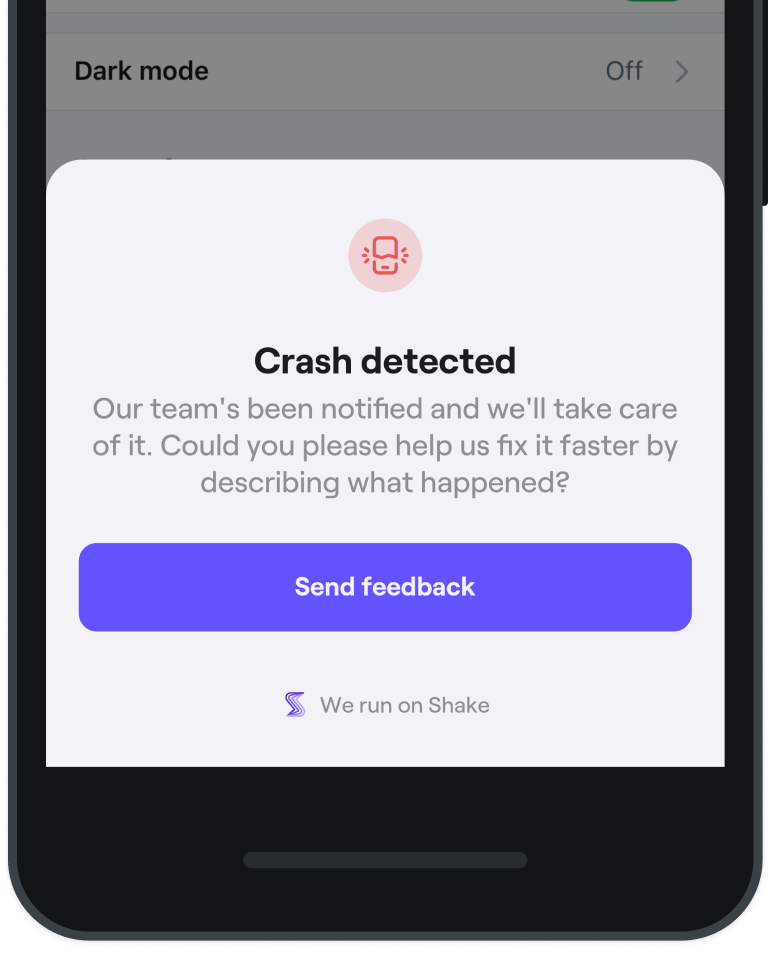
| |
| - |
To enable it:
1. First, set the `setAskForCrashDescription` flag to `true`.
2. Then, call the `Shake.start` method.
* Java
* Kotlin
MainActivity.java
```
Copy
Shake.setAskForCrashDescription(true);
```
MainActivity.kt
```
Copy
Shake.setAskForCrashDescription(true)
```
## What happens next[](#what-happens-next "Direct link to What happens next")
If the user decides they don't want to add their own description (they tap outside the sheet) → the crash report will be sent to you silently anyway.
If the user decides they do want to add their own description (they tap the confirmation button) but then discards their ticket on the New ticket screen → the crash report will be discarded.
---
# Deobfuscate
> Crash reports are a lot more useful when you see your deobfuscated stack traces.
You're viewing the Android docs. Other platform → [iOS](/docs/ios/crash-reports/symbolicate.md)
## Introduction[](#introduction "Direct link to Introduction")
Android is using R8 tool to shrink, obfuscate and optimize your code when app is built in release mode - this makes crash stack traces hard to read. Shake allows you to upload build's *mapping.txt* files so you can see deobfuscated stack traces on the Shake dashboard.
## Upload manually to Shake dashboard[](#upload-manually-to-shake-dashboard "Direct link to Upload manually to Shake dashboard")
By default, the *mapping.txt* file is created in your app's build directory: *project/app/build/outputs/mapping/release/mapping.txt*.
To upload your app's mapping files to the Shake dashboard:
1. Visit [Workspace administration → Apps](https://app.shakebugs.com/administration)
2. Click your app name to expand it
3. Select **Crashes** menu and click **Choose a file** button
4. Drag and drop your *mapping.txt* file there
## Using the script[](#using-the-script "Direct link to Using the script")
If you prefer to do this automatically, you can do it using this script:
* Windows
* Mac
upload\_mapper.bat
```
Copy
@echo off
set PATH_TO_MAPPING_FILE=%1
set API_KEY=%2
set VERSION_CODE=%3
set VERSION_NAME=%4
set APPLICATION_ID=%5
rem Replace URL with valid Endpoint for file uploading
set FILES_ENDPOINT="https://api.shakebugs.com/api/2.0/crash_reporting/app_debug_file"
if NOT exist %PATH_TO_MAPPING_FILE% (
echo "Mapping file not found!"
exit
)
echo "Mapping file found!"
echo "Uploading mapping file..."
FOR /F "tokens=*" %%A IN ('curl -H "X-API-KEY: %API_KEY%" -H "X-OS: Android" -H "X-PLATFORM: Android" -H "X-APP-ID: %APPLICATION_ID%" -F "file=@%PATH_TO_MAPPING_FILE%" -F "app_version_code=%VERSION_CODE%" -F "app_version_name=%VERSION_NAME%" -X POST %FILES_ENDPOINT% -w "%%{http_code}"') DO SET STATUS=%%A
if %STATUS% NEQ 200 (
echo "Failed to upload mapping file."
exit
)
echo "Success! Mapping file uploaded successfully."
exit
```
upload\_mapper.sh
```
Copy
#!/bin/bash
PATH_TO_MAPPING_FILE=$1
API_KEY=$2
VERSION_CODE=$3
VERSION_NAME=$4
APPLICATION_ID=$5
# Replace URL with valid Endpoint for file uploading
FILES_ENDPOINT="https://api.shakebugs.com/api/2.0/crash_reporting/app_debug_file"
echo "Shake: Start mapping file upload: $PATH_TO_MAPPING_FILE"
if [ ! -f $PATH_TO_MAPPING_FILE ]; then
echo "Mapping file not found!"
exit 0
fi
echo "Mapping file found!"
echo "Uploading mapping file..."
STATUS=$(curl -H "X-API-KEY: $API_KEY" -H "X-OS: Android" -H "X-PLATFORM: Android" -H "X-APP-ID: $APPLICATION_ID" \
-F app_version_code="${VERSION_CODE}"\
-F app_version_name="${VERSION_NAME}"\
-F "file=@${PATH_TO_MAPPING_FILE}"\
-X POST "$FILES_ENDPOINT" --write-out %{http_code})
if [ "${STATUS: -3}" != "200" ]; then
echo "Error while uploading mapping files"
exit 0
fi
echo "Success! Mapping file uploaded successfully."
```
After that, add the following gradle task to your app's *build.gradle* file:
build.gradle
```
Copy
import org.apache.tools.ant.taskdefs.condition.Os
tasks.register('uploadMappingFile') {
def apiKey = 'app-api-key'
doLast {
android.applicationVariants.configureEach {
if (it.buildType.isMinifyEnabled() && it.buildType.name == 'release') {
def mappingProvider = it.getMappingFileProvider()
def mappingFile = mappingProvider.get().singleFile
def applicationId = it.applicationId
def versionName = it.versionName
def versionCode = it.versionCode
if (mappingFile != null && mappingFile.exists()) {
if (Os.isFamily(Os.FAMILY_WINDOWS)) {
exec {
commandLine 'cmd', '/c', 'start', 'upload_mapper.bat', mappingFile, apiKey, versionCode, versionName, applicationId
}
} else if (Os.isFamily(Os.FAMILY_UNIX)) {
exec {
commandLine 'sh', './upload_mapper.sh', mappingFile, apiKey, versionCode, versionName, applicationId
}
} else {
throw new GradleException('Not supported OS!')
}
}
}
}
}
}
```
---
# Enable
> The Crash reports module is enabled by default.
You're viewing the Android docs. Other platform → [iOS](/docs/ios/crash-reports/enable.md)
If you'd like to turn it off, set the `setCrashReportingEnabled` flag to `false` before calling the `Shake.start` method.
* Java
* Kotlin
App.java
```
Copy
Shake.setCrashReportingEnabled(false);
```
App.kt
```
Copy
Shake.setCrashReportingEnabled(false)
```
Set up [deobfuscation](/docs/android/crash-reports/deobfuscation.md) and then [test crash reporting](/docs/android/crash-reports/test-it-out.md) in your app.
---
# Handling error
> Make great use of error handling and document these errors.
You're viewing the Android docs. Other platform → [iOS](/docs/ios/crash-reports/handling-error.md)
Shake allows you to report those caught errors and group them together. These non-fatal error reports will have all of the same contextual information as crash reports and will act as an extension to the crash reporting feature.
note
Avoid using unique values for error *clusterID* as that would cause a large number of reported errors to stay unrelated and ungrouped, which would clog your Shake dashboard.
* Java
* Kotlin
MainActivity.java
```
try {
throw new ClassNotFoundException("Handled test exception");
} catch (Exception e) {
Copy
Shake.handleError(e, "cluster-id");
}
```
MainActivity.kt
```
try {
throw ClassNotFoundException("Handled test exception")
} catch (e: Exception) {
Copy
Shake.handleError(e, "cluster-id")
}
```
---
# Overview
> The Crashes module tracks crashes and uncaught exceptions in your app. They are then intelligently grouped on your Shake dashboard, offering loads of contextual data to help you fix them fast.
You're viewing the Android docs. Other platform → [iOS](/docs/ios/crash-reports/overview.md)
## Introduction[](#introduction "Direct link to Introduction")
When this module is [enabled](/docs/android/crash-reports/enable.md) and your user opens your app after the crash, you have two options:
* Send yourself the crash report instantly and silently.
* [Ask them for an additional description](/docs/android/crash-reports/ask-for-description.md).
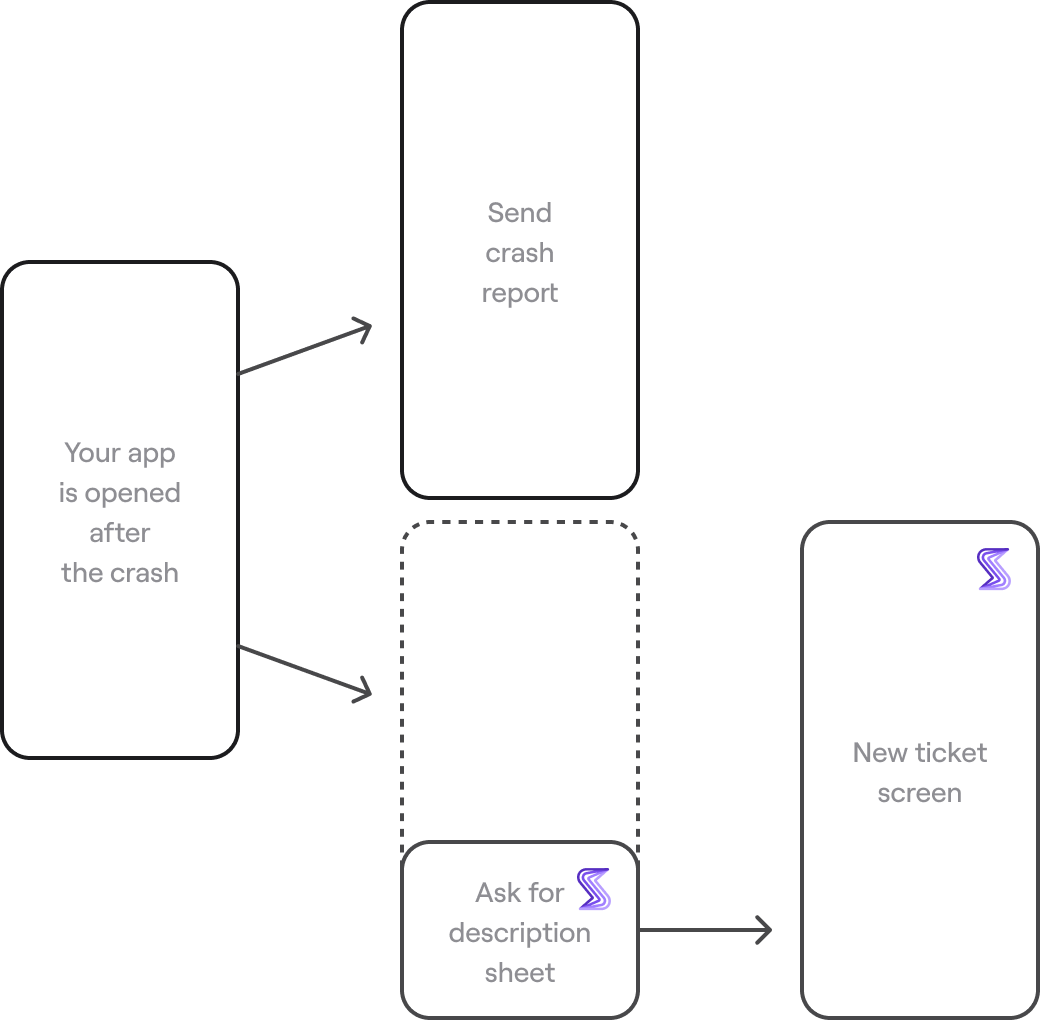
| |
| - |
## Shared configuration[](#shared-configuration "Direct link to Shared configuration")
Just like the [Feedback](/docs/android/user-feedback/overview.md) module, the Crashes module pulls your [Configuration and data](/docs/android/configuration-and-data/overview.md) settings.
This means that crash reports also come to you with an [auto screenshot](/docs/android/configuration-and-data/auto-screenshot.md), an [auto screen recording](/docs/android/configuration-and-data/auto-screen-recording.md) of what happened before the crash, an [activity history](/docs/android/configuration-and-data/activity-history.md) and other useful data.
⚡️ Shake is improved every week. Stumbled upon a [bug](https://feedback.shakebugs.com/bugs)? Want a [new feature](https://feedback.shakebugs.com/feature-requests) to be added? Create new tickets and upvote existing ones on the Public feedback board.
---
# Test it
> Let's crash your app to see what the crash report looks like on your Shake dashboard.
You're viewing the Android docs. Other platform → [iOS](/docs/ios/crash-reports/test-it-out.md)
## Crash your app[](#crash-your-app "Direct link to Crash your app")
[Enable crash reporting](/docs/android/crash-reports/enable.md) and paste this code to the `onCreate` method in one of your activities. It will crash your app when you tap a button by accessing the array with the out-of-bounds index:
* Java
* Kotlin
MainActivity.java
```
public class MainActivity extends Activity {
@Override
protected void onCreate(Bundle savedInstanceState) {
super.onCreate(savedInstanceState);
setContentView(R.layout.activity_main);
Copy
Button buttonCrash = findViewById(R.id.button_crash);
buttonCrash.setOnClickListener(new View.OnClickListener() {
@Override
public void onClick(View v) {
int[] array = new int[]{1, 2, 3};
int result = array[5];
}
});
}
}
```
MainActivity.kt
```
public class MainActivity : Activity {
override fun onCreate(savedInstanceState: Bundle?) {
super.onCreate(savedInstanceState)
setContentView(R.layout.activity_main)
Copy
val buttonCrash: Button = findViewById(R.id.button_crash)
buttonCrash.setOnClickListener {
val array = arrayOf(1, 2, 3)
val result = array[5]
}
}
}
```
Reopen your app, describe the crash and tap *Submit*.
## Visit your Shake dashboard[](#visit-your-shake-dashboard "Direct link to Visit your Shake dashboard")
To see your crash report:
1. Visit your [Shake dashboard](https://app.shakebugs.com)
2. Switch to the **Crashes** tab in the left sidebar
If your crash report is not visible instantly, wait a minute until the system processes it.
---
# Import from Instabug
> Shake offers an option to easily migrate your bugs from Instabug to our platform. This feature allows you to seamlessly transition your bugs without losing important data, even after closing Instabug account.
You're viewing the Android docs. Other platforms → [iOS](/docs/ios/import-from-instabug.md) [React Native](/docs/react/import-from-instabug.md) [Flutter](/docs/flutter/import-from-instabug.md) [Web](/docs/web/import-from-instabug.md)
## How to migrate Instabug bugs?[](#how-to-migrate-instabug-bugs "Direct link to How to migrate Instabug bugs?")
### Step 1: Export bugs from the Instabug[](#step-1-export-bugs-from-the-instabug "Direct link to Step 1: Export bugs from the Instabug")
To begin the migration process, you must first export your bugs from the Instabug. To do this, log into your Instabug account and navigate to the *Bugs* tab in the sidebar. From there, select the issues you want to export, press *⋯* button and then press *Export CSV* button.
note
Before export, you'll be prompted to select data you want to export into the CSV file. "OS" field is required, feel free to uncheck any other field if you don't want to migrate it.
You'll receive an email with a download link for the exported CSV file.
### Step 2: Download .csv export file[](#step-2-download-csv-export-file "Direct link to Step 2: Download .csv export file")
Check your email which you are using for Instabug login and download the CSV file from the email sent by Instabug.
### Step 3: Import bugs into the Shake[](#step-3-import-bugs-into-the-shake "Direct link to Step 3: Import bugs into the Shake")
Once you've downloaded the CSV file, log into your Shake account and navigate to the [Workspace administration → Apps](https://app.shakebugs.com) page. Select the app where you want to import Instabug bugs and press *Choose a file* button under the *Feedback → Import tickets* section.
Now, you'll be prompted to select the CSV file that you want to import. Max import file size is *100MB*, if you have larger file you can divide it into separate files.
Once you've selected the file, the import process will begin. This process can take up some time, depending on the number of bugs you're migrating and size of attached files to the bugs.
note
Only Instabug bugs that match the platform of the Shake app (Android or iOS) will be imported during the import process. Ensure that you import bugs into the correct app. Also, if Shake encounters bugs with a different data structure than expected, those bugs won't be imported.
When the import is completed, you'll be notified by email and you'll be able to view and track migrated tickets within the Shake.
## Migrated data[](#migrated-data "Direct link to Migrated data")
The migration tool allows you to migrate a variety of data from Instabug to Shake, such as title, description, status, and more. Here is a list of data fields that are provided in Instabug export file and that can be successfully migrated to the Shake.
* Title (ticket title)
* Email (reporter email)
* Status (ticket status)
* Priority (ticket priority)
* Assignee (always imported as unassigned)
* App Version (app version name)
* Bundle version (app version code)
* Device (device name)
* Locale (device locale)
* Screen Size (device screen size)
* Density (device screen density)
* Location (device location)
* OS version (device os version)
* Current View (opened screen at the report time)
* Metadata (contains *User Data* and *User Attributes* from Instabug)
* Activity history (console logs, custom logs, user taps and view events)
* Attachments (videos, images and other files are copied to our infrastructure)
* Reported time (ticket created date and time)
* Tags (tickets tags, with additional *imported* tag by default)
## Notes[](#notes "Direct link to Notes")
Please contact the support team if you need assistance with the migration process or have any questions regarding the format of the CSV file.
---
# Installation
> Learn how to add Shake to your Android app using Gradle.
You're viewing the Android docs. Other platforms → [iOS](/docs/ios/install/spm.md) [React Native](/docs/react/installation.md) [Flutter](/docs/flutter/installation.md) [Web](/docs/web/install/npm.md) [Chrome extension](/docs/chrome-extension/installation.md)
## Create a new app on Dashboard[](#create-a-new-app-on-dashboard "Direct link to Create a new app on Dashboard")
Visit your [Shake Dashboard](https://app.shakebugs.com) and add a new Native Android app by clicking the *Add new app* button located in the bottom right corner.
| |
| - |
Once you're done, you're ready to proceed with the steps below.
## Add Shake dependency to your app-level build.gradle file[](#add-shake-dependency-to-your-app-level-buildgradle-file "Direct link to Add Shake dependency to your app-level build.gradle file")
* Groovy
* Kotlin
build.gradle
```
dependencies {
Copy
implementation 'com.shakebugs:shake:'
}
```
build.gradle.kts
```
dependencies {
Copy
implementation("com.shakebugs:shake:")
}
```
## Initialize Shake[](#initialize-shake "Direct link to Initialize Shake")
Initialize Shake in the `onCreate` callback of your *Application*. Replace `app-api-key` with the actual value you have in [your app settings](https://app.shakebugs.com/administration/apps):
* Java
* Kotlin
App.java
```
import android.app.Application;
Copy
import com.shakebugs.shake.Shake;
public class App extends Application {
@Override
public void onCreate() {
super.onCreate();
Copy
Shake.start(this, "app-api-key");
}
}
```
App.kt
```
import android.app.Application
Copy
import com.shakebugs.shake.Shake
class App : Application() {
override fun onCreate() {
super.onCreate()
Copy
Shake.start(this, "app-api-key")
}
}
```
Build and run your project by selecting *Run → Run* in the menu bar.
## Conditional initialization[](#conditional-initialization "Direct link to Conditional initialization")
We recommend initializing Shake in the entry point of your app. However, depending on your app, you'll want to initialize Shake just in a specific conditions, depending on your app data. You can do it as shown in the example below when your app data is available:
* Java
* Kotlin
MainActivity.java
```
public class MainActivity extends Activity {
@Override
protected void onCreate(Bundle savedInstanceState) {
super.onCreate(savedInstanceState);
setContentView(R.layout.activity_main);
if (User.isTester) {
Copy
Shake.start(this, "app-api-key");
}
}
}
```
MainActivity.kt
```
class MainActivity : Activity() {
override fun onCreate(savedInstanceState: Bundle?) {
super.onCreate(savedInstanceState)
setContentView(R.layout.activity_main)
if (User.isTester) {
Copy
Shake.start(this, "app-api-key")
}
}
}
```
note
If you are initializing Shake outside *Application* class, make sure you initialize it in the *onCreate* callback of the *Activity*.
note
If you are using chat feature and push notifications, make sure that Shake is started in the *Application* class.
## Visit your Shake Dashboard again[](#visit-your-shake-dashboard-again "Direct link to Visit your Shake Dashboard again")
Follow the instructions there to send your first feedback with Shake and you're all set.
## SDK customizations[](#sdk-customizations "Direct link to SDK customizations")
Now that Shake SDK is in your app and you have sent the first feedback for fun, everything else is optional. As the next step, try the three most popular SDK customizations:

[Turn on auto screen recording](/docs/android/configuration-and-data/auto-screen-recording.md)

[Tweak logging to your debugging needs](/docs/android/configuration-and-data/activity-history.md)

[Turn on crash detection](/docs/android/crash-reports/overview.md)
---
# Overview
## Modules[](#modules "Direct link to Modules")
> Shake Android SDK has three modules that work together nicely. Use one, all or any combination of them — whatever suits your needs.
You're viewing the Android docs. Other platforms → [iOS](/docs/ios/overview.md) [React Native](/docs/react/overview.md) [Flutter](/docs/flutter/overview.md) [Web](/docs/web/overview.md) [Chrome extension](/docs/chrome-extension/overview.md)
[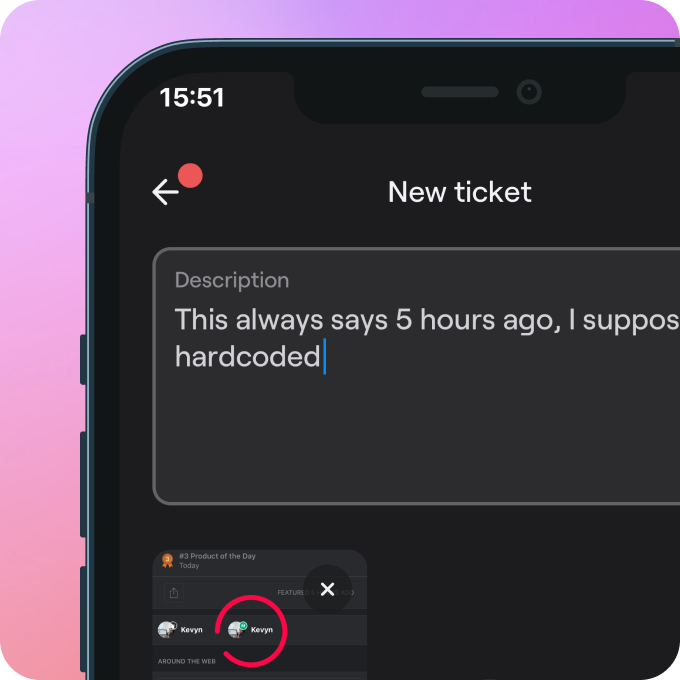](/docs/android/user-feedback/overview.md)
### [Feedback](/docs/android/user-feedback/overview.md)
[Testers and users can send you bug reports, questions and suggestions seamlessly.](/docs/android/user-feedback/overview.md)
[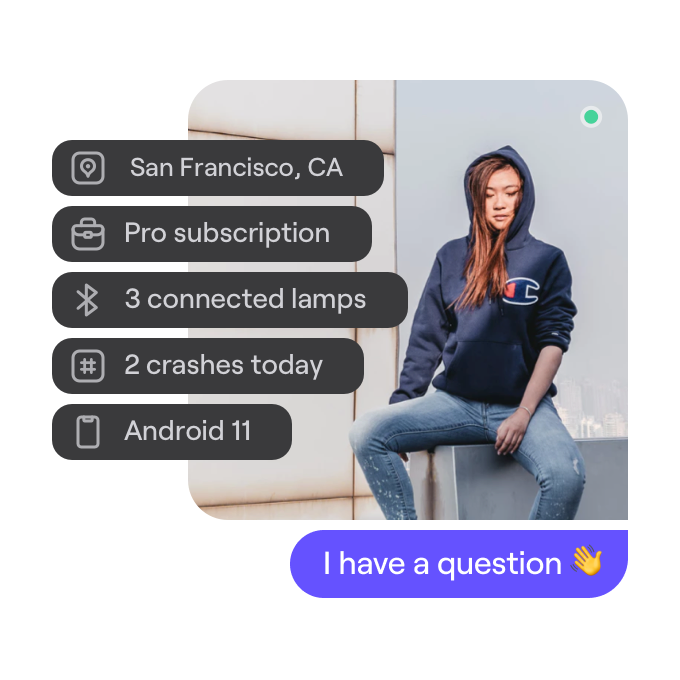](/docs/android/users/overview.md)
### [Users](/docs/android/users/overview.md)
[List of all your app users, their attributes and reported tickets, plus live chat.](/docs/android/users/overview.md)
[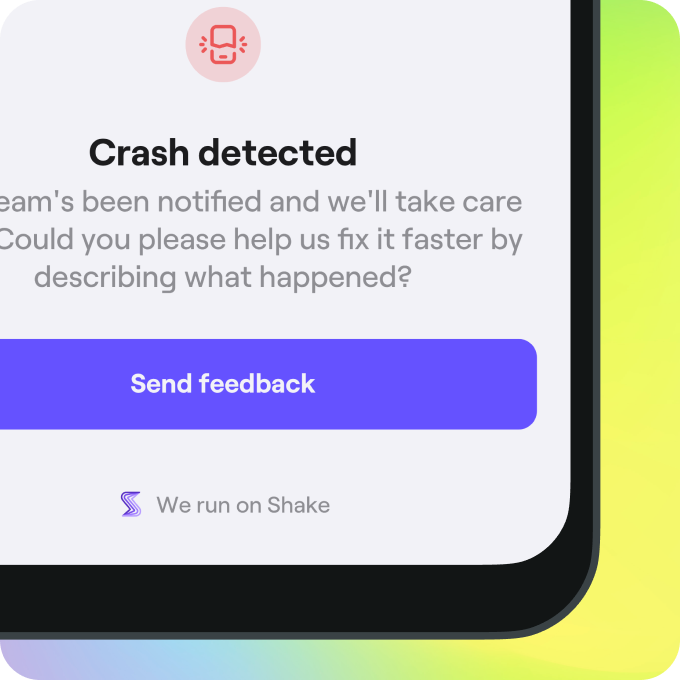](/docs/android/crash-reports/overview.md)
### [Crashes](/docs/android/crash-reports/overview.md)
[Receive stack trace, logs, users’ comments and more whenever your app crashes.](/docs/android/crash-reports/overview.md)
## Configuration and data[](#configuration-and-data "Direct link to Configuration and data")
> Customize how Shake behaves and looks in your app, and what data is automatically attached to tickets your users send.

[Invoke Shake](/docs/android/user-feedback/invoke.md)

[Data attached by default](/docs/android/configuration-and-data/data-attached-by-default.md)

[Auto screen recording](/docs/android/configuration-and-data/auto-screen-recording.md)

[Auto steps to reproduce](/docs/android/configuration-and-data/activity-history.md)

[Black box](/docs/android/configuration-and-data/black-box.md)

[Auto attach files](/docs/android/configuration-and-data/auto-attach-files.md)

[Custom Ticket data](/docs/android/configuration-and-data/ticket-metadata.md)

[Custom User data](/docs/android/users/update-user-metadata.md)

[Protect sensitive data](/docs/android/configuration-and-data/manage-sensitive-data.md)
## Latest version[](#latest-version "Direct link to Latest version")
The [latest available Shake SDK version](/docs/android/releases.md) is .
## Minimum requirements[](#minimum-requirements "Direct link to Minimum requirements")
Shake SDK works on Android 5.0 or newer.
⚡️ Shake is improved every week. Stumbled upon a [bug](https://feedback.shakebugs.com/bugs)? Want a [new feature](https://feedback.shakebugs.com/feature-requests) to be added? Create new tickets and upvote existing ones on the Public feedback board.
---
# Release notes
> This page lists all updates to the Shake Android SDK.
Other platforms → [iOS](/docs/ios/releases.md) [React Native](/docs/react/releases.md) [Flutter](/docs/flutter/releases.md) [Web](/docs/web/releases.md) [Chrome extension](/docs/chrome-extension/releases.md)
## What's next?[](#whats-next "Direct link to What's next?")
What would you like us to build next? Upvote upcoming features and suggest new ideas on the [Public feedback board](https://feedback.shakebugs.com/).
## 18.1.0[](#1810 "Direct link to 18.1.0")
October 27, 2026 Latest version
#### What's new[](#whats-new "Direct link to What's new")
Shake now detects ANRs — moments when your app's main thread freezes and stops responding. ANRs are reported to the **Crashes** tab on your Shake dashboard, along with whether the app recovered or was terminated while frozen. Detection is enabled by default and the threshold is configurable. Learn more in [ANRs](/docs/android/crash-reports/anrs.md).
Crash reporting is now enabled by default. If you'd like to turn it off, set the `setCrashReportingEnabled` flag to `false` before calling the `Shake.start` method. Learn more in [Crash reports](/docs/android/crash-reports/enable.md).
## 18.0.0[](#1800 "Direct link to 18.0.0")
October 1, 2026
#### What's new[](#whats-new-1 "Direct link to What's new")
Shake now automatically tracks app sessions, giving you visibility into network traffic and device coverage for each release right from your Shake dashboard. Learn more in [Releases](/docs/android/releases/overview.md).
## 17.2.2[](#1722 "Direct link to 17.2.2")
May 8, 2026
#### Bug fixes[](#bug-fixes "Direct link to Bug fixes")
Fixed a bug that presented an empty screen on the back navigation using swipe gesture.
#### What's new[](#whats-new-2 "Direct link to What's new")
Shake submit listener is called on **New chat** button press on the Home screen.
## 17.2.1[](#1721 "Direct link to 17.2.1")
March 20, 2026
#### What's new[](#whats-new-3 "Direct link to What's new")
The database has been switched to WAL mode, improving performance and reliability. Console log types are now supported, giving you richer context in your activity history.
## 17.2.0[](#1720 "Direct link to 17.2.0")
December 16, 2025
#### Bug fixes[](#bug-fixes-1 "Direct link to Bug fixes")
We fixed a few minor bugs that were causing problems.
## 17.1.4[](#1714 "Direct link to 17.1.4")
September 2, 2025
#### Bug fixes[](#bug-fixes-2 "Direct link to Bug fixes")
Fixed a bug that prevented Jetpack Compose dialogs from being captured.
Resolved a crash that occurred when capturing animations on screens using Compose animations.
## 17.1.3[](#1713 "Direct link to 17.1.3")
June 30, 2025
#### What's new[](#whats-new-4 "Direct link to What's new")
* Improved speed when opening the Shake user interface
* The `FOREGROUND_SERVICE_MEDIA_PROJECTION` permission is now included by default
#### Bug fixes[](#bug-fixes-3 "Direct link to Bug fixes")
We’ve made several improvements to enhance performance and stability:
* Resolved an issue causing excessive log spam from touch events
* Fixed a crash when pressing the new chat action on the home screen
* Addressed a problem where the Shake database could grow too large
## 17.1.2[](#1712 "Direct link to 17.1.2")
May 21, 2025
#### Bug fixes[](#bug-fixes-4 "Direct link to Bug fixes")
We improved app archiving mechanism, network requests are now not sent if your app is archived on the dashboard.
## 17.1.1[](#1711 "Direct link to 17.1.1")
April 16, 2025
#### Bug fixes[](#bug-fixes-5 "Direct link to Bug fixes")
We fixed a few minor bugs that were causing problems.
## 17.1.0[](#1710 "Direct link to 17.1.0")
December 16, 2024
#### Bug fixes[](#bug-fixes-6 "Direct link to Bug fixes")
We fixed a few minor bugs that were causing problems.
## 17.0.2[](#1702 "Direct link to 17.0.2")
September 11, 2024
#### Bug fixes[](#bug-fixes-7 "Direct link to Bug fixes")
We fixed a few minor bugs that were causing problems. Shake is now more stable and runs even smoother.
## 17.0.1[](#1701 "Direct link to 17.0.1")
July 02, 2024
#### What's new[](#whats-new-5 "Direct link to What's new")
We've revised permissions for storage, notifications, and screenshot detection, and removed deprecated methods to ensure optimal functionality and performance.
## 17.0.0[](#1700 "Direct link to 17.0.0")
May 27, 2024
#### What's new[](#whats-new-6 "Direct link to What's new")
We've introduced api keys. Use api key instead client id and client secret for [starting Shake](/docs/android/installation.md#initialize-shake). This improves security and control - you can create multiple api keys or delete old ones if needed.
## 16.2.5[](#1625 "Direct link to 16.2.5")
March 28, 2024
#### What's new[](#whats-new-7 "Direct link to What's new")
We've added missing ProGuard rules, Shake installation is now even smoother.
## 16.2.4[](#1624 "Direct link to 16.2.4")
January 31, 2024
#### What's new[](#whats-new-8 "Direct link to What's new")
This version now contains Danish translations, which additionally extends [the lists of languages into which Shake's been translated](https://help.shakebugs.com/en/articles/3392092-which-languages-has-shake-sdk-been-translated-to).
## 16.2.3[](#1623 "Direct link to 16.2.3")
December 6, 2023
#### Bug fixes[](#bug-fixes-8 "Direct link to Bug fixes")
We've sorted out the screen recording hiccup on Android 14, fixed a bug with network requests filter, untangled a little collision with Android splash screen, resolved Coil version clashes and made sure you can now easily spot chat bubble timestamps.
It's all about making things smoother and more enjoyable.
## 16.2.2[](#1622 "Direct link to 16.2.2")
September 11, 2023
#### What's new[](#whats-new-9 "Direct link to What's new")
We know it's important to keep your dashboard clean and well organized, that's why you can now simply [add tags](/docs/android/configuration-and-data/ticket-tags.md) to your tickets programmatically via code.
#### Bug fixes[](#bug-fixes-9 "Direct link to Bug fixes")
Added missing proguard rules for R8 full mode support.
## 16.2.1[](#1621 "Direct link to 16.2.1")
July 20, 2023
#### What's new[](#whats-new-10 "Direct link to What's new")
From now, you can [execute a block of code](/docs/android/configuration-and-data/callbacks.md) when certain actions are triggered within Shake.
This version now contains Turkish, Korean and Dutch translations, which additionally extend [the lists of languages into which Shake's been translated](https://help.shakebugs.com/en/articles/3392092-which-languages-has-shake-sdk-been-translated-to).
#### Bug fixes[](#bug-fixes-10 "Direct link to Bug fixes")
We fixed a few minor bugs that were causing problems. Shake is now more stable and runs even smoother.
## 16.2.0[](#1620 "Direct link to 16.2.0")
May 24, 2023
#### What's new[](#whats-new-11 "Direct link to What's new")
We’ve made it possible for users to open a New [chat](/docs/android/user-feedback/invoke.md) without submitting a New ticket. Additionally, you can [customize Shake home screen buttons](/docs/android/configuration-and-data/home-screen.md) according to your taste.
Chat notifications are upgraded with push notifications, so users can [receive chat notifications even when app is closed](/docs/android/users/chat.md#notifications). Also, there’s now a neat seen indicator that tells you exactly if the message was seen or not. 🚀
## 16.1.0[](#1610 "Direct link to 16.1.0")
May 2, 2023
#### What's new[](#whats-new-12 "Direct link to What's new")
Introducing [Custom branding](/docs/android/configuration-and-data/custom-branding.md)! 🎨️
From now you can customize the appearance of the Shake SDK with your brand's colors, fonts, and more and align the SDK with your brand's identity for a consistent user experience.
## 16.0.0[](#1600 "Direct link to 16.0.0")
March 30, 2023
#### What's new[](#whats-new-13 "Direct link to What's new")
We're excited to announce the latest feature in our SDK, which allows you to [create a custom feedback form](/docs/android/configuration-and-data/custom-forms.md). Now you can collect even more detailed information from your users and tailor the form to your specific needs. Say goodbye to generic feedback form and hello to personalized data collection!
## 15.3.1[](#1531 "Direct link to 15.3.1")
January 31, 2023
#### Bug fixes[](#bug-fixes-11 "Direct link to Bug fixes")
Fixed invalid log spam on React Native SDK, improved chat messages notification and SDK stability
## 15.3.0[](#1530 "Direct link to 15.3.0")
June 23, 2022
#### What's new[](#whats-new-14 "Direct link to What's new")
The [unread chat messages listener](/docs/android/users/chat.md#unread-messages) is now available in Shake. Anywhere in your app, you can show a user how many unread messages in Shake they have.
#### Bug fixes[](#bug-fixes-12 "Direct link to Bug fixes")
Whoops! If you passed null to Shake user register or update methods, that would crash your app. Is crashing any good? No — so we knew what to do. Now everything works smoothly. While we were at it, we patched a few other obscure edge cases that you were not even aware of.
## 15.2.0[](#1520 "Direct link to 15.2.0")
April 5, 2022
#### What's new[](#whats-new-15 "Direct link to What's new")
The former Inspect screen has turned into an entire [Inspect section](/docs/android/shake-ui/inspect-section.md). Your testers can now browse, filter and share ticket's Activity history, inspect every log, see Ticket metadata, User metadata and the stack trace — all without ever leaving your app.
#### Bug fixes[](#bug-fixes-13 "Direct link to Bug fixes")
We fixed a few minor bugs that were causing problems. Shake is now more stable and runs even smoother.
## 15.1.1[](#1511 "Direct link to 15.1.1")
February 28, 2022
#### Bug fixes[](#bug-fixes-14 "Direct link to Bug fixes")
We happily squashed a few pesky bugs.
## 15.1.0[](#1510 "Direct link to 15.1.0")
December 20, 2021
#### What's new[](#whats-new-16 "Direct link to What's new")
[Chat](/docs/android/shake-ui/chat-screen.md), the most popular feature on the Public feedback board, is now available.
#### Bug fixes[](#bug-fixes-15 "Direct link to Bug fixes")
There were a few minor bugs that caused problems, like bugs do. We fixed those and improved SDK stability too.
## 15.0.2[](#1502 "Direct link to 15.0.2")
October 27, 2021
#### What's new[](#whats-new-17 "Direct link to What's new")
Not all of you love the default Shake color. Now, whenever users open it, Shake can appear in your brand color.
This version now contains Russian, Italian, Polish, Latvian, Estonian and Thai translations, which additionally extend [the lists of languages into which Shake's been translated](https://help.shakebugs.com/en/articles/3392092-which-languages-has-shake-sdk-been-translated-to). Your users whose default device language is set to one of these will automatically see Shake in their language.
## 15.0.1[](#1501 "Direct link to 15.0.1")
October 14, 2021
#### Bug fixes[](#bug-fixes-16 "Direct link to Bug fixes")
We happily squashed a few pesky bugs.
## 15.0.0[](#1500 "Direct link to 15.0.0")
September 21, 2021
#### What's new[](#whats-new-18 "Direct link to What's new")
We've completely [redesigned Shake](/docs/android/shake-ui/home-screen.md) to continue delivering you more and more options in a scalable manner. It also started supporting dark and light themes, so it can beautifully fit into your app in either case.
We introduced a [Home screen](/docs/android/shake-ui/home-screen.md) where [your users](/docs/android/users/overview.md) can see tickets they previously reported.
---
# Network requests
> Unlike session data, network request tracking requires you to forward requests to Shake first.
You're viewing the Android docs. Other platforms → [iOS](/docs/ios/releases/network-requests.md) [React Native](/docs/react/releases/network-requests.md) [Flutter](/docs/flutter/releases/network-requests.md) [Web](/docs/web/releases/network-requests.md)
## Why it matters[](#why-it-matters "Direct link to Why it matters")
This data is what lets you see, per release, which endpoints are slowest and which have the highest error rates on your Shake dashboard — so you can catch performance and reliability regressions before they reach more users.
## Setup[](#setup "Direct link to Setup")
If you've already set up network tracking for [Activity history](/docs/android/configuration-and-data/activity-history.md), no extra work is needed — session network tracking uses the same interceptor.
Otherwise, add this line to your `OkHttpClient`:
* Java
* Kotlin
App.java
```
OkHttpClient okHttpClient = new OkHttpClient()
.newBuilder()
Copy
.addInterceptor(new ShakeNetworkInterceptor())
.build();
```
App.kt
```
val okHttpClient = OkHttpClient()
.newBuilder()
Copy
.addInterceptor(ShakeNetworkInterceptor())
.build()
```
If you don't use `OkHttpClient`, use [`Shake.handleNetworkRequest`](/docs/android/configuration-and-data/activity-history.md) to forward requests to Shake instead.
## What's tracked[](#whats-tracked "Direct link to What's tracked")
For each request, Shake tracks the URL (query parameters and fragment stripped), method, status code, average duration, and call count.
* Requests to the same URL and method but with different status codes (for example, `200` vs. `500`) are tracked as separate entries.
* Path parameters aren't normalized — `/users/123` and `/users/456` are tracked as distinct endpoints.
Request and response bodies and headers are never included in this data — those are only collected for [Activity history](/docs/android/configuration-and-data/activity-history.md) on bug reports.
---
# Overview
> Shake automatically tracks app sessions to give you visibility into how each release of your app is performing, right from your Shake dashboard.
You're viewing the Android docs. Other platforms → [iOS](/docs/ios/releases/overview.md) [React Native](/docs/react/releases/overview.md) [Flutter](/docs/flutter/releases/overview.md) [Web](/docs/web/releases/overview.md)
## Introduction[](#introduction "Direct link to Introduction")
As soon as the SDK initializes, Shake starts tracking sessions in the background — no setup required. A session represents a continuous period of app use, and each one carries a snapshot of the device it ran on, plus a summary of the network requests made during it.
## What gets collected[](#what-gets-collected "Direct link to What gets collected")
Every session automatically collects:
* **[Session data](/docs/android/releases/session-data.md)** — a snapshot of the device (model, OS version, locale, timezone, orientation, screen size, network type) and how long the session lasted.
* **[Network requests](/docs/android/releases/network-requests.md)** — a summary of the HTTP calls made during the session (URL, method, status code, average duration), once you've set up network request tracking.
## Enabled by default[](#enabled-by-default "Direct link to Enabled by default")
Session tracking requires no configuration — it starts the moment `Shake.start()` is called, with no extra flag or method call needed.
A session ends after 5 minutes of inactivity (the app being backgrounded); returning to the app sooner continues the same session. Sessions shorter than 5 seconds are discarded, so quick launches or accidental app switches don't skew your data — unless the session ended in a crash, which is always reported no matter how short it was.
## Offline support[](#offline-support "Direct link to Offline support")
Session data is always stored locally first, so nothing is lost if the device is offline. Once online, pending sessions and their network request data sync to Shake in a single batch, at most every 30 minutes.
---
# Session data
> Each session carries a lightweight snapshot of the device it ran on.
You're viewing the Android docs. Other platforms → [iOS](/docs/ios/releases/session-data.md) [React Native](/docs/react/releases/session-data.md) [Flutter](/docs/flutter/releases/session-data.md) [Web](/docs/web/releases/session-data.md)
## What's included[](#whats-included "Direct link to What's included")
Every session sent to Shake includes:
* Device model
* OS version
* Locale
* Timezone
* App version
* Device orientation
* Screen width and height
* Network type
* Auth state (whether the device has a lock screen secured)
App version is pulled automatically from your project's configuration — you don't need to set it manually.
If you've set any custom key-value data with [`Shake.setMetadata`](/docs/android/configuration-and-data/ticket-metadata.md), it's included as well.
note
This is a lighter snapshot than the one attached to bug reports — it doesn't include battery, memory, disk space, or permissions. Those are only collected when a user actually submits a ticket.
## Crash detection[](#crash-detection "Direct link to Crash detection")
If your app crashes, Shake records that the session ended in a crash. This happens automatically and runs independently of [`Shake.setCrashReportingEnabled`](/docs/android/crash-reports/enable.md) — it's used purely to mark the session's end reason, not to generate a crash report.
Because crashes tend to happen moments after launch, a session that ended in a crash is reported even when it was shorter than the 5-second minimum that normally applies.
---
# Chat screen
> You and your app users can live chat about every ticket they have submitted to you.
You're viewing the Android docs. Other platforms → [iOS](/docs/ios/shake-ui/chat-screen.md) [React Native](/docs/react/shake-ui/chat-screen.md) [Flutter](/docs/flutter/shake-ui/chat-screen.md) [Web](/docs/web/shake-ui.md#chat-screen)
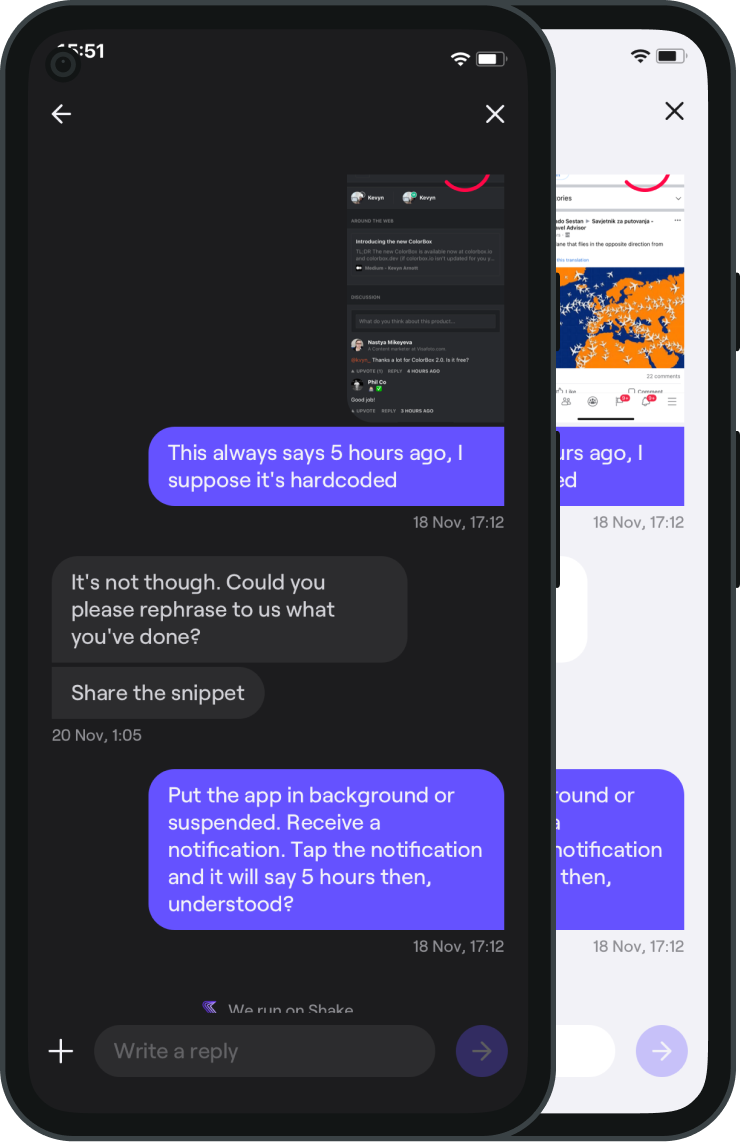
| |
| - |
If you [register app users](/docs/android/users/register-user.md) with Shake, they will have all their previous tickets listed on the [Home screen](/docs/android/shake-ui/home-screen.md). Tapping any ticket there opens its Chat screen.
Your app users can reply to your messages and provide you with more details about the bugs, crashes and feedback they've sent, all without ever leaving your app. Fix issues more easily and keep your app users happy.
Visit [Chat](/docs/android/users/chat.md) to learn more.
---
# Drawing screen
> Users can draw on images attached to the ticket, and blur their parts.
You're viewing the Android docs. Other platforms → [iOS](/docs/ios/shake-ui/drawing-screen.md) [React Native](/docs/react/shake-ui/drawing-screen.md) [Flutter](/docs/flutter/shake-ui/drawing-screen.md)
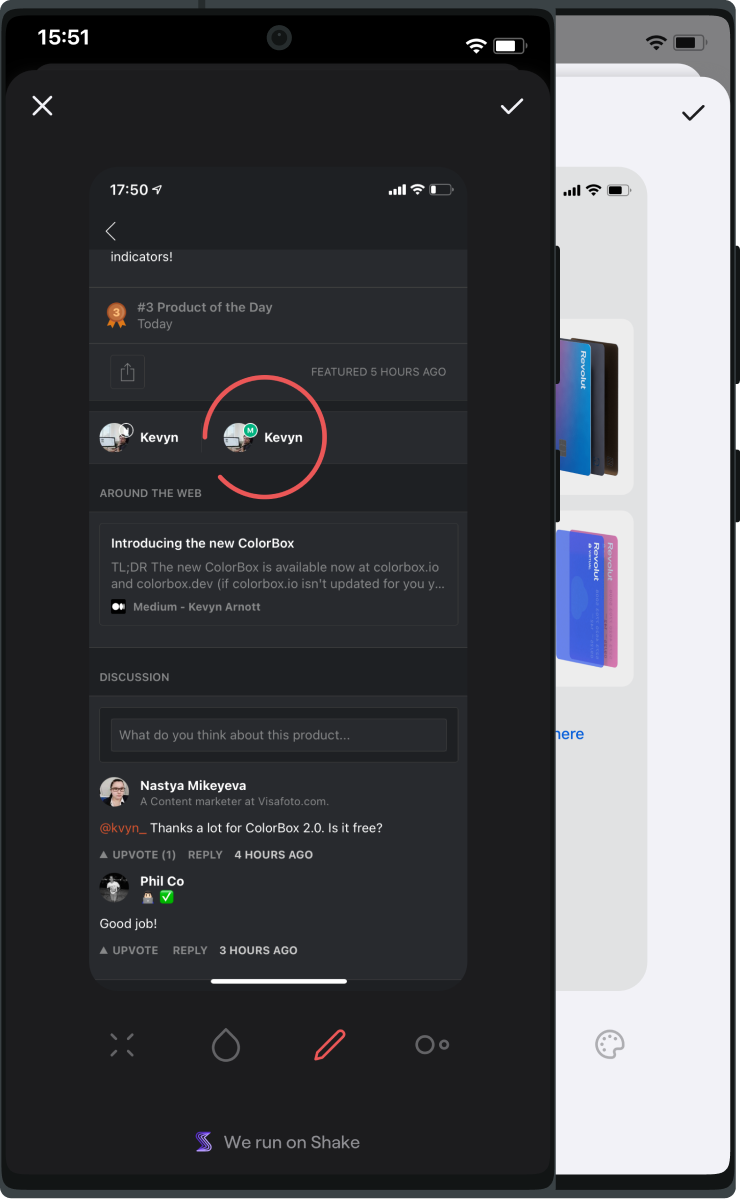
| |
| - |
They access this screen by tapping any of the images attached to their ticket on the [New ticket screen](/docs/android/shake-ui/new-ticket-screen.md).
---
# Home screen
> The Home screen is a central part of the Shake UI.
You're viewing the Android docs. Other platforms → [iOS](/docs/ios/shake-ui/home-screen.md) [React Native](/docs/react/shake-ui/home-screen.md) [Flutter](/docs/flutter/shake-ui/home-screen.md) [Web](/docs/web/shake-ui.md#home-screen)
## Introduction[](#introduction "Direct link to Introduction")
Here, your user can see:
* A welcome message that you can change from [Shake SDK](/docs/android/configuration-and-data/home-screen.md#changing-the-home-screen-subtitle).
* A button to submit a new ticket. This section can be [customized](/docs/android/configuration-and-data/home-screen.md#setting-up-custom-actions).
* All their previous tickets (user feedback and crash reports). To show them their previous tickets, [register your users](/docs/android/users/overview.md) with Shake.
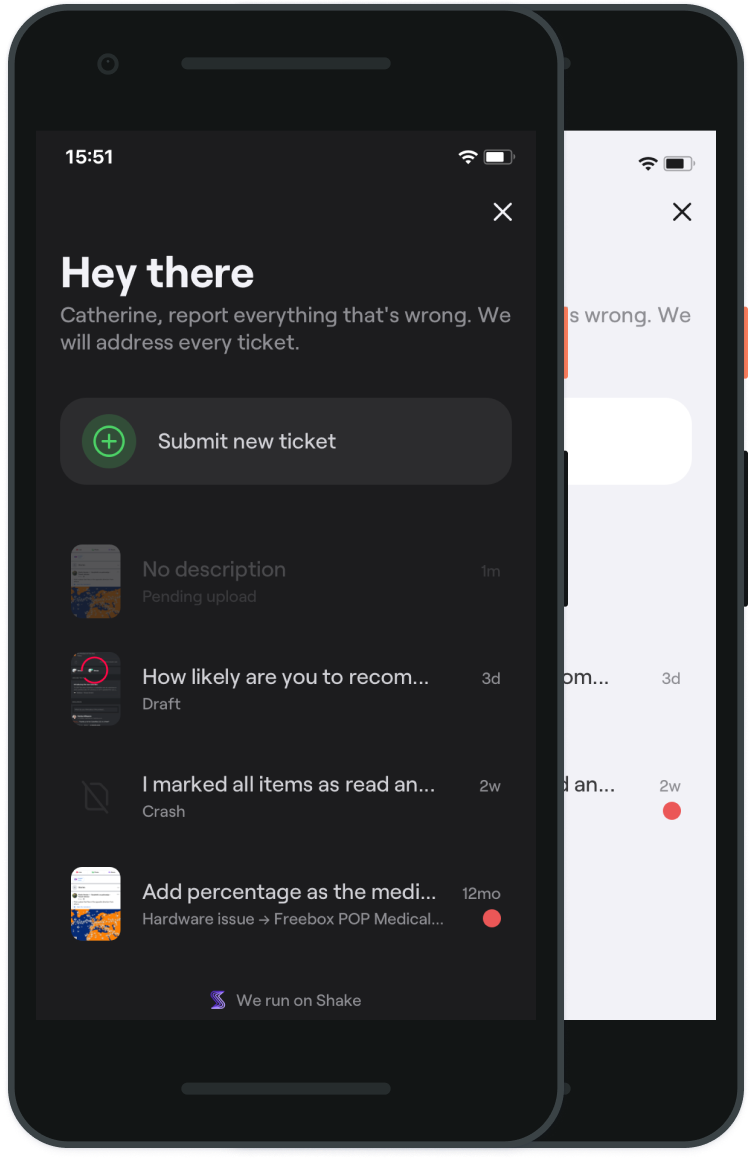
| |
| - |
## Show[](#show "Direct link to Show")
To show the Home screen to an app user, call the `Shake.show` method with the `ShakeScreen.HOME` argument. Visit [Invocations](/docs/android/user-feedback/invoke.md#invoke-through-code) to learn more.
---
# Inspect section
> Before submitting a ticket, your users can freely inspect [Data attached by default](/docs/android/configuration-and-data/data-attached-by-default.md), [Ticket metadata](/docs/android/configuration-and-data/ticket-metadata.md) and [User metadata](/docs/android/users/update-user-metadata.md). In case of a [Crash report](/docs/android/crash-reports/ask-for-description.md#enable), they can also inspect its stack trace.
You're viewing the Android docs. Other platforms → [iOS](/docs/ios/shake-ui/inspect-section.md) [React Native](/docs/react/shake-ui/inspect-section.md) [Flutter](/docs/flutter/shake-ui/inspect-section.md)
## Introduction[](#introduction "Direct link to Introduction")
They access the Inspect section by tapping the *Inspect* button on the [New ticket screen](/docs/android/shake-ui/new-ticket-screen.md).
## Screens[](#screens "Direct link to Screens")
The Inspect section consists of five screens. Here's how they're related:
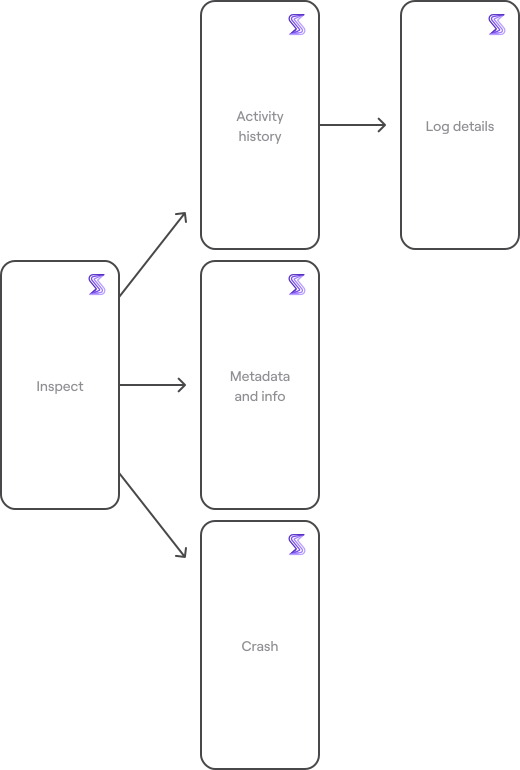
| |
| - |
and here's how they look like:
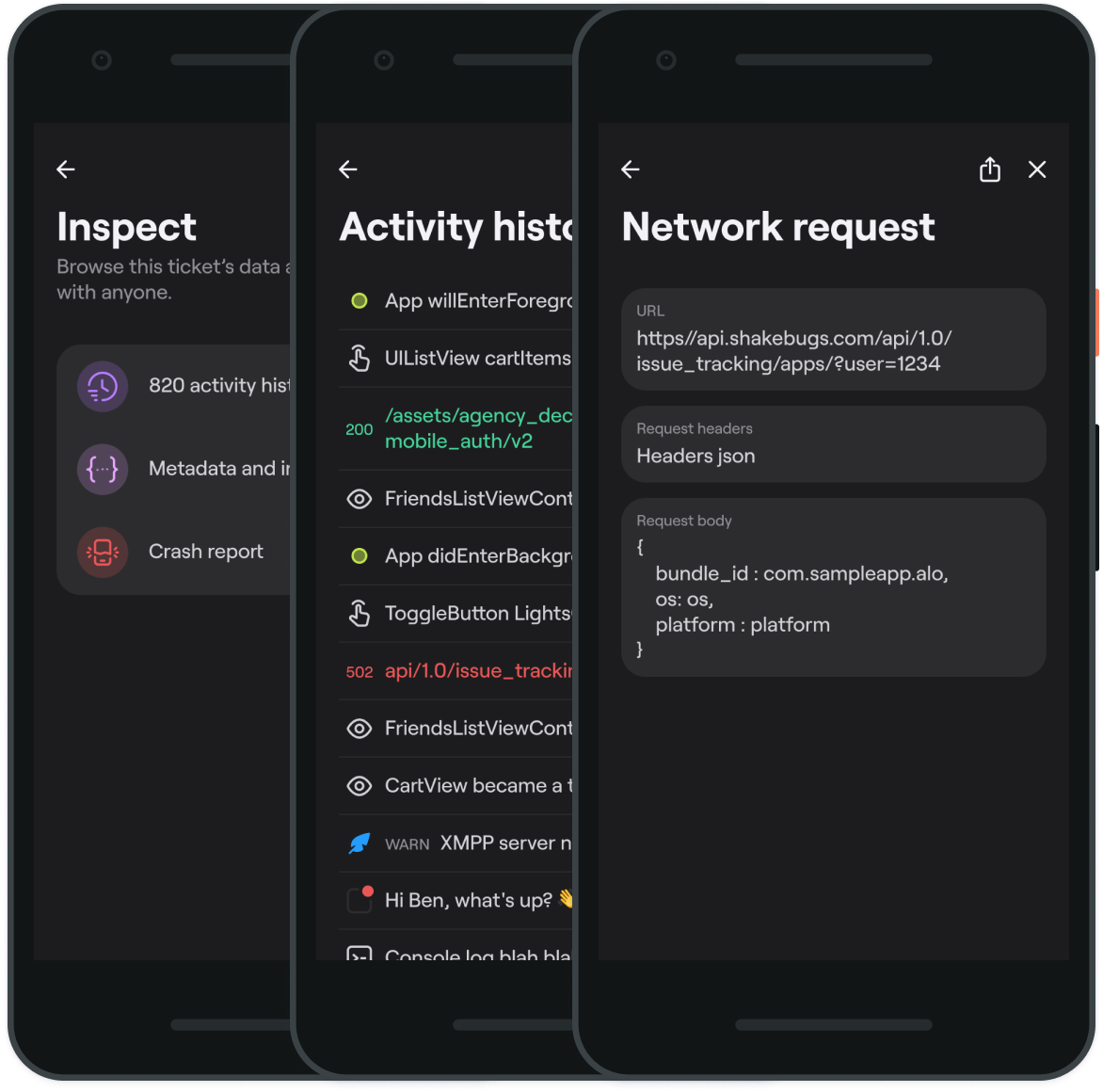
| |
| - |
## Hide the Inspect button[](#hide-the-inspect-button "Direct link to Hide the Inspect button")
The *Inspect* button is an optional element and [can be disabled](/docs/android/configuration-and-data/custom-forms.md#inspect-button).
---
# New ticket screen
> Your users submit tickets from this screen.
You're viewing the Android docs. Other platforms → [iOS](/docs/ios/shake-ui/new-ticket-screen.md) [React Native](/docs/react/shake-ui/new-ticket-screen.md) [Flutter](/docs/flutter/shake-ui/new-ticket-screen.md) [Web](/docs/web/shake-ui.md#screens)
## Introduction[](#introduction "Direct link to Introduction")
The New ticket screen contains various elements, which can be tweaked according to your needs. Visit [Elements of the New ticket screen](/docs/android/configuration-and-data/overview.md#elements-of-the-new-ticket-screen) for more details.
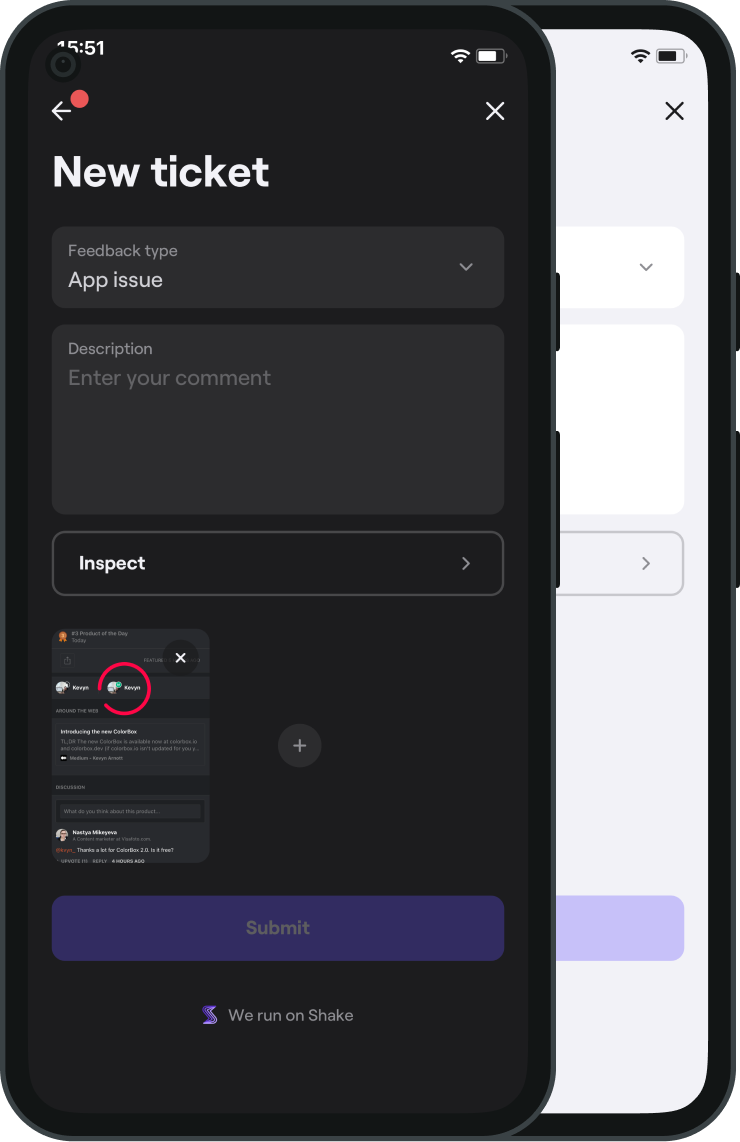
| |
| - |
## How to show this screen[](#how-to-show-this-screen "Direct link to How to show this screen")
This screen is shown when your users invoke Shake manually. To show this screen programmatically, call `Shake.show` with no arguments since it's the default option. Visit [Invocations](/docs/android/user-feedback/invoke.md) to read about various ways to invoke Shake.
---
# Overview
> Shake's user interface explained and instructions on how to customize it.
You're viewing the Android docs. Other platforms → [iOS](/docs/ios/shake-ui/overview.md) [React Native](/docs/react/shake-ui/overview.md) [Flutter](/docs/flutter/shake-ui/overview.md) [Web](/docs/web/shake-ui.md)
## Screens[](#screens "Direct link to Screens")
The Shake UI consists of nine screens, and here's how they're related:
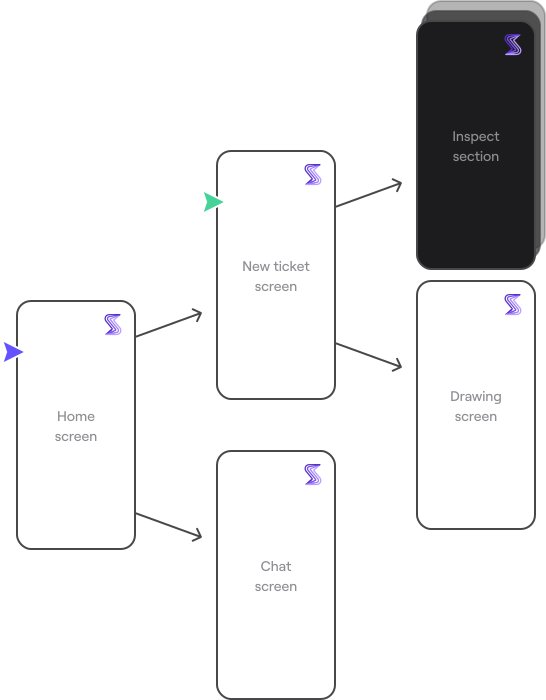
| |
| - |
## Opening Shake[](#opening-shake "Direct link to Opening Shake")
You can decide to open either Shake's Home screeen or New ticket screen, depending on the flow you want to achieve. Listed below are some common use cases that show where you might like to add Shake to your app. Of course, it's up to you to decide what best suits your app UX.
### Internal feedback collection[](#internal-feedback-collection "Direct link to Internal feedback collection")
This entry point is often used during internal testing. Your testers or office colleagues are told to invoke Shake whenever they notice a bug or have a suggestion. In this case, instruct Shake to open the [New ticket screen](/docs/android/shake-ui/new-ticket-screen.md):
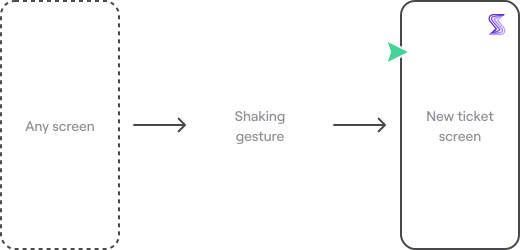
| |
| - |
### Production ticketing system[](#production-ticketing-system "Direct link to Production ticketing system")
In production, apps usually add Shake under **My account or Settings → Help**. There, they have a **Submit feedback** button that opens Shake's [Home screen](/docs/android/shake-ui/home-screen.md):
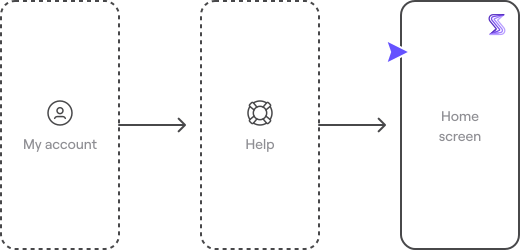
| |
| - |
### Internal and production crash reporting[](#internal-and-production-crash-reporting "Direct link to Internal and production crash reporting")
Lastly, Shake can open automatically after your app crashes. [Enable Crashes](/docs/android/crash-reports/enable.md) and [enable the Ask for crash description sheet](/docs/android/crash-reports/ask-for-description.md) so your users can describe what happened before your app crashed on them:
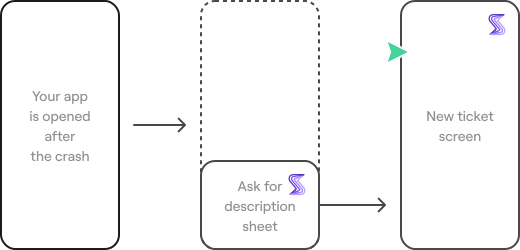
| |
| - |
## Design and customizations[](#design-and-customizations "Direct link to Design and customizations")
Shake supports dark and light mode out of the box, there is no need to code anything. Its UI will automatically adapt depending on your app design settings.
Shake also supports white labeling, you can change its colors and text from the code.
Lastly, Shake mobile UI has been localized to support [numerous languages](https://help.shakebugs.com/en/articles/3392092-which-languages-has-shake-sdk-been-translated-to). Your users whose default device language is set to one of those will automatically use Shake in their native language.
⚡️ Shake is improved every week. Stumbled upon a [bug](https://feedback.shakebugs.com/bugs)? Want a [new feature](https://feedback.shakebugs.com/feature-requests) to be added? Create new tickets and upvote existing ones on the Public feedback board.
---
# Enable
> The Feedback module is enabled by default.
You're viewing the Android docs. Other platforms → [iOS](/docs/ios/user-feedback/enable.md) [React Native](/docs/react/user-feedback/enable.md) [Flutter](/docs/flutter/user-feedback/enable.md)
This is how you disable it:
1. First, set the `setUserFeedbackEnabled` flag to `false`.
2. Then, call the `Shake.start` method.
* Java
* Kotlin
App.java
```
Copy
Shake.setUserFeedbackEnabled(false);
```
App.kt
```
Copy
Shake.setUserFeedbackEnabled(false)
```
---
# Intro message
> There's a simple way to let all your app users or testers know how to send you feedback.
You're viewing the Android docs. Other platforms → [iOS](/docs/ios/user-feedback/intro-message.md) [React Native](/docs/flutter/user-feedback/intro-message.md) [Flutter](/docs/react/user-feedback/intro-message.md)
| |
| - |
If enabled, a one-off intro message will be shown to your users as soon as they open your app for the first time. Its text is automatically set based on the [manual invocations you use](/docs/android/user-feedback/invoke.md#invoke-manually), so you don't need to write anything. This message is disabled by default. Enable it easily using the following method:
* Java
* Kotlin
App.java
```
Copy
Shake.setShowIntroMessage(true);
```
App.kt
```
Copy
Shake.setShowIntroMessage(true)
```
---
# Invoke
> Decide how you want Shake user feedback to be invoked.
You're viewing the Android docs. Other platforms → [iOS](/docs/ios/user-feedback/invoke.md) [React Native](/docs/react/user-feedback/invoke.md) [Flutter](/docs/flutter/user-feedback/invoke.md) [Web](/docs/web/user-feedback/invoke.md)
## Invoke manually[](#invoke-manually "Direct link to Invoke manually")
By default, Shake user feedback is invoked when a user shakes their device. You don't need to code anything:
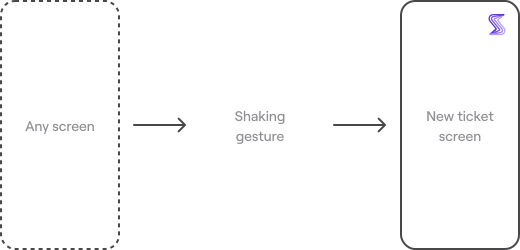
| |
| - |
But if you want to, you can customize that.
Let's look at an example where you want Shake user feedback to be invoked either when your users shake their device or when they take a screenshot:
* Java
* Kotlin
App.java
```
Copy
Shake.getReportConfiguration().setInvokeShakeOnShakeDeviceEvent(true);
Shake.getReportConfiguration().setInvokeShakeOnScreenshot(true);
Shake.start(this, "app-api-key");
```
App.kt
```
Copy
Shake.getReportConfiguration().isInvokeShakeOnShakeDeviceEvent = true
Shake.getReportConfiguration().isInvokeShakeOnScreenshot = true
Shake.start(this, "app-api-key")
```
You can also change the preferred invocation event on-the-fly during runtime. Here’s a list of all available options. Feel free to use any combination of these:
* Java
* Kotlin
App.java
```
Copy
Shake.getReportConfiguration().setInvokeShakeOnShakeDeviceEvent(true);
Shake.getReportConfiguration().setShowFloatingReportButton(true);
Shake.getReportConfiguration().setInvokeShakeOnScreenshot(true);
Shake.getReportConfiguration().setInvokeShakeOnRightEdgePan(true);
```
App.kt
```
Copy
Shake.getReportConfiguration().isInvokeShakeOnShakeDeviceEvent = true
Shake.getReportConfiguration().isShowFloatingReportButton = true
Shake.getReportConfiguration().isInvokeShakeOnScreenshot = true
Shake.getReportConfiguration().isInvokeShakeOnRightEdgePan = true
```
Also, feel free to change which Shake screen is shown when Shake user feedback is invoked manually:
* [New ticket screen](/docs/android/shake-ui/new-ticket-screen.md) (default)
* [Home screen](/docs/android/shake-ui/home-screen.md)
* [Chat screen](/docs/android/shake-ui/chat-screen.md)
- Java
- Kotlin
App.java
```
Copy
Shake.getReportConfiguration().setDefaultScreen(ShakeScreen.NEW);
Shake.getReportConfiguration().setDefaultScreen(ShakeScreen.HOME);
Shake.getReportConfiguration().setDefaultScreen(ShakeScreen.CHAT);
```
App.kt
```
Copy
Shake.getReportConfiguration().defaultScreen = ShakeScreen.NEW
Shake.getReportConfiguration().defaultScreen = ShakeScreen.HOME
Shake.getReportConfiguration().defaultScreen = ShakeScreen.CHAT
```
If you are showing Shake chat screen, make sure that you have [registered](/docs/android/users/register-user.md) your app user. Otherwise Shake home screen will be shown.
### Shaking gesture[](#shaking-gesture "Direct link to Shaking gesture")
By default, the shaking gesture opens Shake user feedback.
note
If you are testing Shake SDK on your computer, keep in mind that the Android Emulator’s "shaking gesture" is too weak to invoke Shake. You can decrease Shake's threshold as described below, or use another invocation method.
The shaking threshold can be fine-tuned too. Let's decrease it, for example, so that Shake user feedback is easier to invoke:
* Java
* Kotlin
App.java
```
Copy
Shake.getReportConfiguration().setShakingThreshold(400); // Default value is 600.
```
App.kt
```
Copy
Shake.getReportConfiguration().shakingThreshold = 400 // Default value is 600.
```
A valid threshold value range is `1 - 1000`. Higher values represent higher thresholds, meaning that a stronger motion gesture will be required to invoke Shake user feedback.
### Floating button[](#floating-button "Direct link to Floating button")
This invocation event creates a floating button on top of your app's UI which your users will be able to see and drag around the screen at all times.
note
In the Android Emulator, you might need to click the button twice if one click doesn’t do it. Also, system interface elements [may sometimes get in the way](https://help.shakebugs.com/en/articles/3321805-the-report-a-bug-button-is-hidden-behind-an-interface-element) of the button.
### Taking a screenshot[](#taking-a-screenshot "Direct link to Taking a screenshot")
Shake user feedback will be invoked when your user takes a screenshot while using your app.
note
The only way for any SDK to realize that a screenshot has been captured is to monitor the screenshots directory. Because of that, if you opt for this invocation method, storage permission will be requested from a user when they launch your app.
### Right edge pan[](#right-edge-pan "Direct link to Right edge pan")
Shake user feedback will be invoked with a one-finger swiping gesture from the right edge of the screen.
note
The right edge pan gesture won’t work if performed over a ListView or ScrollView. Use one of the alternative ways to invoke Shake instead.
## Invoke through code[](#invoke-through-code "Direct link to Invoke through code")
Invoke Shake user feedback through code by calling the `Shake.show` method anywhere after `Shake.start`.
The `show` method can be called with the argument `ShakeScreen` which determines the first presented screen in the Shake UI.
* Java
* Kotlin
MainActivity.java
```
Copy
Shake.show(ShakeScreen.NEW);
Shake.show(ShakeScreen.HOME);
Shake.show(ShakeScreen.CHAT);
```
MainActivity.kt
```
Copy
Shake.show(ShakeScreen.NEW)
Shake.show(ShakeScreen.HOME)
Shake.show(ShakeScreen.CHAT)
```
If an [auto screenshot](/docs/android/configuration-and-data/auto-screenshot.md) and [auto screen recording](/docs/android/configuration-and-data/auto-screen-recording.md) are enabled, when you call `ShakeScreen.NEW` or `ShakeScreen.CHAT` they will be automatically attached to a ticket.
If enabled, [activity history](/docs/android/configuration-and-data/activity-history.md), [black box](/docs/android/configuration-and-data/black-box.md) and all other data are also automatically attached. No additional code is required.
If you are showing Shake chat screen, make sure that you have [registered](/docs/android/users/register-user.md) your app user. Otherwise Shake home screen will be shown.
---
# Overview
> The Feedback module allows your users and testers to seamlessly report their feedback to you.
You're viewing the Android docs. Other platforms → [iOS](/docs/ios/user-feedback/overview.md) [React Native](/docs/react/user-feedback/overview.md) [Flutter](/docs/flutter/user-feedback/overview.md) [Web](/docs/web/user-feedback/overview.md)
## Introduction[](#introduction "Direct link to Introduction")
When this module is enabled, you have various options for how, when and where to invoke Shake in your app. Explore the docs and customize Shake's Feedback module to your needs. To get you started, here are just two examples:
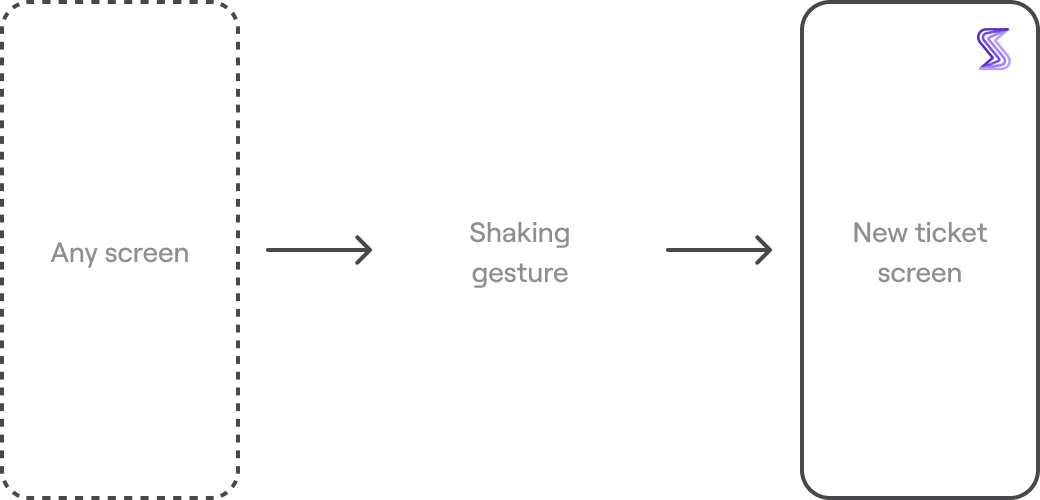
| |
| - |
Common internal testing setup: Make Shake's [New ticket screen](/android/shake-ui/new-ticket-screen/) available from anywhere

| |
| - |
Common production setup: A button on your Help screen that opens Shake's [Home screen](/android/shake-ui/home-screen/)
## Shared configuration[](#shared-configuration "Direct link to Shared configuration")
Just like the [Crashes](/docs/android/crash-reports/overview.md) module, the Feedback module pulls your [Configuration and data](/docs/android/configuration-and-data/overview.md) settings.
This means that all user feedback comes to you with an [auto screenshot](/docs/android/configuration-and-data/auto-screenshot.md), an [auto screen recording](/docs/android/configuration-and-data/auto-screen-recording.md) of what happened before the ticket was submitted, [activity history](/docs/android/configuration-and-data/activity-history.md) and other useful data.
⚡️ Shake is improved every week. Stumbled upon a [bug](https://feedback.shakebugs.com/bugs)? Want a [new feature](https://feedback.shakebugs.com/feature-requests) to be added? Create new tickets and upvote existing ones on the Public feedback board.
---
# Silent user feedback
> Send yourself feedback from the app background, without showing [Shake UI](/docs/android/shake-ui/overview.md).
You're viewing the Android docs. Other platforms → [iOS](/docs/ios/user-feedback/silent-user-feedback.md) [React Native](/docs/react/user-feedback/silent-user-feedback.md) [Flutter](/docs/flutter/user-feedback/silent-user-feedback.md) [Web](/docs/web/user-feedback/silent-user-feedback.md)
## Overview[](#overview "Direct link to Overview")
You can send silent user feedback to yourself by calling the `Shake.silentReport` method anywhere after `Shake.start`. Feel free to add your own description to it as well.
*ShakeReportConfiguration* determines which data is attached to the silent user feedback:
* [Auto attached files](/docs/android/configuration-and-data/auto-attach-files.md)
* [Auto screen recording](/docs/android/configuration-and-data/auto-screen-recording.md) if the feature is turned on
* Etc.
* Java
* Kotlin
App.java
```
private void sendSilentReport() {
Copy
ShakeReportConfiguration configuration = new ShakeReportConfiguration();
configuration.screenshot = true;
configuration.video = false;
configuration.blackBoxData = true;
configuration.activityHistoryData = true;
Shake.silentReport("Description #tag1 #tag2", createShakeReportData(), configuration);
}
Copy
private ShakeReportData createShakeReportData() {
return new ShakeReportData() {
@Override
public List attachedFiles() {
List shakeFiles = new ArrayList<>();
shakeFiles.add(new ShakeFile(filePath));
return shakeFiles;
}
};
}
```
App.kt
```
private fun sendSilentReport() {
Copy
val configuration = ShakeReportConfiguration()
configuration.screenshot = true
configuration.video = false
configuration.blackBoxData = true
configuration.activityHistoryData = true
Shake.silentReport("Description #tag1 #tag2", createShakeReportData(), configuration)
}
Copy
private fun createShakeReportData(): ShakeReportData {
return ShakeReportData {
val shakeFiles = ArrayList()
shakeFiles.add(ShakeFile(filePath))
shakeFiles
}
}
```
## Show the Ticket submitted message[](#show-the-ticket-submitted-message "Direct link to Show the Ticket submitted message")
To optionally notify your user that a silent user feedback has just been submitted, change the `ShakeReportConfiguration` and use that configuration object when sending the silent user feedback with the `Shake.silentReport` method:
* Java
* Kotlin
App.java
```
Copy
ShakeReportConfiguration configuration = new ShakeReportConfiguration();
configuration.showReportSentMessage = true;
```
App.kt
```
Copy
val configuration = ShakeReportConfiguration()
configuration.showReportSentMessage = true
```
---
# Advanced usage
> Some apps might want to register the device itself as an app user or make a transition from the anonymous app user to the identified user.
You're viewing the Android docs. Other platforms → [iOS](/docs/ios/users/advanced-usage.md) [React Native](/docs/react/users/advanced-usage.md) [Flutter](/docs/flutter/users/advanced-usage.md) [Web](/docs/web/users/advanced-usage.md)
## Register an anonymous app user[](#register-an-anonymous-app-user "Direct link to Register an anonymous app user")
Let's take an app like *Reddit* for example. Their app users can browse the app as guests for months before deciding to sign up.
As soon as your app user opens your app — and way before they sign up — you can identify them as an anonymous app user so both of you instantly get all the benefits of the app Users module.
You would do so by calling `Shake.registerUser(UUID)`, where the `UUID` is a randomly generated unique device ID persisted in the app storage.
## Anonymous app user → `Shake.updateUserId`[](#anonymous-app-user--shakeupdateuserid "Direct link to anonymous-app-user--shakeupdateuserid")
Let's suppose this anonymous app user decides to sign up one day, and you want to **keep** their app User entity:
* They will have the ability to see all their previously reported tickets.
* You consider them as the same app user and want to keep all their app User metadata.
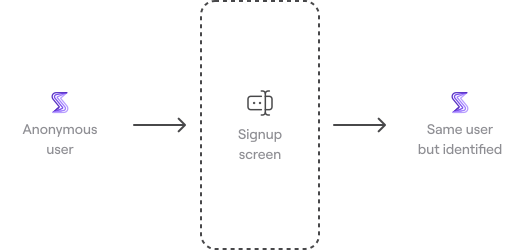
| |
| - |
You would call the `Shake.updateUserId` method with the new app user identifier.
note
We recommend performing this transition only in one direction: Anonymous → Identified. The other way around could lead to an undesired result of linking the previously-identified app user to the now-anonymous app user ie. device.
## Anonymous app user → `Shake.registerUser`[](#anonymous-app-user--shakeregisteruser "Direct link to anonymous-app-user--shakeregisteruser")
Let's suppose an anonymous app user decides to sign up one day, but you want to treat the newly signed-up app user as a **new** app User entity instead:
* You want a fresh new app User.
* This app user won't see tickets they reported before they signed up, while being an anonymous app user.
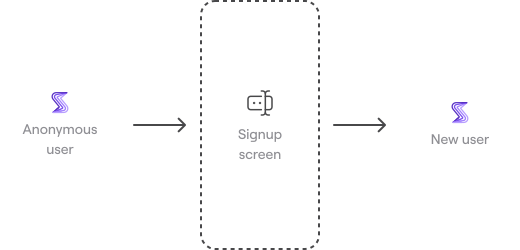
| |
| - |
You would call the `Shake.registerUser` method with the new app user identifier.
### Switch back to the anonymous app user[](#switch-back-to-the-anonymous-app-user "Direct link to Switch back to the anonymous app user")
When an identified app user decides to delete their account or log out, you might want to switch back to the anonymous app User.
To achieve that, instead of calling `Shake.unregisterUser` you would do a switch back to the device identifier by calling `Shake.registerUser(UUID)` again.
This app User will again see the tickets they had reported before they signed up.
---
# Chat
> If needed, your app users can [chat with you](/docs/android/shake-ui/chat-screen.md) to provide you more details about their reported bugs, crashes or feedback. You will be able to fix issues faster and make your customers happier.
You're viewing the Android docs. Other platforms → [iOS](/docs/ios/users/chat.md) [React Native](/docs/react/users/chat.md) [Flutter](/docs/flutter/users/chat.md) [Web](/docs/web/users/chat.md)
## Enable[](#enable "Direct link to Enable")
Once your app user is [registered](/docs/android/users/register-user.md) with Shake, the chat feature is enabled automatically. Each ticket they send you will be a separate conversation.
This feature is tightly integrated with and follows the lifecycle of your *User* registration, which means that calling `Shake.unregisterUser` also *disconnects* the current app user from chat and they won't receive any new messages until registered again.
## Notifications[](#notifications "Direct link to Notifications")
Shake can notify your app [users](/docs/android/users/register-user.md) about new messages sent from the Shake dashboard.
Both remote and local notifications are supported, but are mutually exclusive.
### Set up Firebase SDK[](#set-up-firebase-sdk "Direct link to Set up Firebase SDK")
Shake uses Firebase for sending push notifications to your Android app.
If you didn't add Firebase to your project yet, follow the official documentation for [adding Firebase into the project](https://firebase.google.com/docs/android/setup).
You'll also have to [set up Firebase Cloud Messaging](https://firebase.google.com/docs/cloud-messaging/android/client) in your app.
### Forwarding device token to the Shake[](#forwarding-device-token-to-the-shake "Direct link to Forwarding device token to the Shake")
To target the specific Android device, Shake needs the device Firebase token.
Forward Firebase token to the Shake by calling `Shake.setPushNotificationsToken` method on the app start like shown below:
* Java
* Kotlin
App.java
```
Copy
FirebaseMessaging.getInstance().getToken()
.addOnCompleteListener(new OnCompleteListener() {
@Override
public void onComplete(@NonNull Task task) {
if (!task.isSuccessful()) {
Log.w("Firebase", "Fetching FCM registration token failed", task.getException());
return;
}
String token = task.getResult();
Shake.setPushNotificationsToken(token);
}
});
```
App.kt
```
Copy
FirebaseMessaging.getInstance().token.addOnCompleteListener(OnCompleteListener { task ->
if (!task.isSuccessful) {
Log.w("Firebase", "Fetching FCM registration token failed", task.exception)
return@OnCompleteListener
}
val token = task.result
Shake.setPushNotificationsToken(token)
})
```
### Presenting notifications to the app users[](#presenting-notifications-to-the-app-users "Direct link to Presenting notifications to the app users")
Shake sends Firebase *data* push notifications to the device which are not presented by default.
In order to present data notifications to the app users you'll have to use `onMessageReceived` callback from the `FirebaseMessagingService` and call `Shake.showChatNotification` like shown below:
* Java
* Kotlin
MyFirebaseMessagingService.java
```
class MyFirebaseMessagingService extends FirebaseMessagingService {
@Override
public void onMessageReceived(RemoteMessage remoteMessage) {
Copy
String id = remoteMessage.getData()[ChatNotification.ID];
String userId = remoteMessage.getData()[ChatNotification.USER];
String title = remoteMessage.getData()[ChatNotification.TITLE];
String message = remoteMessage.getData()[ChatNotification.MESSAGE];
if (id != null && userId != null && title != null && message != null) {
ChatNotification chatNotification = new ChatNotification(id, userId, title, message);
Shake.showChatNotification(chatNotification);
}
}
}
```
MyFirebaseMessagingService.kt
```
class MyFirebaseMessagingService : FirebaseMessagingService() {
override fun onMessageReceived(remoteMessage: RemoteMessage) {
Copy
val id: String? = remoteMessage.data[ChatNotification.ID]
val userId: String? = remoteMessage.data[ChatNotification.USER]
val title: String? = remoteMessage.data[ChatNotification.TITLE]
val message: String? = remoteMessage.data[ChatNotification.MESSAGE]
if (id != null && userId != null && title != null && message != null) {
val chatNotification = ChatNotification(id, userId, title, message)
Shake.showChatNotification(chatNotification)
}
}
}
```
note
Don't forget to request notifications permission or notifications won't be shown
### Customizing notification title and icon[](#customizing-notification-title-and-icon "Direct link to Customizing notification title and icon")
If you want to change chat notification title or icon, you can do it by adding metadata in the manifest file inside the application element:
AndroidManifest.xml
```
Copy
```
### Set up Service Account credentials on the Shake dashboard[](#set-up-service-account-credentials-on-the-shake-dashboard "Direct link to Set up Service Account credentials on the Shake dashboard")
The last thing you'll have to do is to upload Firebase Cloud Messaging *Service Account* credentials to the Shake Dashboard.
Navigate to the *Project Settings → Service accounts → Generate new private key → Generate key* on the Firebase and upload *Service Account* credentials to the *Workspace Administration → App settings* on the Shake dashboard.
### Local notifications[](#local-notifications "Direct link to Local notifications")
If for some reason, you don't want to configure remote notifications for your app, Shake can still schedule them locally.
To enable these, you still need to request the user permission, but there is no need for additional steps or code.
note
Important thing to note is that local notifications are not shown when app is in the background.
Shake uses `Shake.setPushNotificationsToken` function to determine if the app is configured to receive remote notifications. If that method is called in your app, Shake will disable local notifications and assume that you want to enable remote ones.
## Unread messages[](#unread-messages "Direct link to Unread messages")
If you want to show number of unread chat messages somewhere in your app, you can set the unread messages listener. The listener is called immediately when set and on each change in the number of unread messages for a registered app user:
* Java
* Kotlin
MainActivity.java
```
Copy
Shake.setUnreadChatMessagesListener(new UnreadChatMessagesListener() {
@Override
public void onUnreadMessagesCountChanged(int count) {
// Update number in your text element
}
});
```
MainActivity.kt
```
Copy
Shake.setUnreadChatMessagesListener(object : UnreadChatMessagesListener {
override fun onUnreadMessagesCountChanged(count: Int) {
// Update number in your text element
}
})
```
To remove the unread messages listener, use `Shake.setUnreadChatMessagesListener(null)`.
---
# Overview
> The Users module enables you to see a list of your app users, their attributes and tickets on your Shake dashboard. In parallel, it allows them to see their previously submitted tickets.
You're viewing the Android docs. Other platforms → [iOS](/docs/ios/users/overview.md) [React Native](/docs/react/users/overview.md) [Flutter](/docs/flutter/users/overview.md) [Web](/docs/web/users/overview.md)

| |
| - |
Current features include:
* Your app users can see their previously sent tickets on the [Home screen](/docs/android/shake-ui/home-screen.md).
* You have all your app users listed in one place on your Shake dashboard.
* Your [users' custom attributes](/docs/android/users/update-user-metadata.md) are tracked automatically.
* You and your app users can [live chat](/docs/android/users/chat.md) with each other.
Soon, these features will be available too:
* On your Shake dashboard, you will see an app User which has submitted a Ticket. And all Tickets sent by a particular app User.
* You will be able to see your MAU and DAU charts.
Start by [registering your app users](/docs/android/users/register-user.md).
⚡️ Shake is improved every week. Stumbled upon a [bug](https://feedback.shakebugs.com/bugs)? Want a [new feature](https://feedback.shakebugs.com/feature-requests) to be added? Create new tickets and upvote existing ones on the Public feedback board.
---
# Register app user
> Register your app users with Shake by calling the `Shake.registerUser` method.
You're viewing the Android docs. Other platforms → [iOS](/docs/ios/users/register-user.md) [React Native](/docs/react/users/register-user.md) [Flutter](/docs/flutter/users/register-user.md) [Web](/docs/web/users/register-user.md)
The passed *user identifier* argument should ideally reflect the identifier that uniquely represents the app user in your database. Often it is the app user's email address, but it may be their app User ID, or their device's UUID. Shake's public method is intentionally called *register* and not *logIn* because app user identification context is different in different apps.
Most apps communicate with their backend through the network layer which performs the URL request and asynchronously receives a callback with the request result. That callback's body is a common place where developers call the `Shake.registerUser` method, but maybe your context is different. Make sure to call this method at the place where it fits your app's flow perfectly.
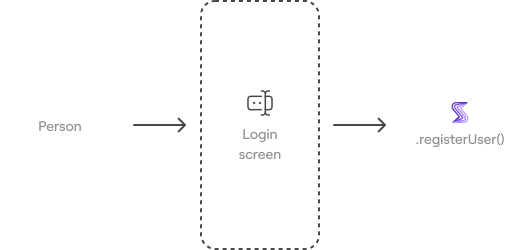
| |
| - |
A common case is to register app users from your app's Login screen
* Java
* Kotlin
LoginActivity.java
```
private void logInUser(String email, String password) {
networkService.performLogin(email, password, new LoginListener() {
@Override
void onLoginSucceeded(User user) {
Copy
Shake.registerUser(user.getId());
handleLogin(user);
}
@Override
void onLoginFailed(String message) {
// Handle failed login
}
});
}
```
LoginActivity.kt
```
private fun logInUser(email: String, password: String) {
networkService.performLogin(email, password, object: LoginListener() {
@override
fun onLoginSucceeded(user: User) {
Copy
Shake.registerUser(user.id)
handleLogin(user)
}
@override
fun onLoginFailed(message: String) {
// Handle failed login
}
})
}
```
note
Keep in mind that if your app is already published, some users will be already logged in into the app. To handle this case, we recommend calling `Shake.registerUser` method also on the first screen app shows. Registered user is stored locally and this method won't send registration request if it not needed.
---
# Unregister app user
> Unregistering an app user should be done when your app user decides to *log out* and use your app as a *guest* or when you no longer want the subsequent tickets to be associated with the current app user.
You're viewing the Android docs. Other platforms → [iOS](/docs/ios/users/unregister-user.md) [React Native](/docs/react/users/unregister-user.md) [Flutter](/docs/flutter/users/unregister-user.md) [Web](/docs/web/users/unregister-user.md)
Unregistering is done by calling the `Shake.unregisterUser` method:
* Java
* Kotlin
SettingsActivity.java
```
private void logOut() {
networkService.performLogOut(email, new LogOutListener() {
@Override
void onLogOutSucceeded() {
Copy
Shake.unregisterUser();
handleLogOut();
}
@Override
void onLogOutFailed(String message) {
// Handle failed log out
}
});
}
```
SettingsActivity.kt
```
private fun logOut() {
networkService.performLogOut(email, object: LogOutListener() {
@override
fun onLogOutSucceeded() {
Copy
Shake.unregisterUser()
handleLogOut()
}
@override
fun onLogOutFailed(message: String) {
// Handle failed log out
}
})
}
```
---
# Update app user identifier
> You can update the app user identifier you had used to register the app user. In most app flows, this is a method that's rarely called.
You're viewing the Android docs. Other platforms → [iOS](/docs/ios/users/update-user-identifier.md) [React Native](/docs/react/users/update-user-identifier.md) [Flutter](/docs/flutter/users/update-user-identifier.md) [Web](/docs/web/users/update-user-identifier.md)
For example, suppose that you have registered your app user with an email. The app user would be able to subsequently change their email in app settings and still continue using your service as the same entity.
Calling `Shake.updateUserId` on an already registered app user:
1. Updates the app user identifier in the Shake database.
2. It becomes the new app user identifier.
3. You continue to pass this new app user identifier to `Shake.registerUser` on this app user's subsequent logins.
caution
Updating the app user identifier allows various possibilities for how this feature can be used but can also lead to possibly unwanted results. Read the documentation carefully to fully understand possible usages and scenarios.
The code snippet below showcases a common scenario in which the app user identifier is updated. It's assumed that the app user was previously registered with an email:
* Java
* Kotlin
SettingsActivity.java
```
private void changeEmail(String email) {
networkService.updateUserEmail(email, new UpdateListener() {
@Override
void onUpdateSucceeded(User user) {
Copy
Shake.updateUserId(user.getEmail());
handleEmailChange(user);
}
@Override
void onUpdateFailed(String message) {
// Handle failed update
}
});
}
```
SettingsActivity.kt
```
private fun changeEmail(email: String) {
networkService.updateUserEmail(email, object: UpdateListener() {
@override
fun onUpdateSucceeded(user: User) {
Copy
Shake.updateUserId(user.email)
handleEmailChange(user)
}
@override
fun onUpdateFailed(message: String) {
// Handle failed update
}
})
}
```
---
# Update app user metadata
> Once you have registered your app user, you can attach a map with key-value pairs which contain additional data about the app user and their behavior.
You're viewing the Android docs. Other platforms → [iOS](/docs/ios/users/update-user-metadata.md) [React Native](/docs/react/users/update-user-metadata.md) [Flutter](/docs/flutter/users/update-user-metadata.md) [Web](/docs/web/users/update-user-metadata.md)
Update app user metadata by calling the `Shake.updateUserMetadata` method anywhere in your code after registering the User.
## Special keys[](#special-keys "Direct link to Special keys")
Values from these two keys will be presented nicely on the Shake dashboard, so we suggest you use them:
* `first_name`
* `last_name`
## Updates[](#updates "Direct link to Updates")
Updates to the app user metadata are *merged*. This allows you to update user metadata in segments from various parts of your app, even when offline.
A common approach developers take is updating **generic** app user metadata from one place in your code upon every app user change
* Java
* Kotlin
LoginActivity.java
```
private void onLoggedIn(User user) {
Copy
Map metadata = new HashMap<>();
metadata.put("first_name", user.getFirstName());
metadata.put("last_name", user.getLastName());
metadata.put("email", user.getEmail());
metadata.put("status", user.getStatus());
Shake.updateUserMetadata(metadata);
}
```
LoginActivity.kt
```
private fun onLoggedIn(user: User) {
Copy
val metadata: MutableMap = HashMap()
metadata["first_name"] = user.firstName
metadata["last_name"] = user.lastName
metadata["email"] = user.email
metadata["status"] = user.status
Shake.updateUserMetadata(metadata)
}
```
and updating **specific** app user metadata in their respective contexts:
* Java
* Kotlin
UserSettingsActivity.java
```
private void onUserSettingsConfigured(UserSettings userSettings) {
fetchUserInformation();
Copy
Map metadata = new HashMap<>();
metadata.put("userSettings", userSettings.toString());
Shake.updateUserMetadata(metadata);
}
```
UserSettingsActivity.kt
```
private fun onUserSettingsConfigured(userSettings: UserSettings) {
fetchUserInformation()
Copy
val metadata: MutableMap = HashMap()
metadata["userSettings"] = userSettings.toString()
Shake.updateUserMetadata(metadata)
}
```
## Limitations[](#limitations "Direct link to Limitations")
The total map size of the app user metadata must not exceed 50 KB. If this validation fails, the update method is dropped with the appropriate console message.
## App user metadata vs. Ticket metadata[](#app-user-metadata-vs-ticket-metadata "Direct link to App user metadata vs. Ticket metadata")
Track app User metadata to understand and describe your app User better. Examples are:
* First and last name
* App user ID
* Address
* Subscription status
* Date of birth
Use [Ticket metadata](/docs/android/configuration-and-data/ticket-metadata.md) to attach useful custom data to each ticket. Examples are statuses of various app variables at the moment the ticket is sent:
* Current chat room ID
* List of items currently in a shopping cart
* Task synced true/false
* Number of search results
* List sorted by what
* Video muted true/false
---
# Data attached by default
> This is the data Shake automatically attaches to every ticket you receive. All of this is done out of the box, you don't need to code anything.
You're viewing the Chrome extension docs. Other platforms → [iOS](/docs/android/configuration-and-data/data-attached-by-default.md) [Android](/docs/android/configuration-and-data/data-attached-by-default.md) [React Native](/docs/android/configuration-and-data/data-attached-by-default.md) [Flutter](/docs/android/configuration-and-data/data-attached-by-default.md) [Web](/docs/chrome-extension/configuration-and-data/data-attached-by-default.md)
## Automatically attached[](#automatically-attached "Direct link to Automatically attached")

Time when the ticket was reported

Device OS

Device model

Location

Connectivity details

Font scale

Screen the ticket was reported from

Time zone

Battery status

Locale

Browser name and version

Browser permissions 1

Browser resolution

Screen resolution

Screen orientation

Website mode

Cookies
1 Shake tracks the status of [these permissions](https://developer.mozilla.org/en-US/docs/Web/API/Permissions_API#browser_compatibility)
On your Shake dashboard, only those permissions that the user has granted access to are listed. The ones you don't see were either denied or not requested at all.
---
# Data privacy disclosure
> When users send you tickets, Shake "magically" and automatically captures a lot of other data, too. Although it feels like magic, it's not. We want you to fully understand and control it.
You're viewing the Chrome extension docs. Other platforms → [iOS](/docs/ios/configuration-and-data/data-privacy-disclosure.md) [Android](/docs/android/configuration-and-data/data-privacy-disclosure.md) [React Native](/docs/react/configuration-and-data/data-privacy-disclosure.md) [Flutter](/docs/flutter/configuration-and-data/data-privacy-disclosure.md) [Web](/docs/chrome-extension/configuration-and-data/data-attached-by-default.md)
## Collected data[](#collected-data "Direct link to Collected data")
| Data | Attributes and sensitivity | Description |
| ------------------------------------------------ | ------------------------------ | ------------------------------------------------------------------------------------------------------------------------------------------------------------------------------------------------------------------------------------------------------------------------------------------------------------------------------------------------------------------------------------------------------------------------------------------------------------------------------------------------------------------------------------------------------------------------------------------- |
| Phone number | | Not collected. |
| Name | | Not collected. |
| Email address | | Not collected. |
| Physical address | | Not collected. |
| Other contact information | | Not collected. |
| Health or fitness data | | Not collected. |
| Payment, credit or other financial info | | Not collected. |
| Precise or coarse location | | Not collected. |
| Sensitive info | | Not collected. |
| User's contacts, emails or text messages | | Not collected. |
| Photos, videos or other user's files | Optional May contain PII | Shake does not automatically collect the contents of the user Gallery or similar locations. However, keep in mind that your users can decide to attach any of their files by browsing their device themselves, and those files could contain PII. |
| Audio or gameplay data | | Not collected. |
| Customer support or other user content | | Not collected. |
| Browsing, purchase or search history | | Not collected. |
| Device ID | Non-PII | Bundle identifier, DeviceID, platform and operating system. Not used for advertising. |
| Product interaction | Optional May contain PII | Shake's [Activity history](/docs/web/configuration-and-data/activity-history.md) shows a timeline of all user actions (every tap), their network requests (request header and body, response header and body), system events (app status changes), screen changes (the user navigating your app), custom logs and application console logs. Shake SDK [automatically deletes as much PII as possible](/docs/web/configuration-and-data/manage-sensitive-data.md#automatically-redacted-sensitive-data) on the device itself. Activity histroy can be disabled in Chrome extension settings. |
| Advertising data | | Not collected. |
| Other usage data | | Not collected. |
| Crash data | | Not collected. |
| Performance data | | Not collected. |
| Other diagnostic data | | Not collected. |
| Screenshot | Optional May contain PII | A screenshot of the user's screen at the moment Shake is invoked. User can additionally blur or delete the screenshot before submitting the ticket. |
| Screen recording | Optional May contain PII | User can attach screen recording if he wants, it's not attached automatically. |
| Permissions | Non-PII | A list of permissions the user has granted to your app. |
| User email | Optional May contain PII | The user that's submitting a ticket enters this data themselves. |
| Time | Non-PII | A timestamp of the moment Shake was invoked. |
| OS | Non-PII | The operating system version of the user’s device. |
| Device | Non-PII | The user device model, Samsung Galaxy S8 for example. |
| App version | Non-PII | The build version of your app, 1.5.42 for example. |
| Network | Non-PII | The network connection type (WiFi, cellular or offline) and name. |
| Current view | Non-PII | The app screen on which Shake was invoked. |
| Timezone | Non-PII | The system settings timezone. |
| City and country | Non-PII | The city from which the ticket was sent. As with any network header on the Internet — that's how the Internet works — Shake SDK's header also contains the sender's IP address. Shake servers read only the request's city (nothing more geographically precise than that), saves that city name and never saves the IP address. Even though some don't consider the IP address PII, we choose to err on the side of caution and want to ensure everyone’s complete safety and security by not saving it. |
| Locale | Non-PII | The system settings locale, en-US for example. |
| Battery status | Non-PII | The battery percentage and whether the device was being charged at that moment. |
| Your app memory usage | Non-PII | How much memory your app was using. |
| Used storage | Non-PII | How much storage is still available on the user's device. |
| Authentication to unlock device | | Not collected. |
| Resolution | Non-PII | The screen width ✕ height in pixels. |
| Orientation | Non-PII | The device orientation at the moment when the feedback was submitted, landscape for example. |
| Density | Non-PII | The screen pixel density, XHDPI for example. |
| Shake SDK | Non-PII | The version of Shake SDK that was used to submit the ticket. |
| Metadata | | Not collected. |
| Custom files | | Not collected. |
---
# Keyboard shortcuts (Coming soon)
> Use keyboard shortcuts to trigger Shake actions
---
# Ticket metadata (Coming soon)
> Automatically attach any custom data from your app to the ticket.
---
# Incognito mode
> Using Shake in Incognito Mode
Yes, Shake works in Incognito too.
Incognito mode is a great way to test websites in a clean environment — no cookies, no cache, just a fresh session. Whether you're reproducing a tricky bug or running through a test flow, Shake will capture everything you need: session replay, console and network logs, device details, and more.
To use Shake in Incognito follow the steps from this gif:
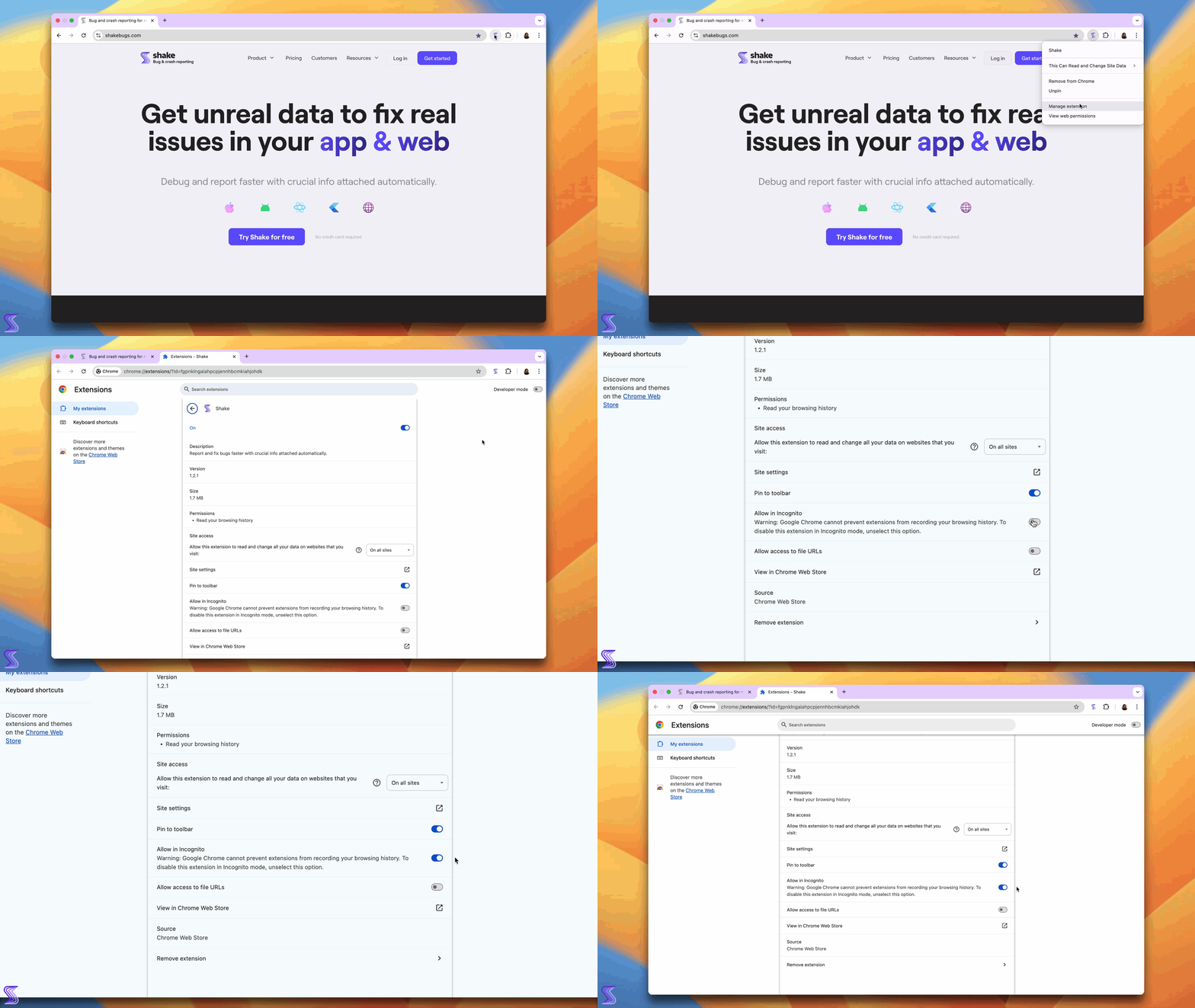
Once that’s on, you’re all set to report bugs from private windows like a pro.
---
# Installation
> Learn how to use Shake with the Chrome extension.
You're viewing the Chrome extension docs. Other platforms → [iOS](/docs/ios/install/spm.md) [Android](/docs/android/installation.md) [React Native](/docs/react/installation.md) [Flutter](/docs/flutter/installation.md) [Web](/docs/web/install/npm.md)
The Shake Chrome extension is available on the Chrome Web Store:
[Install Shake Chrome extension](https://chromewebstore.google.com/detail/shake/fgpnklngaiahpcpjennhbcmkiahjohdk)
Once installed, a Shake button will appear in your browser toolbar, allowing easy access to ticket creation.
Don’t forget to pin the extension for easy access like this:
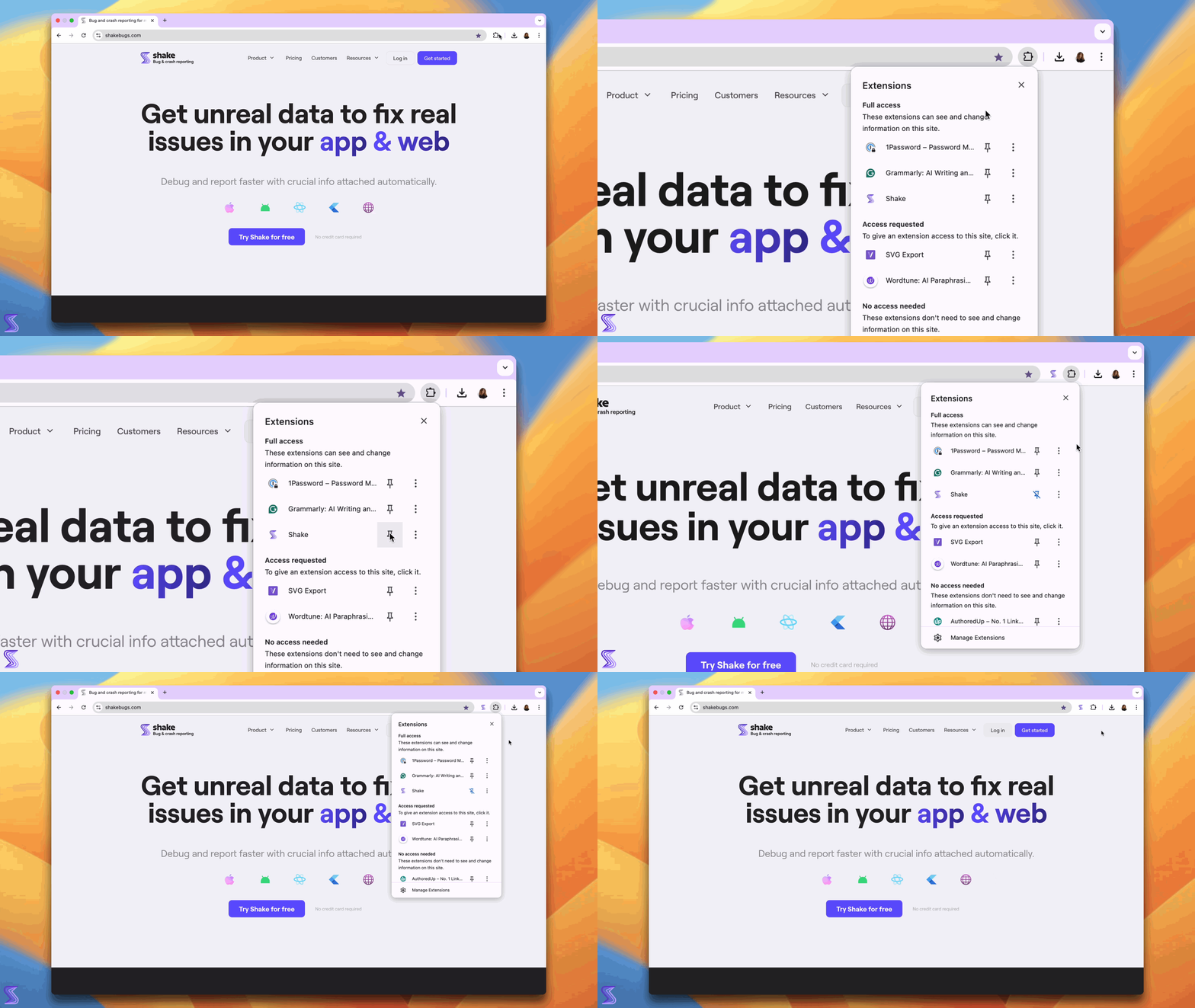
---
# Mobile inspector
> Using Shake with inspection tool
You can use Shake to report responsive bugs by combining it with your browser’s mobile inspection tools. Here’s how to do it:
1. Right-click anywhere on your site and select **Inspect**.
2. In the top-left corner of the developer tools, click the **mobile device toggle** to simulate different screen sizes.
Once you're viewing your site in a mobile layout, use Shake as you normally would to report any layout or responsive issues. Shake will automatically include the current viewport and device info in the bug report—super helpful for your dev team.
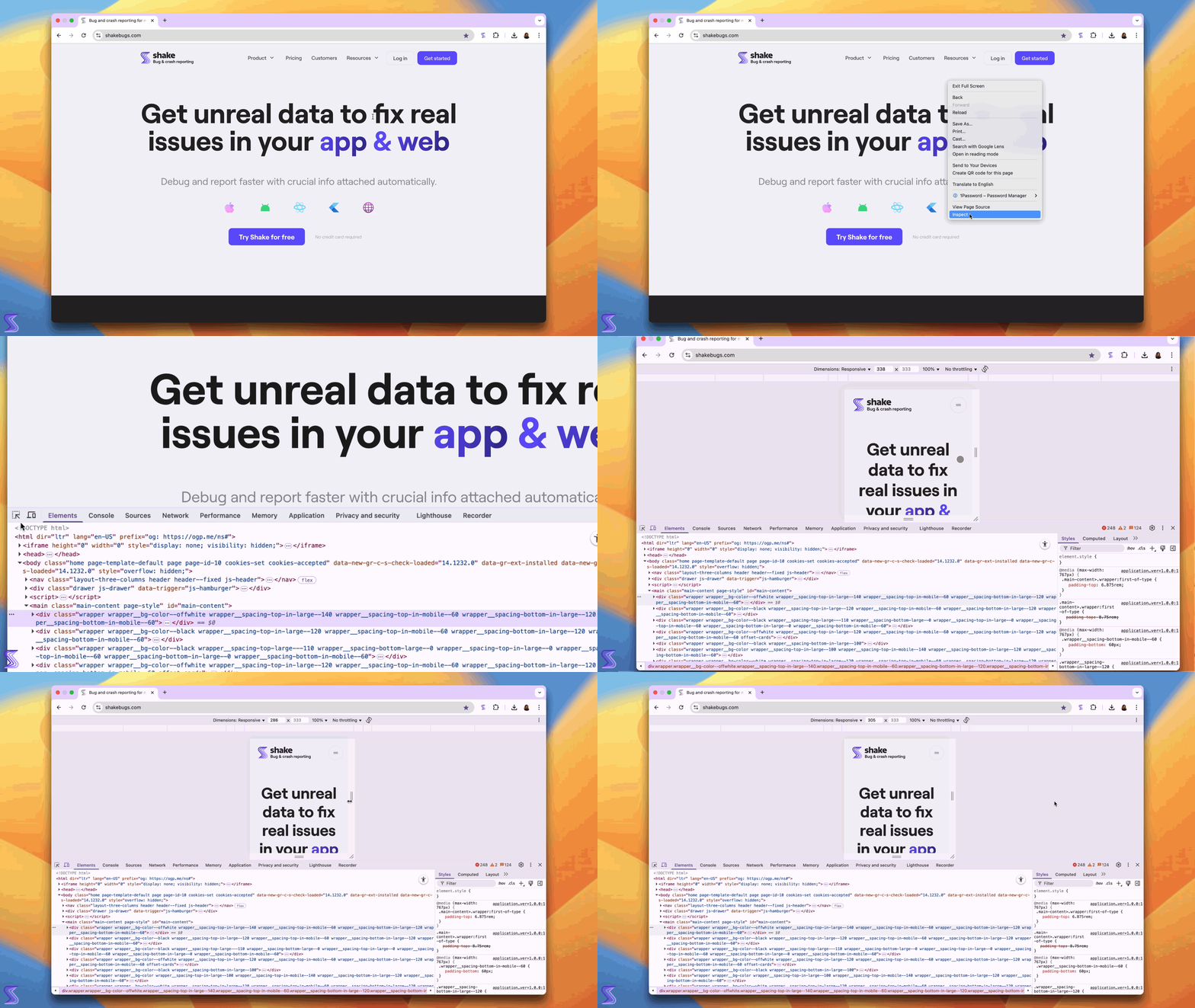
---
# Overview
> Learn how to use Shake Chrome extension.
You're viewing the Chrome extension docs. Other platforms → [iOS](/docs/ios/overview.md) [Android](/docs/android/overview.md) [React Native](/docs/react/overview.md) [Flutter](/docs/flutter/overview.md) [Web](/docs/web/overview.md)
The [Shake Chrome extension](https://shk.sh/chrome-extension) allows you to create and submit tickets effortlessly from your browser. With just a click, you can capture issues, send reports, and share feedback without needing a Shake account or integrating any code into your app.
The extension works seamlessly with Chromium-based browsers such as Chrome, Brave, Vivaldi, Edge, and others.
note
[Shake Chrome extension](https://shk.sh/chrome-extension) has a limited feature set compared to the Shake Web SDK. If you need advanced functionalities such as user registration, in-app chat, or access to previously reported tickets, you should consider integrating the Shake Web SDK instead.
---
# Release notes
> This page lists all updates to the Shake Chrome extension.
Other platforms → [iOS](/docs/ios/releases.md) [Android](/docs/android/releases.md) [React Native](/docs/react/releases.md) [Flutter](/docs/flutter/releases.md) [Web](/docs/web/releases.md)
## What's next?[](#whats-next "Direct link to What's next?")
What would you like us to build next? Upvote upcoming features and suggest new ideas on the [Public feedback board](https://feedback.shakebugs.com/).
## 2.2.x[](#22x "Direct link to 2.2.x")
December 3, 2025 Latest version
#### What's new[](#whats-new "Direct link to What's new")
This release of the extension introduces powerful new features, improved capture quality, and several refinements to deliver a smoother, more reliable bug-reporting experience.
The new AI Suggestions feature helps users craft clearer reports by automatically analyzing inputs and offering meaningful description suggestion.
Screen recordings now support audio capture, while the screenshot delay option allows users to stage the screen before capturing.
Permissions are now requested only at runtime, ensuring a more minimal and privacy-friendly setup.
#### Bug fixes[](#bug-fixes "Direct link to Bug fixes")
This update also fixes several issues, including incorrect screenshot colors on some websites and layout problems with long names in the workspace picker.
## 2.1.x[](#21x "Direct link to 2.1.x")
November 12, 2025
#### What's new[](#whats-new-1 "Direct link to What's new")
This release brings several improvements designed to enhance privacy, usability, and overall reliability.
The extension now features a new Privacy settings section, giving you full control over where Shake runs and helping protect sensitive data. We’ve added a right-click menu with convenient actions, making it faster and easier to create reports and access key features. When videos are blocked by Content Security Policy (CSP), video placeholders now appear so you won’t miss any important context.
These updates, along with various under-the-hood improvements, ensure a smoother, more reliable experience when using extension.
## 2.0.x[](#20x "Direct link to 2.0.x")
September 22, 2025
#### What's new[](#whats-new-2 "Direct link to What's new")
The extension now includes a popup menu, making it easier to choose between taking a screenshot or starting a screen recording. We’ve also introduced a new screenshot capture flow that lets you select just part of the screen instead of the whole page. To enhance the experience, sound effects have been added, along with minor design upgrades for a smoother look and feel.
#### Bug fixes[](#bug-fixes-1 "Direct link to Bug fixes")
A bug related to streaming network requests has been fixed for smoother performance.
## 1.4.x[](#14x "Direct link to 1.4.x")
July 30, 2025
#### What's new[](#whats-new-3 "Direct link to What's new")
We’ve redesigned the Shake extension interface to provide a cleaner, more intuitive experience that’s easier and more pleasant to use. In this update, the extension also captures more detailed network request data — including images, media files, documents, and more — giving you greater visibility into what’s happening behind the scenes. Additionally, we’ve fixed several bugs that were causing the interface to freeze, resulting in a smoother and more stable experience overall.
## 1.3.x[](#13x "Direct link to 1.3.x")
April 18, 2025
#### What's new[](#whats-new-4 "Direct link to What's new")
We've improved Shake performance and feel. Shake is now more stable and runs even smoother. Extension settings are introduced - now you can enable/disable ticket activity history or opening sent tickets in new tab. Additionally, a "Reset extension" button is added which can be used as a troubleshooting tool.
## 1.2.x[](#12x "Direct link to 1.2.x")
March 28, 2025
#### What's new[](#whats-new-5 "Direct link to What's new")
We've improved screenshot drawing and resolved buggy screenshot issue.
## 1.1.x[](#11x "Direct link to 1.1.x")
March 14, 2025
#### What's new[](#whats-new-6 "Direct link to What's new")
We've improved Shake performance and feel. Shake is now more stable and runs even smoother.
## 1.0.x[](#10x "Direct link to 1.0.x")
February 19, 2025
#### What's new[](#whats-new-7 "Direct link to What's new")
Initial version of Shake Chrome extension.
---
# Settings
> Shake Chrome extension use cases explained and instructions on how to use it.
There are a few ways you can utilize Shake extension:
## Create a ticket and share a link[](#create-a-ticket-and-share-a-link "Direct link to Create a ticket and share a link")
With the Shake Chrome extension, you can easily create a public ticket to share with others or keep for personal reference.
Simply select the option *Just a link I can share* and submit the ticket. Once sent, the ticket will open automatically, providing instant access.
Each public ticket includes key details such as the current URL, operating system type and version, screen size, battery status, user activity history including all interactions, network requests, and console logs.
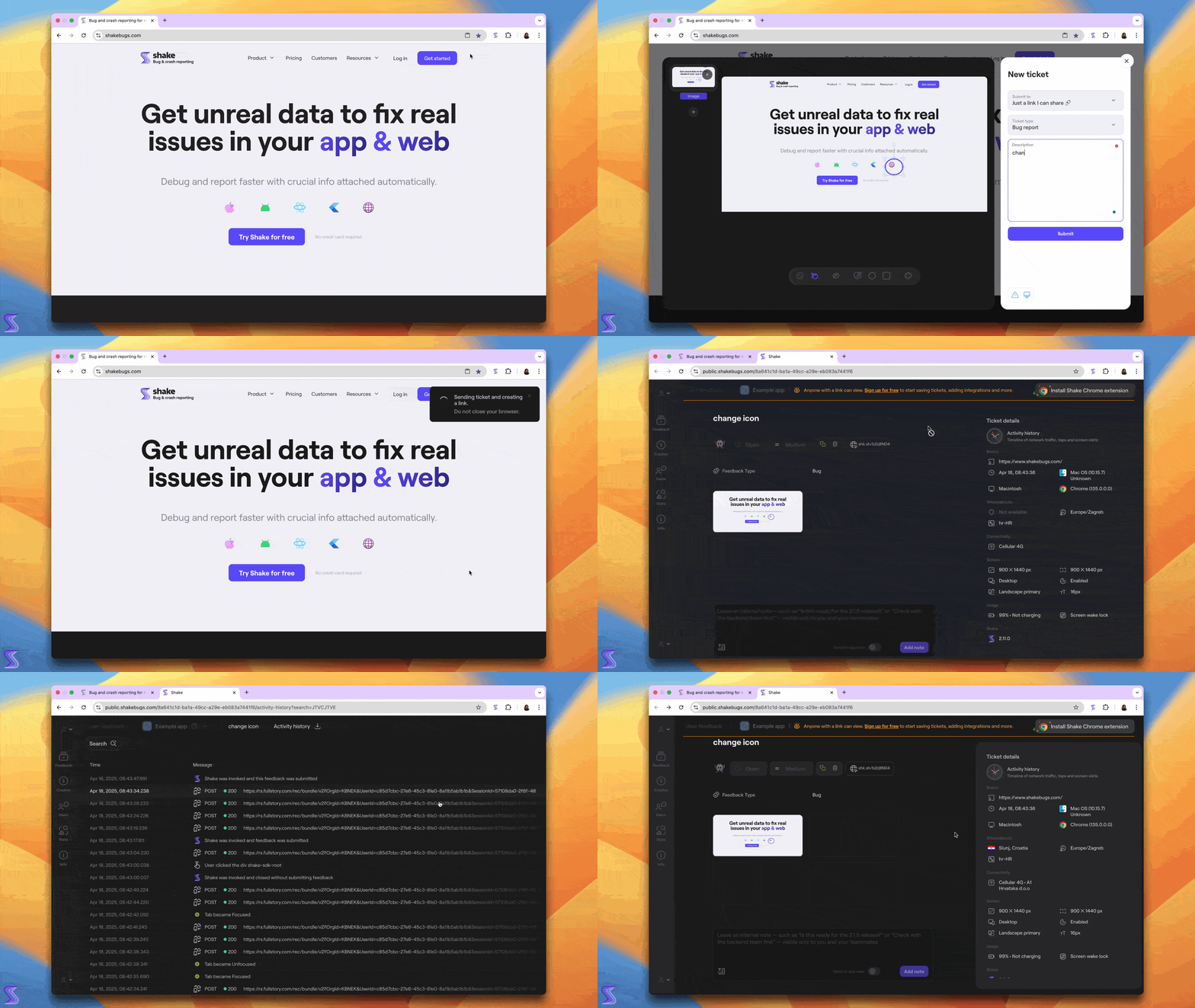
## Send tickets into the Dashboard[](#send-tickets-into-the-dashboard "Direct link to Send tickets into the Dashboard")
For teams using Shake, the Chrome extension allows direct submission of tickets to apps configured within the Shake Dashboard.
This eliminates the need to integrate the Shake SDK into your app and allows you to better organize and manage your tickets. You just simply install the extension, log in into the dashboard in your browser and send tickets directly to the dashboard.
The Shake extension will only display web apps that have either no permitted URL set or a properly configured permitted URL.
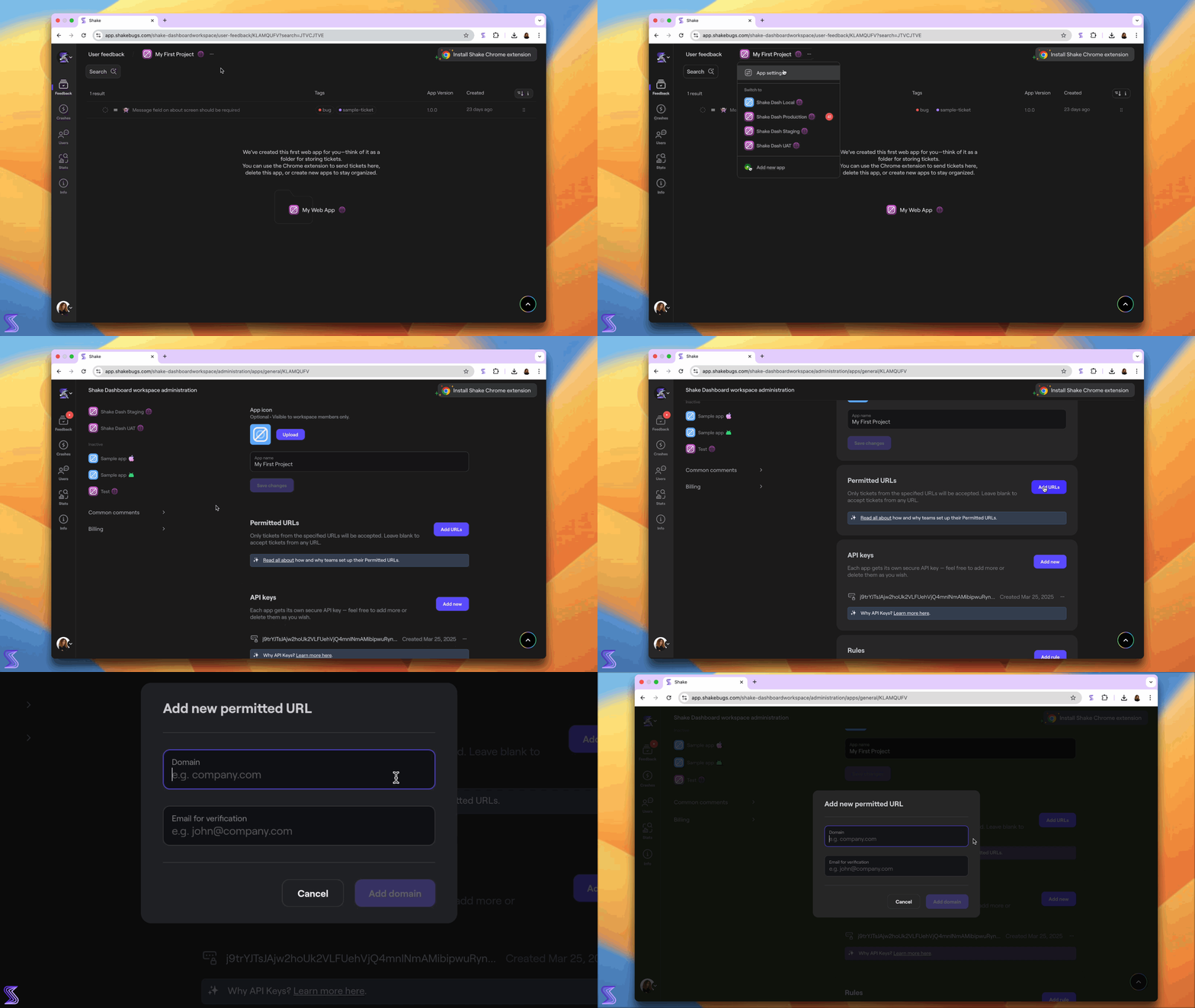
## Collect feedback from anonymous users[](#collect-feedback-from-anonymous-users "Direct link to Collect feedback from anonymous users")
Another useful feature is the ability to collect feedback from anonymous users.
By setting the permitted URL in your app settings and verifying your domain name, any visitor with the Shake extension installed can submit tickets to your app.
Encouraging users to install the extension makes it easier to collect reports from anonymous visitors, helping you gather valuable feedback.
---
# Shake UI
> Shake's user interface explained and instructions on how to use it.
## Screen[](#screen "Direct link to Screen")
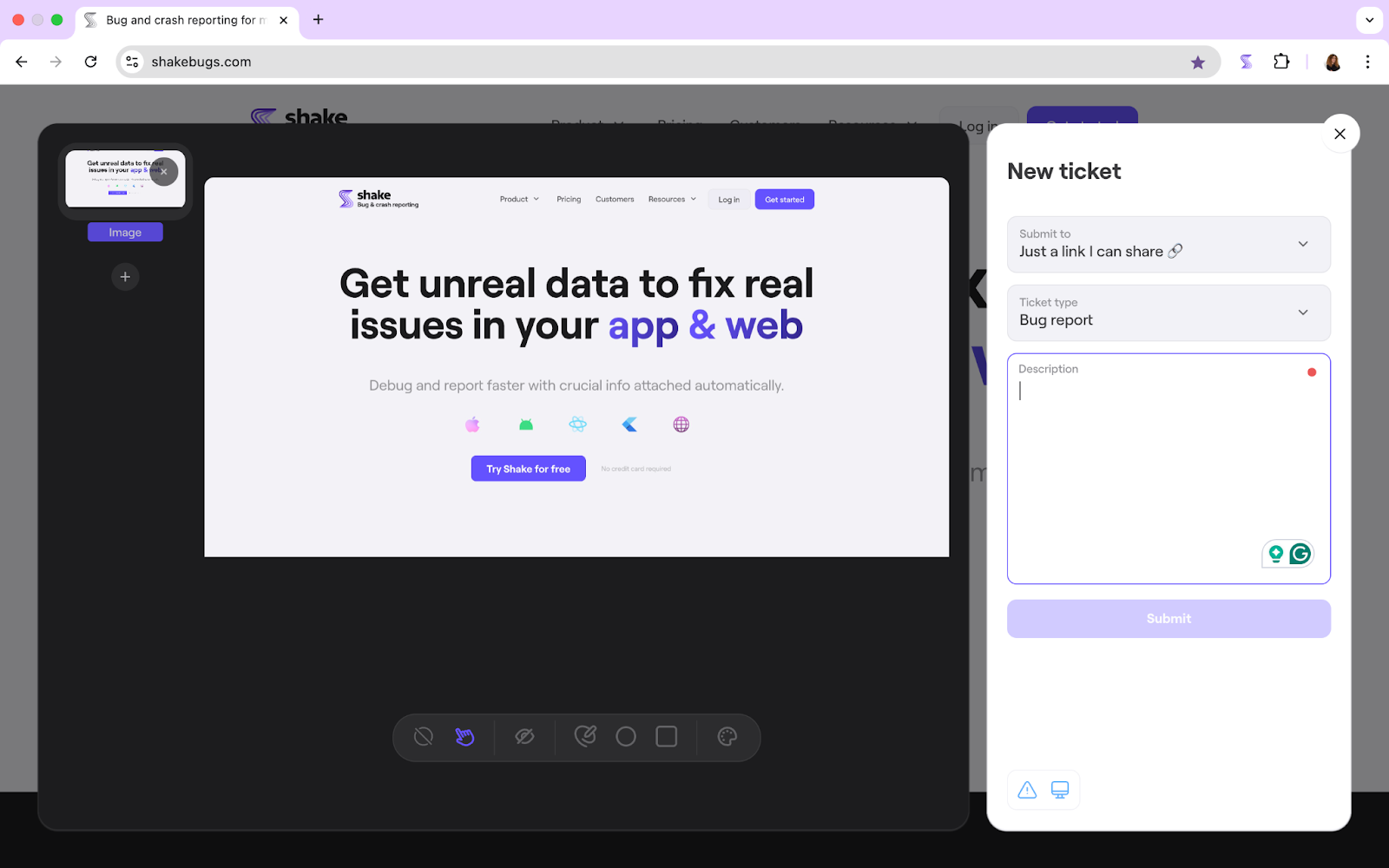
## Using the Shake UI[](#using-the-shake-ui "Direct link to Using the Shake UI")
Once you take a screenshot (you can add more screenshots or videos), Shake gives you a few handy tools to mark things up:
* Pen, Circle, Rectangle – highlight exactly what’s going on
* Color picker – change colors to make things pop
* Clear, Select, and Blur – clean up or focus your feedback
Next up, choose where to send it: Under **Submit to**, you can pick a specific project, or just generate a shareable link.
Then, choose the type of ticket: **Bug report**, **Question**, or **Suggestion for improvement**.
Finally, there’s a Description box where you can write a quick note with more details.
That’s it – smooth, simple, and straight to your team!
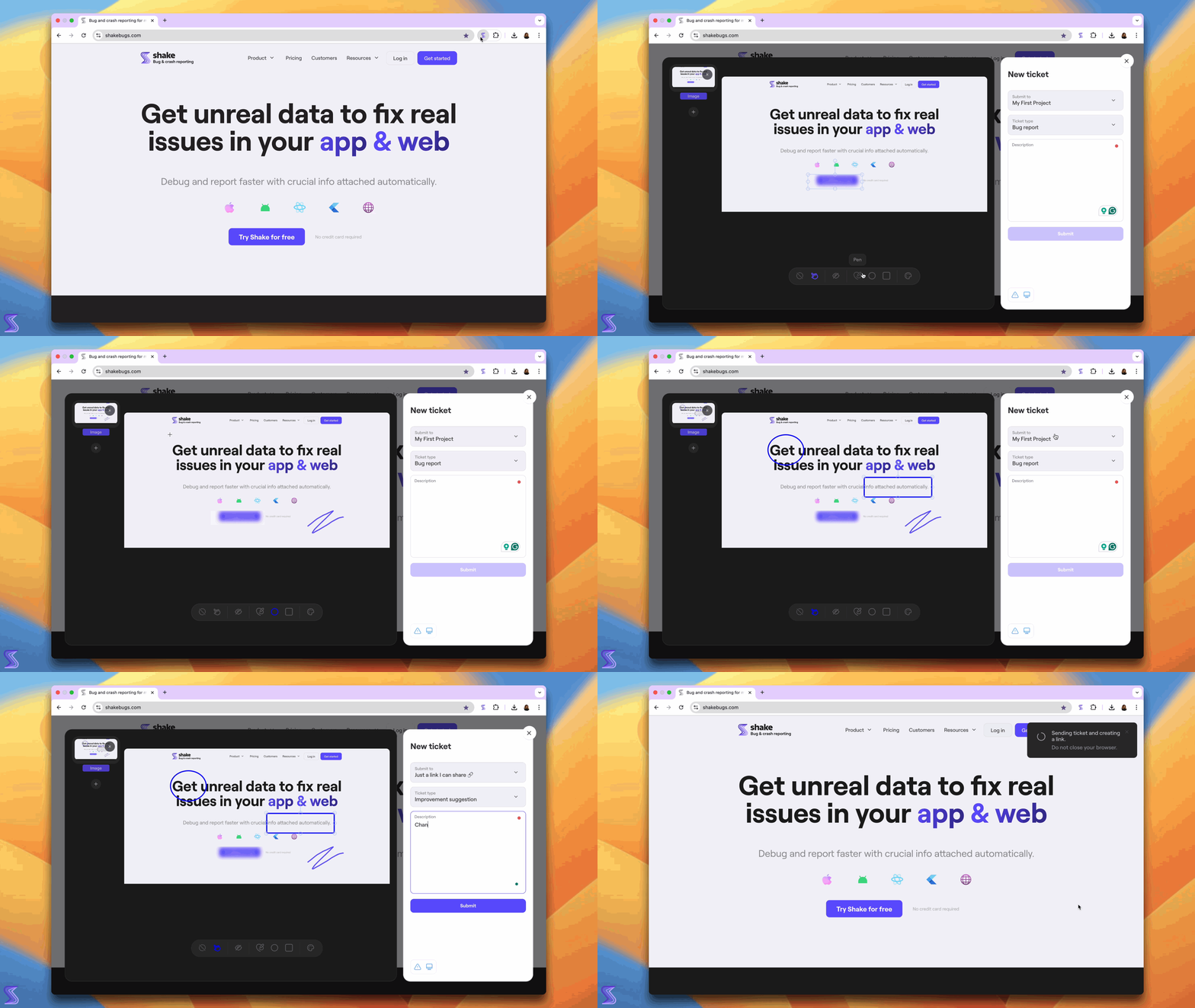
There are also 2 buttons at the button:
1. Report a problem or suggest an improvement (For Shake)
2. Open my Dashboard (Quick access to you dashboard)
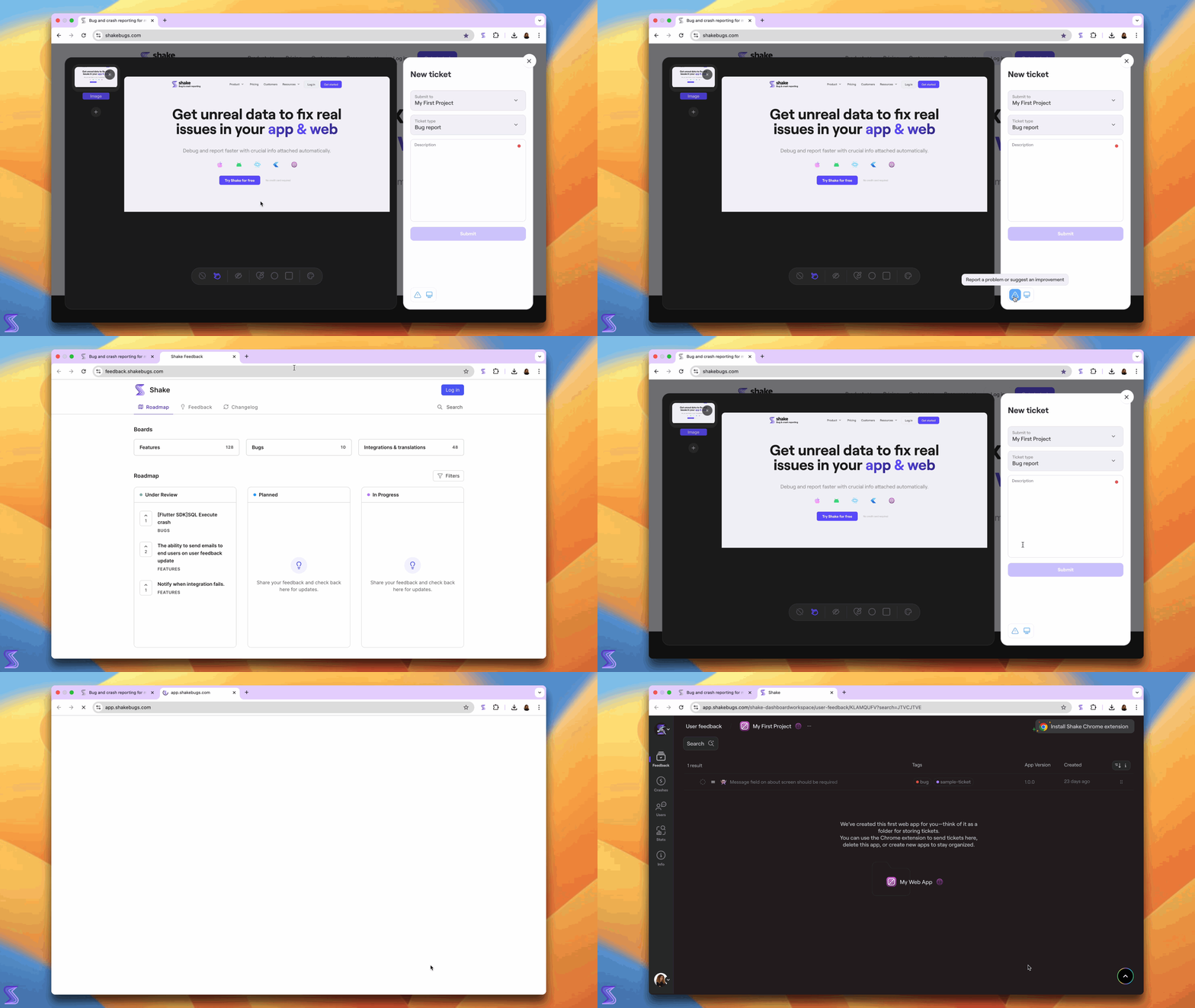
---
# Activity history
> Shake tracks user's interaction with your app, their network traffic, notifications, logs and system events, and automatically attaches all of those to the ticket.
You're viewing the Flutter docs. Other platforms → [iOS](/docs/ios/configuration-and-data/activity-history.md) [Android](/docs/android/configuration-and-data/activity-history.md) [React Native](/docs/react/configuration-and-data/activity-history.md) [Web](/docs/web/configuration-and-data/activity-history.md)
## Setup[](#setup "Direct link to Setup")
### User actions[](#user-actions "Direct link to User actions")
User actions tracking is currently not supported.
### Network traffic[](#network-traffic "Direct link to Network traffic")
Shake provides you a wrapper for dart:io HttpClient class which allows you to track network traffic. Additionally, if you use dio or http packages for sending network requests, you can use one of the extensions below.
#### dart:io[](#dart "Direct link to dart")
Use ShakeHttpClient wrapper class to perform network requests:
main.dart
```
Copy
import 'package:shake_flutter/network/shake_http_client.dart';
void sendNetworkRequest() async {
Copy
ShakeHttpClient shakeHttpClient = ShakeHttpClient();
await shakeHttpClient.getUrl(Uri.parse("http://www.shakebugs.com"));
}
```
note
The latest version of Shake dart:io HttpClient wrapper will log network request details without request and response bodies.
All network requests sent with the *ShakeHttpClient* instance will be visible in Activity history.
#### dio[](#dio "Direct link to dio")
Install the [shake\_dio\_interceptor](https://pub.dev/packages/shake_dio_interceptor) extension for the *dio* package:
pubspec.yaml
```
dependencies:
Copy
shake_dio_interceptor: ^18.0.0
```
Add ShakeDioInterceptor to your Dio instance:
main.dart
```
Copy
import 'package:shake_dio_interceptor/shake_dio_interceptor.dart';
void sendNetworkRequest() async {
Copy
Dio dio = Dio();
dio.interceptors.add(ShakeDioInterceptor());
await dio.get('https://www.shakebugs.com');
}
```
All network requests sent with the *Dio* instance will be visible in Activity history.
#### http[](#http "Direct link to http")
Install the [shake\_http\_client](https://pub.dev/packages/shake_http_client) extension for *http* package:
pubspec.yaml
```
dependencies:
Copy
shake_http_client: ^18.0.0
```
Use ShakeHttpClient to send network requests:
main.dart
```
Copy
import 'package:shake_http_client/shake_http_client.dart';
void sendNetworkRequest() async {
Copy
ShakeHttpClient shakeHttpClient = ShakeHttpClient();
await shakeHttpClient.get(Uri.parse('https://www.shakebugs.com'));
}
```
All network requests sent with the *ShakeHttpClient* instance will be visible in Activity history.
#### Manually[](#manually "Direct link to Manually")
You can add your own custom network requests at any time:
main.dart
```
Copy
import 'package:shake_flutter/models/network_request.dart';
import 'package:shake_flutter/shake_flutter.dart';
void insertNetworkRequest() {
Copy
NetworkRequest networkRequest = NetworkRequest()
..method = 'POST'
..status = '200'
..url = 'https://api.example.com'
..requestBody = 'Request body'
..responseBody = 'Response body'
..requestHeaders = {'header1': 'requestHeader'}
..responseHeaders = {'header2': 'responseHeader'}
..duration = 100
..date = new DateTime.now();
Shake.insertNetworkRequest(networkRequest);
}
```
### System events[](#system-events "Direct link to System events")
System events - also known as app lifecycle events - are tracked automatically and require no additional setup.
### Screen changes[](#screen-changes "Direct link to Screen changes")
Screen changes detection is currently not supported.
### Notifications[](#notifications "Direct link to Notifications")
On *iOS*, notifications are tracked automatically and require no additional setup.
*Android* requires you to add `ShakeNotificationListenerService` to your **AndroidManifest** file inside **application** tag:
AndroidManifest.xml
```
Copy
```
Additionally, app user must manually grant a permission to listen for notifications. You can show notifications permission settings screen using the following method:
main.dart
```
Copy
Shake.showNotificationsSettings();
```
note
Keep in mind that notification listener intercepts notifications in your app. This can be a security issue if your notifications contains authorization codes. Make sure that you remove sensitive data using notification filter described on our privacy page.
You can add your own custom notification events at any time:
main.dart
```
Copy
import 'package:shake_flutter/models/notification_event.dart';
import 'package:shake_flutter/shake_flutter.dart';
void insertNotificationEvent() {
Copy
NotificationEvent notificationEvent = NotificationEvent()
..id = '0'
..title = 'Title'
..description = 'Description';
Shake.insertNotificationEvent(notificationEvent);
}
```
### Custom logs[](#custom-logs "Direct link to Custom logs")
You can add your own logs to Activity history too:
main.dart
```
Copy
Shake.log(LogLevel.info, 'This is a Shake custom log.');
```
You have these log levels at your disposal:
```
LogLevel.verbose
LogLevel.debug
LogLevel.info
LogLevel.warn
LogLevel.error
```
### Console logs[](#console-logs "Direct link to Console logs")
Console logs are recorded automatically and require no additional setup. If you want to disable this feature use the method below:
main.dart
```
Copy
Shake.setConsoleLogsEnabled(false);
```
## Disable[](#disable "Direct link to Disable")
Activity history is enabled by default, use the method below to disable it altogether:
main.dart
```
Copy
Shake.setEnableActivityHistory(false);
```
---
# Auto attach files
> Automatically attach a log file to each ticket, or user's profile photo, or whatever will help you resolve the ticket faster when you receive it. Files you attach automatically are **not** visible to your users.
You're viewing the Flutter docs. Other platforms → [iOS](/docs/ios/configuration-and-data/auto-attach-files.md) [Android](/docs/android/configuration-and-data/auto-attach-files.md) [React Native](/docs/react/configuration-and-data/auto-attach-files.md)
## Auto-attached files vs. Files uploaded by users[](#auto-attached-files-vs-files-uploaded-by-users "Direct link to Auto-attached files vs. Files uploaded by users")
When submitting a ticket from the [New ticket screen](/docs/flutter/shake-ui/new-ticket-screen.md), your users can also upload their files (images, documents) to tickets. That has nothing to do with these auto-attached files.
## Methods[](#methods "Direct link to Methods")
You can programmatically attach files by using any of the methods described below. To define which files will be uploaded, call the `Shake.setShakeReportData` method and pass the list of *ShakeFile* objects, as shown in the examples below.
note
You can call the `Shake.setShakeReportData` method anywhere in your app, just be careful to only call it once since any subsequent calls will override the former ones.
### Set a custom filename and then attach a file[](#set-a-custom-filename-and-then-attach-a-file "Direct link to Set a custom filename and then attach a file")
*ShakeFile* can be initialized with a desired filename (String) and an absolute file path (String) to your file:
main.dart
```
Copy
import 'package:shake_flutter/shake_flutter.dart';
import 'package:shake_flutter/models/shake_file.dart';
void attachLogFiles() {
Copy
var shakeFile1 = ShakeFile.create(userFile.path, 'userLogs');
var shakeFile2 = ShakeFile.create(deviceFile.path, 'deviceLogs');
Shake.setShakeReportData([shakeFile1, shakeFile2]);
}
```
### Attach a file without the custom filename[](#attach-a-file-without-the-custom-filename "Direct link to Attach a file without the custom filename")
*ShakeFile* can be initialized without a filename, with just an absolute file path (String) to your file. If you initialize it this way, the filename shown on your Shake dashboard will be determined automatically from the passed file's name.
main.dart
```
Copy
import 'package:shake_flutter/shake_flutter.dart';
import 'package:shake_flutter/models/shake_file.dart';
void attachLogFiles(String username) {
Copy
var shakeFile1 = ShakeFile.create(userFile.path);
var shakeFile2 = ShakeFile.create(deviceFile.path);
Shake.setShakeReportData([shakeFile1, shakeFile2]);
}
```
---
# Auto screen recording
> You can rely on your testers to record a video of their screen and attach it to their feedback and crash reports. Or, you can use auto screen recording to always record their screen and automatically attach that video to the ticket.
You're viewing the Flutter docs. Other platforms → [iOS](/docs/ios/configuration-and-data/auto-screen-recording.md) [Android](/docs/android/configuration-and-data/auto-screen-recording.md) [React Native](/docs/react/configuration-and-data/auto-screen-recording.md)
note
Turn off this feature in production!
## Enable[](#enable "Direct link to Enable")
Auto screen recording is disabled by default. To enable it:
1. Call `Shake.setAutoVideoRecording(true)`.
2. Then, start Shake with `Shake.start()`.
main.dart
```
Copy
Shake.setAutoVideoRecording(true);
```

| |
| - |
Duration of the auto-attached screen recording is 15 seconds.
## Privacy[](#privacy "Direct link to Privacy")
With this feature turned on, a system dialog will ask your testers if they want to allow your app to start capturing everything that's displayed on their screen.
Screen recording is automatically paused when your app goes to background so no third-party data is ever recorded.
---
# Auto screenshot
> When Shake's New ticket screen is invoked, a screenshot is automatically attached to it.
You're viewing the Flutter docs. Other platforms → [iOS](/docs/ios/configuration-and-data/auto-screenshot.md) [Android](/docs/android/configuration-and-data/auto-screenshot.md) [React Native](/docs/react/configuration-and-data/auto-screenshot.md) [Web](/docs/web/configuration-and-data/screen-capture.md)

| |
| - |
## Disable[](#disable "Direct link to Disable")
Imagine a case where you leave the auto screenshot enabled and you set up Shake in a way that your users report all their issues and suggestions only by visiting **My account → Help** in your app. Since Shake would always be invoked from that same place, every ticket your users send you would always have the identical screenshot attached. That would be both confusing and useless.

| |
| - |
Disable auto screenshot using the following snippet:
main.dart
```
Copy
Shake.setScreenshotIncluded(false);
```
---
# Black box
> Just like before an airplane crash, Shake records a detailed environment profile giving you an insight into the last 60 seconds before the ticket was submitted.
You're viewing the Flutter docs. Other platforms → [iOS](/docs/ios/configuration-and-data/black-box.md) [Android](/docs/android/configuration-and-data/black-box.md) [React Native](/docs/react/configuration-and-data/black-box.md)
## Automatically recorded charts[](#automatically-recorded-charts "Direct link to Automatically recorded charts")
### App CPU usage[](#app-cpu-usage "Direct link to App CPU usage")
This line chart (visible in every ticket on your [Shake dashboard](https://app.shakebugs.com/)) shows your iOS app's CPU usage. When you hover over the chart, the CPU percentage is shown. Shake accounts for multi-threading so if multiple threads are busy, the percentage can go above 100%.
Your iOS app's CPU usage is captured every 0.5 seconds.
### Device memory usage[](#device-memory-usage "Direct link to Device memory usage")
This line chart shows the device's total memory usage. When you hover over the chart, the usage percentage and the exact memory usage over the total amount of memory available are shown. For example:
* 9% • 224 out of 2464 MB
Device memory usage is captured every 0.5 seconds.
### App memory usage[](#app-memory-usage "Direct link to App memory usage")
This line chart shows your app's memory usage. When you hover over the chart, the total memory usage of your app is shown. For example:
* 122 MB
Your app's memory usage is captured every 0.5 seconds.
### Disk space usage[](#disk-space-usage "Direct link to Disk space usage")
This line chart shows your device's disk space usage. When you hover over the chart, the percentage of free disk space on your device is shown. For example:
* 51%
Your device's disk space usage is captured every 0.5 seconds.
### Network[](#network "Direct link to Network")
This chart shows the connectivity details of the device. When you hover over the chart, connectivity details are shown. For example:
* WiFi • Office\_Network\_Name
* Cellular 3G
* Offline
Device connectivity details are captured every 2 seconds.
### Device orientation[](#device-orientation "Direct link to Device orientation")
This chart shows the orientation state of your app. When you hover over the chart, the exact state is shown. For example:
* Portrait
* Landscape
App orientation is captured every 2 seconds.
### Battery level[](#battery-level "Direct link to Battery level")
This chart shows the battery level of your app. When you hover over the chart, the exact level is shown. For example:
* 50%
Battery level is captured every 2 seconds.
## Disable[](#disable "Direct link to Disable")
The Black box is enabled by default. Use the method below to disable it, if you prefer:
main.dart
```
Copy
Shake.setEnableBlackBox(false);
```
---
# Callbacks
> Execute a block of a code when a certain action is executed by Shake
You're viewing the Flutter docs. Other platforms → [iOS](/docs/ios/configuration-and-data/callbacks.md) [Android](/docs/android/configuration-and-data/callbacks.md) [React Native](/docs/react/configuration-and-data/callbacks.md)
## Shake open callback[](#shake-open-callback "Direct link to Shake open callback")
If you want to perform an action when Shake interface is **opened**, you can do it like shown below:
main.dart
```
Copy
Shake.setShakeOpenListener(() {
print('Shake opened!');
});
```
## Shake dismiss callback[](#shake-dismiss-callback "Direct link to Shake dismiss callback")
If you want to perform an action when Shake interface is **closed**, you can do it like shown below:
main.dart
```
Copy
Shake.setShakeDismissListener(() {
print('Shake dismissed!');
});
```
## Shake submit callback[](#shake-submit-callback "Direct link to Shake submit callback")
To detect when user **pressed a submit button** on the New ticket screen or **New chat** button on the Home screen, add a submit listener like in the example below.
This listener provides **type** and **fields** parameters:
* reportType: **String** - "feedback" or "chat" depending on the type of the ticket
* fields: **Map\** - key value pairs of submitted form fields
main.dart
```
Copy
Shake.setShakeSubmitListener((String reportType, Map fields) {
print('Shake submitted!');
});
```
---
# Custom branding
> This feature enables you to customize the look and feel of the Shake SDK. You can reflect your brand's identity by modifying colors, fonts, and other attributes of screen elements.
You're viewing the Flutter docs. Other platforms → [iOS](/docs/ios/configuration-and-data/custom-branding.md) [Android](/docs/android/configuration-and-data/custom-branding.md) [React Native](/docs/react/configuration-and-data/custom-branding.md) [Web](/docs/web/configuration-and-data/custom-branding.md)

Star Trek style

Super Mario vibes

Batman UI
## Setting up a custom theme[](#setting-up-a-custom-theme "Direct link to Setting up a custom theme")
Use *ShakeTheme* instance to customize appearance of the Shake screens. Here is an example how you can create and set a new Shake theme:
main.dart
```
Copy
ShakeTheme shakeTheme = ShakeTheme();
shakeTheme.fontFamilyBold = 'assets/fonts/CoolFont-Bold.ttf';
shakeTheme.fontFamilyMedium = 'assets/fonts/CoolFont-Regular.ttf';
shakeTheme.backgroundColor = '#ffffff';
shakeTheme.secondaryBackgroundColor = '#ffffff';
shakeTheme.textColor = '#0e0e0e';
shakeTheme.secondaryTextColor = '#3f3f3f';
shakeTheme.accentColor = '#ff0000';
shakeTheme.accentTextColor = '#ffffff';
shakeTheme.outlineColor = '#464646';
shakeTheme.borderRadius = 0.0;
shakeTheme.elevation = 10.0; // Only Android
shakeTheme.shadowOffset = Offset(0.1, 0.1); // Only iOS
shakeTheme.shadowRadius = 3; // Only iOS
shakeTheme.shadowOpacity = 0.5; // Only iOS
Shake.setShakeTheme(shakeTheme);
```
### Custom font[](#custom-font "Direct link to Custom font")
Shake can be configured to use custom font from your application, you just have to set font path as a `ShakeTheme` font property like shown in the example above.
Before you can use custom font for Shake, you should [add custom font to your project](https://docs.flutter.dev/cookbook/design/fonts).
### Dark and light mode[](#dark-and-light-mode "Direct link to Dark and light mode")
If you want to create a different appearance for the dark and light mode, you should call `Shake.setShakeTheme` with desired configuration when app mode is changed.
Here's an example of component you can use to observe dark and light mode changes. Feel free to adjust this component and use it as a root in your project.
dark\_mode\_observer.dart
```
Copy
import 'package:flutter/cupertino.dart';
import 'package:shake_flutter/models/shake_theme.dart';
import 'package:shake_flutter/shake_flutter.dart';
class DarkModeObserver extends StatefulWidget {
final Widget child;
DarkModeObserver({required this.child});
@override
_DarkModeObserverState createState() => _DarkModeObserverState();
}
class _DarkModeObserverState extends State
with WidgetsBindingObserver {
@override
void initState() {
super.initState();
WidgetsBinding.instance.addObserver(this);
WidgetsBinding.instance.addPostFrameCallback((_) => setShakeTheme());
}
@override
void didChangePlatformBrightness() {
super.didChangePlatformBrightness();
setShakeTheme();
}
void setShakeTheme() {
Brightness currentBrightness =
View.of(context).platformDispatcher.platformBrightness;
if (currentBrightness == Brightness.dark) {
ShakeTheme darkTheme = ShakeTheme();
darkTheme.accentColor = "#FFFFFF";
Shake.setShakeTheme(darkTheme);
} else {
ShakeTheme lightTheme = ShakeTheme();
lightTheme.accentColor = "#000000";
Shake.setShakeTheme(lightTheme);
}
}
@override
void dispose() {
WidgetsBinding.instance.removeObserver(this);
super.dispose();
}
@override
Widget build(BuildContext context) {
return widget.child;
}
}
```
## Changing the default theme[](#changing-the-default-theme "Direct link to Changing the default theme")
Sometimes you'll want to change just a specific color from the default theme. Let's say you want to change the default accent color on the screens but wants to keep all other default colors.
You can do it like shown in the example below:
main.dart
```
Copy
ShakeTheme shakeTheme = ShakeTheme();
shakeTheme.accentColor = '#ff0000';
Shake.setShakeTheme(shakeTheme);
```
---
# Custom forms
> Learn how to create or modify a form displayed on the [New ticket screen](/docs/flutter/shake-ui/new-ticket-screen.md).
You're viewing the Flutter docs. Other platforms → [iOS](/docs/ios/configuration-and-data/custom-forms.md) [Android](/docs/android/configuration-and-data/custom-forms.md) [React Native](/docs/react/configuration-and-data/custom-forms.md) [Web](/docs/web/configuration-and-data/custom-forms.md)
## Default form[](#default-form "Direct link to Default form")
Shake provides a default feedback form that enables users to submit valuable input to the reported tickets. This pre-designed form includes a variety of useful elements for collecting detailed information from the user.
* **Title** The form requires the user to provide a title for their ticket, ensuring that the issue is shortly described. This field is mandatory, meaning that users cannot submit a ticket without providing a title.
* **Feedback type** Users can also select the type of feedback they are submitting, choosing from a several categories: bug, question, or suggestion. This categorization helps dashboard users to quickly identify and prioritize tickets based on their type.
* **Inspect button** In addition, users have the option to inspect the data collected by the Shake by clicking the Inspect button. This feature provides users with an overview of the information they have submitted and helps to ensure that all the necessary details have been provided.
* **Attachments** The form includes the option to attach additional files, such as screenshots or video recordings, to the ticket. This allows users to provide more detailed information about the issue they are reporting and can help support devs to quickly identify and resolve the problem.
## Custom form[](#custom-form "Direct link to Custom form")
Depending on your requirements, you may want to customize the form to collect additional or specific data from your users. Shake offers several customizable elements that can be added to the Shake form:
* **[Title](#title)** This element allows users to provide a short and descriptive title for their ticket, helping to quickly identify and understand the nature of the submission.
* **[Text input](#text-input)** This element captures additional information beyond the title, allowing users to provide more detailed information about their submission. This can include descriptions, comments, or other relevant details.
* **[Email input](#email-input)** This element accepts email input only, allowing users to provide their email address for follow-up communication or account verification. This can be particularly useful when addressing account-specific issues or when users want to be kept up-to-date on the status of their submission.
* **[Picker](#picker)** This element allows you to define a set of options for the user to select from, helping to streamline the submission process and ensure that submissions are properly categorized for easier management and resolution.
* **[Inspect button](#inspect-button)** This element lets users easily review and verify the data they have provided for their submission, helping to reduce the need for follow-up questions and ensure that all necessary information has been included.
* **[Attachments](#attachments)** This element allows users to attach files or other relevant materials to their submission, providing additional context and information to help facilitate resolution. This can include images, videos, documents, or other relevant files.
note
Note that the Title, Inspect button, and Attachments elements can only be added to the form one-time. If multiple instances of these components are included, only the first instance will be displayed on the screen
### Title[](#title "Direct link to Title")

| |
| - |
A component that lets users provide a short and descriptive title for their issue or request.
Properties:
* key **String** - represents element on the Shake dashboard
* label **String** - represents element label
* initialValue **String** - initial input value
* required **Bool** - if true, user can't submit the ticket while the input is empty
Example:
main.dart
```
Copy
ShakeTitle title = ShakeTitle('Title', 'Title', initialValue: '', required: true);
```
note
Here's a tip that quality assurance teams often find helpful. If *#some #hashtags* are added anywhere in the title, they will automatically become tags on your [Shake dashboard](https://app.shakebugs.com/).
### Text input[](#text-input "Direct link to Text input")

| |
| - |
This element allows your users to leave textual input with the ticket they're submitting.
Properties:
* key **String** - represents element on the Shake dashboard
* label **String** - represents element label
* initialValue **String** - initial input value
* required **Bool** - if true, user can't submit the ticket while the input is empty
Example:
main.dart
```
Copy
ShakeTextInput description = ShakeTextInput('Steps to reproduce', 'Steps to reproduce', initialValue: '', required: false);
```
### Email input[](#email-input "Direct link to Email input")

| |
| - |
This element allows your users to leave email address with the ticket they're submitting.
Properties:
* key **String** - represents element on the Shake dashboard
* label **String** - represents element label
* initialValue **String** - initial input value
* required **Bool** - if true, user can't submit the ticket while the input is empty
Example:
main.dart
```
Copy
ShakeEmail email = ShakeEmail('Email to contact you on', 'Email to contact you on', initialValue: '', required: true);
```
### Picker[](#picker "Direct link to Picker")

| |
| - |
This element enables your users to select an option from a pre-defined list of choices.
#### Picker item[](#picker-item "Direct link to Picker item")
Properties:
* key **String** - represents element on the Shake dashboard
* text **String** - represents element text
* icon **String?** - base64 string item icon
* tag **String?** - if item is selected, tag will be automatically added to the ticket
Example:
main.dart
```
Copy
ShakePickerItem item = ShakePickerItem('Playbox Mini', 'Playbox Mini', icon: base64Icon, tag: 'playbox-mini');
```
#### Picker[](#picker-1 "Direct link to Picker")
Properties:
* key **String** - represents element on the Shake dashboard
* label **String** - represents element label
* items **List** - list of items in the picker
Example:
main.dart
```
Copy
ShakePicker picker = ShakePicker('Choose your console', 'Choose your console', items);
```
### Inspect button[](#inspect-button "Direct link to Inspect button")

| |
| - |
This element allows your users to inspect ticket data, tapping it takes them to the [Inspect section](/docs/flutter/shake-ui/inspect-section.md).
Example:
main.dart
```
Copy
ShakeInspectButton inspectButton = ShakeInspectButton();
```
### Attachments[](#attachments "Direct link to Attachments")

| |
| - |
This element allows your users to attach additional images, videos or files to the ticket.
Example:
main.dart
```
Copy
ShakeAttachments attachments = ShakeAttachments();
```
## Examples[](#examples "Direct link to Examples")
### Creating a custom form[](#creating-a-custom-form "Direct link to Creating a custom form")
The code snippet below provides an example of how to create a custom form with a range of useful elements
* Title
* Description (Text input)
* Email (Email input)
* Category (Picker)
* Inspect button
* Attachments
The Title and Description fields are required and cannot be left blank, while the Email field is optional and includes a predefined value that users can modify or delete as needed. The Category field allows users to select a category for their ticket, which creates a corresponding tag to help with organization and management. The Inspect button allows users to easily review and verify the data they have provided for their submission, while the Attachments enables users to upload additional files or other materials to provide context and support their submission.
main.dart
```
Copy
ShakeTitle title = ShakeTitle('Title', 'Title', required: true);
ShakeTextInput desc = ShakeTextInput('Description', 'Description', required: true);
ShakeEmail email = ShakeEmail('Email', 'Email', initialValue: 'john.doe@gmail.com');
List pickerItems = [
ShakePickerItem('Bug', 'Bug', icon: bugIcon, tag: 'bug'),
ShakePickerItem('Suggestion', 'Suggestion', icon: suggestionIcon, tag: 'suggestion'),
ShakePickerItem('Question', 'Question', icon: questionIcon, tag: 'question')
];
ShakePicker picker = ShakePicker('Feedback type', 'Feedback type', pickerItems);
ShakeInspectButton inspect = ShakeInspectButton();
ShakeAttachments attachments = ShakeAttachments();
List components = [title, desc, email, picker, inspect, attachments];
ShakeForm form = ShakeForm(components);
Shake.setShakeForm(form);
```
note
Picker item icons should be in the base64 format without prefix eg. **data:image/png;base64,...**
### Using multiple custom forms[](#using-multiple-custom-forms "Direct link to Using multiple custom forms")
Sometimes, you’ll want to display different Shake forms for different use cases within your app. For example, you might want to show one form layout when the user taps the **Report a bug** button, and a different layout when they tap the **Send feedback** button.
You can accomplish this using Shake’s custom forms, as shown in the example below:
main.dart
```
Copy
void onBugReportClick() {
ShakeTitle title = ShakeTitle('title', 'Title', required: true);
ShakeTextInput repro = ShakeTextInput('repro', 'Repro steps', required: true);
ShakeEmail email = ShakeEmail('email', 'Email', initialValue: 'john.doe@gmail.com');
List components = [title, repro, email];
ShakeForm form = ShakeForm(components);
Shake.setShakeForm(form);
}
void onSendFeedbackClick() {
ShakeTitle title = ShakeTitle('title', 'Title', required: true);
ShakeTextInput like = ShakeTextInput('like', 'What do you like most about the app?', required: true);
ShakeTextInput dislike = ShakeTextInput('dislike', 'Is there anything you dislike about the app?', required: true);
ShakeEmail email = ShakeEmail('email', 'Email', initialValue: 'john.doe@gmail.com');
List components = [title, like, dislike, email];
ShakeForm form = ShakeForm(components);
Shake.setShakeForm(form);
}
```
### Change default feedback type[](#change-default-feedback-type "Direct link to Change default feedback type")
By default, the Shake form’s feedback type picker is set to **Bug**. However, you can change this to any other feedback type you prefer.
For example, if you want to set **Suggestion** as the default option instead of **Bug**, you can do it like this:
main.dart
```
Copy
void setDefaultFeedbackType() async {
ShakeForm? shakeForm = await Shake.getShakeForm();
if (shakeForm != null) {
for (var c in shakeForm.components) {
if (c.type == 'picker') {
ShakePicker picker = c as ShakePicker;
// bug=0,suggestion=1,question=2
ShakePickerItem tmpItem = picker.items[0];
picker.items[0] = picker.items[1];
picker.items[1] = tmpItem;
break;
}
}
}
}
```
### Creating a form translated to different languages[](#creating-a-form-translated-to-different-languages "Direct link to Creating a form translated to different languages")
The following code snippet is an example of how to create a custom form that includes elements with labels translated into different languages.
To achieve this, you should listen for language changes in you app and set a new form with proper labels when language is changed. Note that component `key` is used for presenting values on the Shake dashboard, and it shouldn't be translated.
Here's an example how to translate your form:
main.dart
```
Copy
const strings = {
'en': {
'title': 'Title',
'repro': 'Steps to reproduce'
},
'de': {
'title': 'Titel',
'repro': 'Schritte zum Reproduzieren'
},
'fr': {
'title': 'Titre',
'repro': 'Étapes à reproduire'
}
}
Copy
ShakeTitle title = ShakeTitle('Title', strings[languageCode]?["title"] ?? "", required: true);
ShakeTextInput repro = ShakeTextInput('Steps to reproduce', strings[languageCode]?["repro"] ?? "", required: true);
List components = [title, repro];
ShakeForm form = ShakeForm(components);
Shake.setShakeForm(form);
```
### Removing Inspect button from the default form[](#removing-inspect-button-from-the-default-form "Direct link to Removing Inspect button from the default form")
If you like the default form but want to make some modifications, you can easily do so by editing the Shake default form. For example, you may wish to remove the Inspect button from the default form to prevent users from inspecting the ticket data, while keeping the other form elements intact.
main.dart
```
Copy
void setCustomForm() async {
ShakeForm? shakeForm = await Shake.getShakeForm();
if (shakeForm != null) {
shakeForm.components.removeWhere((element) => element.type == 'inspect');
Shake.setShakeForm(shakeForm);
}
}
```
---
# Data attached by default
> This is the data Shake automatically attaches to every ticket you receive. All of this is done out of the box, you don't need to code anything.
You're viewing the Flutter docs. Other platforms → [iOS](/docs/ios/configuration-and-data/data-attached-by-default.md) [Android](/docs/android/configuration-and-data/data-attached-by-default.md) [React Native](/docs/react/configuration-and-data/data-attached-by-default.md) [Web](/docs/web/configuration-and-data/data-attached-by-default.md) [Chrome extension](/docs/chrome-extension/configuration-and-data/data-attached-by-default.md)
## Automatically attached[](#automatically-attached "Direct link to Automatically attached")

Time when the ticket was reported

Device OS

Device model

Location

Your app version

Connectivity details

NFC status Android

Screen the ticket was reported from

Time zone

Battery status

Memory status

Screen resolution

Screen orientation

Locale

Low power mode

Storage status

Authentication to unlock device

Screen density

Timeline of app lifecycle events

Timeline of console logs

IDE version

Granted permissions 1
1 Shake tracks the status of these runtime permissions, also known as dangerous permissions:
* CALENDAR
* CALL\_LOG
* CAMERA
* CONTACTS
* LOCATION
* MICROPHONE
* PHONE
* SENSORS
* SMS
* STORAGE
and the status of these iOS permissions:
* Calendar access
* Camera access
* Contacts access
* Photo library access
* Location access
* Media library access
* Microphone access
On your Shake dashboard, only those permissions that the user has granted access to are listed. The ones you don't see were either denied or not requested at all.
## Attach more data[](#attach-more-data "Direct link to Attach more data")
If you want Shake to attach custom data to your tickets, you can do that as well. Read about attaching your own variables to tickets with [Ticket metadata](/docs/flutter/configuration-and-data/ticket-metadata.md).
Do you also want to attach files to tickets programmatically? Visit [Auto attach files](/docs/flutter/configuration-and-data/auto-attach-files.md).
---
# Data privacy disclosure
> When users send you tickets, Shake "magically" and automatically captures a lot of other data, too. Although it feels like magic, it's not. We want you to fully understand and control it.
You're viewing the Flutter docs. Other platforms → [iOS](/docs/ios/configuration-and-data/data-privacy-disclosure.md) [Android](/docs/android/configuration-and-data/data-privacy-disclosure.md) [React Native](/docs/react/configuration-and-data/data-privacy-disclosure.md) [Web](/docs/web/configuration-and-data/data-privacy-disclosure.md) [Chrome extension](/docs/chrome-extension/configuration-and-data/data-privacy-disclosure.md)
## Collected data[](#collected-data "Direct link to Collected data")

This icon additionally marks App Store categories which you will have to check when submitting your app. Visit [App privacy details on the App Store](https://developer.apple.com/app-store/app-privacy-details/) to learn more.
| Data | Attributes and sensitivity | Description |
| --------------------------------------------------------------------------------- | ------------------------------ | ----------------------------------------------------------------------------------------------------------------------------------------------------------------------------------------------------------------------------------------------------------------------------------------------------------------------------------------------------------------------------------------------------------------------------------------------------------------------------------------------------------------------------------------------------------------------------------------------------------------------------------------------------------------------------------------------------------------------------------------------------------------------------------------------------------------------------------------------------------------------------------------- |
| Phone number | | Not collected. |
| Name | | Not collected. |
| Email address | | Not collected. |
| Physical address | | Not collected. |
| Other contact information | | Not collected. |
| Health or fitness data | | Not collected. |
| Payment, credit or other financial info | | Not collected. |
| Precise or coarse location | | Not collected. |
| Sensitive info | | Not collected. |
| User's contacts, emails or text messages | | Not collected. |
| Photos, videos or other user's files | Optional May contain PII | Shake does not automatically collect the contents of the user Gallery or similar locations. However, keep in mind that your users can decide to attach any of their files by browsing their device themselves, and those files could contain PII. |
| Audio or gameplay data | | Not collected. |
| Customer support or other user content | | Not collected. |
| Browsing, purchase or search history | | Not collected. |
| Device ID | Non-PII |  Bundle identifier, DeviceID, platform and operating system. Not used for advertising. |
| Product interaction | Optional May contain PII |  Shake's [Activity history](/docs/flutter/configuration-and-data/activity-history.md) shows a timeline of all user actions (every tap, swipe, pan), their network requests (request header and body, response header and body), system events (app status changes), view controller changes (the user navigating your app), push notifications that arrive, custom logs and application console logs. Shake SDK [automatically deletes as much PII as possible](/docs/flutter/configuration-and-data/manage-sensitive-data.md#automatically-redacted-sensitive-data) on the mobile device itself. It also [gives you additional methods](/docs/flutter/configuration-and-data/manage-sensitive-data.md) to manage, delete and obfuscate any potential PII on the mobile device itself before anything is sent to Shake servers. |
| Advertising data | | Not collected. |
| Other usage data | | Not collected. |
| Performance data | Optional Non-PII |  Shake's [Black box](/docs/flutter/configuration-and-data/black-box.md) can show you the last 60 seconds of device memory usage, your app memory usage, network connectivity changes, device orientation and the CPU levels. You can also disable it. |
| Other diagnostic data | Non-PII |  Collected. |
| [Screenshot](/docs/flutter/configuration-and-data/auto-screenshot.md) | Optional May contain PII | A screenshot of the user's screen at the moment Shake is invoked. In the case of manual invocation, your users can additionally blur or delete the screenshot before submitting the ticket. |
| [Screen recording](/docs/flutter/configuration-and-data/auto-screen-recording.md) | Optional May contain PII | Automatically-captured video of what the user did in your app during the last 15 seconds prior to submitting a ticket. It's disabled by default. If you enable it, your users will be asked to allow screen recording first and will have the ability to delete it before submitting the ticket too. Shake doesn't record other apps' content — just yours. Use this optional feature only during internal testing. |
| [Permissions](/docs/flutter/configuration-and-data/data-privacy-disclosure.md) | Non-PII | A list of permissions the user has granted to your app. |
| [User email](/docs/flutter/configuration-and-data/custom-forms.md) | Optional May contain PII | The user that's submitting a ticket enters this data themselves. If you decide you don't want to collect this data, you can hide this field. |
| Time | Non-PII | A timestamp of the moment Shake was invoked. |
| OS | Non-PII | The operating system version of the user’s device. |
| Device | Non-PII | The user device model, Samsung Galaxy S8 for example. |
| App version | Non-PII | The build version of your app, 1.5.42 for example. |
| Network | Non-PII | The network connection type (WiFi, cellular or offline) and name. |
| Current view | Non-PII | The app screen on which Shake was invoked. |
| Timezone | Non-PII | The system settings timezone. |
| City and country | Non-PII | The city from which the ticket was sent. As with any network header on the Internet — that's how the Internet works — Shake SDK's header also contains the sender's IP address. Shake servers read only the request's city (nothing more geographically precise than that), saves that city name and never saves the IP address. Even though some don't consider the IP address PII, we choose to err on the side of caution and want to ensure everyone’s complete safety and security by not saving it. |
| Locale | Non-PII | The system settings locale, en-US for example. |
| Battery status | Non-PII | The battery percentage and whether the device was being charged at that moment. |
| Your app memory usage | Non-PII | How much memory your app was using. |
| Used storage | Non-PII | How much storage is still available on the user's device. |
| Authentication to unlock device | Non-PII | Whether or not the user had to somehow unlock the device to use it, with Touch ID for example. |
| Resolution | Non-PII | The screen width ✕ height in pixels. |
| Orientation | Non-PII | The device orientation at the moment when the feedback was submitted, landscape for example. |
| Density | Non-PII | The screen pixel density, XHDPI for example. |
| Shake SDK | Non-PII | The version of Shake SDK that was used to submit the ticket. |
| [Metadata](/docs/flutter/configuration-and-data/ticket-metadata.md) | Optional May contain PII | You can send yourself a value of any variable from your app. Use this feature safely and respectfully. |
| [Custom files](/docs/flutter/configuration-and-data/auto-attach-files.md) | Optional May contain PII | You can prepare and send to yourself any file that you want from your app. Use this feature safely and respectfully. |
## Additional notes[](#additional-notes "Direct link to Additional notes")
You may receive PII if you don't use Shake carefully so please:
* Double-check additional files and data you attach to tickets.
* Openly disclose collected data with the regulating authority, such as the app store.
* [Protect sensitive data](/docs/flutter/configuration-and-data/manage-sensitive-data.md) to avoid capturing and sending PII to Shake servers.
---
# Home screen
> Shake enables you to customize home screen according to your preferences and needs.
You're viewing the Flutter docs. Other platforms → [iOS](/docs/ios/configuration-and-data/home-screen.md) [Android](/docs/android/configuration-and-data/home-screen.md) [React Native](/docs/react/configuration-and-data/home-screen.md)
## Home screen actions[](#home-screen-actions "Direct link to Home screen actions")
By default, Home screen shows *Submit new ticket* button and *New chat* button at the top of the screen. If you want, you can extend or customize these buttons using the custom actions.
There are several types of actions you can set on the home screen.
### Custom action[](#custom-action "Direct link to Custom action")
Tap on the custom action executes a custom function.
`ShakeHomeAction`
Properties:
* title **String** - represents button title
* handler **Function** - function executed on button tap
* subtitle **String?** - represents button subtitle
* icon **String?** - represents button icon in base64 format
### Submit new ticket action[](#submit-new-ticket-action "Direct link to Submit new ticket action")
Tap on the submit new ticket action start a [new ticket screen](/docs/flutter/shake-ui/new-ticket-screen.md).
`ShakeSubmitAction`
Properties:
* title **String** - represents button title
* subtitle **String?** - represents button subtitle
* icon **String?** - represents button icon in base64 format
Use `ShakeSubmitAction()` if you want default values for this action.
### Start new chat action[](#start-new-chat-action "Direct link to Start new chat action")
Tap on the new chat action starts a [new chat screen](/docs/flutter/shake-ui/chat-screen.md).
`ShakeChatAction`
Properties:
* title **String** - represents button title
* subtitle **String?** - represents button subtitle
* icon **String?** - represents button icon in base64 format
Use `ShakeChatAction()` if you want default values for this action.
note
Start a new chat action won't be visible if your app user is not [registered](/docs/flutter/users/register-user.md).
### Setting up custom actions[](#setting-up-custom-actions "Direct link to Setting up custom actions")
Here's an example how you can set custom actions on the home screen:
main.dart
```
void setShakeHomeActions() {
Copy
List homeActions = [
ShakeHomeAction("Visit our roadmap", () {
// Open URL
}, subtitle: "Check what features are next", icon: roadmapImage),
ShakeSubmitAction(),
ShakeChatAction(),
];
Shake.setHomeActions(homeActions);
}
```
note
Custom action icon should be in the base64 format without prefix eg. **data:image/png;base64,...**
## Home screen subtitle[](#home-screen-subtitle "Direct link to Home screen subtitle")
If you want to change subtitle message on the home screen, you can do it using the following method:
main.dart
```
Copy
Shake.setHomeSubtitle("Feel free to submit your bug reports, suggestions and questions to us.");
```
---
# Protect sensitive data
> As with any third-party service, it’s important for you to understand and have the ability to manage what data is sent to Shake servers. Shake SDK allows you to filter out sensitive data on the mobile device itself, so it never reaches the Shake servers.
You're viewing the Flutter docs. Other platforms → [iOS](/docs/ios/configuration-and-data/manage-sensitive-data.md) [Android](/docs/android/configuration-and-data/manage-sensitive-data.md) [React Native](/docs/react/configuration-and-data/manage-sensitive-data.md) [Web](/docs/web/configuration-and-data/manage-sensitive-data.md)
## Automatically redacted sensitive data[](#automatically-redacted-sensitive-data "Direct link to Automatically redacted sensitive data")
Shake automatically redacts these sensitive data from your notifications, touch events and network requests:
* email addresses
* IP addresses
* credit card numbers
* bearer tokens
Shake also redacts network header values if the header key is:
* password
* secret
* passwd
* api\_key
* apikey
* access\_token
* auth\_token
* credentials
* mysql\_pwd
* stripetoken
* Authorization
* Proxy-Authorization
* card\[number]
* token
To disable this privacy feature, use the method below:
main.dart
```
Copy
Shake.setSensitiveDataRedactionEnabled(false);
```
## Network requests[](#network-requests "Direct link to Network requests")
Network requests may contain sensitive data which you may not want to send to Shake servers. Use the `Shake.setNetworkRequestsFilter()` method to obfuscate sensitive parts of those requests, or to entirely prevent certain network requests from being logged. As an example, if you'd like to obfuscate the *Authorization* header in all network requests sent from your app, do this:
main.dart
```
Copy
import 'package:shake_flutter/models/network_request.dart';
import 'package:shake_flutter/shake_flutter.dart';
void setupNetworkFilter() {
Copy
Shake.setNetworkRequestsFilter((NetworkRequest networkRequest) {
var headers = networkRequest.requestHeaders;
if (headers.containsKey('Authorization')) {
headers['Authorization'] = '***';
}
return networkRequest;
});
}
```
If you do not want to log specific network requests, return `null` from the `NetworkRequestsFilter` like below:
main.dart
```
Copy
import 'package:shake_flutter/models/network_request.dart';
import 'package:shake_flutter/shake_flutter.dart';
void setupNetworkFilter() {
Copy
Shake.setNetworkRequestsFilter((NetworkRequest networkRequest) {
if (networkRequest.url.startsWith('https://api.myapp.com/cards')) {
return null;
}
return networkRequest;
});
}
```
To clear the network requests filter, use `Shake.setNetworkRequestsFilter(null)`.
## Notification events[](#notification-events "Direct link to Notification events")
If your app notifications contain sensitive data, use the `Shake.setNotificationEventsFilter()` method to fully or partially obfuscate those notifications.
For example, if you'd like to obfuscate the description of the notification event that contains an email, do this:
main.dart
```
Copy
import 'package:shake_flutter/models/notification_event.dart';
import 'package:shake_flutter/shake_flutter.dart';
void setupNotificationsFilter() {
Copy
Shake.setNotificationEventsFilter((NotificationEvent notificationEvent) {
if (notificationEvent.title == 'E-mail changed') {
notificationEvent.description = '***@gmail.com';
}
return notificationEvent;
});
}
```
If you do not want to track a specific notification event, return `null` from the `NotificationEventsFilter` like below:
main.dart
```
Copy
import 'package:shake_flutter/models/notification_event.dart';
import 'package:shake_flutter/shake_flutter.dart';
void setupNotificationsFilter() {
Copy
Shake.setNotificationEventsFilter((NotificationEvent notificationEvent) {
if (notificationEvent.title == 'E-mail changed') {
return null;
}
return notificationEvent;
});
}
```
To clear the notification events filter, use `Shake.setNotificationEventsFilter(null)`.
---
# Overview
> Customize both the elements of Shake's New ticket screen and the data Shake collects.
You're viewing the Flutter docs. Other platforms → [iOS](/docs/ios/configuration-and-data/overview.md) [Android](/docs/android/configuration-and-data/overview.md) [React Native](/docs/react/configuration-and-data/overview.md) [Web](/docs/web/configuration-and-data/overview.md)
## Introduction[](#introduction "Direct link to Introduction")
Whatever you tweak, your configuration settings apply to the [Feedback](/docs/flutter/user-feedback/overview.md) module.
## Elements of the New ticket screen[](#elements-of-the-new-ticket-screen "Direct link to Elements of the New ticket screen")
Your users send you their feedback from the New ticket screen. Read how to customize it:
* [Custom forms](/docs/flutter/configuration-and-data/custom-forms.md)
## Collected data[](#collected-data "Direct link to Collected data")
Shake attaches useful data to user feedback. Read all about it:

[Custom forms](/docs/flutter/configuration-and-data/custom-forms.md)

[Data attached by default](/docs/flutter/configuration-and-data/data-attached-by-default.md)

[Auto screenshot](/docs/flutter/configuration-and-data/auto-screenshot.md)

[Auto screen recording](/docs/flutter/configuration-and-data/auto-screen-recording.md)

[Activity history](/docs/flutter/configuration-and-data/activity-history.md)

[Black box](/docs/flutter/configuration-and-data/black-box.md)

[Custom Ticket data](/docs/flutter/configuration-and-data/ticket-metadata.md)

[Auto attach files](/docs/flutter/configuration-and-data/auto-attach-files.md)
## Data privacy[](#data-privacy "Direct link to Data privacy")
Decide what needs to stay private and learn everything about data Shake collects:
* [Protect sensitive data](/docs/flutter/configuration-and-data/manage-sensitive-data.md)
* [Data privacy disclosure](/docs/flutter/configuration-and-data/data-privacy-disclosure.md)
⚡️ Shake is improved every week. Stumbled upon a [bug](https://feedback.shakebugs.com/bugs)? Want a [new feature](https://feedback.shakebugs.com/feature-requests) to be added? Create new tickets and upvote existing ones on the Public feedback board.
---
# Ticket metadata
> Every app is unique so the [Data attached by default](/docs/flutter/configuration-and-data/data-attached-by-default.md) sent with each ticket are often not enough. That's why Shake also allows you to automatically attach any custom data from your app to the ticket.
You're viewing the Flutter docs. Other platforms → [iOS](/docs/ios/configuration-and-data/ticket-metadata.md) [Android](/docs/android/configuration-and-data/ticket-metadata.md) [React Native](/docs/react/configuration-and-data/ticket-metadata.md) [Web](/docs/web/configuration-and-data/ticket-metadata.md)
## How to use[](#how-to-use "Direct link to How to use")
To set ticket metadata, call `Shake.setMetadata` and pass the data you want to receive on your Shake dashboard as a *String* pair.
note
You can call `Shake.setMetadata` anywhere in your app, but be careful because any subsequent calls with the same *String* key will override the former *String* value.
Let’s say you want to send yourself a roomID after a user successfully joins a chat room. You would do this:
main.dart
```
Copy
import 'package:shake_flutter/shake_flutter.dart';
void onChatRoomJoined(room: Room) {
Copy
Shake.setMetadata('roomId', room.id);
}
```
## Clear Ticket metadata[](#clear-ticket-metadata "Direct link to Clear Ticket metadata")
If you want to clear existing ticket metadata, you can use the `Shake.clearMetadata` method.
For example, you want to clear ticket metadata when the user leaves a chat room:
main.dart
```
Copy
import 'package:shake_flutter/shake_flutter.dart';
import 'package:shake_flutter/enums/shake_screen.dart';
void onChatRoomClosed() {
chatService.logout();
Copy
Shake.clearMetadata();
}
```
## Ticket metadata vs. User metadata[](#ticket-metadata-vs-user-metadata "Direct link to Ticket metadata vs. User metadata")
Use Ticket metadata to attach useful custom data to tickets. Examples are statuses of various app variables at the moment of ticket being sent:
* Current chat room ID
* List of items currently in a shopping cart
* Task synced true/false
* Number of search results
* List sorted by what
* Video muted true/false
Use [User metadata](/docs/flutter/users/update-user-metadata.md) to attach custom data to users. Examples are:
* First and last name
* User ID
* Address
* Subscription status
* Date of birth
---
# Ticket tags
> Sometimes you'll want to tag your tickets for easier management and organization on the dashboard. There are three different options you can use to add tags to the tickets.
You're viewing the Flutter docs. Other platforms → [iOS](/docs/ios/configuration-and-data/ticket-tags.md) [Android](/docs/android/configuration-and-data/ticket-tags.md) [React Native](/docs/react/configuration-and-data/ticket-tags.md) [Web](/docs/web/configuration-and-data/ticket-tags.md)
## Adding tags from the code[](#adding-tags-from-the-code "Direct link to Adding tags from the code")
To add tags to a ticket from the code, simply set a list of tags to the tags property of the Shake configuration.
Here's an example how you can add a tag to the ticket:
main.dart
```
Copy
Shake.setTags(['tag']);
```
## Adding tags using the ticket title[](#adding-tags-using-the-ticket-title "Direct link to Adding tags using the ticket title")
Use ticket title to add tags to the ticket.
Shake automatically identifies and converts any *#some #hashtags* found in the title of your tickets into the tags.
They will automatically become tags on your [Shake dashboard](https://app.shakebugs.com/).
## Adding tags using the form picker[](#adding-tags-using-the-form-picker "Direct link to Adding tags using the form picker")
Use form picker to add tags to the ticket.
Depending on the picker item selected by the user, Shake will automatically add defined tag to the ticket.
Learn more about [Shake form picker element](/docs/flutter/configuration-and-data/custom-forms.md#picker).
---
# Import from Instabug
> Shake offers an option to easily migrate your bugs from Instabug to our platform. This feature allows you to seamlessly transition your bugs without losing important data, even after closing Instabug account.
You're viewing the Flutter docs. Other platforms → [iOS](/docs/ios/import-from-instabug.md) [Android](/docs/android/import-from-instabug.md) [React Native](/docs/react/import-from-instabug.md) [Web](/docs/web/import-from-instabug.md)
## How to migrate Instabug bugs?[](#how-to-migrate-instabug-bugs "Direct link to How to migrate Instabug bugs?")
### Step 1: Export bugs from the Instabug[](#step-1-export-bugs-from-the-instabug "Direct link to Step 1: Export bugs from the Instabug")
To begin the migration process, you must first export your bugs from the Instabug. To do this, log into your Instabug account and navigate to the *Bugs* tab in the sidebar. From there, select the issues you want to export, press *⋯* button and then press *Export CSV* button.
note
With Instabug, you have a unified Flutter app for reporting both iOS and Android bugs. In contrast, Shake requires separate apps for each platform, and it's recommended to create separate export files for iOS and Android bugs to be imported into the respective Shake app. However, it is possible to create a single export file with a mixture of both iOS and Android bugs, which can then be imported into both Shake apps. Any bugs that don't match the platform won't be imported.
note
Before export, you'll be prompted to select data you want to export into the CSV file. Feel free to ignore some of the data if you want, Shake is still able to import bugs if some data is missing.
You'll receive an email with a download link for the exported CSV file.
### Step 2: Download .csv export file[](#step-2-download-csv-export-file "Direct link to Step 2: Download .csv export file")
Check your email which you are using for Instabug login and download the CSV file from the email sent by Instabug.
### Step 3: Import bugs into the Shake[](#step-3-import-bugs-into-the-shake "Direct link to Step 3: Import bugs into the Shake")
Once you've downloaded the CSV file, log into your Shake account and navigate to the [Workspace administration → Apps](https://app.shakebugs.com) page. Select the app where you want to import Instabug bugs and press *Choose a file* button under the *Feedback → Import tickets* section.
Now, you'll be prompted to select the CSV file that you want to import. Max import file size is *100MB*, if you have larger file you can divide it into separate files.
Once you've selected the file, the import process will begin. This process can take up some time, depending on the number of bugs you're migrating and size of attached files to the bugs.
note
Only Instabug bugs that match the platform of the Shake app (Android or iOS) will be imported during the import process. Ensure that you import bugs into the correct app. Also, if Shake encounters bugs with a different data structure than expected, those bugs won't be imported.
When the import is completed, you'll be notified by email and you'll be able to view and track migrated tickets within the Shake.
## Migrated data[](#migrated-data "Direct link to Migrated data")
The migration tool allows you to migrate a variety of data from Instabug to Shake, such as title, description, status, and more. Here is a list of data fields that are provided in Instabug export file and that can be successfully migrated to the Shake.
* Title (ticket title)
* Email (reporter email)
* Status (ticket status)
* Priority (ticket priority)
* Assignee (always imported as unassigned)
* App Version (app version name)
* Bundle version (app version code)
* Device (device name)
* Locale (device locale)
* Screen Size (device screen size)
* Density (device screen density)
* Location (device location)
* OS version (device os version)
* Current View (opened screen at the report time)
* Metadata (contains *User Data* and *User Attributes* from Instabug)
* Activity history (console logs, custom logs, user taps and view events)
* Attachments (videos, images and other files are copied to our infrastructure)
* Reported time (ticket created date and time)
* Tags (tickets tags, with additional *imported* tag by default)
## Notes[](#notes "Direct link to Notes")
Please contact the support team if you need assistance with the migration process or have any questions regarding the format of the CSV file.
---
# Installation
> Learn how to add Shake to your Flutter app.
You're viewing the Flutter docs. Other platforms → [iOS](/docs/ios/install/spm.md) [Android](/docs/android/installation.md) [React Native](/docs/react/installation.md) [Web](/docs/web/install/npm.md) [Chrome extension](/docs/chrome-extension/installation.md)
note
Shake supports post Flutter 1.12 projects. If your project was created with the older version of Flutter, please migrate your project to the new Android APIs via [official guide](https://flutter.dev/go/android-project-migration) first.
## Create a new app on Dashboard[](#create-a-new-app-on-dashboard "Direct link to Create a new app on Dashboard")
Visit your [Shake Dashboard](https://app.shakebugs.com) and add a new Android/iOS Flutter app by clicking the *Add new app* button located in the bottom right corner.

| |
| - |
Once you're done, you're ready to proceed with the steps below.
## Add Shake dependency to your pubspec.yaml file[](#add-shake-dependency-to-your-pubspecyaml-file "Direct link to Add Shake dependency to your pubspec.yaml file")
Add Shake as a dependency:
```
Copy
flutter pub add shake_flutter
```
This will add a line like this to your package's *pubspec.yaml* (and run an implicit `flutter pub get`):
pubspec.yaml
```
dependencies:
Copy
shake_flutter: ^
```
## Initialize Shake[](#initialize-shake "Direct link to Initialize Shake")
Call `Shake.start()` method in your *main.dart* file. Replace `ios-app-api-key` and `android-app-api-key` with the actual values you have in [your apps settings](https://app.shakebugs.com/administration/apps):
main.dart
```
Copy
import 'dart:io';
import 'package:flutter/material.dart';
import 'package:shake_flutter/shake_flutter.dart';
void main() {
Copy
WidgetsFlutterBinding.ensureInitialized();
String apiKey = Platform.isIOS ? 'ios-app-api-key' : 'android-app-api-key';
Shake.start(apiKey);
runApp(Home());
}
```
Build and run your project by selecting *Run → Run* in the menu bar.
## Conditional initialization[](#conditional-initialization "Direct link to Conditional initialization")
We recommend initializing Shake in the entry point of your app. However, depending on your app, you'll want to initialize Shake just in a specific conditions, depending on your app data. You can do it as shown in the example below when your app data is available:
main\_screen.dart
```
Copy
import 'dart:io';
import 'package:shake_flutter/shake_flutter.dart';
class _MainScreenState extends State {
@override
void initState() {
super.initState();
if (User.isTester) {
Copy
String apiKey = Platform.isIOS ? 'ios-app-api-key' : 'android-app-api-key';
Shake.start(apiKey);
}
}
```
## Visit your Shake dashboard[](#visit-your-shake-dashboard "Direct link to Visit your Shake dashboard")
Follow the instructions there to send your first feedback with Shake and you're all set.
## SDK customizations[](#sdk-customizations "Direct link to SDK customizations")
Now that Shake SDK is in your app and you have sent the first feedback for fun, everything else is optional. As the next step, try the three most popular SDK customizations:

[Turn on auto screen recording](/docs/flutter/configuration-and-data/auto-screen-recording.md)

[Tweak logging to your debugging needs](/docs/flutter/configuration-and-data/activity-history.md)

[Custom Ticket data](/docs/flutter/configuration-and-data/ticket-metadata.md)
---
# Overview
## Modules[](#modules "Direct link to Modules")
> Shake Flutter SDK has two modules that work together nicely. Use any one of them, or both — whatever suits your needs.
You're viewing the Flutter docs. Other platforms → [iOS](/docs/ios/overview.md) [Android](/docs/android/overview.md) [React Native](/docs/react/overview.md) [Web](/docs/web/overview.md) [Chrome extension](/docs/chrome-extension/overview.md)
[](/docs/flutter/user-feedback/overview.md)
### [Feedback](/docs/flutter/user-feedback/overview.md)
[Testers and users can send you bug reports, questions and suggestions seamlessly.](/docs/flutter/user-feedback/overview.md)
[](/docs/flutter/users/overview.md)
### [Users](/docs/flutter/users/overview.md)
[List of all your app users, their attributes and reported tickets, plus live chat.](/docs/flutter/users/overview.md)
## Configuration and data[](#configuration-and-data "Direct link to Configuration and data")
> Customize how Shake behaves and looks in your app, and what data is automatically attached to tickets your users send.

[Invoke Shake](/docs/flutter/user-feedback/invoke.md)

[Data attached by default](/docs/flutter/configuration-and-data/data-attached-by-default.md)

[Auto screen recording](/docs/flutter/configuration-and-data/auto-screen-recording.md)

[Auto steps to reproduce](/docs/flutter/configuration-and-data/activity-history.md)

[Black box](/docs/flutter/configuration-and-data/black-box.md)

[Auto attach files](/docs/flutter/configuration-and-data/auto-attach-files.md)

[Custom Ticket data](/docs/flutter/configuration-and-data/ticket-metadata.md)

[Custom User data](/docs/flutter/users/update-user-metadata.md)

[Protect sensitive data](/docs/flutter/configuration-and-data/manage-sensitive-data.md)
## Latest version[](#latest-version "Direct link to Latest version")
The [latest available Shake SDK version](/docs/flutter/releases.md) is .
## Minimum requirements[](#minimum-requirements "Direct link to Minimum requirements")
Shake SDK works on:
* Flutter 1.12 or newer
* Android 7.0 or newer
* iOS 12.0 or newer
⚡️ Shake is improved every week. Stumbled upon a [bug](https://feedback.shakebugs.com/bugs)? Want a [new feature](https://feedback.shakebugs.com/feature-requests) to be added? Create new tickets and upvote existing ones on the Public feedback board.
---
# Release notes
> This page lists all updates to the Shake Flutter SDK.
Other platforms → [iOS](/docs/ios/releases.md) [Android](/docs/android/releases.md) [React Native](/docs/react/releases.md) [Web](/docs/web/releases.md) [Chrome extension](/docs/chrome-extension/releases.md)
## What's next?[](#whats-next "Direct link to What's next?")
What would you like us to build next? Upvote upcoming features and suggest new ideas on the [Public feedback board](https://feedback.shakebugs.com/).
## 18.0.0[](#1800 "Direct link to 18.0.0")
October 1, 2026 Latest version
#### What's new[](#whats-new "Direct link to What's new")
Shake now automatically tracks app sessions, giving you visibility into network traffic and device coverage for each release right from your Shake dashboard. Learn more in [Releases](/docs/flutter/releases/overview.md).
## 17.2.3[](#1723 "Direct link to 17.2.3")
May 13, 2026
#### What's new[](#whats-new-1 "Direct link to What's new")
Shake now supports Swift Package manager for iOS projects.
## 17.2.2[](#1722 "Direct link to 17.2.2")
February 10, 2026
#### Bug fixes[](#bug-fixes "Direct link to Bug fixes")
Fixed `Shake.setHomeActions` method async call.
## 17.2.1[](#1721 "Direct link to 17.2.1")
January 16, 2026
#### Bug fixes[](#bug-fixes-1 "Direct link to Bug fixes")
We fixed a few minor bugs that were causing problems.
## 17.1.2[](#1712 "Direct link to 17.1.2")
August 21, 2025
#### Bug fixes[](#bug-fixes-2 "Direct link to Bug fixes")
We fixed a few minor bugs that were causing problems. Shake is now more stable and runs even smoother.
## 17.1.1[](#1711 "Direct link to 17.1.1")
May 7, 2025
#### Bug fixes[](#bug-fixes-3 "Direct link to Bug fixes")
* Screen recording on Android 15 fixed
* Network requests status code fixed
## 17.1.0[](#1710 "Direct link to 17.1.0")
December 16, 2024
#### Bug fixes[](#bug-fixes-4 "Direct link to Bug fixes")
We fixed a few minor bugs that were causing problems.
## 17.0.1[](#1701 "Direct link to 17.0.1")
June 24, 2024
#### What's new[](#whats-new-2 "Direct link to What's new")
Our SDK has been refreshed with the latest enhancements and updates to ensure optimal performance and compatibility.
## 17.0.0[](#1700 "Direct link to 17.0.0")
May 27, 2024
#### What's new[](#whats-new-3 "Direct link to What's new")
We've introduced api keys. Use api key instead client id and client secret for [starting Shake](/docs/flutter/installation.md#initialize-shake). This improves security and control - you can create multiple api keys or delete old ones if needed.
## 16.2.1[](#1621 "Direct link to 16.2.1")
December 12, 2023
#### What's new[](#whats-new-4 "Direct link to What's new")
We know it's important to keep your dashboard clean and well organized, that's why you can now simply [add tags](/docs/flutter/configuration-and-data/ticket-tags.md) to your tickets programmatically via code.
#### Bug fixes[](#bug-fixes-5 "Direct link to Bug fixes")
We fixed a few minor bugs that were causing problems. Shake is now more stable and runs even smoother.
## 16.2.0[](#1620 "Direct link to 16.2.0")
September 19, 2023
#### What's new[](#whats-new-5 "Direct link to What's new")
We’ve made it possible for users to open a New [chat](/docs/flutter/user-feedback/invoke.md) without submitting a New ticket. Additionally, you can [customize Shake home screen buttons](/docs/flutter/configuration-and-data/home-screen.md) according to your taste.
Chat notifications are upgraded with push notifications, so users can [receive chat notifications even when app is closed](/docs/flutter/users/chat.md#notifications). Also, there’s now a neat seen indicator that tells you exactly if the message was seen or not. 🚀
From now, you can [execute a block of code](/docs/flutter/configuration-and-data/callbacks.md) when certain actions are triggered within Shake.
This version now contains Turkish, Korean and Dutch translations, which additionally extend [the lists of languages into which Shake's been translated](https://help.shakebugs.com/en/articles/3392092-which-languages-has-shake-sdk-been-translated-to).
#### Bug fixes[](#bug-fixes-6 "Direct link to Bug fixes")
We fixed a few minor bugs that were causing problems. Shake is now more stable and runs even smoother.
## 16.1.0[](#1610 "Direct link to 16.1.0")
July 5, 2023
#### What's new[](#whats-new-6 "Direct link to What's new")
Introducing [Custom branding](/docs/flutter/configuration-and-data/custom-branding.md)! 🎨️
From now you can customize the appearance of the Shake SDK with your brand's colors, fonts, and more and align the SDK with your brand's identity for a consistent user experience.
## 16.0.0[](#1600 "Direct link to 16.0.0")
April 18, 2023
#### What's new[](#whats-new-7 "Direct link to What's new")
We're excited to announce the latest feature in our SDK, which allows you to [create a custom feedback form](/docs/flutter/configuration-and-data/custom-forms.md). Now you can collect even more detailed information from your users and tailor the form to your specific needs. Say goodbye to generic feedback form and hello to personalized data collection!
## 15.3.0[](#1530 "Direct link to 15.3.0")
July 25, 2022
#### What's new[](#whats-new-8 "Direct link to What's new")
The [unread chat messages listener](/docs/flutter/users/chat.md#unread-messages) is now available in Shake. Anywhere in your app, you can show a user how many unread messages in Shake they have.
#### Bug fixes[](#bug-fixes-7 "Direct link to Bug fixes")
Whoops! If you passed null to Shake user register or update methods, that would crash your app. Is crashing any good? No — so we knew what to do. Now everything works smoothly. While we were at it, we patched a few other obscure edge cases that you were not even aware of.
## 15.2.0[](#1520 "Direct link to 15.2.0")
May 17, 2022
#### What's new[](#whats-new-9 "Direct link to What's new")
The former Inspect screen has turned into an entire [Inspect section](/docs/flutter/shake-ui/inspect-section.md). Your testers can now browse, filter and share ticket's Activity history, inspect every log, see Ticket metadata, User metadata and the stack trace — all without ever leaving your app.
#### Bug fixes[](#bug-fixes-8 "Direct link to Bug fixes")
We fixed a few minor bugs that were causing problems. Shake is now more stable and runs even smoother.
## 15.1.0[](#1510 "Direct link to 15.1.0")
December 24, 2021
#### What's new[](#whats-new-10 "Direct link to What's new")
[Chat](/docs/flutter/shake-ui/chat-screen.md), the most popular feature on the Public feedback board, is now available.
#### Bug fixes[](#bug-fixes-9 "Direct link to Bug fixes")
There were a few minor bugs that caused problems, like bugs do. We fixed those, and improved the SDK stability too.
## 15.0.0[](#1500 "Direct link to 15.0.0")
October 27, 2021
#### What's new[](#whats-new-11 "Direct link to What's new")
We've completely [redesigned Shake](/docs/flutter/shake-ui/home-screen.md) to continue delivering you more and more options in a scalable manner. It also started supporting dark and light themes, so it can beautifully fit into your app in either case.
We introduced a [Home screen](/docs/flutter/shake-ui/home-screen.md) where [your users](/docs/flutter/users/overview.md) can see tickets they previously reported.
This version now contains Russian, Italian, Polish, Latvian, Estonian and Thai translations, which additionally extend [the lists of languages into which Shake's been translated](https://help.shakebugs.com/en/articles/3392092-which-languages-has-shake-sdk-been-translated-to). Your users whose default device language is set to one of these will automatically see Shake in their language.
---
# Network requests
> Unlike session data, network request tracking requires you to forward requests to Shake first.
You're viewing the Flutter docs. Other platforms → [iOS](/docs/ios/releases/network-requests.md) [Android](/docs/android/releases/network-requests.md) [React Native](/docs/react/releases/network-requests.md) [Web](/docs/web/releases/network-requests.md)
## Why it matters[](#why-it-matters "Direct link to Why it matters")
This data is what lets you see, per release, which endpoints are slowest and which have the highest error rates on your Shake dashboard — so you can catch performance and reliability regressions before they reach more users.
## Setup[](#setup "Direct link to Setup")
If you've already set up network tracking for [Activity history](/docs/flutter/configuration-and-data/activity-history.md), no extra work is needed — session network tracking uses the same data.
Otherwise, forward requests to Shake using `ShakeHttpClient`:
main.dart
```
import 'package:shake_flutter/network/shake_http_client.dart';
void sendNetworkRequest() async {
ShakeHttpClient shakeHttpClient = ShakeHttpClient();
await shakeHttpClient.getUrl(Uri.parse("http://www.shakebugs.com"));
}
```
If you use `dio` or the `http` package, see [Activity history](/docs/flutter/configuration-and-data/activity-history.md) for the dedicated `shake_dio_interceptor` and `shake_http_client` packages. For anything else, use `Shake.insertNetworkRequest(...)` to forward requests manually.
## What's tracked[](#whats-tracked "Direct link to What's tracked")
For each request, Shake tracks the URL (query parameters and fragment stripped), method, status code, average duration, and call count.
* Requests to the same URL and method but with different status codes (for example, `200` vs. `500`) are tracked as separate entries.
* Path parameters aren't normalized — `/users/123` and `/users/456` are tracked as distinct endpoints.
Request and response bodies and headers are never included in this data — those are only collected for [Activity history](/docs/flutter/configuration-and-data/activity-history.md) on bug reports.
---
# Overview
> Shake automatically tracks app sessions to give you visibility into how each release of your app is performing, right from your Shake dashboard.
You're viewing the Flutter docs. Other platforms → [iOS](/docs/ios/releases/overview.md) [Android](/docs/android/releases/overview.md) [React Native](/docs/react/releases/overview.md) [Web](/docs/web/releases/overview.md)
## Introduction[](#introduction "Direct link to Introduction")
As soon as the SDK initializes, Shake starts tracking sessions in the background — no setup required. A session represents a continuous period of app use, and each one carries a snapshot of the device it ran on, plus a summary of the network requests made during it.
## What gets collected[](#what-gets-collected "Direct link to What gets collected")
Every session automatically collects:
* **[Session data](/docs/flutter/releases/session-data.md)** — a snapshot of the device (model, OS version, locale, timezone, orientation, screen size, network type) and how long the session lasted.
* **[Network requests](/docs/flutter/releases/network-requests.md)** — a summary of the HTTP calls made during the session (URL, method, status code, average duration), once you've set up network request tracking.
## Enabled by default[](#enabled-by-default "Direct link to Enabled by default")
Session tracking requires no configuration — it starts the moment `Shake.start()` is called, with no extra flag or method call needed.
A session ends after 5 minutes of inactivity (the app being backgrounded); returning to the app sooner continues the same session. Sessions shorter than 5 seconds are discarded, so quick launches or accidental app switches don't skew your data — unless the session ended in a crash, which is always reported no matter how short it was.
## Offline support[](#offline-support "Direct link to Offline support")
Session data is always stored locally first, so nothing is lost if the device is offline. Once online, pending sessions and their network request data sync to Shake in a single batch, at most every 30 minutes.
---
# Session data
> Each session carries a lightweight snapshot of the device it ran on.
You're viewing the Flutter docs. Other platforms → [iOS](/docs/ios/releases/session-data.md) [Android](/docs/android/releases/session-data.md) [React Native](/docs/react/releases/session-data.md) [Web](/docs/web/releases/session-data.md)
## What's included[](#whats-included "Direct link to What's included")
Every session sent to Shake includes:
* Device model
* OS version
* Locale
* Timezone
* App version
* Device orientation
* Screen width and height
* Network type
* Auth state (whether the device has a lock screen secured)
App version is pulled automatically from your project's configuration — you don't need to set it manually.
If you've set any custom key-value data with [`Shake.setMetadata`](/docs/flutter/configuration-and-data/ticket-metadata.md), it's included as well.
note
This is a lighter snapshot than the one attached to bug reports — it doesn't include battery, memory, disk space, or permissions. Those are only collected when a user actually submits a ticket.
## Crash detection[](#crash-detection "Direct link to Crash detection")
If your app crashes, Shake records that the session ended in a crash. This happens automatically — it's used purely to mark the session's end reason, not to generate a crash report.
Because crashes tend to happen moments after launch, a session that ended in a crash is reported even when it was shorter than the 5-second minimum that normally applies.
---
# Chat screen
> You and your app users can live chat about every ticket they have submitted to you.
You're viewing the Flutter docs. Other platforms → [iOS](/docs/ios/shake-ui/chat-screen.md) [Android](/docs/android/shake-ui/chat-screen.md) [React Native](/docs/react/shake-ui/chat-screen.md) [Web](/docs/web/shake-ui.md#chat-screen)

| |
| - |
If you [register app users](/docs/flutter/users/register-user.md) with Shake, they will have all their previous tickets listed on the [Home screen](/docs/flutter/shake-ui/home-screen.md). Tapping any ticket there opens its Chat screen.
Your app users can reply to your messages and provide you with more details about the bugs and feedback they've sent, all without ever leaving your app. Fix issues more easily and keep your app users happy.
Visit [Chat](/docs/flutter/users/chat.md) to learn more.
---
# Drawing screen
> Users can draw on images attached to the ticket, and blur their parts.
You're viewing the Flutter docs. Other platforms → [iOS](/docs/ios/shake-ui/drawing-screen.md) [Android](/docs/android/shake-ui/drawing-screen.md) [React Native](/docs/react/shake-ui/drawing-screen.md)

| |
| - |
They access this screen by tapping any of the images attached to their ticket on the [New ticket screen](/docs/flutter/shake-ui/new-ticket-screen.md).
---
# Home screen
> The Home screen is a central part of the Shake UI.
You're viewing the Flutter docs. Other platforms → [iOS](/docs/ios/shake-ui/home-screen.md) [Android](/docs/android/shake-ui/home-screen.md) [React Native](/docs/react/shake-ui/home-screen.md) [Web](/docs/web/shake-ui.md#home-screen)
## Introduction[](#introduction "Direct link to Introduction")
Here, your user can see:
* A welcome message that you can change from [Shake SDK](/docs/flutter/configuration-and-data/home-screen.md#home-screen-subtitle).
* A button to submit a new ticket. This section can be [customized](/docs/flutter/configuration-and-data/home-screen.md#setting-up-custom-actions).
* All their previous tickets. To show them their previous tickets, [register your users](/docs/flutter/users/overview.md) with Shake.

| |
| - |
## Show[](#show "Direct link to Show")
To show the Home screen to an app user, call the `Shake.show` method with the `ShakeScreen.home` argument. Visit [Invocations](/docs/flutter/user-feedback/invoke.md#invoke-through-code) to learn more.
---
# Inspect section
> Before submitting a ticket, your users can freely inspect [Data attached by default](/docs/flutter/configuration-and-data/data-attached-by-default.md), [Ticket metadata](/docs/flutter/configuration-and-data/ticket-metadata.md) and [User metadata](/docs/flutter/users/update-user-metadata.md).
You're viewing the Flutter docs. Other platforms → [iOS](/docs/android/shake-ui/inspect-section.md) [Android](/docs/android/shake-ui/inspect-section.md) [React Native](/docs/android/shake-ui/inspect-section.md)
## Introduction[](#introduction "Direct link to Introduction")
They access the Inspect section by tapping the *Inspect* button on the [New ticket screen](/docs/flutter/shake-ui/new-ticket-screen.md).
## Screens[](#screens "Direct link to Screens")
The Inspect section consists of five screens. Here's how they're related:

| |
| - |
and here's how they look like:

| |
| - |
## Hide the Inspect button[](#hide-the-inspect-button "Direct link to Hide the Inspect button")
The *Inspect* button is an optional element and [can be disabled](/docs/flutter/configuration-and-data/custom-forms.md#inspect-button).
---
# New ticket screen
> Your users submit tickets from this screen.
You're viewing the Flutter docs. Other platforms → [iOS](/docs/ios/shake-ui/new-ticket-screen.md) [Android](/docs/android/shake-ui/new-ticket-screen.md) [React Native](/docs/react/shake-ui/new-ticket-screen.md) [Web](https://docs.shakebugs.com/docs/web/shake-ui/#new-ticket)
## Introduction[](#introduction "Direct link to Introduction")
The New ticket screen contains various elements, which can be tweaked according to your needs. Visit [Elements of the New ticket screen](/docs/flutter/configuration-and-data/overview.md#elements-of-the-new-ticket-screen) for more details.

| |
| - |
## How to show this screen[](#how-to-show-this-screen "Direct link to How to show this screen")
This screen is shown when your users invoke Shake manually. To show this screen programmatically, call `Shake.show` with no arguments since it's the default option. Visit [Invocations](/docs/flutter/user-feedback/invoke.md) to read about various ways to invoke Shake.
---
# Overview
> Shake's user interface explained and instructions on how to customize it.
You're viewing the Flutter docs. Other platforms → [iOS](/docs/ios/shake-ui/overview.md) [Android](/docs/android/shake-ui/overview.md) [React Native](/docs/react/shake-ui/overview.md)
## Screens[](#screens "Direct link to Screens")
The Shake UI consists of five screens, and here's how they're related:
.svg)
| |
| - |
## Opening Shake[](#opening-shake "Direct link to Opening Shake")
You can decide to open either Shake's Home screeen or New ticket screen, depending on the flow you want to achieve. Listed below are some common use cases that show where you might like to add Shake to your app. Of course, it's up to you to decide what best suits your app UX.
### Internal feedback collection[](#internal-feedback-collection "Direct link to Internal feedback collection")
This entry point is often used during internal testing. Your testers or office colleagues are told to invoke Shake whenever they notice a bug or have a suggestion. In this case, instruct Shake to open the [New ticket screen](/docs/flutter/shake-ui/new-ticket-screen.md):

| |
| - |
### Production ticketing system[](#production-ticketing-system "Direct link to Production ticketing system")
In production, apps usually add Shake under **My account or Settings → Help**. There, they have a **Submit feedback** button that opens Shake's [Home screen](/docs/flutter/shake-ui/home-screen.md):

| |
| - |
## Design and customizations[](#design-and-customizations "Direct link to Design and customizations")
Shake supports dark and light mode out of the box, there is no need to code anything. Its UI will automatically adapt depending on your app design settings.
Shake also supports white labeling, you can change its colors and text from the code.
Lastly, Shake mobile UI has been localized to support [numerous languages](https://help.shakebugs.com/en/articles/3392092-which-languages-has-shake-sdk-been-translated-to). Your users whose default device language is set to one of those will automatically use Shake in their native language.
⚡️ Shake is improved every week. Stumbled upon a [bug](https://feedback.shakebugs.com/bugs)? Want a [new feature](https://feedback.shakebugs.com/feature-requests) to be added? Create new tickets and upvote existing ones on the Public feedback board.
---
# Enable
> The Feedback module is enabled by default.
You're viewing the Flutter docs. Other platforms → [iOS](/docs/ios/user-feedback/enable.md) [Android](/docs/android/user-feedback/enable.md) [React Native](/docs/react/user-feedback/enable.md)
This is how you disable it:
1. First, set the `setUserFeedbackEnabled` flag to `false`.
2. Then, call the `Shake.start` method.
main.dart
```
Copy
Shake.setUserFeedbackEnabled(false);
```
---
# Intro message
> There's a simple way to let all your app users or testers know how to send you feedback.
You're viewing the Flutter docs. Other platforms → [iOS](/docs/ios/user-feedback/intro-message.md) [Android](/docs/android/user-feedback/intro-message.md) [React Native](/docs/react/user-feedback/intro-message.md)

| |
| - |
If enabled, a one-off intro message will be shown to your users as soon as they open your app for the first time. Its text is automatically set based on the [manual invocations you use](/docs/flutter/user-feedback/invoke.md#invoke-manually), so you don't need to write anything. This message is disabled by default. Enable it easily using the following method:
main.dart
```
Copy
Shake.setShowIntroMessage(true);
```
---
# Invoke
> Decide how you want Shake user feedback to be invoked.
You're viewing the Flutter docs. Other platforms → [iOS](/docs/ios/user-feedback/invoke.md) [Android](/docs/android/user-feedback/invoke.md) [React Native](/docs/react/user-feedback/invoke.md) [Web](/docs/web/user-feedback/invoke.md)
## Invoke manually[](#invoke-manually "Direct link to Invoke manually")
By default, Shake user feedback is invoked when a user shakes their device. You don't need to code anything:

| |
| - |
But if you want to, you can customize that. Let's look at an example where you want Shake user feedback to be invoked either when your users shake their device or when they take a screenshot:
main.dart
```
Copy
Shake.setInvokeShakeOnShakeDeviceEvent(true);
Shake.setInvokeShakeOnScreenshot(true);
Shake.start('app-api-key');
```
You can also change the preferred invocation event on-the-fly during runtime. Here’s a list of all available options. Feel free to use any combination of these:
main.dart
```
Copy
Shake.setInvokeShakeOnShakeDeviceEvent(true);
Shake.setInvokeShakeOnScreenshot(true);
Shake.setShowFloatingReportButton(true);
```
Also, feel free to change which Shake screen is shown when Shake user feedback is invoked manually:
* [New ticket screen](/docs/flutter/shake-ui/new-ticket-screen.md) (default)
* [Home screen](/docs/flutter/shake-ui/home-screen.md)
* [Chat screen](/docs/flutter/shake-ui/chat-screen.md)
main.dart
```
Copy
import 'package:shake_flutter/shake_flutter.dart';
import 'package:shake_flutter/enums/shake_screen.dart';
Copy
Shake.setDefaultScreen(ShakeScreen.newTicket);
Shake.setDefaultScreen(ShakeScreen.home);
Shake.setDefaultScreen(ShakeScreen.chat);
```
If you are showing Shake chat screen, make sure that you have [registered](/docs/flutter/users/register-user.md) your app user. Otherwise Shake home screen will be shown.
### Shaking gesture[](#shaking-gesture "Direct link to Shaking gesture")
By default, the shaking gesture opens Shake user feedback.
note
If you are testing Shake SDK on your computer, keep in mind that the Android Emulator’s "shaking gesture" is too weak to invoke Shake. You can decrease Shake's threshold as described below, or use another invocation method.
The shaking threshold can be fine-tuned too. Let's decrease it, for example, so that Shake user feedback is easier to invoke:
main.dart
```
Copy
Shake.setShakingThreshold(400); // Default value is 600.
```
A valid threshold value range is `1 - 1000`. Higher values represent higher thresholds, meaning that a stronger motion gesture will be required to invoke Shake user feedback.
### Floating button[](#floating-button "Direct link to Floating button")
This invocation event creates a floating button on top of your app's UI which your users will be able to see and drag around the screen at all times.
note
In the Android Emulator, you might need to click the button twice if one click doesn’t do it. Also, system interface elements [may sometimes get in the way](https://help.shakebugs.com/en/articles/3321805-the-report-a-bug-button-is-hidden-behind-an-interface-element) of the button.
### Taking a screenshot[](#taking-a-screenshot "Direct link to Taking a screenshot")
Shake user feedback will be invoked when your user takes a screenshot while using your app.
note
The only way for any SDK to realize that a screenshot has been captured is to monitor the screenshots directory. Because of that, if you opt for this invocation method, storage permission will be requested from a user when they launch your app.
note
App Store rejects apps that get in the way of the default screenshot behavior. For that reason, don't use this invocation method in your production releases.
## Invoke through code[](#invoke-through-code "Direct link to Invoke through code")
Invoke Shake user feedback through code by calling the `Shake.show` method anywhere after `Shake.start`.
The `show` method can be called with the argument `ShakeScreen` which determines the first presented screen in the Shake UI. The default value is `ShakeScreen.newTicket`.
main.dart
```
Copy
import 'package:shake_flutter/shake_flutter.dart';
import 'package:shake_flutter/enums/shake_screen.dart';
void onReportProblemPressed() {
// Displays Shake with the New Ticket screen.
Copy
Shake.show();
}
const onFeedbackCenterPressed() {
// Displays Shake starting at the Home screen.
Copy
Shake.show(ShakeScreen.home);
}
void onStartChatPressed() {
// Displays Shake empty chat screen.
Copy
Shake.show(ShakeScreen.chat);
}
```
If an [auto screenshot](/docs/flutter/configuration-and-data/auto-screenshot.md) and [auto screen recording](/docs/flutter/configuration-and-data/auto-screen-recording.md) are enabled, when you call `ShakeScreen.newTicket` they will be automatically attached to a ticket.
If enabled, [activity history](/docs/flutter/configuration-and-data/activity-history.md), [black box](/docs/flutter/configuration-and-data/black-box.md) and all other data are also automatically attached. No additional code is required.
If you are showing Shake chat screen, make sure that you have [registered](/docs/flutter/users/register-user.md) your app user. Otherwise Shake home screen will be shown.
---
# Overview
> The Feedback module allows your users and testers to seamlessly report their feedback to you.
You're viewing the Flutter docs. Other platforms → [iOS](/docs/android/user-feedback/overview.md) [Android](/docs/android/user-feedback/overview.md) [React Native](/docs/android/user-feedback/overview.md) [Web](/docs/web/user-feedback/overview.md)
## Introduction[](#introduction "Direct link to Introduction")
When this module is enabled, you have various options for how, when and where to invoke Shake in your app. Explore the docs and customize Shake's Feedback module to your needs. To get you started, here are just two examples:

| |
| - |
Common internal testing setup: Make Shake's [New ticket screen](/flutter/shake-ui/new-ticket-screen/) available from anywhere

| |
| - |
Common production setup: A button on your Help screen that opens Shake's [Home screen](/flutter/shake-ui/home-screen/)
## Shared configuration[](#shared-configuration "Direct link to Shared configuration")
All user feedback comes to you with an [auto screenshot](/docs/flutter/configuration-and-data/auto-screenshot.md), an [auto screen recording](/docs/flutter/configuration-and-data/auto-screen-recording.md) of what happened before the ticket was submitted, [activity history](/docs/flutter/configuration-and-data/activity-history.md) and other useful data.
⚡️ Shake is improved every week. Stumbled upon a [bug](https://feedback.shakebugs.com/bugs)? Want a [new feature](https://feedback.shakebugs.com/feature-requests) to be added? Create new tickets and upvote existing ones on the Public feedback board.
---
# Silent user feedback
> Send yourself feedback from the app background, without showing [Shake UI](/docs/flutter/shake-ui/overview.md).
You're viewing the Flutter docs. Other platforms → [iOS](/docs/ios/user-feedback/silent-user-feedback.md) [Android](/docs/android/user-feedback/silent-user-feedback.md) [React Native](/docs/react/user-feedback/silent-user-feedback.md) [Web](/docs/web/user-feedback/silent-user-feedback.md)
## Overview[](#overview "Direct link to Overview")
You can send silent user feedback to yourself by calling the `Shake.silentReport` method anywhere after `Shake.start`. Feel free to add your own description to it as well.
*ShakeReportConfiguration* determines which data is attached to the silent user feedback:
* [Auto attached files](/docs/flutter/configuration-and-data/auto-attach-files.md)
* [Auto screen recording](/docs/flutter/configuration-and-data/auto-screen-recording.md) if the feature is turned on
* Etc.
main.dart
```
Copy
import 'package:shake_flutter/models/shake_file.dart';
import 'package:shake_flutter/models/shake_report_configuration.dart';
import 'package:shake_flutter/shake_flutter.dart';
void sendSilentReport() {
Copy
ShakeReportConfiguration configuration = ShakeReportConfiguration();
configuration.blackBoxData = true;
configuration.activityHistoryData = true;
configuration.screenshot = true;
configuration.video = false;
Shake.silentReport(
configuration: configuration,
description: 'Description #tag1 #tag2',
shakeFiles: [ShakeFile.create(path)],
);
}
```
## Show the Ticket submitted message[](#show-the-ticket-submitted-message "Direct link to Show the Ticket submitted message")
To optionally notify your user that a silent user feedback has just been submitted, change the `ShakeReportConfiguration` and use that configuration object when sending the silent user feedback with the `Shake.silentReport` method:
main.dart
```
Copy
ShakeReportConfiguration configuration = ShakeReportConfiguration();
configuration.showReportSentMessage = true;
```
---
# Advanced usage
> Some apps might want to register the device itself as an app user or make a transition from the anonymous app user to the identified app user.
You're viewing the Flutter docs. Other platforms → [iOS](/docs/ios/users/advanced-usage.md) [Android](/docs/android/users/advanced-usage.md) [React Native](/docs/react/users/advanced-usage.md) [Web](/docs/web/users/advanced-usage.md)
## Register an anonymous app user[](#register-an-anonymous-app-user "Direct link to Register an anonymous app user")
Let's take an app like *Reddit* for example. Their app users can browse the app as guests for months before deciding to sign up.
As soon as your app user opens your app — and way before they sign up — you can identify them as an anonymous app user so both of you instantly get all the benefits of the app Users module.
You would do so by calling `Shake.registerUser(UUID)`, where the `UUID` is a randomly generated unique device ID persisted in the app storage.
## Anonymous app user → `Shake.updateUserId`[](#anonymous-app-user--shakeupdateuserid "Direct link to anonymous-app-user--shakeupdateuserid")
Let's suppose this anonymous app user decides to sign up one day, and you want to **keep** their app User entity:
* They will have the ability to see all their previously reported tickets.
* You consider them as the same app user and want to keep all their app User metadata.

| |
| - |
You would call the `Shake.updateUserId` method with the new app user identifier.
note
We recommend performing this transition only in one direction: Anonymous → Identified. The other way around could lead to an undesired result of linking the previously-identified app user to the now-anonymous app user ie. device.
## Anonymous app user → `Shake.registerUser`[](#anonymous-app-user--shakeregisteruser "Direct link to anonymous-app-user--shakeregisteruser")
Let's suppose an anonymous app user decides to sign up one day, but you want to treat the newly signed-up app user as a **new** app User entity instead:
* You want a fresh new app User.
* This app user won't see tickets they reported before they signed up, while being an anonymous app user.

| |
| - |
You would call the `Shake.registerUser` method with the new app user identifier.
### Switch back to the anonymous app user[](#switch-back-to-the-anonymous-app-user "Direct link to Switch back to the anonymous app user")
When an identified app user decides to delete their account or log out, you might want to switch back to the anonymous app User.
To achieve that, instead of calling `Shake.unregisterUser` you would do a switch back to the device identifier by calling `Shake.registerUser(UUID)` again.
This app User will again see the tickets they had reported before they signed up.
---
# Chat
> If needed, your app users can [chat with you](/docs/flutter/shake-ui/chat-screen.md) to provide you more details about their reported bugs, crashes or feedback. You will be able to fix issues faster and make your customers happier.
You're viewing the Flutter docs. Other platforms → [iOS](/docs/ios/users/chat.md) [Android](/docs/web/users/chat.md) [React Native](/docs/react/users/chat.md) [Web](/docs/web/users/chat.md)
## Enable[](#enable "Direct link to Enable")
Once your app user is [registered](/docs/flutter/users/register-user.md) with Shake, the chat feature is enabled automatically. Each ticket they send you will be a separate conversation.
This feature is tightly integrated with and follows the lifecycle of your *User* registration, which means that calling `Shake.unregisterUser` also *disconnects* the current app user from chat and they won't receive any new messages until registered again.
## Notifications[](#notifications "Direct link to Notifications")
Shake can notify your app [users](/docs/flutter/users/register-user.md) about new messages sent from the Shake dashboard.
Both remote and local notifications are supported, but are mutually exclusive.
## Android notifications[](#android-notifications "Direct link to Android notifications")
### Set up Firebase SDK[](#set-up-firebase-sdk "Direct link to Set up Firebase SDK")
Shake uses Firebase for sending push notifications to your Android app.
If you didn't add Firebase to your project yet, follow the official documentation for [adding Firebase into the project](https://firebase.google.com/docs/flutter/setup).
You'll also have to [set up Firebase Cloud Messaging](https://firebase.google.com/docs/cloud-messaging/flutter/client) in your app.
### Forwarding device token to the Shake[](#forwarding-device-token-to-the-shake "Direct link to Forwarding device token to the Shake")
To target the specific Android device, Shake needs the device Firebase token.
Forward Firebase token to the Shake by calling `Shake.setPushNotificationsToken` method on the app start like shown below:
main.dart
```
Copy
import 'package:firebase_core/firebase_core.dart';
import 'package:firebase_messaging/firebase_messaging.dart';
import 'package:shake_flutter/shake_flutter.dart';
Copy
void setShakePushNotificationsToken() async {
String? fcmToken = await FirebaseMessaging.instance.getToken();
Shake.setPushNotificationsToken(fcmToken);
};
void main() async {
WidgetsFlutterBinding.ensureInitialized();
await Shake.start('app-api-key');
await Firebase.initializeApp();
Copy
setShakePushNotificationsToken();
runApp(Home());
}
```
### Presenting notifications to the app users[](#presenting-notifications-to-the-app-users "Direct link to Presenting notifications to the app users")
Shake sends Firebase *data* push notifications to the device which are not presented by default.
In order to present data notifications to the app users you'll have to use `onMessage` and `onBackgroundMessage` callbacks and call `Shake.showChatNotification` like shown below:
main.dart
```
Copy
import 'package:firebase_core/firebase_core.dart';
import 'package:firebase_messaging/firebase_messaging.dart';
import 'package:shake_flutter/shake_flutter.dart';
Copy
@pragma('vm:entry-point')
Future _firebaseMessagingBackgroundHandler(RemoteMessage message) async {
await Shake.start('app-api-key');
await Firebase.initializeApp();
Shake.showChatNotification(message.data);
}
Copy
void presentShakePushNotifications() {
// Showing chat notifications when app in the background
FirebaseMessaging.onBackgroundMessage(_firebaseMessagingBackgroundHandler);
// Showing chat notifications when app in the foreground
FirebaseMessaging.onMessage.listen((RemoteMessage message) {
Shake.showChatNotification(message.data);
});
}
void main() async {
WidgetsFlutterBinding.ensureInitialized();
await Shake.start('app-api-key');
await Firebase.initializeApp();
Copy
presentShakePushNotifications();
runApp(Home());
}
```
note
Don't forget to request notifications permission or notifications won't be shown
### Customizing notification title and icon[](#customizing-notification-title-and-icon "Direct link to Customizing notification title and icon")
If you want to change chat notification title or icon, you can do it by adding metadata in the manifest file inside the application element:
AndroidManifest.xml
```
Copy
```
### Set up Service Account credentials on the Shake dashboard[](#set-up-service-account-credentials-on-the-shake-dashboard "Direct link to Set up Service Account credentials on the Shake dashboard")
The last thing you'll have to do is to upload Firebase Cloud Messaging *Service Account* credentials to the Shake Dashboard.
Navigate to the *Project Settings → Service accounts → Generate new private key → Generate key* on the Firebase and upload *Service Account* credentials to the *Workspace Administration → App settings* on the Shake dashboard.
### Local notifications[](#local-notifications "Direct link to Local notifications")
If for some reason, you don't want to configure remote notifications for your app, Shake can still schedule them locally.
To enable these, you still need to request the user permission, but there is no need for additional steps or code.
note
Important thing to note is that local notifications are not shown when app is in the background.
Shake uses `Shake.setPushNotificationsToken` function to determine if the app is configured to receive remote notifications. If that method is called in your app, Shake will disable local notifications and assume that you want to enable remote ones.
## iOS notifications[](#ios-notifications "Direct link to iOS notifications")
### Creating a Push Notifications certificate[](#creating-a-push-notifications-certificate "Direct link to Creating a Push Notifications certificate")
Shake supports iOS Remote notifications but your application needs the [APS Environment Entitlement](https://developer.apple.com/documentation/bundleresources/entitlements/aps-environment) enabled.
After enabling this app *Capability*, Shake needs your certificate to establish a [certificate based connection with APNS](https://developer.apple.com/documentation/usernotifications/setting_up_a_remote_notification_server/establishing_a_certificate-based_connection_to_apns). Follow the Apple docs and generate a [new Push Notifications certificate](https://developer.apple.com/account/resources/certificates/add) in the *Member Center*.
Once the certificate is generated and downloaded to your local machine, *double click* on the certificate to import it to the KeychainAccess application. If done correctly, the *Certificate+PrivateKey* combination will be present in your KeychainAccess application under the *Certificates* tab.
Export the *Certificate+PrivateKey* combination as a *.p12* file and upload the file to Shake *Dashboard*.
### Registering iOS application for remote notifications[](#registering-ios-application-for-remote-notifications "Direct link to Registering iOS application for remote notifications")
To target the specific iOS device, Shake needs the device APNS token.
Call the native `registerForRemoteNotifications` method during the application launch, to always obtain a fresh copy of the device APNS token and forward it to Shake.
AppDelegate.swift
```
import UIKit
import Flutter
Copy
import Shake
@UIApplicationMain
@objc class AppDelegate: FlutterAppDelegate {
override func application(_ application: UIApplication, didFinishLaunchingWithOptions launchOptions: [UIApplication.LaunchOptionsKey: Any]?) -> Bool {
Copy
UIApplication.shared.registerForRemoteNotifications()
/// Rest of the application and Shake setup
GeneratedPluginRegistrant.register(with: self)
return super.application(application, didFinishLaunchingWithOptions: launchOptions)
}
Copy
override func application(_ application: UIApplication, didRegisterForRemoteNotificationsWithDeviceToken deviceToken: Data) {
Shake.didRegisterForRemoteNotifications(withDeviceToken: deviceToken)
}
}
```
### Presenting iOS notifications[](#presenting-ios-notifications "Direct link to Presenting iOS notifications")
To handle *foreground* notifications, application needs to set itself as the `UNUserNotificationCenterDelegate` , and implement the *didReceiveResponse*, *willPresentNotification* methods.
To remain customizable and minimally intrusive to an existing notification logic of your app, Shake requires some additional setup.
Use `Shake.report(center: UNUserNotificationCenter ...)` methods to delegate notification presentation logic to Shake.
`Shake.isShakeNotification` method can be used to perform an early check for Shake originated notifications and delegate processing so that Shake internally calls Apple completion handlers.
AppDelegate.swift
```
import UIKit
import Flutter
Copy
import Shake
Copy
class AppDelegate: FlutterAppDelegate {
override func application(_ application: UIApplication, didFinishLaunchingWithOptions launchOptions: [UIApplication.LaunchOptionsKey: Any]?) -> Bool {
Copy
UNUserNotificationCenter.current().delegate = self
GeneratedPluginRegistrant.register(with: self)
return super.application(application, didFinishLaunchingWithOptions: launchOptions)
}
Copy
override func userNotificationCenter(_ center: UNUserNotificationCenter, didReceive response: UNNotificationResponse, withCompletionHandler completionHandler: @escaping () -> Void) {
if Shake.isShakeNotification(response.notification) {
Shake.report(center, didReceive: response, withCompletionHandler: completionHandler)
return;
}
completionHandler()
}
Copy
override func userNotificationCenter(_ center: UNUserNotificationCenter, willPresent notification: UNNotification, withCompletionHandler completionHandler: @escaping (UNNotificationPresentationOptions) -> Void) {
if Shake.isShakeNotification(notification) {
Shake.report(center, willPresent: notification, withCompletionHandler: completionHandler)
return;
}
completionHandler([.badge, .sound, .alert])
}
}
```
With the setup like above, notifications that originate from Shake are handled by Shake, and all other notifications are handled by your app.
This keeps Shake isolated and configurable, but we do recommend using the above snippets because Shake will internally determine if notification should be presented, and also perform expected actions when notifications are tapped.
note
Don't forget to request notifications permission or notifications won't be shown
### Local notifications[](#local-notifications-1 "Direct link to Local notifications")
If for some reason, you don't want to configure remote notifications for your app, Shake can still schedule them locally.
To enable these, you still need to request the user permission, but there is no need to generate any additional certificates or register the iOS application for remote notifications with `registerForRemoteNotifications` method.
note
Important thing to note is that local notifications are not shown when app is in the background.
Shake uses `isRegisteredForRemoteNotifications` property to determine if the app is configured to receive remote notifications. If that method returns `true`, Shake will disable local notifications and assume that you want to enable remote ones.
## Requesting Notifications permissions[](#requesting-notifications-permissions "Direct link to Requesting Notifications permissions")
To show any kind of notifications to your user, you must request a permission.
Requesting a notifications permission triggers a native alert dialog and can be displayed to a user only once.
Make sure to find a proper place and time to ask for this permission, because if the user doesn't grant permission via the alert dialog, all notifications are disabled and must be enabled manually in the *Settings* app.
main.dart
```
Copy
FirebaseMessaging.instance.requestPermission();
```
## Unread messages[](#unread-messages "Direct link to Unread messages")
If you want to show number of unread chat messages somewhere in your app, you can set the unread messages listener. The listener is called immediately when set and on each change in the number of unread messages for a registered app user:
main.dart
```
Copy
Shake.setUnreadMessagesListener((int count) {
// Update number in your text element
});
```
To remove the unread messages listener, use `Shake.setUnreadMessagesListener(null)`.
---
# Overview
> The Users module enables you to see a list of your app users, their attributes and tickets on your Shake dashboard. In parallel, it allows them to see their previously submitted tickets.
You're viewing the Flutter docs. Other platforms → [iOS](/docs/ios/users/overview.md) [Android](/docs/android/users/overview.md) [React Native](/docs/react/users/overview.md) [Web](/docs/web/users/overview.md)

| |
| - |
Current features include:
* Your app users can see their previously sent tickets on the [Home screen](/docs/flutter/shake-ui/home-screen.md).
* You have all your app users listed in one place on your Shake dashboard.
* Your [users' custom attributes](/docs/flutter/users/update-user-metadata.md) are tracked automatically.
* You and your app users can [live chat](/docs/flutter/users/chat.md) with each other.
Soon, these features will be available too:
* On your Shake dashboard, you will see an app User which has submitted a Ticket. And all Tickets sent by a particular app User.
* You will be able to see your MAU and DAU charts.
Start by [registering your app users](/docs/flutter/users/register-user.md).
⚡️ Shake is improved every week. Stumbled upon a [bug](https://feedback.shakebugs.com/bugs)? Want a [new feature](https://feedback.shakebugs.com/feature-requests) to be added? Create new tickets and upvote existing ones on the Public feedback board.
---
# Register app user
> Register your app users with Shake by calling the `Shake.registerUser` method.
You're viewing the Flutter docs. Other platforms → [iOS](/docs/ios/users/register-user.md) [Android](/docs/android/users/register-user.md) [React Native](/docs/react/users/register-user.md) [Web](/docs/web/users/register-user.md)
The passed *user identifier* argument should ideally reflect the identifier that uniquely represents the app user in your database. Often it is the app user's email address, but it may be their app User ID, or their device's UUID. Shake's public method is intentionally called *register* and not *logIn* because app user identification context is different in different apps.
Most apps communicate with their backend through the network layer which performs the URL request and asynchronously receives a callback with the request result. That callback's body is a common place where developers call the `Shake.registerUser` method, but maybe your context is different. Make sure to call this method at the place where it fits your app's flow perfectly.

| |
| - |
A common case is to register app users from your app's Login screen
main.dart
```
void logInUser(String email, String password) {
networkService.performLogin(email, password,
(User user) {
Copy
Shake.registerUser(user.getId());
handleLogin(user);
},
(String message) {
// Handle failed login
});
}
```
note
Keep in mind that if your app is already published, some users will be already logged in into the app. To handle this case, we recommend calling `Shake.registerUser` method also on the first screen app shows. Registered user is stored locally and this method won't send registration request if it not needed.
---
# Unregister app user
> Unregistering an app user should be done when your app user decides to *log out* and perhaps use your application as a *guest*, or when you no longer want the subsequent reports to be associated with the current app user.
You're viewing the Flutter docs. Other platforms → [iOS](/docs/ios/users/unregister-user.md) [Android](/docs/android/users/unregister-user.md) [React Native](/docs/react/users/unregister-user.md) [Web](/docs/web/users/unregister-user.md)
Unregistering is done by calling the `Shake.unregisterUser` method:
main.dart
```
void logOut() {
networkService.performLogOut(email,
() {
Copy
Shake.unregisterUser();
handleLogOut();
},
(String message) {
// Handle failed log out
});
}
```
---
# Update app user identifier
> You can update the app user identifier you had used to register the app user. In most app flows, this is a method that's rarely called.
You're viewing the Flutter docs. Other platforms → [iOS](/docs/ios/users/update-user-identifier.md) [Android](/docs/android/users/update-user-identifier.md) [React Native](/docs/react/users/update-user-identifier.md) [Web](/docs/web/users/update-user-identifier.md)
For example, suppose that you have registered your app user with an email. The app user would be able to subsequently change their email in app settings and still continue using your service as the same entity.
Calling `Shake.updateUserId` on an already registered app user:
1. Updates the app user identifier in the Shake database.
2. It becomes the new app user identifier.
3. You continue to pass this new app user identifier to `Shake.registerUser` on this app user's subsequent logins.
caution
Updating the app user identifier allows various possibilities for how this feature can be used but can also lead to possibly unwanted results. Read the documentation carefully to fully understand possible usages and scenarios.
The code snippet below showcases a common scenario in which the app user identifier is updated. It's assumed that the app user was previously registered with an email:
main.dart
```
void changeEmail(String email) {
networkService.updateUserEmail(email,
(User user) {
Copy
Shake.updateUserId(user.getEmail());
handleEmailChange(user);
},
(String message) {
// Handle failed update
});
}
```
---
# Update app user metadata
> Once you have registered your app user, you can attach a map with key-value pairs which contain additional data about the app user and their behavior.
You're viewing the Flutter docs. Other platforms → [iOS](/docs/ios/users/update-user-metadata.md) [Android](/docs/android/users/update-user-metadata.md) [React Native](/docs/react/users/update-user-metadata.md) [Web](/docs/web/users/update-user-metadata.md)
Update app user metadata by calling the `Shake.updateUserMetadata` method anywhere in your code after registering the app User. a
## Special keys[](#special-keys "Direct link to Special keys")
Values from these two keys will be presented nicely on the Shake dashboard, so we suggest you use them:
* `first_name`
* `last_name`
## Updates[](#updates "Direct link to Updates")
Updates to the app user metadata are *merged*. This allows you to update user metadata in segments from various parts of your app, even when offline.
A common approach developers take is updating **generic** app user metadata from one place in your code upon every app user change
main.dart
```
void onLoggedIn(User user) {
Copy
var metadata = {
'first_name': user.getFirstName(),
'last_name': user.getLastName(),
'email': user.getEmail(),
'status': user.getStatus()
};
Shake.updateUserMetadata(metadata);
}
```
and updating **specific** app user metadata in their respective contexts:
main.dart
```
void onUserSettingsConfigured(UserSettings userSettings) {
fetchUserInformation();
Copy
var metadata = {
'userSettings': userSettings.toString()
};
Shake.updateUserMetadata(metadata);
}
```
## Limitations[](#limitations "Direct link to Limitations")
The total map size of the app user metadata must not exceed 50 KB. If this validation fails, the update method is dropped with the appropriate console message.
## App user metadata vs. Ticket metadata[](#app-user-metadata-vs-ticket-metadata "Direct link to App user metadata vs. Ticket metadata")
Track app User metadata to understand and describe your app User better. Examples are:
* First and last name
* App user ID
* Address
* Subscription status
* Date of birth
Use [Ticket metadata](/docs/flutter/configuration-and-data/ticket-metadata.md) to attach useful custom data to each ticket. Examples are statuses of various app variables at the moment the ticket is sent:
* Current chat room ID
* List of items currently in a shopping cart
* Task synced true/false
* Number of search results
* List sorted by what
* Video muted true/false
---
# Activity history
> Shake tracks user's interaction with your app, their network traffic, notifications, logs and system events, and automatically attaches all of those to the ticket.
You're viewing the iOS docs. Other platforms → [Android](/docs/android/configuration-and-data/activity-history.md) [React Native](/docs/react/configuration-and-data/activity-history.md) [Flutter](/docs/flutter/configuration-and-data/activity-history.md) [Web](/docs/web/configuration-and-data/activity-history.md)
## Setup[](#setup "Direct link to Setup")
### User actions[](#user-actions "Direct link to User actions")
Shake automatically observes taps made on your app's UI elements.
note
This feature is disabled for apps built with SwiftUI.
### Network traffic[](#network-traffic "Direct link to Network traffic")
#### Setup[](#setup-1 "Direct link to Setup")
Network traffic logging works by stubbing the URLSessionConfiguration object attached to your app's URLSession.
note
Make sure to call Shake's registerSessionConfiguration method before initialising your URLSession.
* Objective-C
* Swift
NetworkService.m
```
Copy
NSURLSessionConfiguration *userConf = [NSURLSessionConfiguration defaultSessionConfiguration];
[SHKShake registerSessionConfiguration:userConf];
NSURLSession *customSession = [NSURLSession sessionWithConfiguration:userConf delegate:self delegateQueue:nil];
```
NetworkService.swift
```
Copy
let userConf = URLSessionConfiguration.default
Shake.registerSessionConfiguration(userConf)
let customSession = URLSession(configuration: userConf, delegate: self, delegateQueue: nil)
```
In the example above, Shake will start intercepting network requests made by your customSession and they will appear in activity history.
note
Shake can intercept only http and https network requests. Other protocols are neither intercepted or affected.
Apps can have multiple URLSessions or create them for individual requests, but as long as the *URLSessionConfiguration* is passed to Shake via `Shake.registerSessionConfiguration`, the requests will be intercepted.
Integration with other networking libraries is done by registering the *URLSessionConfiguration* object with Shake and passing the configuration to the library initializer method.
#### Advanced: Handle authentication challenges[](#advanced-handle-authentication-challenges "Direct link to Advanced: Handle authentication challenges")
Advanced users may use SSL pinning for their URL requests.
Without Shake, the delegate of the native *URLSession* receives authentication challenges via the native `URLSession:didReceiveChallenge:completionHandler` method and is in charge of calling the completion handler with the appropriate arguments.
Because of the way Shake network traffic logging works, those authentication delegate methods won't get called any more. You address that by registering an Authentication Delegate which conforms to the `SHKSessionAuthenticationProtocol` protocol. Shake will forward all authentication challenges to the delegate object which is in charge of calling the completionHandler closure with the appropriate result.
Apps which require server authentication usually have the authentication mechanism already implemented. It should be easy to just tweak it so it starts from the Shake authentication delegate instead.
note
Shake doesn't intercept or affect auth mechanisms of other SDKs in your app.
* Objective-C
* Swift
NetworkService.m
```
@interface AuthenticationDelegate ()
@end
@implementation AuthenticationDelegate
- (void)didReceiveChallenge:(NSURLAuthenticationChallenge *)challenge completionHandler:(void (^)(NSURLSessionAuthChallengeDisposition, NSURLCredential * _Nullable))completionHandler {
/// React to challenge and call the completion handler
completionHandler(NSURLSessionAuthChallengePerformDefaultHandling, nil);
}
@end
@interface NetworkService ()
@property (nonatomic, strong) id authenticationDelegate;
@end
@implementation NetworkService
- (void)configureSession {
NSURLSessionConfiguration *userConf = [NSURLSessionConfiguration defaultSessionConfiguration];
[SHKShake registerSessionConfiguration:userConf];
NSURLSession *customSession = [NSURLSession sessionWithConfiguration:userConf delegate:self delegateQueue:nil];
AuthenticationDelegate *authDelegate = AuthenticationDelegate.new; /// Inject trust certificate handlers etc...
[SHKShake registerAuthDelegate:authDelegate];
self.authenticationDelegate = authDelegate;
}
@end
```
NetworkService.swift
```
class AuthenticationDelegate: NSObject, SHKSessionAuthenticationProtocol {
func didReceive(_ challenge: URLAuthenticationChallenge, completionHandler: @escaping (URLSession.AuthChallengeDisposition, URLCredential?) -> Void) {
/// React to challenge and call the completion handler
completionHandler(.performDefaultHandling, nil)
}
}
class NetworkService {
private lazy var authenticationDelegate: SHKSessionAuthenticationProtocol = {
let authDelegate = AuthenticationDelegate() /// Inject trust certificate handlers etc...
return authDelegate
}()
private func configureSession() -> URLSession {
let userConf = URLSessionConfiguration.default
let authDelegate = self.authenticationDelegate
Shake.registerSessionConfiguration(userConf)
let customSession = URLSession(configuration: userConf, delegate: self, delegateQueue: nil)
Shake.registerAuthDelegate(authDelegate)
}
}
```
The snippet above causes authentication challenges from your URLSession to sink through the protocol method in your AuthenticationDelegate class.
#### Advanced: Custom URLProtocol[](#advanced-custom-urlprotocol "Direct link to Advanced: Custom URLProtocol")
If your app is registering a custom URLProtocol class and is already intercepting your app's requests, do not use the `Shake.registerSessionConfiguration` or `Shake.registerAuthDelegate` methods as they would interfere with the URLProtocol subclass you defined. Instead, use the `Shake.insertNetworkRequest` method to insert network requests manually while maintaining your custom implementation intact.
#### Advanced: Manual inserting[](#advanced-manual-inserting "Direct link to Advanced: Manual inserting")
Network events can also be manually inserted into Shake's activity history. Use this if your app is using its own URLProtocol or if there are only certain network events that should be logged. Here's an example:
* Objective-C
* Swift
UserService.m
```
Copy
- (void)getUserWithSession:(NSURLSession )session andRequest:(NSURLRequest *)request {
[[session dataTaskWithRequest:request completionHandler:^(NSData * _Nullable data, NSURLResponse * _Nullable response, NSError * _Nullable error) {
SHKNetworkRequestEditor *networkRequest = [[SHKNetworkRequestEditor alloc] initWith:request
response:response
responseData:data
error:error
timestamp:NSDate.new
duration:0.5];
[SHKShake insertNetworkRequest:networkRequest];
}] resume];
}
```
UserService.swift
```
Copy
private func getUser(withSession session: URLSession, andRequest request: URLRequest) {
session.dataTask(with: request) { (data, res, error) in
let networkRequest = NetworkRequestEditor(request, response: res, responseData: data, error: error, timestamp: .init(), duration: 0.5)
Shake.insertNetworkRequest(networkRequest)
}
.resume()
}
```
### System events[](#system-events "Direct link to System events")
System events - also known as app lifecycle events - are tracked automatically and require no additional setup.
### Screen changes[](#screen-changes "Direct link to Screen changes")
In apps built with **UIKit**, Shake automatically logs app screen (ViewController lifecycle) changes.
Apps built with **SwiftUI** have to use the provided View extension in their top-level Views which represent screens. shakeIntercept View extension allows Shake to hook into the View lifecycle so it can get notified of screen changes. The extension won't alter your Views in any way.
MySwiftUIContentView\.swift
```
Copy
struct UserDetailsView: View {
var user: UserModel
var body: some View {
VStack {
user.avatar
Text("Name: \(user.name)")
/// Additional layout
}.shakeIntercept(viewName: "UserDetails")
}
}
```
### Notifications[](#notifications "Direct link to Notifications")
Notifications are tracked automatically and require no additional setup.
::: note
To display notifications to your users, you must ask them for permission first.
:::
If you want Shake to manually handle notification tracking, use this method instead:
* Objective-C
* Swift
AppDelegate.m
```
Copy
[SHKShake handleNotificationWithNotificationTitle: notificationTitle notificationDescription:notificationDescription];
```
AppDelegate.swift
```
Copy
Shake.handleNotification(withNotificationTitle: notificationTitle, notificationDescription: notificationDescription)
```
### Custom logs[](#custom-logs "Direct link to Custom logs")
You can add your own logs to Activity history too:
* Objective-C
* Swift
AppDelegate.m
```
Copy
[SHKShake logWithLevel: LogLevelInfo message:@"Log message goes here!"];
```
AppDelegate.swift
```
Copy
Shake.log(ShakeLogLevel.LogLevelInfo, "Log message goes here!")
```
You have these log levels at your disposal:
* Objective-C
* Swift
AppDelegate.m
```
LogLevelVerbose
LogLevelDebug
LogLevelInfo
LogLevelWarn
LogLevelError
```
AppDelegate.swift
```
ShakeLogLevel.LogLevelVerbose
ShakeLogLevel.LogLevelDebug
ShakeLogLevel.LogLevelInfo
ShakeLogLevel.LogLevelWarn
ShakeLogLevel.LogLevelError
```
### Console logs[](#console-logs "Direct link to Console logs")
Console logs are recorded automatically and require no additional setup. If you want to disable this feature use the method below:
* Objective-C
* Swift
AppDelegate.m
```
Copy
SHKShake.configuration.isConsoleLogsEnabled = false;
```
AppDelegate.swift
```
Copy
Shake.configuration.isConsoleLogsEnabled = false
```
## Disable[](#disable "Direct link to Disable")
Activity history is enabled by default, use the method below to disable it altogether:
* Objective-C
* Swift
AppDelegate.m
```
Copy
SHKShake.configuration.isActivityHistoryEnabled = NO;
```
AppDelegate.swift
```
Copy
Shake.configuration.isActivityHistoryEnabled = false
```
---
# Auto attach files
> Automatically attach a log file to each ticket, or user's profile photo, or whatever will help you resolve the ticket faster when you receive it. Files you attach automatically are **not** visible to your users.
You're viewing the iOS docs. Other platforms → [Android](/docs/android/configuration-and-data/auto-attach-files.md) [React Native](/docs/react/configuration-and-data/auto-attach-files.md) [Flutter](/docs/flutter/configuration-and-data/auto-attach-files.md)
## Auto-attached files vs. Files uploaded by users[](#auto-attached-files-vs-files-uploaded-by-users "Direct link to Auto-attached files vs. Files uploaded by users")
When submitting a ticket from the [New ticket screen](/docs/ios/shake-ui/new-ticket-screen.md), your users can also upload their files (images, documents) to tickets. That has nothing to do with these auto-attached files.
## Methods[](#methods "Direct link to Methods")
You can programmatically attach files by using any of the methods described below.
### Set a custom filename and add data[](#set-a-custom-filename-and-add-data "Direct link to Set a custom filename and add data")
*ShakeFile* can be initialized with a filename (String) and data (NSData / Data):
* Objective-C
* Swift
AppDelegate.m
```
NSString *fileName = ...
NSData *fileData = ...
Copy
SHKShake.onPrepareReportData = ^NSArray * _Nonnull {
NSMutableArray *attachedFiles = NSMutableArray.new;
SHKShakeFile *attachedFile = [[SHKShakeFile alloc] initWithName:fileName andData:fileData];
[attachedFiles addObject:attachedFile];
return attachedFiles;
};
```
AppDelegate.swift
```
let fileName: String = ...
let logData: Data = ...
Copy
Shake.onPrepareReportData = {
var attachedFiles = [ShakeFile]()
let attachedFile = ShakeFile(name: fileName, data: fileData)
attachedFiles.append(attachedFile)
return attachedFiles
}
```
### Set a custom filename and then attach a file[](#set-a-custom-filename-and-then-attach-a-file "Direct link to Set a custom filename and then attach a file")
*ShakeFile* can also be initialized with a desired filename (String) and a local url (NSURL) to your file:
* Objective-C
* Swift
AppDelegate.m
```
NSString *fileName = ...
NSURL *fileUrl = ...
Copy
SHKShake.onPrepareReportData = ^NSArray * _Nonnull {
NSMutableArray *attachedFiles = NSMutableArray.new;
SHKShakeFile *attachedFile = [[SHKShakeFile alloc] initWithName:fileName andFileURL:fileUrl];
[attachedFiles addObject:attachedFile];
return attachedFiles;
};
```
AppDelegate.swift
```
let fileName: String = ...
let fileUrl: URL = ...
Copy
Shake.onPrepareReportData = {
var attachedFiles = [ShakeFile]()
if let attachedFile = ShakeFile(name: fileName, fileUrl: fileUrl) {
attachedFiles.append(attachedFile)
}
return attachedFiles
}
```
### Attach a file without the custom filename[](#attach-a-file-without-the-custom-filename "Direct link to Attach a file without the custom filename")
Lastly, you can initialize *ShakeFile* only with a local file url (NSURL). If you initialize it this way, the filename shown on your Shake dashboard will be determined automatically from the passed file's name.
* Objective-C
* Swift
AppDelegate.m
```
NSURL *fileUrl = ...
Copy
SHKShake.onPrepareReportData = ^NSArray * _Nonnull {
NSMutableArray *attachedFiles = NSMutableArray.new;
SHKShakeFile *attachedFile = [[SHKShakeFile alloc] initWithFileURL:fileUrl];
[attachedFiles addObject:attachedFile];
return attachedFiles;
};
```
AppDelegate.swift
```
let fileUrl: URL = ...
Copy
Shake.onPrepareReportData = {
var attachedFiles = [ShakeFile]()
if let attachedFile = ShakeFile(fileUrl: fileUrl) {
attachedFiles.append(attachedFile)
}
return attachedFiles
}
```
---
# Auto screen recording
> You can rely on your testers to record a video of their screen and attach it to their feedback and crash reports. Or, you can use auto screen recording to always record their screen and automatically attach that video to the ticket.
You're viewing the iOS docs. Other platforms → [Android](/docs/android/configuration-and-data/auto-screen-recording.md) [React Native](/docs/react/configuration-and-data/auto-screen-recording.md) [Flutter](/docs/flutter/configuration-and-data/auto-screen-recording.md)
note
Turn off this feature in production!
## Enable[](#enable "Direct link to Enable")
Auto screen recording is disabled by default. To enable it:
1. Call `Shake.configuration.isAutoVideoRecording = true` first.
2. Then, start Shake with `Shake.start()`.
* Objective-C
* Swift
AppDelegate.m
```
Copy
SHKShake.configuration.isAutoVideoRecordingEnabled = true;
```
AppDelegate.swift
```
Copy
Shake.configuration.isAutoVideoRecordingEnabled = true
```

| |
| - |
Duration of the auto-attached screen recording is 15 seconds.
note
Screen recording works on iOS 13+ devices only.
It may also not work on iOS simulator and could produce console warnings.
## Privacy[](#privacy "Direct link to Privacy")
With this feature turned on, a system dialog will ask your testers if they want to allow your app to start capturing everything that's displayed on their screen.
Screen recording is automatically paused when your app goes to background so no third-party data is ever recorded.
---
# Auto screenshot
> When Shake's New ticket screen is invoked, a screenshot is automatically attached to it.
You're viewing the iOS docs. Other platforms → [Android](/docs/android/configuration-and-data/auto-screenshot.md) [React Native](/docs/react/configuration-and-data/auto-screenshot.md) [Flutter](/docs/flutter/configuration-and-data/auto-screenshot.md)

| |
| - |
## Disable[](#disable "Direct link to Disable")
Imagine a case where you leave the auto screenshot enabled and you set up Shake in a way that your users report all their issues and suggestions only by visiting **My account → Help** in your app. Since Shake would always be invoked from that same place, every ticket your users send you would always have the identical screenshot attached. That would be both confusing and useless.

| |
| - |
Disable auto screenshot using the following snippet:
* Objective-C
* Swift
AppDelegate.m
```
Copy
SHKShake.configuration.isScreenshotIncluded = false;
```
AppDelegate.swift
```
Copy
Shake.configuration.isScreenshotIncluded = false
```
## Privacy[](#privacy "Direct link to Privacy")
Visit [Protect sensitive data](/docs/ios/configuration-and-data/manage-sensitive-data.md#views) to learn how to easily mark any view as private so it's automatically deleted from the auto screenshot.
---
# Black box
> Just like before an airplane crash, Shake records a detailed environment profile giving you an insight into the last 60 seconds before the ticket was submitted.
You're viewing the iOS docs. Other platforms → [Android](/docs/android/configuration-and-data/black-box.md) [React Native](/docs/react/configuration-and-data/black-box.md) [Flutter](/docs/flutter/configuration-and-data/black-box.md)
## Automatically recorded charts[](#automatically-recorded-charts "Direct link to Automatically recorded charts")
### App CPU usage[](#app-cpu-usage "Direct link to App CPU usage")
This line chart (visible in every ticket on your [Shake dashboard](https://app.shakebugs.com/)) shows your app's CPU usage. When you hover over the chart, the CPU percentage is shown. Shake accounts for multi-threading so if multiple threads are busy, the percentage can go above 100%.
Your app's CPU usage is captured every 0.5 seconds.
### Device memory usage[](#device-memory-usage "Direct link to Device memory usage")
This line chart shows the device's total memory usage. When you hover over the chart, the usage percentage and the exact memory usage over the total amount of memory available are shown. For example:
* 9% • 224 out of 2464 MB
Device memory usage is captured every 0.5 seconds.
### App memory usage[](#app-memory-usage "Direct link to App memory usage")
This line chart shows your app's memory usage. When you hover over the chart, the total memory usage of your app is shown. For example:
* 122 MB
Your app's memory usage is captured every 0.5 seconds.
### Network[](#network "Direct link to Network")
This chart shows the connectivity details of the device. When you hover over the chart, connectivity details are shown. For example:
* WiFi • Office\_Network\_Name
* Cellular 3G
* Offline
Device connectivity details are captured every 2 seconds.
### Device orientation[](#device-orientation "Direct link to Device orientation")
This chart shows the orientation state of your app. When you hover over the chart, the exact state is shown. For example:
* Portrait
* Landscape
App orientation is captured every 2 seconds.
### Battery level[](#battery-level "Direct link to Battery level")
This chart shows the battery level of your app. When you hover over the chart, the exact level is shown. For example:
* 50%
Battery level is captured every 2 seconds.
## Disable[](#disable "Direct link to Disable")
The Black box is enabled by default. Use the method below to disable it, if you prefer:
* Objective-C
* Swift
AppDelegate.m
```
Copy
SHKShake.configuration.isBlackBoxEnabled = NO;
```
AppDelegate.swift
```
Copy
Shake.configuration.isBlackBoxEnabled = false
```
---
# Callbacks
> Execute a block of a code when a certain action is executed by Shake
You're viewing the iOS docs. Other platforms → [Android](/docs/android/configuration-and-data/callbacks.md) [React Native](/docs/react/configuration-and-data/callbacks.md) [Flutter](/docs/flutter/configuration-and-data/callbacks.md)
## Shake open callback[](#shake-open-callback "Direct link to Shake open callback")
If you want to perform an action when Shake interface is **opened**, you can do it like shown below:
* Objective-C
* Swift
AppDelegate.m
```
Copy
SHKShake.configuration.shakeOpenListener = ^() {
NSLog(@"Shake open event");
};
```
AppDelegate.swift
```
Copy
Shake.configuration.shakeOpenListener = {
print("Shake opened event")
}
```
## Shake dismiss callback[](#shake-dismiss-callback "Direct link to Shake dismiss callback")
If you want to perform an action when Shake interface is **closed**, you can do it like shown below:
* Objective-C
* Swift
AppDelegate.m
```
Copy
SHKShake.configuration.shakeDismissListener = ^() {
NSLog(@"Shake dismiss event");
};
```
AppDelegate.swift
```
Copy
Shake.configuration.shakeDismissListener = {
print("Shake dismiss event")
}
```
## Shake submit callback[](#shake-submit-callback "Direct link to Shake submit callback")
To detect when user **pressed a submit button** on the New ticket screen or **New chat** button on the Home screen, add a submit listener like in the example below.
This listener provides **type** and **fields** parameters:
* type: **NSString** - "crash", "feedback" or "chat" depending on the type of the ticket
* fields: **NSDictionary** - key value pairs of submitted form fields
- Objective-C
- Swift
AppDelegate.m
```
Copy
SHKShake.configuration.shakeSubmitListener = ^(NSString* type, NSDictionary* fields) {
NSLog(@"Shake submit event");
};
```
AppDelegate.swift
```
Copy
Shake.configuration.shakeSubmitListener = { type, fields in
print("Shake submit event")
}
```
---
# Custom branding
> This feature enables you to customize the look and feel of the Shake SDK. You can reflect your brand's identity by modifying colors, fonts, and other attributes of screen elements.
You're viewing the iOS docs. Other platforms → [Android](/docs/android/configuration-and-data/custom-branding.md) [React Native](/docs/react/configuration-and-data/custom-branding.md) [Flutter](/docs/flutter/configuration-and-data/custom-branding.md) [Web](/docs/web/configuration-and-data/custom-branding.md)

Star Trek style

Super Mario vibes

Batman UI
## Setting up a custom theme[](#setting-up-a-custom-theme "Direct link to Setting up a custom theme")
Use *SHKTheme* instance to customize appearance of the Shake screens. Here is an example how you can create and set a new Shake theme:
* Objective-C
* Swift
AppDelegate.m
```
Copy
SHKShake.configuration.theme = [[SHKTheme alloc] initWithFontFamilyMedium:@"Charter-Roman"
fontFamilyBold:@"Charter-Bold"
background:UIColor.grayColor
secondaryBackground:UIColor.lightGrayColor
textColor:UIColor.blackColor
secondaryTextColor:UIColor.blackColor
brandAccentColor:UIColor.orangeColor
brandTextColor:UIColor.whiteColor
borderRadius:39
outlineColor:UIColor.blackColor
shadowInfo:[[SHKShadowInfo alloc]initWithOffset:CGSizeMake(4, 2)
opacity:1
radius:2
color:UIColor.blackColor]];
```
AppDelegate.swift
```
Copy
Shake.configuration.theme = SHKTheme(fontFamilyMedium: "Charter-Roman",
fontFamilyBold: "Charter-Bold",
background: .gray,
secondaryBackground: .lightGray,
textColor: .black,
secondaryTextColor: .black,
brandAccentColor: .orange,
brandTextColor: .white,
borderRadius: 39,
outlineColor: .black,
shadowInfo: .init(offset: .init(width: 4, height: 2), opacity: 1, radius: 2, color: .black))
```
### Dark and light mode[](#dark-and-light-mode "Direct link to Dark and light mode")
If you want to create a different appearance for the dark and light mode, you should use dynamic colors like shown below:
* Objective-C
* Swift
AppDelegate.m
```
Copy
UIColor *myDynamicBackground = [UIColor colorWithDynamicProvider:^UIColor * _Nonnull(UITraitCollection * _Nonnull traitCollection) {
return traitCollection.userInterfaceStyle == UIUserInterfaceStyleDark ? UIColor.orangeColor : UIColor.whiteColor;
}];
```
AppDelegate.swift
```
Copy
let myDynamicBackground = UIColor { trait in
return trait.userInterfaceStyle == .dark ? UIColor.orange : UIColor.white
}
```
note
Dynamic colors are available from iOS 13. If you want to support dark and light mode on older versions, you should implement theme configuration listener and set appropriate colors through Shake method.
## Changing the default theme[](#changing-the-default-theme "Direct link to Changing the default theme")
Sometimes you'll want to change just a specific color from the default theme. Let's say you want to change the default accent color on the screens but wants to keep all other default colors.
You can do it like shown in the example below:
* Objective-C
* Swift
AppDelegate.m
```
Copy
SHKShake.configuration.theme.brandAccentColor = UIColor.orangeColor;
```
AppDelegate.swift
```
Copy
Shake.configuration.theme.brandAccentColor = UIColor.orange
```
---
# Custom forms
> Learn how to create or modify a form displayed on the [New ticket screen](/docs/ios/shake-ui/new-ticket-screen.md).
You're viewing the iOS docs. Other platforms → [Android](/docs/android/configuration-and-data/custom-forms.md) [React Native](/docs/react/configuration-and-data/custom-forms.md) [Flutter](/docs/flutter/configuration-and-data/custom-forms.md) [Web](/docs/web/configuration-and-data/custom-forms.md)
## Default form[](#default-form "Direct link to Default form")
Shake provides a default feedback and crash reporting form that enables users to submit valuable input to the reported tickets. This pre-designed form includes a variety of useful elements for collecting detailed information from the user.
* **Title** The form requires the user to provide a title for their ticket, ensuring that the issue is shortly described. This field is mandatory, meaning that users cannot submit a ticket without providing a title.
* **Feedback type** Users can also select the type of feedback they are submitting, choosing from a several categories: bug, question, or suggestion. This categorization helps dashboard users to quickly identify and prioritize tickets based on their type.
* **Inspect button** In addition, users have the option to inspect the data collected by the Shake by clicking the Inspect button. This feature provides users with an overview of the information they have submitted and helps to ensure that all the necessary details have been provided.
* **Attachments** The form includes the option to attach additional files, such as screenshots or video recordings, to the ticket. This allows users to provide more detailed information about the issue they are reporting and can help support devs to quickly identify and resolve the problem.
## Custom form[](#custom-form "Direct link to Custom form")
Depending on your requirements, you may want to customize the form to collect additional or specific data from your users. Shake offers several customizable elements that can be added to the Shake form:
* **[Title](#title)** This element allows users to provide a short and descriptive title for their ticket, helping to quickly identify and understand the nature of the submission.
* **[Text input](#text-input)** This element captures additional information beyond the title, allowing users to provide more detailed information about their submission. This can include descriptions, comments, or other relevant details.
* **[Email input](#email-input)** This element accepts email input only, allowing users to provide their email address for follow-up communication or account verification. This can be particularly useful when addressing account-specific issues or when users want to be kept up-to-date on the status of their submission.
* **[Picker](#picker)** This element allows you to define a set of options for the user to select from, helping to streamline the submission process and ensure that submissions are properly categorized for easier management and resolution.
* **[Inspect button](#inspect-button)** This element lets users easily review and verify the data they have provided for their submission, helping to reduce the need for follow-up questions and ensure that all necessary information has been included.
* **[Attachments](#attachments)** This element allows users to attach files or other relevant materials to their submission, providing additional context and information to help facilitate resolution. This can include images, videos, documents, or other relevant files.
note
Note that the Title, Inspect button, and Attachments elements can only be added to the form one-time. If multiple instances of these components are included, only the first instance will be displayed on the screen
### Title[](#title "Direct link to Title")

| |
| - |
A component that lets users provide a short and descriptive title for their issue or request.
Properties:
* key **String** - represents element on the Shake dashboard
* label **String** - user facing label (use NSLocalizedString to show the localized version of your label)
* initialValue **String** - initial input value
* required **Bool** - if true, user can't submit the ticket while the input is empty
Example:
* Objective-C
* Swift
AppDelegate.m
```
Copy
SHKTitle *title = [[SHKTitle alloc] initWithKey:@"title" label:@"Title" required:true initialValue:nil];
```
AppDelegate.swift
```
Copy
let title = SHKTitle(key: "title", label:"Title" required: true, initialValue: nil)
```
note
Here's a tip that quality assurance teams often find helpful. If *#some #hashtags* are added anywhere in the title, they will automatically become tags on your [Shake dashboard](https://app.shakebugs.com/).
### Text input[](#text-input "Direct link to Text input")

| |
| - |
This element allows your users to leave textual input with the ticket they're submitting.
Properties:
* key **String** - represents element on the Shake dashboard
* label **String** - user facing label (use NSLocalizedString to show the localized version of your label)
* initialValue **String** - initial input value
* required **Bool** - if true, user can't submit the ticket while the input is empty
Example:
* Objective-C
* Swift
AppDelegate.m
```
Copy
SHKTextInput *description = [[SHKTextInput alloc] initWithKey:@"steps_to_reproduce" label:@"Steps to reproduce" required:false initialValue:nil];
```
AppDelegate.swift
```
Copy
let description = SHKTextInput(key: "steps_to_reproduce", label:"Steps to reproduce" required: false, initialValue: nil)
```
### Email input[](#email-input "Direct link to Email input")

| |
| - |
This element allows your users to leave email address with the ticket they're submitting.
Properties:
* key **String** - represents element on the Shake dashboard
* label **String** - user facing label (use NSLocalizedString to show the localized version of your label)
* initialValue **String** - initial input value
* required **Bool** - if true, user can't submit the ticket while the input is empty
Example:
* Objective-C
* Swift
AppDelegate.m
```
Copy
SHKEmail *email = [[SHKEmail alloc] initWithKey:@"email" label:@"Email" required:true initialValue:nil];
```
AppDelegate.swift
```
Copy
let email = SHKEmail(key: "email", label: "Email to contact you on", required: true, initialValue: nil)
```
### Picker[](#picker "Direct link to Picker")

| |
| - |
This element enables your users to select an option from a pre-defined list of choices.
#### Picker item[](#picker-item "Direct link to Picker item")
Properties:
* key **String** - represents element on the Shake dashboard
* text **String** - user facing label (use NSLocalizedString to show the localized version of your label)
* icon **UIImage** - represents picker item icon
* tag **String** - if item is selected, tag will be automatically added to the ticket
Example:
* Objective-C
* Swift
AppDelegate.m
```
Copy
SHKPickerItem *pickerItem = [[SHKPickerItem alloc] initWithKey:@"playbox_mini" text:@"Playbox Mini" icon:[UIImage imageNamed:@"playbox"] tag:@"playbox-mini"];
```
AppDelegate.swift
```
Copy
let pickerItem = SHKPickerItem(key: "playbox_mini", text: "Playbox Mini", icon: UIImage(named:"playbox"), tag: "playbox-mini")
```
#### Picker[](#picker-1 "Direct link to Picker")
Properties:
* key **String** - represents element on the Shake dashboard
* label **String** - user facing label (use NSLocalizedString to show the localized version of your label)
* items **List** - list of items in the picker
Example:
* Objective-C
* Swift
AppDelegate.m
```
Copy
SHKPicker *picker = [[SHKPicker alloc] initWithKey:@"console_picker label:@"Choose your console" items:@[pickerItem]];
```
AppDelegate.swift
```
Copy
let picker = SHKPicker(key: "console_picker" label: "Choose your console", items: [pickerItem])
```
### Inspect button[](#inspect-button "Direct link to Inspect button")

| |
| - |
This element allows your users to inspect ticket data, tapping it takes them to the [Inspect section](/docs/ios/shake-ui/inspect-section.md).
Example:
* Objective-C
* Swift
AppDelegate.m
```
Copy
SHKInspectButton *inspect = SHKInspectButton.new;
```
AppDelegate.swift
```
Copy
let inspectButton = SHKInspectButton()
```
### Attachments[](#attachments "Direct link to Attachments")

| |
| - |
This element allows your users to attach additional images, videos or files to the ticket.
Example:
* Objective-C
* Swift
AppDelegate.m
```
Copy
SHKAttachments *attachments = SHKAttachments.new;
```
AppDelegate.swift
```
Copy
let attachments = SHKAttachments()
```
## Examples[](#examples "Direct link to Examples")
### Creating a custom form[](#creating-a-custom-form "Direct link to Creating a custom form")
The code snippet below provides an example of how to create a custom form with a range of useful elements
* Title
* Description (Text input)
* Email (Email input)
* Category (Picker)
* Inspect button
* Attachments
The Title and Description fields are required and cannot be left blank, while the Email field is optional and includes a predefined value that users can modify or delete as needed. The Category field allows users to select a category for their ticket, which creates a corresponding tag to help with organization and management. The Inspect button allows users to easily review and verify the data they have provided for their submission, while the Attachments enables users to upload additional files or other materials to provide context and support their submission.
* Objective-C
* Swift
AppDelegate.m
```
Copy
SHKShake.configuration.form = [[SHKForm alloc] initWithItems:@[
[[SHKTitle alloc] initWithKey:@"title"
label:@"Title"
required:true
initialValue:nil],
[[SHKTextInput alloc] initWithKey:@"description"
label:@"Description"
required:true
initialValue:nil],
[[SHKEmail alloc] initWithKey:@"email"
label:@"Email"
required:false
initialValue:@"john.doe@gmail.com"],
[[SHKPicker alloc] initWithKey:@"feedback_type"
label:@"Feedback type"
items:@[
[[SHKPickerItem alloc] initWithKey:@"bug"
text:@"Bug"
icon:nil
tag:nil],
[[SHKPickerItem alloc] initWithKey:@"suggestion"
text:@"Suggestion"
icon:nil
tag:nil],
[[SHKPickerItem alloc] initWithKey:@"question"
text:@"Question"
icon:nil
tag:nil],
]],
SHKInspectButton.new,
SHKAttachments.new
]];
```
AppDelegate.swift
```
Copy
Shake.configuration.form = SHKForm(items: [
SHKTitle(key: "title", label: "Title", required: true, initialValue:nil),
SHKTextInput(key: "description", label: "Description", required: true, initialValue:nil),
SHKEmail(key: "email", label: "Email", required: true, initialValue: "john.doe@email.com"),
SHKPicker(key: "feedback_type", label: "Feedback type", items: [
SHKPickerItem(key: "bug", text: "Bug", icon: nil, tag: nil),
SHKPickerItem(key: "suggestion", text: "Suggestion", icon: nil, tag: nil),
SHKPickerItem(key: "question", text: "Question", icon: nil, tag: nil)
]),
SHKInspectButton(),
SHKAttachments(),
])
```
### Using multiple custom forms[](#using-multiple-custom-forms "Direct link to Using multiple custom forms")
Sometimes, you’ll want to display different Shake forms for different use cases within your app. For example, you might want to show one form layout when the user taps the **Report a bug** button, and a different layout when they tap the **Send feedback** button.
You can accomplish this using Shake’s custom forms, as shown in the example below:
* Objective-C
* Swift
AppDelegate.m
```
Copy
- (void)onBugReportClick {
SHKShake.configuration.form = [[SHKForm alloc] initWithItems:@[
[[SHKTitle alloc] initWithKey:@"title"
label:@"Title"
required:true
initialValue:nil],
[[SHKTextInput alloc] initWithKey:@"repro"
label:@"Repro steps"
required:true
initialValue:nil],
[[SHKEmail alloc] initWithKey:@"email"
label:@"Email"
required:false
initialValue:@"john.doe@gmail.com"]
]];
}
- (void)onSendFeedbackClick {
SHKShake.configuration.form = [[SHKForm alloc] initWithItems:@[
[[SHKTitle alloc] initWithKey:@"title"
label:@"Title"
required:true
initialValue:nil],
[[SHKTextInput alloc] initWithKey:@"like"
label:@"What do you like most about the app?"
required:true
initialValue:nil],
[[SHKTextInput alloc] initWithKey:@"dislike"
label:@"Is there anything you dislike about the app?"
required:true
initialValue:nil],
[[SHKEmail alloc] initWithKey:@"email"
label:@"Email"
required:false
initialValue:@"john.doe@gmail.com"]
]];
}
```
AppDelegate.swift
```
Copy
func onBugReportClick() {
Shake.configuration.form = SHKForm(items: [
SHKTitle(key: "title", label: "Title", required: true, initialValue:nil),
SHKTextInput(key: "repro", label: "Repro steps", required: true, initialValue:nil),
SHKEmail(key: "email", label: "Email", required: true, initialValue: "john.doe@email.com"),
])
}
func onSendFeedbackClick() {
Shake.configuration.form = SHKForm(items: [
SHKTitle(key: "title", label: "Title", required: true, initialValue:nil),
SHKTextInput(key: "like", label: "What do you like most about the app?", required: true, initialValue:nil),
SHKTextInput(key: "dislike", label: "Is there anything you dislike about the app?", required: true, initialValue:nil),
SHKEmail(key: "email", label: "Email", required: true, initialValue: "john.doe@email.com"),
])
}
```
### Change default feedback type[](#change-default-feedback-type "Direct link to Change default feedback type")
By default, the Shake form’s feedback type picker is set to **Bug**. However, you can change this to any other feedback type you prefer.
For example, if you want to set **Suggestion** as the default option instead of **Bug**, you can do it like this:
* Objective-C
* Swift
AppDelegate.m
```
Copy
NSArray> *defaultFormItems = SHKShake.configuration.form.items;
NSMutableArray> *newItems = [defaultFormItems mutableCopy];
for (NSUInteger i = 0; i < newItems.count; i++) {
id item = newItems[i];
if ([item isKindOfClass:[SHKPicker class]]) {
SHKPicker *picker = (SHKPicker *)item;
NSMutableArray *pickerItems = [picker.items mutableCopy];
// bug=0,suggestion=1,question=2
SHKPickerItem *temp = pickerItems[0];
pickerItems[0] = pickerItems[1];
pickerItems[1] = temp;
picker.items = pickerItems;
}
}
SHKShake.configuration.form = [[SHKForm alloc] initWithItems:newItems];
```
AppDelegate.swift
```
Copy
let defaultFormItems = SHKShake.configuration.form.items
var newItems = defaultFormItems
for (index, item) in newItems.enumerated() {
if let picker = item as? SHKPicker {
var pickerItems = picker.items
// bug=0,suggestion=1,question=2
let temp = pickerItems[0]
pickerItems[0] = pickerItems[1]
pickerItems[1] = temp
picker.items = pickerItems
}
}
SHKShake.configuration.form = SHKForm(items: newItems)
```
### Creating a form translated to different languages[](#creating-a-form-translated-to-different-languages "Direct link to Creating a form translated to different languages")
The following code snippet is an example of how to create a custom form that includes elements with labels translated into different languages.
To achieve this, you can leverage resources strings, which are supported by the platform you are working on. For instance, you may want to have a text input for a required ticket title, as well as a text input for required reproduction steps where the user can describe how they encountered a bug.
**shake\_form\_title** and **shake\_form\_repro** are defined as strings in the resource files. Each language has its own resource file, and the system will automatically load the correct file depending on the language settings on the user's phone.
By utilizing resources strings, you can provide a seamless and localized experience for your users, regardless of their language preferences.
* Objective-C
* Swift
AppDelegate.m
```
Copy
SHKTitle *title = [[SHKTitle alloc] initWithKey:@"title"
label:NSLocalizedString(@"com.app.shakeTitle", @"")
required:false
initialValue:nil];
SHKTextInput *repro = [[SHKTextInput alloc] initWithKey:@"repro"
label:NSLocalizedString(@"com.app.shakeRepro", @"")
required:false
initialValue:nil];
SHKShake.configuration.form = [[SHKForm alloc] initWithItems:@[title, repro]];
```
AppDelegate.swift
```
Copy
let title = SHKTitle(key: "title", label: NSLocalizedString("com.app.shakeTitle", ""), required: true, initialValue: nil)
let repro = SHKTextInput(key: "repro", label: NSLocalizedString("com.app.shakeRepro", ""), required: true, initialValue: nil)
Shake.configuration.form = SHKForm(items: [title, repro])
```
### Removing Inspect button from the default form[](#removing-inspect-button-from-the-default-form "Direct link to Removing Inspect button from the default form")
If you like the default form but want to make some modifications, you can easily do so by editing the Shake default form. For example, you may wish to remove the Inspect button from the default form to prevent users from inspecting the ticket data, while keeping the other form elements intact.
* Objective-C
* Swift
AppDelegate.m
```
Copy
NSArray> *defaultFormItems = SHKShake.configuration.form.items;
NSArray> *filteredItems = [defaultFormItems filteredArrayUsingPredicate:[NSPredicate predicateWithBlock:^BOOL(id _Nullable evaluatedObject, NSDictionary * _Nullable bindings) {
return [evaluatedObject isKindOfClass:SHKInspectButton.class];
}]];
SHKShake.configuration.form = [[SHKForm alloc] initWithItems:@[filteredItems]];
```
AppDelegate.swift
```
Copy
let customForm = SHKForm(items: Shake.configuration.form.items.filter({ item in
return !(item is SHKInspectButton)
}))
Shake.configuration.form = customForm
```
---
# Data attached by default
> This is the data Shake automatically attaches to every ticket you receive, whether it's user feedback or a crash report. All of this is done out of the box, you don't need to code anything.
You're viewing the iOS docs. Other platforms → [Android](/docs/android/configuration-and-data/data-attached-by-default.md) [React Native](/docs/react/configuration-and-data/data-attached-by-default.md) [Flutter](/docs/flutter/configuration-and-data/data-attached-by-default.md) [Web](/docs/web/configuration-and-data/data-attached-by-default.md) [Chrome extension](/docs/chrome-extension/configuration-and-data/data-attached-by-default.md)
## Automatically attached[](#automatically-attached "Direct link to Automatically attached")

Time when the ticket was reported

Device OS

Device model

Location

Your app version

Connectivity details

Font scale

Screen the ticket was reported from

Time zone

Battery status

Memory status

Screen resolution

Screen orientation

Locale

Low power mode

Authentication to unlock device

Timeline of app lifecycle events

Timeline of console logs

IDE version

Crash report stack trace

Granted permissions 1
1 Shake tracks the status of these permissions:
* Calendar access
* Camera access
* Contacts access
* Photo library access
* Location access
* Media library access
* Microphone access
On your Shake dashboard, only those permissions that the user has granted access to are listed. The ones you don't see were either denied or not requested at all.
## Attach more data[](#attach-more-data "Direct link to Attach more data")
If you want Shake to attach custom data to your tickets, you can do that as well. Read about attaching your own variables to tickets with [Ticket metadata](/docs/ios/configuration-and-data/ticket-metadata.md).
Do you also want to attach files to tickets programmatically? Visit [Auto attach files](/docs/ios/configuration-and-data/auto-attach-files.md).
---
# Data privacy disclosure
> When users send you tickets, Shake "magically" and automatically captures a lot of other data, too. Although it feels like magic, it's not. We want you to fully understand and control it.
You're viewing the iOS docs. Other platforms → [Android](/docs/android/configuration-and-data/data-privacy-disclosure.md) [React Native](/docs/react/configuration-and-data/data-privacy-disclosure.md) [Flutter](/docs/flutter/configuration-and-data/data-privacy-disclosure.md) [Web](/docs/web/configuration-and-data/data-privacy-disclosure.md) [Chrome extension](/docs/chrome-extension/configuration-and-data/data-privacy-disclosure.md)
## Collected data[](#collected-data "Direct link to Collected data")

This icon additionally marks App Store categories which you will have to check when submitting your app. Visit [App privacy details on the App Store](https://developer.apple.com/app-store/app-privacy-details/) to learn more.
| Data | Attributes and sensitivity | Description |
| ----------------------------------------------------------------------------- | ------------------------------ | ----------------------------------------------------------------------------------------------------------------------------------------------------------------------------------------------------------------------------------------------------------------------------------------------------------------------------------------------------------------------------------------------------------------------------------------------------------------------------------------------------------------------------------------------------------------------------------------------------------------------------------------------------------------------------------------------------------------------------------------------------------------------------------------------------------------------------------------------------------------------------- |
| Phone number | | Not collected. |
| Name | | Not collected. |
| Email address | | Not collected. |
| Physical address | | Not collected. |
| Other contact information | | Not collected. |
| Health or fitness data | | Not collected. |
| Payment, credit or other financial info | | Not collected. |
| Precise or coarse location | | Not collected. |
| Sensitive info | | Not collected. |
| User's contacts, emails or text messages | | Not collected. |
| Photos, videos or other user's files | Optional May contain PII | Shake does not automatically collect the contents of the user Gallery or similar locations. However, keep in mind that your users can decide to attach any of their files by browsing their device themselves, and those files could contain PII. |
| Audio or gameplay data | | Not collected. |
| Customer support or other user content | | Not collected. |
| Browsing, purchase or search history | | Not collected. |
| Device ID | Non-PII |  Bundle identifier, DeviceID, platform and operating system. Not used for advertising. |
| Product interaction | Optional May contain PII |  Shake's [Activity history](/docs/ios/configuration-and-data/activity-history.md) shows a timeline of all user actions (every tap, swipe, pan), their network requests (request header and body, response header and body), system events (app status changes), view controller changes (the user navigating your app), push notifications that arrive, custom logs and application console logs. Shake SDK [automatically deletes as much PII as possible](/docs/ios/configuration-and-data/manage-sensitive-data.md#automatically-redacted-sensitive-data) on the mobile device itself. It also [gives you additional methods](/docs/ios/configuration-and-data/manage-sensitive-data.md) to manage, delete and obfuscate any potential PII on the mobile device itself before anything is sent to Shake servers. |
| Advertising data | | Not collected. |
| Other usage data | | Not collected. |
| Crash data | Optional Non-PII |  Shake's [Crash reporting](/docs/ios/crash-reports/overview.md) module. You can disable it. |
| Performance data | Optional Non-PII |  Shake's [Black box](/docs/ios/configuration-and-data/black-box.md) can show you the last 60 seconds of device memory usage, your app memory usage, network connectivity changes, device orientation and the CPU levels. You can also disable it. |
| Other diagnostic data | Non-PII |  Collected. |
| [Screenshot](/docs/ios/configuration-and-data/auto-screenshot.md) | Optional May contain PII | A screenshot of the user's screen at the moment Shake is invoked. You can avoid capturing PII on the screenshot by [marking sensitive views as private](/docs/ios/configuration-and-data/manage-sensitive-data.md#views). In the case of manual invocation, your users can additionally blur or delete the screenshot before submitting the ticket. |
| [Screen recording](/docs/ios/configuration-and-data/auto-screen-recording.md) | Optional May contain PII | Automatically-captured video of what the user did in your app during the last 15 seconds prior to submitting a ticket. It's disabled by default. If you enable it, your users will be asked to allow screen recording first and will have the ability to delete it before submitting the ticket too. Shake doesn't record other apps' content — just yours. Use this optional feature only during internal testing. |
| [Permissions](/docs/ios/configuration-and-data/data-attached-by-default.md) | Non-PII | A list of permissions the user has granted to your app. |
| [User email](/docs/ios/configuration-and-data/custom-forms.md) | Optional May contain PII | The user that's submitting a ticket enters this data themselves. If you decide you don't want to collect this data, you can hide this field. |
| Time | Non-PII | A timestamp of the moment Shake was invoked. |
| OS | Non-PII | The operating system version of the user’s device. |
| Device | Non-PII | The user device model, Samsung Galaxy S8 for example. |
| App version | Non-PII | The build version of your app, 1.5.42 for example. |
| Network | Non-PII | The network connection type (WiFi, cellular or offline) and name. |
| Current view | Non-PII | The app screen on which Shake was invoked. |
| Timezone | Non-PII | The system settings timezone. |
| City and country | Non-PII | The city from which the ticket was sent. As with any network header on the Internet — that's how the Internet works — Shake SDK's header also contains the sender's IP address. Shake servers read only the request's city (nothing more geographically precise than that), saves that city name and never saves the IP address. Even though some don't consider the IP address PII, we choose to err on the side of caution and want to ensure everyone’s complete safety and security by not saving it. |
| Locale | Non-PII | The system settings locale, en-US for example. |
| Battery status | Non-PII | The battery percentage and whether the device was being charged at that moment. |
| Your app memory usage | Non-PII | How much memory your app was using. |
| Used storage | | Not collected. |
| Authentication to unlock device | Non-PII | Whether or not the user had to somehow unlock the device to use it, with Touch ID for example. |
| Resolution | Non-PII | The screen width ✕ height in pixels. |
| Orientation | Non-PII | The device orientation at the moment when the feedback was submitted, landscape for example. |
| Density | Non-PII | The screen pixel density, XHDPI for example. |
| Shake SDK | Non-PII | The version of Shake SDK that was used to submit the ticket. |
| [Metadata](/docs/ios/configuration-and-data/ticket-metadata.md) | Optional May contain PII | You can send yourself a value of any variable from your app. Use this feature safely and respectfully. |
| [Custom files](/docs/ios/configuration-and-data/auto-attach-files.md) | Optional May contain PII | You can prepare and send to yourself any file that you want from your app. Use this feature safely and respectfully. |
## Additional notes[](#additional-notes "Direct link to Additional notes")
You may receive PII if you don't use Shake carefully so please:
* Double-check additional files and data you attach to tickets.
* Openly disclose collected data with the regulating authority, such as the app store.
* [Protect sensitive data](/docs/ios/configuration-and-data/manage-sensitive-data.md) to avoid capturing and sending PII to Shake servers.
---
# Home screen
> Shake enables you to customize home screen according to your preferences and needs.
You're viewing the iOS docs. Other platforms → [Android](/docs/android/configuration-and-data/home-screen.md) [React Native](/docs/react/configuration-and-data/home-screen.md) [Flutter](/docs/flutter/configuration-and-data/home-screen.md)
## Setting up custom actions[](#setting-up-custom-actions "Direct link to Setting up custom actions")
By default, Home screen shows *Submit new ticket* button and *New chat* button at the top of the screen. If you want, you can extend or customize these buttons using the custom actions.
There are several types of actions you can set on the home screen:
* *Custom action* - tap on the custom action executes a custom function
* *Submit new ticket action* - tap on the submit new ticket action start a [new ticket screen](/docs/ios/shake-ui/new-ticket-screen.md)
* *Start a new chat action* - tap on the new chat action starts a [chat screen](/docs/ios/shake-ui/chat-screen.md)
note
Start a new chat action won't be visible if your app user is not [registered](/docs/ios/users/register-user.md).
Here's an example how you can set custom actions on the home screen:
* Objective-C
* Swift
AppDelegate.m
```
- (void)setShakeHomeActions {
Copy
SHKHomeAction *customAction = [[SHKHomeAction alloc] initWithTitle:@"Visit our roadmap"
subtitle:@"Feel free to send us suggestion"
icon:[UIImage imageNamed:@"customImage"]
handler:^{
// Open URL
/// Watch for retain cycles, weakly reference the variables in this closure
}];
SHKHomeSubmitAction *submitAction = [[SHKHomeSubmitAction alloc] initWithTitle:@"Submit a new ticket"
subtitle:@"Tap on the button to submit us a new ticket"
icon:[UIImage imageNamed:@"newTicket"]];
SHKHomeChatAction *chatAction = [[SHKHomeChatAction alloc] initWithTitle:@"Start a new chat"
subtitle:@"Tap on the button to start a live chat"
icon:[UIImage imageNamed:@"newChat"]];
SHKShake.configuration.homeActions = @[customAction, submitAction, chatAction];
}
```
AppDelegate.swift
```
func setShakeHomeAction() {
Copy
let customAction = SHKHomeAction(title: "Visit our roadmap", subtitle: "Feel free to send us suggestion", icon: UIImage(named: "customImage")) {
// Open URL
/// Watch for retain cycles, weakly reference the variables in this closure
}
let submitAction = SHKHomeSubmitAction(title: "Submit a new ticket", subtitle: "Tap on the button to submit us a new ticket", icon: UIImage(named: "newTicket"))
let chatAction = SHKHomeChatAction(title: "Start a new chat", subtitle: "Tap on the button to start a live chat", icon: UIImage(named: "newChat"))
Shake.configuration.homeActions = [customAction, submitAction, chatAction]
}
```
## Changing the home screen subtitle[](#changing-the-home-screen-subtitle "Direct link to Changing the home screen subtitle")
If you want to change subtitle message on the home screen, you can do it using the following method:
* Objective-C
* Swift
AppDelegate.m
```
Copy
SHKShake.configuration.homeSubtitle = @"Feel free to submit your bug reports, suggestions and questions to us.";
```
AppDelegate.swift
```
Copy
Shake.configuration.homeSubtitle = "Feel free to submit your bug reports, suggestions and questions to us."
```
---
# Protect sensitive data
> As with any third-party service, it’s important for you to understand and have the ability to manage what data is sent to Shake servers. Shake SDK allows you to filter out sensitive data on the mobile device itself, so it never reaches the Shake servers.
You're viewing the iOS docs. Other platforms → [Android](/docs/android/configuration-and-data/manage-sensitive-data.md) [React Native](/docs/react/configuration-and-data/manage-sensitive-data.md) [Flutter](/docs/flutter/configuration-and-data/manage-sensitive-data.md) [Web](/docs/ios/configuration-and-data/manage-sensitive-data.md)
## Automatically redacted sensitive data[](#automatically-redacted-sensitive-data "Direct link to Automatically redacted sensitive data")
Shake automatically redacts these sensitive data from your notifications, touch events and network requests:
* email addresses
* IP addresses
* credit card numbers
* bearer tokens
Shake also redacts network header values if the header key is:
* password
* secret
* passwd
* api\_key
* apikey
* access\_token
* auth\_token
* credentials
* mysql\_pwd
* stripetoken
* Authorization
* Proxy-Authorization
* card\[number]
* token
To disable this privacy feature, use the method below:
* Objective-C
* Swift
AppDelegate.m
```
Copy
SHKShake.configuration.isSensitiveDataRedactionEnabled = false;
```
AppDelegate.swift
```
Copy
Shake.configuration.isSensitiveDataRedactionEnabled = false
```
## Views[](#views "Direct link to Views")
note
This feature is disabled for iOS applications built with SwiftUI.
note
You can mark any UIView or its subclasses as private. You can not mark UIBarItems (UIBarButtonItem, UIBarButtonItemGroup and UITabBarItem) as private since those are not UIVew subclasses.

| |
| - |
You can mark any view as private, and it'll automatically be deleted from the [auto screenshot](/docs/ios/configuration-and-data/auto-screenshot.md). Private views are stored as a weak reference. They get cleared from the memory when not used anymore.
note
These methods won't delete sensitive views from auto screen recording — only from the auto screenshot.
Let's suppose you're building a shopping app and you want to delete the name and the credit card number views from the auto screenshot:
* Objective-C
* Swift
AppDelegate.m
```
Copy
@import Shake;
@import Stripe;
- (void)maskSensitiveData {
Copy
[SHKShake addPrivateView:textUserName];
[SHKShake addPrivateView:textCardNumber];
}
```
AppDelegate.swift
```
Copy
import Shake
import Stripe
func maskSensitiveData() {
Copy
Shake.addPrivateView(textUserName)
Shake.addPrivateView(textCardNumber)
}
```
To remove a view from private views use the following method:
* Objective-C
* Swift
AppDelegate.m
```
Copy
[SHKShake removePrivateView:view];
```
AppDelegate.swift
```
Copy
Shake.removePrivateView(view)
```
If you want to delete an entire screen from the auto screenshot, simply mark the whole view controller as private:
* Objective-C
* Swift
ViewController.m
```
@import UIKit;
Copy
@import Shake;
@import Stripe;
@interface PaymentViewController: STPPaymentOptionsViewController
@end
@implementation PaymentViewController
- (void)viewWillAppear:(BOOL)animated {
[super viewWillAppear:animated];
Copy
[SHKShake addPrivateViewController:self];
}
@end
```
ViewController.swift
```
import UIKit
Copy
import Shake
import Stripe
class PaymentViewController: STPPaymentOptionsViewController {
override func viewWillAppear(_ animated: Bool) {
super.viewWillAppear(animated)
Copy
Shake.addPrivateViewController(self)
}
}
```
To remove a view controller from the list of private views, use the following method:
* Objective-C
* Swift
ViewController.m
```
Copy
[SHKShake removePrivateViewController:self];
```
ViewController.swift
```
Copy
Shake.removePrivateViewController(self)
```
To clear all the private views, use the following method:
* Objective-C
* Swift
AppDelegate.m
```
Copy
[SHKShake clearPrivateViews];
```
AppDelegate.swift
```
Copy
Shake.clearPrivateViews()
```
You can disable [Screen Recording](/docs/ios/configuration-and-data/auto-screen-recording.md) feature if you want to make sure that sensitive data is not recorded.
* Objective-C
* Swift
AppDelegate.m
```
Copy
SHKShake.configuration.isAutoVideoRecordingEnabled = false;
```
AppDelegate.swift
```
Copy
Shake.configuration.isAutoVideoRecordingEnabled = false
```
## Touch events[](#touch-events "Direct link to Touch events")
Marking a view as private will automatically delete its touch events' text properties too. Consequently, you'll see them as `data_redacted` strings in ticket's [Activity history](/docs/ios/configuration-and-data/activity-history.md). The view's ID, accessibility labels and tags remain visible.
## Network requests[](#network-requests "Direct link to Network requests")
Network requests may contain sensitive data which you may not want to send to Shake servers. Use the `Shake.setNetworkRequestsFilter()` method to obfuscate sensitive parts of those requests, or to entirely prevent certain network requests from being logged. As an example, if you'd like to obfuscate the *Authorization* header in all network requests sent from your app, do this:
* Objective-C
* Swift
AppDelegate.m
```
Copy
@import Shake;
- (void)setupNetworkFilter {
Copy
SHKShake.networkRequestsFilter = ^SHKNetworkRequestEditor * (SHKNetworkRequestEditor * networkRequest){
NSMutableDictionary* headers = networkRequest.requestHeaders;
if (headers[@"Authorization"] != nil) {
headers[@"Authorization"] = @"***";
}
return networkRequest;
};
}
```
AppDelegate.swift
```
Copy
import Shake
func setupNetworkFilter() {
Copy
Shake.networkRequestsFilter = { (networkRequest) in
if networkRequest.requestHeaders["Authorization"] != nil {
networkRequest.requestHeaders["Authorization"] = "***"
}
return networkRequest
}
}
```
If you don't want to log specific network requests, return `nil` from the `NetworkRequestsFilter` as shown below:
* Objective-C
* Swift
AppDelegate.m
```
Copy
@import Shake;
- (void)setupNetworkFilter {
Copy
SHKShake.networkRequestsFilter = ^SHKNetworkRequestEditor *(SHKNetworkRequestEditor * networkRequest){
if ([networkRequest.url.absoluteString hasPrefix:@"https://api.myapp.com/cards"]) {
return nil;
}
return networkRequest;
};
}
```
AppDelegate.swift
```
Copy
import Shake
func setupNetworkFilter() {
Copy
Shake.networkRequestsFilter = { (networkRequest) in
if networkRequest.url.absoluteString.hasPrefix("https://api.myapp.com/cards") {
return nil
}
return networkRequest
}
}
```
To clear the network requests filter, use `Shake.networkRequestsFilter = nil`.
## Notification events[](#notification-events "Direct link to Notification events")
If your app notifications contain sensitive data, use the `Shake.setNotificationEventsFilter()` method to fully or partially obfuscate those notifications.
For example, if you'd like to obfuscate the description of the notification event that contains an email, do this:
* Objective-C
* Swift
AppDelegate.m
```
Copy
@import Shake;
- (void)setupNotificationEventsFilter {
Copy
SHKShake.notificationEventsFilter = ^SHKNotificationEventEditor *(SHKNotificationEventEditor * notificationEvent){
if ([notificationEvent.title hasPrefix:@"E-mail changed"]) {
notificationEvent.description = @"***@gmail.com";
}
return notificationEvent;
};
}
```
AppDelegate.swift
```
Copy
import Shake
func setupNotificationEventsFilter() {
Copy
Shake.notificationEventsFilter = { (notificationEvent) in
if notificationEvent.title.contains("E-mail changed") {
notificationEvent.description = "***@gmail.com"
}
return notificationEvent
}
}
```
If you do not want to track a specific notification event, return `nil` from the `notificationEventsFilter` like below:
* Objective-C
* Swift
AppDelegate.m
```
Copy
@import Shake;
- (void)setupNotificationEventsFilter {
Copy
SHKShake.notificationEventsFilter = ^SHKNotificationEventEditor *(SHKNotificationEventEditor * notificationEvent){
if ([notificationEvent.title hasPrefix:@"E-mail changed"]) {
return nil;
}
return notificationEvent;
};
}
```
AppDelegate.swift
```
Copy
import Shake
func setupNotificationEventFilter() {
Copy
Shake.notificationEventsFilter = { (notificationEvent) in
if notificationEvent.title.contains("E-mail changed") {
return nil
}
return notificationEvent
}
}
```
To clear the notification events filter, use `Shake.notificationEventsFilter = nil`.
---
# Overview
> Customize both the elements of Shake's New ticket screen and the data Shake collects.
You're viewing the iOS docs. Other platforms → [Android](/docs/android/configuration-and-data/overview.md) [React Native](/docs/react/configuration-and-data/overview.md) [Flutter](/docs/flutter/configuration-and-data/overview.md) [Web](/docs/web/configuration-and-data/overview.md)
## Introduction[](#introduction "Direct link to Introduction")
Whatever you tweak, your configuration settings apply to all Shake modules:
* [Feedback](/docs/ios/user-feedback/overview.md)
* [Crashes](/docs/ios/crash-reports/overview.md)
## Elements of the New ticket screen[](#elements-of-the-new-ticket-screen "Direct link to Elements of the New ticket screen")
Your users send you their feedback and crash reports from the New ticket screen. Read how to customize it:
* [Custom forms](/docs/ios/configuration-and-data/custom-forms.md)
## Collected data[](#collected-data "Direct link to Collected data")
Shake attaches useful data both to user feedback and crash reports. Read all about it:

[Custom forms](/docs/ios/configuration-and-data/custom-forms.md)

[Data attached by default](/docs/ios/configuration-and-data/data-attached-by-default.md)

[Auto screenshot](/docs/ios/configuration-and-data/auto-screenshot.md)

[Auto screen recording](/docs/ios/configuration-and-data/auto-screen-recording.md)

[Activity history](/docs/ios/configuration-and-data/activity-history.md)

[Black box](/docs/ios/configuration-and-data/black-box.md)

[Custom Ticket data](/docs/ios/configuration-and-data/ticket-metadata.md)

[Auto attach files](/docs/ios/configuration-and-data/auto-attach-files.md)
## Data privacy[](#data-privacy "Direct link to Data privacy")
Decide what needs to stay private and learn everything about data Shake collects:
* [Protect sensitive data](/docs/ios/configuration-and-data/manage-sensitive-data.md)
* [Data privacy disclosure](/docs/ios/configuration-and-data/data-privacy-disclosure.md)
⚡️ Shake is improved every week. Stumbled upon a [bug](https://feedback.shakebugs.com/bugs)? Want a [new feature](https://feedback.shakebugs.com/feature-requests) to be added? Create new tickets and upvote existing ones on the Public feedback board.
---
# Ticket metadata
> Every app is unique so the [Data attached by default](/docs/ios/configuration-and-data/data-attached-by-default.md) sent with each ticket are often not enough. That's why Shake also allows you to automatically attach any custom data from your app to the ticket.
You're viewing the iOS docs. Other platforms → [Android](/docs/android/configuration-and-data/ticket-metadata.md) [React Native](/docs/react/configuration-and-data/ticket-metadata.md) [Flutter](/docs/flutter/configuration-and-data/ticket-metadata.md) [Web](/docs/web/configuration-and-data/ticket-metadata.md)
## How to use[](#how-to-use "Direct link to How to use")
To set ticket metadata, call `Shake.setMetadata()` and pass the data you want to receive on your Shake dashboard as a *String* pair.
note
You can call `Shake.setMetadata()` anywhere in your app, but be careful because any subsequent calls with the same *String* key will override the former *String* value.
Let's say you want to send yourself a roomID after a user successfully joins a chat room. You would do this:
* Objective-C
* Swift
AppDelegate.m
```
- (void)onChatRoomJoined:(Room *)room {
Copy
[SHKShake setMetadataWithKey: @"roomid" value: room.id];
}
```
AppDelegate.swift
```
func onChatRoomJoined(room: Room) {
Copy
Shake.setMetadata(key: "roomId", value: room.id)
}
```
## Clear Ticket metadata[](#clear-ticket-metadata "Direct link to Clear Ticket metadata")
If you want to clear existing ticket metadata, you can use the `Shake.clearMetadata()` method.
For example, you want to clear ticket metadata when the user leaves a chat room:
* Objective-C
* Swift
AppDelegate.m
```
- (void)onChatRoomClosed() {
[self.chatService close];
Copy
[SHKShake clearMetadata];
}
```
AppDelegate.swift
```
func onChatRoomClosed() {
chatService.close();
Copy
Shake.clearMetadata();
}
```
## Ticket metadata vs. User metadata[](#ticket-metadata-vs-user-metadata "Direct link to Ticket metadata vs. User metadata")
Use Ticket metadata to attach useful custom data to tickets. Examples are statuses of various app variables at the moment of ticket being sent:
* Current chat room ID
* List of items currently in a shopping cart
* Task synced true/false
* Number of search results
* List sorted by what
* Video muted true/false
Use [User metadata](/docs/ios/users/update-user-metadata.md) to attach custom data to users. Examples are:
* First and last name
* User ID
* Address
* Subscription status
* Date of birth
---
# Ticket tags
> Sometimes you'll want to tag your tickets for easier management and organization on the dashboard. There are three different options you can use to add tags to the tickets.
You're viewing the iOS docs. Other platforms → [Android](/docs/android/configuration-and-data/ticket-tags.md) [React Native](/docs/react/configuration-and-data/ticket-tags.md) [Flutter](/docs/flutter/configuration-and-data/ticket-tags.md) [Web](/docs/web/configuration-and-data/ticket-tags.md)
## Adding tags from the code[](#adding-tags-from-the-code "Direct link to Adding tags from the code")
To add tags to a ticket from the code, simply set a list of tags to the tags property of the Shake configuration.
Here's an example how you can add a tag to the ticket:
* Objective-C
* Swift
AppDelegate.m
```
Copy
SHKShake.configuration.tags = @[@"tag"];
```
AppDelegate.swift
```
Copy
Shake.configuration.tags = ["tag"]
```
## Adding tags using the ticket title[](#adding-tags-using-the-ticket-title "Direct link to Adding tags using the ticket title")
Use ticket title to add tags to the ticket.
Shake automatically identifies and converts any *#some #hashtags* found in the title of your tickets into the tags.
They will automatically become tags on your [Shake dashboard](https://app.shakebugs.com/).
## Adding tags using the form picker[](#adding-tags-using-the-form-picker "Direct link to Adding tags using the form picker")
Use form picker to add tags to the ticket.
Depending on the picker item selected by the user, Shake will automatically add defined tag to the ticket.
Learn more about [Shake form picker element](/docs/ios/configuration-and-data/custom-forms.md#picker).
---
# App hangs
> Shake also detects app hangs — moments when your app's main thread freezes and stops responding to input.
You're viewing the iOS docs. Other platform → [Android](/docs/android/crash-reports/anrs.md)
## Introduction[](#introduction "Direct link to Introduction")
A crash means your app threw an exception and shut down. A hang is different: your app's main thread stops responding for several seconds, the UI locks up, and your user either waits it out, force-quits your app, or the system kills it for them. No exception is ever thrown, so without this feature none of that would reach your dashboard — a frozen screen simply disappeared without a trace.
This module reports hangs the same way it reports [crashes](/docs/ios/crash-reports/overview.md): with device info, [activity history](/docs/ios/configuration-and-data/activity-history.md), [black box](/docs/ios/configuration-and-data/black-box.md), and everything else your [Configuration and data](/docs/ios/configuration-and-data/overview.md) settings already attach.
There's one difference worth knowing up front: since the main thread is frozen at the exact moment a hang is detected, these reports never include a screenshot or a screen recording — there's no way to capture either while the UI isn't responding.
Detecting app hangs is **enabled by default**, and it's **independent from crash reporting** — you can turn one off without the other.
## Enable[](#enable "Direct link to Enable")
If you'd like to turn hang detection off, set the `isAnrDetectionEnabled` flag to `false` before calling the `Shake.start` method.
* Objective-C
* Swift
AppDelegate.m
```
Copy
SHKShake.configuration.isAnrDetectionEnabled = NO;
```
AppDelegate.swift
```
Copy
Shake.configuration.isAnrDetectionEnabled = false
```
## Set the threshold[](#set-the-threshold "Direct link to Set the threshold")
By default, a hang is reported once your app's main thread has been unresponsive for **5 seconds**. You can tune this to match how strict you want detection to be. Setting it lower than **1 second** isn't allowed, since anything shorter would start flagging ordinary UI stutter as a hang.
* Objective-C
* Swift
AppDelegate.m
```
Copy
SHKShake.configuration.anrThreshold = 5.0;
```
AppDelegate.swift
```
Copy
Shake.configuration.anrThreshold = 5.0
```
## What happens when a hang is detected[](#what-happens-when-a-hang-is-detected "Direct link to What happens when a hang is detected")
* **One report per hang.** A single, ongoing freeze is only reported once, no matter how long it lasts. If your app freezes again later, that's a separate report.
* **Shake never closes your app.** Detecting a hang doesn't terminate it — if your app recovers, it keeps running normally and the report is simply sent in the background.
* **Two outcomes are possible**, and your dashboard tells you which one happened:
* The app **recovered** — the main thread started responding again, and the session continued.
* The app was **terminated while frozen** — the system (or your user, by force-quitting) ended the app before it recovered. This is the more severe of the two, since the session was lost.
note
If a debugger is attached to your app, hang detection is automatically suppressed. Pausing at a breakpoint freezes your main thread too, and Shake has no way to tell that apart from a real hang — so testing this feature should be done on a build that isn't being debugged.
## Test it[](#test-it "Direct link to Test it")
Let's freeze your app on purpose to see what an app hang report looks like on your Shake dashboard.
Hang detection is on by default, so just add a button that blocks the main thread for longer than your threshold — 8 seconds is a safe margin for the 5 second default:
* Objective-C
* Swift
ViewController.m
```
- (IBAction)freezeButtonTapped:(id)sender {
Copy
[NSThread sleepForTimeInterval:8.0];
}
```
ViewController.swift
```
@IBAction func freezeButtonTapped(_ sender: Any) {
Copy
Thread.sleep(forTimeInterval: 8.0)
}
```
Run your app **without** a debugger attached, then tap the button and wait — your screen will freeze for 8 seconds before recovering.
## Visit your Shake dashboard[](#visit-your-shake-dashboard "Direct link to Visit your Shake dashboard")
To see your report:
1. Visit your [Shake dashboard](https://app.shakebugs.com)
2. Switch to the **Crashes** tab in the left sidebar
If your report isn't visible instantly, wait a minute until the system processes it.
---
# Ask for a description
> On the first app launch after the crash, you decide whether or not you want Shake to ask your user to describe the crash.
You're viewing the iOS docs. Other platform → [Android](/docs/android/crash-reports/ask-for-description.md)
## Introduction[](#introduction "Direct link to Introduction")
This option is disabled by default. If you keep it this way, the crash report will be sent to you instantly and silently.
## Enable[](#enable "Direct link to Enable")
If you enable it, a sheet will be shown to your user, giving them an opportunity to describe what they were doing before the crash, potentially providing you with additional helpful information.

| |
| - |
To enable it:
1. First, set the `isAskForCrashDescriptionEnabled` flag to `true`.
2. Then, call the `Shake.start` method.
* Objective-C
* Swift
AppDelegate.m
```
Copy
SHKShake.configuration.isAskForCrashDescriptionEnabled = YES;
```
AppDelegate.swift
```
Copy
Shake.configuration.isAskForCrashDescriptionEnabled = true
```
## What happens next[](#what-happens-next "Direct link to What happens next")
If the user decides they don't want to add their own description (they tap outside the sheet) → the crash report will be sent to you silently anyway.
If the user decides they do want to add their own description (they tap the confirmation button) but then discards their ticket on the New ticket screen → the crash report will be discarded.
---
# Enable
> The Crash reports module is enabled by default.
You're viewing the iOS docs. Other platform → [Android](/docs/android/crash-reports/enable.md)
If you'd like to turn it off, set the `isCrashReportingEnabled` flag to `false` before calling the `Shake.start` method.
* Objective-C
* Swift
AppDelegate.m
```
Copy
SHKShake.configuration.isCrashReportingEnabled = NO;
```
AppDelegate.swift
```
Copy
Shake.configuration.isCrashReportingEnabled = false
```
Set up [symbolication](/docs/ios/crash-reports/symbolicate.md) and then [test crash reporting](/docs/ios/crash-reports/test-it-out.md) in your app.
---
# Handling error
> Make great use of error handling and document these errors.
You're viewing the iOS docs. Other platform → [Android](/docs/android/crash-reports/handling-error.md)
## Introduction[](#introduction "Direct link to Introduction")
Shake allows you to report those caught errors and group them together. These non-fatal error reports will have all of the same contextual information as crash reports and will act as an extension to the crash reporting feature.
note
Avoid using unique values for error *clusterID* as that would cause a large number of reported errors to stay unrelated and ungrouped, which would clog your Shake dashboard.
* Objective-C
* Swift
ViewController.m
```
- (void)viewDidLoad {
[super viewDidLoad];
NSError *error;
[self functionThatCanThrowError:&error];
if (error) {
Copy
[SHKShake handleError:error clusterID: @"MyViewController"];
}
}
- (void)functionThatCanThrowError:(NSError **)error {
if (error != NULL) {
*error = [[NSError alloc] initWithDomain:domain
code:errorCode
userInfo:userInfo];
}
}
```
ViewController.swift
```
override func viewDidLoad() {
super.viewDidLoad()
do {
try functionThatCanThrowError()
} catch let error {
Copy
Shake.handleError(error, clusterID: "MyViewController")
}
}
private func functionThatCanThrowError() throws {
throw MyError.testError
}
```
## Error structure[](#error-structure "Direct link to Error structure")
The `handleError` function will accept NSError types which naturally contain the following properties:
* code: `Int`
* domain: `String`
* userInfo: `[AnyHashable : Any]? = nil`
## Caught exceptions[](#caught-exceptions "Direct link to Caught exceptions")
Shake doesn't provide an interface to directly report caught NSExceptions.
Cocoa APIs are not exception safe, and should be treated as a developer error which terminates the program shortly after.
Although the NSException can be caught by using the `@catch` statement, this is considered a bad practice and shouldn't be done anywhere in your code.
---
# Overview
> The Crashes module tracks crashes and uncaught exceptions in your app. They are then intelligently grouped on your Shake dashboard, offering loads of contextual data to help you fix them fast.
You're viewing the iOS docs. Other platform → [Android](/docs/android/crash-reports/overview.md)
## Introduction[](#introduction "Direct link to Introduction")
When this module is [enabled](/docs/ios/crash-reports/enable.md) and your user opens your app after the crash, you have two options:
* Send yourself the crash report instantly and silently.
* [Ask them for an additional description](/docs/ios/crash-reports/ask-for-description.md).

| |
| - |
## Shared configuration[](#shared-configuration "Direct link to Shared configuration")
Just like the [Feedback](/docs/ios/user-feedback/overview.md) module, the Crashes module pulls your [Configuration and data](/docs/ios/configuration-and-data/overview.md) settings.
This means that crash reports also come to you with an [auto screenshot](/docs/ios/configuration-and-data/auto-screenshot.md), an [auto screen recording](/docs/ios/configuration-and-data/auto-screen-recording.md) of what happened before the crash, an [activity history](/docs/ios/configuration-and-data/activity-history.md) and other useful data.
⚡️ Shake is improved every week. Stumbled upon a [bug](https://feedback.shakebugs.com/bugs)? Want a [new feature](https://feedback.shakebugs.com/feature-requests) to be added? Create new tickets and upvote existing ones on the Public feedback board.
---
# Symbolicate
> Crash reports are a lot more useful when you see your symbolicated application frames.
You're viewing the iOS docs. Other platform → [Android](/docs/android/crash-reports/deobfuscation.md)
## Introduction[](#introduction "Direct link to Introduction")
In order for crash reports to be symbolicated, you need to upload your dSYM files to Shake.
Unsymbolicated crash reports will appear in the special section of your Shake dashboard. You will see UUIDs of the required dSYM files which you can then find on your system.
## Enable dSYM files for debug builds[](#enable-dsym-files-for-debug-builds "Direct link to Enable dSYM files for debug builds")
If you plan using crash reporting in a development environment, every debug build action needs to generate dSYM files. When in your project:
1. Click your *App.xcodeproj* blue project icon usually located at the top of the *File Inspector* tab in your left-hand pane
2. Select your main app target
3. Open Build Settings for that target
4. Navigate to the Build Options section
5. Set **Debug Information Format** option to *dwarf with dSYM file* for your Debug/Development configuration
note
On Xcode 16+ you should also set **Enable Debug Dylib Support** to *No*. This option affects how dSYM files are generated and should be disabled until we support it.
## Upload manually to Shake dashboard[](#upload-manually-to-shake-dashboard "Direct link to Upload manually to Shake dashboard")
First, open Xcode derived data folder: *Xcode → Settings → Locations → Derived Data* → click the *Finder* folder link.
Find you app's derved data folder and zip the symbolication files, files with the *.dSYM* extension.
To upload dSYM files to the Shake dashboard:
1. Visit [Workspace administration → Apps](https://app.shakebugs.com/administration)
2. Click your app name to expand it
3. Select **Crashes** menu and click **Choose a file** button
4. Drag and drop your zipped symbolication files there
## Upload dSYM files using RunPhase script[](#upload-dsym-files-using-runphase-script "Direct link to Upload dSYM files using RunPhase script")
Shake ships with the `upload-symbols.sh` script which uploads dSYM files to Shake servers.
To ensure that the latest dSYM files are automatically uploaded after every build process, add a new Run Script Phase: *Product → Scheme → EditScheme* → expand the *Build* options → *Post Actions → +*
Make sure that *Provide build settings from* option is set to your project to ensure that script can access project variables.
Paste this script but make sure to replace `app-api-key` with the actual value you have in [your app settings](https://app.shakebugs.com/administration/apps):
```
Copy
sh $(find $BUILD_DIR -name "upload-symbols.sh") --api_key
```
If your crash reports are not being symbolicated, make sure the script is working properly by doublechecking the Xcode Build log for Shake upload script errors. When looking at the Build log, search for the **"SHAKE\_SCRIPT"** keyword to identify potential problems and see whether the upload was successful.
## Upload dSYM files using fastlane plugin[](#upload-dsym-files-using-fastlane-plugin "Direct link to Upload dSYM files using fastlane plugin")
[fastlane](https://fastlane.tools/) is an open source app automation platform ([docs](http://docs.fastlane.tools)). You can use it to automate App Store Connect authentication and downloading of dSYM files.
### Install fastlane[](#install-fastlane "Direct link to Install fastlane")
First, run the `bundle init` command in your terminal which will generate the Gemfile like this one:
Gemfile
```
Copy
source "https://rubygems.org"
gem "fastlane"
```
Then, run the `bundle install` command to install fastlane and associated dependencies.
Lastly, navigate your terminal to your project's directory and run the `fastlane init` command.
### Install Shake plugin[](#install-shake-plugin "Direct link to Install Shake plugin")
Terminal
```
Copy
bundle exec fastlane add_plugin upload_symbols_to_shake
```
### Use the plugin[](#use-the-plugin "Direct link to Use the plugin")
Add the `upload_symbols_to_shake` action with [gym](http://docs.fastlane.tools/actions/gym/#gym) to upload dSYMs generated from the build:
Fastfile
```
Copy
lane :refresh_dsyms do
gym
upload_symbols_to_shake(api_key: "", bundle_id: "", plist_path: "")
end
```
Or, you can pass the dSYM file paths manually:
Fastfile
```
Copy
upload_symbols_to_shake(api_key: "", bundle_id: "", dsym_array_paths: ["./App1.dSYM.zip", "./App2.dSYM.zip"], plist_path: "")
```
You can find `` in [your app settings](https://app.shakebugs.com/administration/apps):
---
# Test it
> Let's crash your app to see what the crash report looks like on your Shake dashboard.
You're viewing the iOS docs. Other platform → [Android](/docs/android/crash-reports/test-it-out.md)
note
Before proceeding, disconnect your device from the Xcode debugger. Xcode debugger attaches itself to the app process and would disable crash reporting.
## Crash your app[](#crash-your-app "Direct link to Crash your app")
[Enable crash reporting](/docs/ios/crash-reports/enable.md) and paste this code to the `viewDidLoad` method in one of your view controllers. It will crash your app when you tap a button by accessing the array with the out-of-bounds index:
* Objective-C
* Swift
ViewController.m
```
Copy
- (void)viewDidLoad {
[super viewDidLoad];
UIButton *crashButton = [UIButton buttonWithType:UIButtonTypeRoundedRect];
[crashButton setTitle:@"Crash me" forState:UIControlStateNormal];
crashButton.frame = CGRectMake(0, 0, 100, 50);
crashButton.center = self.view.center;
[self.view addSubview:crashButton];
[crashButton addTarget:self action:@selector(crashButtonHandler) forControlEvents:UIControlEventTouchUpInside];
}
- (void)crashButtonHandler {
NSArray *arr = @[@1, @2, @3];
id myVar = arr[5];
}
```
ViewController.swift
```
Copy
override func viewDidLoad() {
super.viewDidLoad()
let crashButton = UIButton(type: .roundedRect)
crashButton.setTitle("Crash me", for: .normal)
crashButton.frame = .init(x: 0, y: 0, width: 100, height: 50)
crashButton.center = self.view.center
self.view.addSubview(crashButton)
crashButton.addTarget(self, action: #selector(crashButtonHandler), for: .touchUpInside)
}
@objc func crashButtonHandler() {
let arr = [1, 2, 3]
let myVar = arr[5]
}
```
Reopen your app, describe the crash and tap *Submit*.
## Visit your Shake dashboard[](#visit-your-shake-dashboard "Direct link to Visit your Shake dashboard")
To see your crash report:
1. Visit your [Shake dashboard](https://app.shakebugs.com)
2. Switch to the **Crashes** tab in the left sidebar
If your crash report is not visible instantly, wait a minute until the system processes it.
---
# Import from Instabug
> Shake offers an option to easily migrate your bugs from Instabug to our platform. This feature allows you to seamlessly transition your bugs without losing important data, even after closing Instabug account.
You're viewing the iOS docs. Other platforms → [Android](/docs/android/import-from-instabug.md) [React Native](/docs/react/import-from-instabug.md) [Flutter](/docs/flutter/import-from-instabug.md) [Web](/docs/web/import-from-instabug.md)
## How to migrate Instabug bugs?[](#how-to-migrate-instabug-bugs "Direct link to How to migrate Instabug bugs?")
### Step 1: Export bugs from the Instabug[](#step-1-export-bugs-from-the-instabug "Direct link to Step 1: Export bugs from the Instabug")
To begin the migration process, you must first export your bugs from the Instabug. To do this, log into your Instabug account and navigate to the *Bugs* tab in the sidebar. From there, select the issues you want to export, press *⋯* button and then press *Export CSV* button.
note
Before export, you'll be prompted to select data you want to export into the CSV file. Feel free to ignore some of the data if you want, Shake is still able to import bugs if some data is missing.
You'll receive an email with a download link for the exported CSV file.
### Step 2: Download .csv export file[](#step-2-download-csv-export-file "Direct link to Step 2: Download .csv export file")
Check your email which you are using for Instabug login and download the CSV file from the email sent by Instabug.
### Step 3: Import bugs into the Shake[](#step-3-import-bugs-into-the-shake "Direct link to Step 3: Import bugs into the Shake")
Once you've downloaded the CSV file, log into your Shake account and navigate to the [Workspace administration → Apps](https://app.shakebugs.com) page. Select the app where you want to import Instabug bugs and press *Choose a file* button under the *Feedback → Import tickets* section.
Now, you'll be prompted to select the CSV file that you want to import. Max import file size is *100MB*, if you have larger file you can divide it into separate files.
Once you've selected the file, the import process will begin. This process can take up some time, depending on the number of bugs you're migrating and size of attached files to the bugs.
note
Only Instabug bugs that match the platform of the Shake app (Android or iOS) will be imported during the import process. Ensure that you import bugs into the correct app. Also, if Shake encounters bugs with a different data structure than expected, those bugs won't be imported.
When the import is completed, you'll be notified by email and you'll be able to view and track migrated tickets within the Shake.
## Migrated data[](#migrated-data "Direct link to Migrated data")
The migration tool allows you to migrate a variety of data from Instabug to Shake, such as title, description, status, and more. Here is a list of data fields that are provided in Instabug export file and that can be successfully migrated to the Shake.
* Title (ticket title)
* Email (reporter email)
* Status (ticket status)
* Priority (ticket priority)
* Assignee (always imported as unassigned)
* App Version (app version name)
* Bundle version (app version code)
* Device (device name)
* Locale (device locale)
* Screen Size (device screen size)
* Density (device screen density)
* Location (device location)
* OS version (device os version)
* Current View (opened screen at the report time)
* Metadata (contains *User Data* and *User Attributes* from Instabug)
* Activity history (console logs, custom logs, user taps and view events)
* Attachments (videos, images and other files are copied to our infrastructure)
* Reported time (ticket created date and time)
* Tags (tickets tags, with additional *imported* tag by default)
## Notes[](#notes "Direct link to Notes")
Please contact the support team if you need assistance with the migration process or have any questions regarding the format of the CSV file.
---
# CocoaPods
> Learn how to add Shake to your iOS app using CocoaPods.
You're viewing the iOS docs. Other platforms → [Android](/docs/android/installation.md) [React Native](/docs/react/installation.md) [Flutter](/docs/flutter/installation.md) [Web](/docs/web/install/npm.md) [Chrome extension](/docs/chrome-extension/installation.md)
note
Not using CocoaPods yet? Follow their brief [installation guide](https://guides.cocoapods.org/using/getting-started.html#installation), then run `pod init` in the root of your project and you're done — let's move on.
note
Shake SDK is distributed as a binary package, more specifically an XCFramework. CocoaPods added support for XCFrameworks in the 1.9 beta release, so make sure your CocoaPods installation is running with version no lower than 1.9.
## Create a new app on Dashboard[](#create-a-new-app-on-dashboard "Direct link to Create a new app on Dashboard")
Visit your [Shake Dashboard](https://app.shakebugs.com) and add a new Native iOS app by clicking the *Add new app* button located in the bottom right corner.

| |
| - |
Once you're done, you're ready to proceed with the steps below.
## Add Shake to your Podfile[](#add-shake-to-your-podfile "Direct link to Add Shake to your Podfile")
* Objective-C
* Swift
Podfile
```
Copy
pod 'Shake'
```
Podfile
```
Copy
use_frameworks!
pod 'Shake'
```
Then, run the `pod install` command in your terminal. After the installation also run `pod update Shake` to be perfectly sure that you're using the latest Shake .
## Initialize Shake[](#initialize-shake "Direct link to Initialize Shake")
Initialize Shake in the `didFinishLaunchingWithOptions` callback of your *AppDelegate*. Make sure that your iOS application bundleId matches the application *bundleId* saved in the Shake dashboard. Replace `app-api-key` with the actual value you have in [your app settings](https://app.shakebugs.com/administration/apps):
* Objective-C
* Swift
AppDelegate.m
```
#import "AppDelegate.h"
Copy
@import Shake;
@implementation AppDelegate
- (BOOL)application:(UIApplication *)application didFinishLaunchingWithOptions:(NSDictionary *)launchOptions {
Copy
[SHKShake startWithApiKey:@"app-api-key"];
return YES;
}
@end
```
AppDelegate.swift
```
import UIKit
Copy
import Shake
@UIApplicationMain
class AppDelegate: UIResponder, UIApplicationDelegate {
func application(
_ application: UIApplication,
didFinishLaunchingWithOptions launchOptions: [UIApplicationLaunchOptionsKey: Any]?) -> Bool {
Copy
Shake.start(apiKey: "app-api-key")
return true
}
}
```
note
Some of the Shake features use swizzling. To avoid swizzling conflicts, call `Shake.start()` before initializing other frameworks.
Build and run your project by selecting *Run → Run* in the menu bar.
## Conditional initialization[](#conditional-initialization "Direct link to Conditional initialization")
We recommend initializing Shake in the entry point of your app. However, depending on your app, you'll want to initialize Shake just in a specific conditions, depending on your app data. You can do it as shown in the example below when your app data is available:
* Objective-C
* Swift
Main.m
```
#import "Main.h"
Copy
@import Shake;
@implementation MainVC
- (void)viewDidLoad {
[super viewDidLoad];
if ([User isTester]) {
Copy
[SHKShake startWithApiKey:@"app-api-key"];
}
}
```
Main.swift
```
import UIKit
Copy
import Shake
class MainVC: UIViewController {
override func viewDidLoad() {
super.viewDidLoad()
title = "Main"
if User.isTester() {
Copy
Shake.start(apiKey: "app-api-key")
}
}
}
```
## Visit your Shake dashboard[](#visit-your-shake-dashboard "Direct link to Visit your Shake dashboard")
Follow the instructions there to send your first feedback with Shake and you're all set.
## SDK customizations[](#sdk-customizations "Direct link to SDK customizations")
Now that Shake SDK is in your app and you have sent the first feedback for fun, everything else is optional. As the next step, try the three most popular SDK customizations:

[Turn on auto screen recording](/docs/ios/configuration-and-data/auto-screen-recording.md)

[Tweak logging to your debugging needs](/docs/ios/configuration-and-data/activity-history.md)

[Turn on crash detection](/docs/ios/crash-reports/overview.md)
---
# Manually
> A guide to add Shake to your app without a dependency manager or a build automation tool.
You're viewing the iOS docs. Other platforms → [Android](/docs/android/installation.md) [React Native](/docs/react/installation.md) [Flutter](/docs/flutter/installation.md) [Web](/docs/web/install/cdn.md) [Chrome extension](/docs/chrome-extension/installation.md)
note
By not using a dependency manager like CocoaPods, you won't be able to use the simple `pod update Shake` command to always pull the latest version of Shake into your app. Instead, you will have to repeat the the first step described below.
## Create a new app on Dashboard[](#create-a-new-app-on-dashboard "Direct link to Create a new app on Dashboard")
Visit your [Shake Dashboard](https://app.shakebugs.com) and add a new Native iOS app by clicking the *Add new app* button located in the bottom right corner.

| |
| - |
Once you're done, you're ready to proceed with the steps below.
## Download Shake from GitHub[](#download-shake-from-github "Direct link to Download Shake from GitHub")
Visit [Shake iOS SDK GitHub repo](https://github.com/shakebugs/shake-ios) → *Download ZIP* → copy *Shake.framework* folder into your Xcode project → drag the copied *Shake.xcframework* into *Frameworks, Libraries, and Embedded content* section of your project *Target* general settings.
Make sure that *Embed\&Sign* option is selected for the *Shake.xcframework*.
## Initialize Shake[](#initialize-shake "Direct link to Initialize Shake")
Initialize Shake in the `didFinishLaunchingWithOptions` callback of your *AppDelegate*. Replace `app-api-key` with the actual value you have in [your app settings](https://app.shakebugs.com/administration/apps):
* Objective-C
* Swift
AppDelegate.m
```
#import "AppDelegate.h"
Copy
@import Shake;
@implementation AppDelegate
- (BOOL)application:(UIApplication *)application didFinishLaunchingWithOptions:(NSDictionary *)launchOptions {
Copy
[SHKShake startWithApiKey:@"app-api-key"];
return YES;
}
@end
```
AppDelegate.swift
```
import UIKit
Copy
import Shake
@UIApplicationMain
class AppDelegate: UIResponder, UIApplicationDelegate {
func application(
_ application: UIApplication,
didFinishLaunchingWithOptions launchOptions: [UIApplicationLaunchOptionsKey: Any]?) -> Bool {
Copy
Shake.start(apiKey: "app-api-key")
return true
}
}
```
note
Some of the Shake features use swizzling. To avoid swizzling conflicts, call `Shake.start()` before initializing other frameworks.
Build and run your project by selecting *Run → Run* in the menu bar.
## Conditional initialization[](#conditional-initialization "Direct link to Conditional initialization")
We recommend initializing Shake in the entry point of your app. However, depending on your app, you'll want to initialize Shake just in a specific conditions, depending on your app data. You can do it as shown in the example below when your app data is available:
* Objective-C
* Swift
Main.m
```
#import "Main.h"
Copy
@import Shake;
@implementation MainVC
- (void)viewDidLoad {
[super viewDidLoad];
if ([User isTester]) {
Copy
[SHKShake startWithApiKey:@"app-api-key"];
}
}
```
Main.swift
```
import UIKit
Copy
import Shake
class MainVC: UIViewController {
override func viewDidLoad() {
super.viewDidLoad()
title = "Main"
if User.isTester() {
Copy
Shake.start(apiKey: "app-api-key")
}
}
}
```
## Visit your Shake dashboard[](#visit-your-shake-dashboard "Direct link to Visit your Shake dashboard")
Follow the instructions there to send your first feedback with Shake and you're all set.
## SDK customizations[](#sdk-customizations "Direct link to SDK customizations")
Now that Shake SDK is in your app and you have sent the first feedback for fun, everything else is optional. As the next step, try the three most popular SDK customizations:

[Turn on auto screen recording](/docs/ios/configuration-and-data/auto-screen-recording.md)

[Tweak logging to your debugging needs](/docs/ios/configuration-and-data/activity-history.md)

[Turn on crash detection](/docs/ios/crash-reports/overview.md)
---
# Swift Package Manager
> Learn how to add Shake to your iOS app using Swift Package Manager.
You're viewing the iOS docs. Other platforms → [Android](/docs/android/installation.md) [React Native](/docs/react/installation.md) [Flutter](/docs/flutter/installation.md) [Web](/docs/web/install/npm.md) [Chrome extension](/docs/chrome-extension/installation.md)
## Create a new app on Dashboard[](#create-a-new-app-on-dashboard "Direct link to Create a new app on Dashboard")
Visit your [Shake Dashboard](https://app.shakebugs.com) and add a new Native iOS app by clicking the *Add new app* button located in the bottom right corner.

| |
| - |
Once you're done, you're ready to proceed with the steps below.
## Install the Shake Package[](#install-the-shake-package "Direct link to Install the Shake Package")
Select *File → Add Package Dependencies...*. Enter the Shake repository URL when prompted:
```
Copy
https://github.com/shakebugs/shake-ios
```
Choose the appropriate cloning details and optionally specify the exact Shake version or branch.
Click *Finish* to add Shake to your project.
## Initialize Shake[](#initialize-shake "Direct link to Initialize Shake")
Initialize Shake in the `didFinishLaunchingWithOptions` callback of your *AppDelegate*. Make sure that your iOS application bundleId matches the application *bundleId* saved in the Shake dashboard. Replace `app-api-key` with the actual value you have in [your app settings](https://app.shakebugs.com/administration/apps):
* Objective-C
* Swift
AppDelegate.m
```
#import "AppDelegate.h"
Copy
@import Shake;
@implementation AppDelegate
- (BOOL)application:(UIApplication *)application didFinishLaunchingWithOptions:(NSDictionary *)launchOptions {
Copy
[SHKShake startWithApiKey:@"app-api-key"];
return YES;
}
@end
```
AppDelegate.swift
```
import UIKit
Copy
import Shake
@UIApplicationMain
class AppDelegate: UIResponder, UIApplicationDelegate {
func application(
_ application: UIApplication,
didFinishLaunchingWithOptions launchOptions: [UIApplicationLaunchOptionsKey: Any]?) -> Bool {
Copy
Shake.start(apiKey: "app-api-key")
return true
}
}
```
note
Some of the Shake features use swizzling. To avoid swizzling conflicts, call `Shake.start()` before initializing other frameworks.
Build and run your project by selecting *Run → Run* in the menu bar.
### A know issue and a temporary workaround[](#a-know-issue-and-a-temporary-workaround "Direct link to A know issue and a temporary workaround")
note
Shake is distributed as a binary framework. There is a [known issue](https://bugs.swift.org/browse/SR-13343) with SPM signing the binary packages which will pop up when running your app on the real device. The issue has been fixed in the Xcode Version 12.2 beta 3.
Select your app target, and add a new *Copy Files phase* to the *Build Phases*. Make sure to change the destination to *Frameworks* folder.
Add a new *Run Script* phase and paste the following script to force the deep signing of frameworks with your own identity:
```
Copy
find "${CODESIGNING_FOLDER_PATH}" -name '*.framework' -print0 | while read -d $'\0' framework
do
codesign --force --deep --sign "${EXPANDED_CODE_SIGN_IDENTITY}" --preserve-metadata=identifier,entitlements --timestamp=none "${framework}"
done
```
## Conditional initialization[](#conditional-initialization "Direct link to Conditional initialization")
We recommend initializing Shake in the entry point of your app. However, depending on your app, you'll want to initialize Shake just in a specific conditions, depending on your app data. You can do it as shown in the example below when your app data is available:
* Objective-C
* Swift
Main.m
```
#import "Main.h"
Copy
@import Shake;
@implementation MainVC
- (void)viewDidLoad {
[super viewDidLoad];
if ([User isTester]) {
Copy
[SHKShake startWithApiKey:@"app-api-key"];
}
}
```
Main.swift
```
import UIKit
Copy
import Shake
class MainVC: UIViewController {
override func viewDidLoad() {
super.viewDidLoad()
title = "Main"
if User.isTester() {
Copy
Shake.start(apiKey: "app-api-key")
}
}
}
```
## Visit your Shake dashboard[](#visit-your-shake-dashboard "Direct link to Visit your Shake dashboard")
Follow the instructions there to send your first feedback with Shake and you're all set.
## SDK customizations[](#sdk-customizations "Direct link to SDK customizations")
Now that Shake SDK is in your app and you have sent the first feedback for fun, everything else is optional. As the next step, try the three most popular SDK customizations:

[Turn on auto screen recording](/docs/ios/configuration-and-data/auto-screen-recording.md)

[Tweak logging to your debugging needs](/docs/ios/configuration-and-data/activity-history.md)

[Turn on crash detection](/docs/ios/crash-reports/overview.md)
---
# Overview
## Modules[](#modules "Direct link to Modules")
> Shake iOS SDK has three modules that work together nicely. Use one, all or any combination of them — whatever suits your needs.
You're viewing the iOS docs. Other platforms → [Android](/docs/android/overview.md) [React Native](/docs/react/overview.md) [Flutter](/docs/flutter/overview.md) [Web](/docs/web/overview.md) [Chrome extension](/docs/chrome-extension/overview.md)
[](/docs/ios/user-feedback/overview.md)
### [Feedback](/docs/ios/user-feedback/overview.md)
[Testers and users can send you bug reports, questions and suggestions seamlessly.](/docs/ios/user-feedback/overview.md)
[](/docs/ios/users/overview.md)
### [Users](/docs/ios/users/overview.md)
[List of all your app users, their attributes and reported tickets, plus live chat.](/docs/ios/users/overview.md)
[](/docs/ios/crash-reports/overview.md)
### [Crashes](/docs/ios/crash-reports/overview.md)
[Receive stack trace, logs, users’ comments and more whenever your app crashes.](/docs/ios/crash-reports/overview.md)
## Configuration and data[](#configuration-and-data "Direct link to Configuration and data")
> Customize how Shake behaves and looks in your app, and what data is automatically attached to tickets your users send.

[Invoke Shake](/docs/ios/user-feedback/invoke.md)

[Data attached by default](/docs/ios/configuration-and-data/data-attached-by-default.md)

[Auto screen recording](/docs/ios/configuration-and-data/auto-screen-recording.md)

[Auto steps to reproduce](/docs/ios/configuration-and-data/activity-history.md)

[Black box](/docs/ios/configuration-and-data/black-box.md)

[Auto attach files](/docs/ios/configuration-and-data/auto-attach-files.md)

[Custom Ticket data](/docs/ios/configuration-and-data/ticket-metadata.md)

[Custom User data](/docs/ios/users/update-user-metadata.md)

[Protect sensitive data](/docs/ios/configuration-and-data/manage-sensitive-data.md)
## Latest version[](#latest-version "Direct link to Latest version")
The [latest available Shake SDK version](/docs/ios/releases.md) is .
## Minimum requirements[](#minimum-requirements "Direct link to Minimum requirements")
Shake SDK works on iOS 12.0 or newer.
⚡️ Shake is improved every week. Stumbled upon a [bug](https://feedback.shakebugs.com/bugs)? Want a [new feature](https://feedback.shakebugs.com/feature-requests) to be added? Create new tickets and upvote existing ones on the Public feedback board.
---
# Release notes
> This page lists all updates to the Shake iOS SDK.
Other platforms → [Android](/docs/android/releases.md) [React Native](/docs/react/releases.md) [Flutter](/docs/flutter/releases.md) [Web](/docs/web/releases.md) [Chrome extension](/docs/chrome-extension/releases.md)
## What's next?[](#whats-next "Direct link to What's next?")
What would you like us to build next? Upvote upcoming features and suggest new ideas on the [Public feedback board](https://feedback.shakebugs.com/).
## 18.1.0[](#1810 "Direct link to 18.1.0")
October 27, 2026 Latest version
#### What's new[](#whats-new "Direct link to What's new")
Shake now detects app hangs — moments when your app's main thread freezes and stops responding. Hangs are reported to the **Crashes** tab on your Shake dashboard, along with whether the app recovered or was terminated while frozen. Detection is enabled by default and the threshold is configurable. Learn more in [App hangs](/docs/ios/crash-reports/app-hangs.md).
Crash reporting is now enabled by default. If you'd like to turn it off, set the `isCrashReportingEnabled` flag to `false` before calling the `Shake.start` method. Learn more in [Crash reports](/docs/ios/crash-reports/enable.md).
## 18.0.0[](#1800 "Direct link to 18.0.0")
October 1, 2026
#### What's new[](#whats-new-1 "Direct link to What's new")
Shake now automatically tracks app sessions, giving you visibility into network traffic and device coverage for each release right from your Shake dashboard. Learn more in [Releases](/docs/ios/releases/overview.md).
## 17.2.5[](#1725 "Direct link to 17.2.5")
May 8, 2026
#### Bug fixes[](#bug-fixes "Direct link to Bug fixes")
Fixed disappearing toolbar bug and screenshot capture crash during transitions.
#### What's new[](#whats-new-2 "Direct link to What's new")
Shake submit listener is called on **New chat** button press on the Home screen.
## 17.2.4[](#1724 "Direct link to 17.2.4")
March 30, 2026
#### Bug fixes[](#bug-fixes-1 "Direct link to Bug fixes")
Fixed toolbar and title color issues, resolved nullability warnings, and addressed a crash that occurred when uploading files.
## 17.2.3[](#1723 "Direct link to 17.2.3")
February 12, 2026
#### What's new[](#whats-new-3 "Direct link to What's new")
Write-Ahead Logging (WAL) mode has been enabled for the Shake database.
## 17.2.2[](#1722 "Direct link to 17.2.2")
January 16, 2026
#### Bug fixes[](#bug-fixes-2 "Direct link to Bug fixes")
We fixed a few minor bugs that were causing problems.
## 17.2.1[](#1721 "Direct link to 17.2.1")
December 16, 2025
#### Bug fixes[](#bug-fixes-3 "Direct link to Bug fixes")
We fixed a few minor bugs that were causing problems.
## 17.2.0[](#1720 "Direct link to 17.2.0")
August 27, 2025
#### What's new[](#whats-new-4 "Direct link to What's new")
We've changed [custom logs](/docs/ios/configuration-and-data/activity-history.md#custom-logs) naming to avoid name clashes with other SDKs.
## 17.1.2[](#1712 "Direct link to 17.1.2")
May 26, 2025
#### Bug fixes[](#bug-fixes-4 "Direct link to Bug fixes")
We improved app archiving mechanism, network requests are now not sent if your app is archived on the dashboard.
## 17.1.1[](#1711 "Direct link to 17.1.1")
May 9, 2025
#### Bug fixes[](#bug-fixes-5 "Direct link to Bug fixes")
We've fixed touch and gesture glitches on iOS 18.
## 17.1.0[](#1710 "Direct link to 17.1.0")
December 16, 2024
#### Bug fixes[](#bug-fixes-6 "Direct link to Bug fixes")
We fixed a few minor bugs that were causing problems.
## 17.0.2[](#1702 "Direct link to 17.0.2")
October 28, 2024
#### Bug fixes[](#bug-fixes-7 "Direct link to Bug fixes")
Bitcode is removed from Shake library.
## 17.0.1[](#1701 "Direct link to 17.0.1")
August 19, 2024
#### Bug fixes[](#bug-fixes-8 "Direct link to Bug fixes")
We've updated shake detection mechanism. Shake detection is not much smoother on iPad devices.
## 17.0.0[](#1700 "Direct link to 17.0.0")
May 27, 2024
#### What's new[](#whats-new-5 "Direct link to What's new")
We've introduced api keys. Use api key instead client id and client secret for [starting Shake](/docs/ios/install/spm.md#initialize-shake). This improves security and control - you can create multiple api keys or delete old ones if needed.
## 16.2.5[](#1625 "Direct link to 16.2.5")
April 24, 2024
#### Bug fixes[](#bug-fixes-9 "Direct link to Bug fixes")
We fixed a few minor bugs that were causing problems.
## 16.2.4[](#1624 "Direct link to 16.2.4")
April 11, 2024
#### What's new[](#whats-new-6 "Direct link to What's new")
This version contains Privacy manifest file. Disk space metric is removed from tickets due to Apple requirements.
## 16.2.3[](#1623 "Direct link to 16.2.3")
January 31, 2024
#### What's new[](#whats-new-7 "Direct link to What's new")
This version now contains Danish translations, which additionally extends [the lists of languages into which Shake's been translated](https://help.shakebugs.com/en/articles/3392092-which-languages-has-shake-sdk-been-translated-to).
## 16.2.2[](#1622 "Direct link to 16.2.2")
September 11, 2023
#### What's new[](#whats-new-8 "Direct link to What's new")
We know it's important to keep your dashboard clean and well organized, that's why you can now simply [add tags](/docs/ios/configuration-and-data/ticket-tags.md) to your tickets programmatically via code.
## 16.2.1[](#1621 "Direct link to 16.2.1")
July 20, 2023
#### What's new[](#whats-new-9 "Direct link to What's new")
From now, you can [execute a block of code](/docs/ios/configuration-and-data/callbacks.md) when certain actions are triggered within Shake.
This version now contains Turkish, Korean and Dutch translations, which additionally extend [the lists of languages into which Shake's been translated](https://help.shakebugs.com/en/articles/3392092-which-languages-has-shake-sdk-been-translated-to).
#### Bug fixes[](#bug-fixes-10 "Direct link to Bug fixes")
We fixed a few minor bugs that were causing problems. Shake is now more stable and runs even smoother.
## 16.2.0[](#1620 "Direct link to 16.2.0")
May 24, 2023
#### What's new[](#whats-new-10 "Direct link to What's new")
We’ve made it possible for users to open a New [chat](/docs/ios/user-feedback/invoke.md) without submitting a New ticket. Additionally, you can [customize Shake home screen buttons](/docs/ios/configuration-and-data/home-screen.md) according to your taste.
Chat notifications are upgraded with push notifications, so users can [receive chat notifications even when app is closed](/docs/ios/users/chat.md#notifications). Also, there’s now a neat seen indicator that tells you exactly if the message was seen or not. 🚀
## 16.1.0[](#1610 "Direct link to 16.1.0")
May 2, 2023
#### What's new[](#whats-new-11 "Direct link to What's new")
Introducing [Custom branding](/docs/ios/configuration-and-data/custom-branding.md)! 🎨️
From now you can customize the appearance of the Shake SDK with your brand's colors, fonts, and more and align the SDK with your brand's identity for a consistent user experience.
## 16.0.0[](#1600 "Direct link to 16.0.0")
March 30, 2023
#### What's new[](#whats-new-12 "Direct link to What's new")
We're excited to announce the latest feature in our SDK, which allows you to [create a custom feedback form](/docs/ios/configuration-and-data/custom-forms.md). Now you can collect even more detailed information from your users and tailor the form to your specific needs. Say goodbye to generic feedback form and hello to personalized data collection!
## 15.3.1[](#1531 "Direct link to 15.3.1")
January 31, 2023
#### Bug fixes[](#bug-fixes-11 "Direct link to Bug fixes")
We happily squashed a few pesky bugs.
## 15.3.0[](#1530 "Direct link to 15.3.0")
June 23, 2022
#### What's new[](#whats-new-13 "Direct link to What's new")
The [unread chat messages listener](/docs/ios/users/chat.md#unread-messages) is now available in Shake. Anywhere in your app, you can show a user how many unread messages in Shake they have.
#### Bug fixes[](#bug-fixes-12 "Direct link to Bug fixes")
Whoops! If you passed null to Shake user register or update methods, that would crash your app. Is crashing any good? No — so we knew what to do. Now everything works smoothly. While we were at it, we patched a few other obscure edge cases that you were not even aware of.
## 15.2.0[](#1520 "Direct link to 15.2.0")
April 5, 2022
#### What's new[](#whats-new-14 "Direct link to What's new")
The former Inspect screen has turned into an entire [Inspect section](/docs/ios/shake-ui/inspect-section.md). Your testers can now browse, filter and share ticket's Activity history, inspect every log, see Ticket metadata, User metadata and the stack trace — all without ever leaving your app.
#### Bug fixes[](#bug-fixes-13 "Direct link to Bug fixes")
We fixed a few minor bugs that were causing problems. Shake is now more stable and runs even smoother.
## 15.1.2[](#1512 "Direct link to 15.1.2")
February 28, 2022
#### Bug fixes[](#bug-fixes-14 "Direct link to Bug fixes")
We happily squashed a few pesky bugs.
## 15.1.1[](#1511 "Direct link to 15.1.1")
January 19, 2022
#### What's new[](#whats-new-15 "Direct link to What's new")
Improved internal logging.
We have added even more bugs to avoid losing our jobs.
#### Bug fixes[](#bug-fixes-15 "Direct link to Bug fixes")
We fixed a bug that caused the entered email address to not persist across tickets.
An internal crash related to a read-write problem of the multithreaded environment has been addressed.
Some users that manage their app versions with Xcode reported that the activity history has disappeared on their Shake dashboard. This issue has now been resolved — Shake will always obtain a correct SDK version, regardless of the Info.plist settings.
## 15.1.0[](#1510 "Direct link to 15.1.0")
December 20, 2021
#### What's new[](#whats-new-16 "Direct link to What's new")
[Chat](/docs/ios/shake-ui/chat-screen.md), the most popular feature on the Public feedback board, is now available.
#### Bug fixes[](#bug-fixes-16 "Direct link to Bug fixes")
There were a few minor bugs that caused problems, like bugs do. We fixed those and improved SDK stability too.
## 15.0.2[](#1502 "Direct link to 15.0.2")
October 27, 2021
#### What's new[](#whats-new-17 "Direct link to What's new")
Not all of you love the default Shake color. Now, whenever users open it, Shake can appear in your brand color.
This version now contains Russian, Italian, Polish, Latvian, Estonian and Thai translations, which additionally extend [the lists of languages into which Shake's been translated](https://help.shakebugs.com/en/articles/3392092-which-languages-has-shake-sdk-been-translated-to). Your users whose default device language is set to one of these will automatically see Shake in their language.
## 15.0.1[](#1501 "Direct link to 15.0.1")
October 14, 2021
#### Bug fixes[](#bug-fixes-17 "Direct link to Bug fixes")
We happily squashed a few pesky bugs.
## 15.0.0[](#1500 "Direct link to 15.0.0")
September 21, 2021
#### What's new[](#whats-new-18 "Direct link to What's new")
We've completely [redesigned Shake](/docs/ios/shake-ui/home-screen.md) to continue delivering you more and more options in a scalable manner. It also started supporting dark and light themes, so it can beautifully fit into your app in either case.
We introduced a [Home screen](/docs/ios/shake-ui/home-screen.md) where [your users](/docs/ios/users/overview.md) can see tickets they previously reported.
---
# Network requests
> Unlike session data, network request tracking requires you to forward requests to Shake first.
You're viewing the iOS docs. Other platforms → [Android](/docs/android/releases/network-requests.md) [React Native](/docs/react/releases/network-requests.md) [Flutter](/docs/flutter/releases/network-requests.md) [Web](/docs/web/releases/network-requests.md)
## Why it matters[](#why-it-matters "Direct link to Why it matters")
This data is what lets you see, per release, which endpoints are slowest and which have the highest error rates on your Shake dashboard — so you can catch performance and reliability regressions before they reach more users.
## Setup[](#setup "Direct link to Setup")
If you've already set up network tracking for [Activity history](/docs/ios/configuration-and-data/activity-history.md), no extra work is needed — session network tracking uses the same mechanism.
Otherwise, register your session configuration with Shake before creating your `URLSession`:
* Objective-C
* Swift
NetworkService.m
```
NSURLSessionConfiguration *userConf = [NSURLSessionConfiguration defaultSessionConfiguration];
Copy
[SHKShake registerSessionConfiguration:userConf];
NSURLSession *customSession = [NSURLSession sessionWithConfiguration:userConf delegate:self delegateQueue:nil];
```
NetworkService.swift
```
let userConf = URLSessionConfiguration.default
Copy
Shake.registerSessionConfiguration(userConf)
let customSession = URLSession(configuration: userConf, delegate: self, delegateQueue: nil)
```
If your app uses a custom `URLProtocol`, use [`Shake.insertNetworkRequest`](/docs/ios/configuration-and-data/activity-history.md) to forward requests to Shake instead.
## What's tracked[](#whats-tracked "Direct link to What's tracked")
For each request, Shake tracks the URL (query parameters and fragment stripped), method, status code, average duration, and call count.
* Requests to the same URL and method but with different status codes (for example, `200` vs. `500`) are tracked as separate entries.
* Path parameters aren't normalized — `/users/123` and `/users/456` are tracked as distinct endpoints.
Request and response bodies and headers are never included in this data — those are only collected for [Activity history](/docs/ios/configuration-and-data/activity-history.md) on bug reports.
---
# Overview
> Shake automatically tracks app sessions to give you visibility into how each release of your app is performing, right from your Shake dashboard.
You're viewing the iOS docs. Other platforms → [Android](/docs/android/releases/overview.md) [React Native](/docs/react/releases/overview.md) [Flutter](/docs/flutter/releases/overview.md) [Web](/docs/web/releases/overview.md)
## Introduction[](#introduction "Direct link to Introduction")
As soon as the SDK initializes, Shake starts tracking sessions in the background — no setup required. A session represents a continuous period of app use, and each one carries a snapshot of the device it ran on, plus a summary of the network requests made during it.
## What gets collected[](#what-gets-collected "Direct link to What gets collected")
Every session automatically collects:
* **[Session data](/docs/ios/releases/session-data.md)** — a snapshot of the device (model, OS version, locale, timezone, orientation, screen size, network type) and how long the session lasted.
* **[Network requests](/docs/ios/releases/network-requests.md)** — a summary of the HTTP calls made during the session (URL, method, status code, average duration), once you've set up network request tracking.
## Enabled by default[](#enabled-by-default "Direct link to Enabled by default")
Session tracking requires no configuration — it starts the moment `Shake.start()` is called, with no extra flag or method call needed.
A session ends after 5 minutes of inactivity (the app being backgrounded); returning to the app sooner continues the same session. Sessions shorter than 5 seconds are discarded, so quick launches or accidental app switches don't skew your data — unless the session ended in a crash, which is always reported no matter how short it was.
## Offline support[](#offline-support "Direct link to Offline support")
Session data is always stored locally first, so nothing is lost if the device is offline. Once online, pending sessions and their network request data sync to Shake in a single batch, at most every 30 minutes.
---
# Session data
> Each session carries a lightweight snapshot of the device it ran on.
You're viewing the iOS docs. Other platforms → [Android](/docs/android/releases/session-data.md) [React Native](/docs/react/releases/session-data.md) [Flutter](/docs/flutter/releases/session-data.md) [Web](/docs/web/releases/session-data.md)
## What's included[](#whats-included "Direct link to What's included")
Every session sent to Shake includes:
* Device model
* OS version
* Locale
* Timezone
* App version
* Device orientation
* Screen width and height
* Network type
* Auth state (whether the device has a lock screen secured)
App version is pulled automatically from your project's configuration — you don't need to set it manually.
If you've set any custom key-value data with [`Shake.setMetadata`](/docs/ios/configuration-and-data/ticket-metadata.md), it's included as well.
note
This is a lighter snapshot than the one attached to bug reports — it doesn't include battery, memory, disk space, or permissions. Those are only collected when a user actually submits a ticket.
## Crash detection[](#crash-detection "Direct link to Crash detection")
If your app crashes, Shake records that the session ended in a crash. This happens automatically and runs independently of [`Shake.configuration.isCrashReportingEnabled`](/docs/ios/crash-reports/enable.md) — it's used purely to mark the session's end reason, not to generate a crash report.
Because crashes tend to happen moments after launch, a session that ended in a crash is reported even when it was shorter than the 5-second minimum that normally applies.
---
# Chat screen
> You and your app users can live chat about every ticket they have submitted to you.
You're viewing the iOS docs. Other platforms → [Android](/docs/android/shake-ui/chat-screen.md) [React Native](/docs/react/shake-ui/chat-screen.md) [Flutter](/docs/flutter/shake-ui/chat-screen.md) [Web](/docs/web/shake-ui.md#chat-screen)

| |
| - |
If you [register app users](/docs/ios/users/register-user.md) with Shake, they will have all their previous tickets listed on the [Home screen](/docs/ios/shake-ui/home-screen.md). Tapping any ticket there opens its Chat screen.
Your app users can reply to your messages and provide you with more details about the bugs, crashes and feedback they've sent, all without ever leaving your app. Fix issues more easily and keep your app users happy.
Visit [Chat](/docs/ios/users/chat.md) to learn more.
---
# Drawing screen
> Users can draw on images attached to the ticket, and blur their parts.
You're viewing the iOS docs. Other platforms → [Android](/docs/android/shake-ui/drawing-screen.md) [React Native](/docs/react/shake-ui/drawing-screen.md) [Flutter](/docs/flutter/shake-ui/drawing-screen.md)

| |
| - |
They access this screen by tapping any of the images attached to their ticket on the [New ticket screen](/docs/ios/shake-ui/new-ticket-screen.md).
---
# Home screen
> The Home screen is a central part of the Shake UI.
You're viewing the iOS docs. Other platforms → [Android](/docs/android/shake-ui/home-screen.md) [React Native](/docs/react/shake-ui/home-screen.md) [Flutter](/docs/flutter/shake-ui/home-screen.md) [Web](/docs/web/shake-ui.md#home-screen)
## Introduction[](#introduction "Direct link to Introduction")
Here, your user can see:
* A welcome message that you can change from [Shake SDK](/docs/ios/configuration-and-data/home-screen.md#changing-the-home-screen-subtitle).
* A button to submit a new ticket. This section can be [customized](/docs/ios/configuration-and-data/home-screen.md#setting-up-custom-actions).
* All their previous tickets (user feedback and crash reports). To show them their previous tickets, [register your users](/docs/ios/users/overview.md) with Shake.

| |
| - |
## Show[](#show "Direct link to Show")
To show the Home screen to an app user, call the `Shake.show` method with the `SHKShowOptionHome` argument. Visit [Invocations](/docs/ios/user-feedback/invoke.md#invoke-through-code) to learn more.
---
# Inspect section
> Before submitting a ticket, your users can freely inspect [Data attached by default](/docs/ios/configuration-and-data/data-attached-by-default.md), [Ticket metadata](/docs/ios/configuration-and-data/ticket-metadata.md) and [User metadata](/docs/ios/users/update-user-metadata.md). In case of a [Crash report](/docs/ios/crash-reports/ask-for-description.md#enable), they can also inspect its stack trace.
You're viewing the iOS docs. Other platforms → [Android](/docs/android/shake-ui/inspect-section.md) [React Native](/docs/react/shake-ui/inspect-section.md) [Flutter](/docs/flutter/shake-ui/inspect-section.md)
## Introduction[](#introduction "Direct link to Introduction")
They access the Inspect section by tapping the *Inspect* button on the [New ticket screen](/docs/ios/shake-ui/new-ticket-screen.md).
## Screens[](#screens "Direct link to Screens")
The Inspect section consists of five screens. Here's how they're related:

| |
| - |
and here's how they look like:

| |
| - |
## Hide the Inspect button[](#hide-the-inspect-button "Direct link to Hide the Inspect button")
The *Inspect* button is an optional element and [can be disabled](/docs/ios/configuration-and-data/custom-forms.md#inspect-button).
---
# New ticket screen
> Your users submit tickets from this screen.
You're viewing the iOS docs. Other platforms → [Android](/docs/android/shake-ui/new-ticket-screen.md) [React Native](/docs/react/shake-ui/new-ticket-screen.md) [Flutter](/docs/flutter/shake-ui/new-ticket-screen.md) [Web](/docs/web/shake-ui.md#new-ticket)
## Introduction[](#introduction "Direct link to Introduction")
The New ticket screen contains various elements, which can be tweaked according to your needs. Visit [Elements of the New ticket screen](/docs/ios/configuration-and-data/overview.md#elements-of-the-new-ticket-screen) for more details.

| |
| - |
## How to show this screen[](#how-to-show-this-screen "Direct link to How to show this screen")
This screen is shown when your users invoke Shake manually. To show this screen programmatically, call `Shake.show` with no arguments since it's the default option. Visit [Invocations](/docs/ios/user-feedback/invoke.md) to read about various ways to invoke Shake.
---
# Overview
> Shake's user interface explained and instructions on how to customize it.
You're viewing the iOS docs. Other platforms → [Android](/docs/android/shake-ui/overview.md) [React Native](/docs/react/shake-ui/overview.md) [Flutter](/docs/flutter/shake-ui/overview.md) [Web](/docs/web/shake-ui.md)
## Screens[](#screens "Direct link to Screens")
The Shake UI consists of nine screens, and here's how they're related:

| |
| - |
## Opening Shake[](#opening-shake "Direct link to Opening Shake")
You can decide to open either Shake's Home screeen or New ticket screen, depending on the flow you want to achieve. Listed below are some common use cases that show where you might like to add Shake to your app. Of course, it's up to you to decide what best suits your app UX.
### Internal feedback collection[](#internal-feedback-collection "Direct link to Internal feedback collection")
This entry point is often used during internal testing. Your testers or office colleagues are told to invoke Shake whenever they notice a bug or have a suggestion. In this case, instruct Shake to open the [New ticket screen](/docs/ios/shake-ui/new-ticket-screen.md):

| |
| - |
### Production ticketing system[](#production-ticketing-system "Direct link to Production ticketing system")
In production, apps usually add Shake under **My account or Settings → Help**. There, they have a **Submit feedback** button that opens Shake's [Home screen](/docs/ios/shake-ui/home-screen.md):

| |
| - |
### Internal and production crash reporting[](#internal-and-production-crash-reporting "Direct link to Internal and production crash reporting")
Lastly, Shake can open automatically after your app crashes. [Enable Crashes](/docs/ios/crash-reports/enable.md) and [enable the Ask for crash description sheet](/docs/ios/crash-reports/ask-for-description.md) so your users can describe what happened before your app crashed on them:

| |
| - |
## Design and customizations[](#design-and-customizations "Direct link to Design and customizations")
Shake supports dark and light mode out of the box, there is no need to code anything. Its UI will automatically adapt depending on your app design settings.
Shake also supports white labeling, you can change its colors and text from the code.
Lastly, Shake mobile UI has been localized to support [numerous languages](https://help.shakebugs.com/en/articles/3392092-which-languages-has-shake-sdk-been-translated-to). Your users whose default device language is set to one of those will automatically use Shake in their native language.
⚡️ Shake is improved every week. Stumbled upon a [bug](https://feedback.shakebugs.com/bugs)? Want a [new feature](https://feedback.shakebugs.com/feature-requests) to be added? Create new tickets and upvote existing ones on the Public feedback board.
---
# Enable
> The Feedback module is enabled by default.
You're viewing the iOS docs. Other platforms → [Android](/docs/android/user-feedback/enable.md) [React Native](/docs/react/user-feedback/enable.md) [Flutter](/docs/flutter/user-feedback/enable.md)
This is how you disable it:
1. First, set the `isUserFeedbackEnabled` flag to `false`.
2. Then, call the `Shake.start` method.
* Objective-C
* Swift
AppDelegate.m
```
Copy
SHKShake.configuration.isUserFeedbackEnabled = NO;
```
AppDelegate.swift
```
Copy
Shake.configuration.isUserFeedbackEnabled = false
```
---
# Intro message
> There's a simple way to let all your app users or testers know how to send you feedback.
You're viewing the iOS docs. Other platforms → [Android](/docs/android/user-feedback/intro-message.md) [React Native](/docs/react/user-feedback/intro-message.md) [Flutter](/docs/flutter/user-feedback/intro-message.md)

| |
| - |
If enabled, a one-off intro message will be shown to your users as soon as they open your app for the first time. Its text is automatically set based on the [manual invocations you use](/docs/ios/user-feedback/invoke.md#invoke-manually), so you don't need to write anything. This message is disabled by default. Enable it easily using the following method:
* Objective-C
* Swift
AppDelegate.m
```
Copy
SHKShake.configuration.setShowIntroMessage = YES;
```
AppDelegate.swift
```
Copy
Shake.configuration.setShowIntroMessage = true
```
---
# Invoke
> Decide how you want Shake user feedback to be invoked.
You're viewing the iOS docs. Other platforms → [Android](/docs/android/user-feedback/invoke.md) [React Native](/docs/react/user-feedback/invoke.md) [Flutter](/docs/flutter/user-feedback/invoke.md) [Web](/docs/web/user-feedback/invoke.md)
## Invoke manually[](#invoke-manually "Direct link to Invoke manually")
By default, Shake user feedback is invoked when a user shakes their device. You don't need to code anything:

| |
| - |
But if you want to, you can customize that.
Let's look at an example where you want Shake user feedback to be invoked either when your users shake their device or when they take a screenshot:
* Objective-C
* Swift
AppDelegate.m
```
Copy
SHKShake.configuration.isInvokedByShakeDeviceEvent = YES;
SHKShake.configuration.isInvokedByScreenshot = YES;
[SHKShake startWithApiKey:@"app-api-key"];
```
AppDelegate.swift
```
Copy
Shake.configuration.isInvokedByShakeDeviceEvent = true
Shake.configuration.isInvokedByScreenshot = true
Shake.start(apiKey: "app-api-key")
```
You can also change the preferred invocation event on-the-fly during runtime. Here’s a list of all available options. Feel free to use any combination of these:
* Objective-C
* Swift
AppDelegate.m
```
Copy
SHKShake.configuration.isInvokedByShakeDeviceEvent = YES;
SHKShake.configuration.isFloatingReportButtonShown = YES;
SHKShake.configuration.isInvokedByScreenshot = YES;
SHKShake.configuration.isInvokedByRightEdgePan = YES;
```
AppDelegate.swift
```
Copy
Shake.configuration.isInvokedByShakeDeviceEvent = true
Shake.configuration.isFloatingReportButtonShown = true
Shake.configuration.isInvokedByScreenshot = true
Shake.configuration.isInvokedByRightEdgePan = true
```
Also, feel free to change which Shake screen is shown when Shake user feedback is invoked manually:
* [New ticket screen](/docs/ios/shake-ui/new-ticket-screen.md) (default)
* [Home screen](/docs/ios/shake-ui/home-screen.md)
* [Chat screen](/docs/ios/shake-ui/chat-screen.md)
- Objective-C
- Swift
AppDelegate.m
```
Copy
SHKShake.configuration.defaultShowOption = SHKShowOptionNew;
SHKShake.configuration.defaultShowOption = SHKShowOptionHome;
SHKShake.configuration.defaultShowOption = SHKShowOptionNewChat;
```
AppDelegate.swift
```
Copy
Shake.configuration.defaultShowOption = .new
Shake.configuration.defaultShowOption = .home
Shake.configuration.defaultShowOption = .newChat
```
If you are showing Shake chat screen, make sure that you have [registered](/docs/ios/users/register-user.md) your app user. Otherwise Shake home screen will be shown.
### Shaking gesture[](#shaking-gesture "Direct link to Shaking gesture")
By default, the shaking gesture opens Shake user feedback.
The shaking threshold can be fine-tuned too. Let's decrease it, for example, so that Shake user feedback is easier to invoke:
* Objective-C
* Swift
AppDelegate.m
```
Copy
SHKShake.configuration.shakingThreshold = 400; // Default value is 600.
```
AppDelegate.swift
```
Copy
Shake.configuration.shakingThreshold = 400 // Default value is 600.
```
A valid threshold value range is `1 - 1000`. Higher values represent higher thresholds, meaning that a stronger motion gesture will be required to invoke Shake user feedback.
### Floating button[](#floating-button "Direct link to Floating button")
This invocation event creates a floating button on top of your app's UI which your users will be able to see and drag around the screen at all times.
### Taking a screenshot[](#taking-a-screenshot "Direct link to Taking a screenshot")
Shake user feedback will be invoked when your user takes a screenshot while using your app.
note
App Store rejects apps that get in the way of the default screenshot behavior. For that reason, don't use this invocation method in your production releases.
### Right edge pan[](#right-edge-pan "Direct link to Right edge pan")
Shake user feedback will be invoked with a one-finger swiping gesture from the right edge of the screen.
## Invoke through code[](#invoke-through-code "Direct link to Invoke through code")
Invoke Shake user feedback through code by calling the `Shake.show` method anywhere after `Shake.start`.
The `show` method can also be called with the argument `SHKShowOption` which determines the first presented screen in the Shake UI.
* Objective-C
* Swift
SettingsVM.m
```
Copy
[SHKShake show:SHKShowOptionNew];
[SHKShake show:SHKShowOptionHome];
[SHKShake show:SHKShowOptionNewChat];
```
SettingsVM.swift
```
Copy
Shake.show(.new)
Shake.show(.home)
Shake.show(.newChat)
```
If an [auto screenshot](/docs/ios/configuration-and-data/auto-screenshot.md) and [auto screen recording](/docs/ios/configuration-and-data/auto-screen-recording.md) are enabled, when you call SHKShowOptionNew they will be automatically attached to a ticket.
If enabled, [activity history](/docs/ios/configuration-and-data/activity-history.md), [black box](/docs/ios/configuration-and-data/black-box.md) and all other data are also automatically attached. No additional code is required.
If you are showing Shake chat screen, make sure that you have [registered](/docs/ios/users/register-user.md) your app user. Otherwise Shake home screen will be shown.
---
# Overview
> The Feedback module allows your users and testers to seamlessly report their feedback to you.
You're viewing the iOS docs. Other platforms → [Android](/docs/android/user-feedback/overview.md) [React Native](/docs/react/user-feedback/overview.md) [Flutter](/docs/flutter/user-feedback/overview.md) [Web](/docs/web/user-feedback/overview.md)
## Introduction[](#introduction "Direct link to Introduction")
When this module is enabled, you have various options for how, when and where to invoke Shake in your app. Explore the docs and customize Shake's Feedback module to your needs. To get you started, here are just two examples:

| |
| - |
Common internal testing setup: Make Shake's [New ticket screen](/ios/shake-ui/new-ticket-screen/) available from anywhere

| |
| - |
Common production setup: A button on your Help screen that opens Shake's [Home screen](/ios/shake-ui/home-screen/)
## Shared configuration[](#shared-configuration "Direct link to Shared configuration")
Just like the [Crashes](/docs/ios/crash-reports/overview.md) module, the Feedback module pulls your [Configuration and data](/docs/ios/configuration-and-data/overview.md) settings.
This means that all user feedback comes to you with an [auto screenshot](/docs/ios/configuration-and-data/auto-screenshot.md), an [auto screen recording](/docs/ios/configuration-and-data/auto-screen-recording.md) of what happened before the ticket was submitted, [activity history](/docs/ios/configuration-and-data/activity-history.md) and other useful data.
⚡️ Shake is improved every week. Stumbled upon a [bug](https://feedback.shakebugs.com/bugs)? Want a [new feature](https://feedback.shakebugs.com/feature-requests) to be added? Create new tickets and upvote existing ones on the Public feedback board.
---
# Silent user feedback
> Send yourself feedback from the app background, without showing [Shake UI](/docs/ios/shake-ui/overview.md).
You're viewing the iOS docs. Other platforms → [Android](/docs/android/user-feedback/silent-user-feedback.md) [React Native](/docs/react/user-feedback/silent-user-feedback.md) [Flutter](/docs/flutter/user-feedback/silent-user-feedback.md) [Web](/docs/web/user-feedback/silent-user-feedback.md)
## Overview[](#overview "Direct link to Overview")
You can send silent user feedback to yourself by calling the `Shake.silentReport` method anywhere after `Shake.start`. Feel free to add your own description to it as well.
*SHKShakeReportConfiguration* determines which data is attached to the silent user feedback:
* [Auto attached files](/docs/ios/configuration-and-data/auto-attach-files.md)
* [Auto screen recording](/docs/ios/configuration-and-data/auto-screen-recording.md) if the feature is turned on
* Etc.
* Objective-C
* Swift
AppDelegate.m
```
Copy
SHKShakeReportConfiguration *conf = SHKShakeReportConfiguration.new;
conf.includesActivityHistoryData = true;
conf.includesBlackBoxData = true;
conf.includesScreenshotImage = true;
conf.includesVideo = false;
NSArray * (^fileAttachBlock)(void) = ^NSArray *(void) {
SHKShakeFile *file = [[SHKShakeFile alloc] initWithName:@"myFile.log" andData:NSData.new];
return @[file];
};
[SHKShake silentReportWithDescription:@"Description #tag1 #tag2" fileAttachBlock:fileAttachBlock reportConfiguration:conf];
```
AppDelegate.swift
```
Copy
let conf = ShakeReportConfiguration()
conf.includesScreenshotImage = true
conf.includesBlackBoxData = true
conf.includesActivityHistoryData = true
conf.includesVideo = false
let fileAttachBlock: () -> [ShakeFile] = {
let file = ShakeFile(name: "myFile.log", data: Data())
return [file]
}
Shake.silentReport(description: "Description #tag1 #tag2", fileAttachBlock: fileAttachBlock, reportConfiguration: conf)
```
## Show the Ticket submitted message[](#show-the-ticket-submitted-message "Direct link to Show the Ticket submitted message")
To optionally notify your user that a silent user feedback has just been submitted, change the `SHKShakeReportConfiguration` and use that configuration object when sending the silent user feedback with the `Shake.silentReport` method:
* Objective-C
* Swift
AppDelegate.m
```
Copy
SHKShakeReportConfiguration *reportConfiguration = SHKShakeReportConfiguration.new;
reportConfiguration.showsToastMessageOnSend = true;
```
AppDelegate.swift
```
Copy
let reportConfiguration = ShakeReportConfiguration()
reportConfiguration.showsToastMessageOnSend = true
```
---
# Advanced usage
> Some apps might want to register the device itself as an app user or make a transition from the anonymous user to the identified app user.
You're viewing the iOS docs. Other platforms → [Android](/docs/android/users/advanced-usage.md) [React Native](/docs/react/users/advanced-usage.md) [Flutter](/docs/flutter/users/advanced-usage.md) [Web](/docs/web/users/advanced-usage.md)
## Register an anonymous app user[](#register-an-anonymous-app-user "Direct link to Register an anonymous app user")
Let's take an app like *Reddit* for example. Their app users can browse the app as guests for months before deciding to sign up.
As soon as your app user opens your app — and way before they sign up — you can identify them as an anonymous app user so both of you instantly get all the benefits of the app Users module.
You would do so by calling `Shake.registerUser(UUID)`, where the `UUID` is a randomly generated unique device ID persisted in the app storage.
## Anonymous app user → `Shake.updateUserId`[](#anonymous-app-user--shakeupdateuserid "Direct link to anonymous-app-user--shakeupdateuserid")
Let's suppose this anonymous app user decides to sign up one day, and you want to **keep** their app User entity:
* They will have the ability to see all their previously reported tickets.
* You consider them as the same app user and want to keep all their app User metadata.

| |
| - |
You would call the `Shake.updateUserId` method with the new app user identifier.
note
We recommend performing this transition only in one direction: Anonymous → Identified. The other way around could lead to an undesired result of linking the previously-identified app user to the now-anonymous app user ie. device.
## Anonymous app user → `Shake.registerUser`[](#anonymous-app-user--shakeregisteruser "Direct link to anonymous-app-user--shakeregisteruser")
Let's suppose an anonymous app user decides to sign up one day, but you want to treat the newly signed-up app user as a **new** app User entity instead:
* You want a fresh new app User.
* This app user won't see tickets they reported before they signed up, while being an anonymous app user.

| |
| - |
You would call the `Shake.registerUser` method with the new app user identifier.
### Switch back to the anonymous app user[](#switch-back-to-the-anonymous-app-user "Direct link to Switch back to the anonymous app user")
When an identified app user decides to delete their account or log out, you might want to switch back to the anonymous app User.
To achieve that, instead of calling `Shake.unregisterUser` you would do a switch back to the device identifier by calling `Shake.registerUser(UUID)` again.
This app User will again see the tickets they had reported before they signed up.
---
# Chat
> If needed, your app users can [chat with you](/docs/ios/shake-ui/chat-screen.md) to provide you more details about their reported bugs, crashes or feedback. You will be able to fix issues faster and make your customers happier.
You're viewing the iOS docs. Other platforms → [Android](/docs/android/users/chat.md) [React Native](/docs/react/users/chat.md) [Flutter](/docs/flutter/users/chat.md) [Web](/docs/web/users/chat.md)
## Enable[](#enable "Direct link to Enable")
Once your app user is [registered](/docs/ios/users/register-user.md) with Shake, the chat feature is enabled automatically. Each ticket they send you will be a separate conversation.
This feature is tightly integrated with and follows the lifecycle of your *User* registration, which means that calling `Shake.unregisterUser` also *disconnects* the current app user from chat and they won't receive any new messages until registered again.
## Notifications[](#notifications "Direct link to Notifications")
Shake can notify your app [users](/docs/ios/users/register-user.md) about new messages sent from the Shake dashboard.
Both remote and local notifications are supported, but are mutually exclusive.
### Creating a Push Notifications certificate[](#creating-a-push-notifications-certificate "Direct link to Creating a Push Notifications certificate")
Shake supports iOS Remote notifications but your application needs the [APS Environment Entitlement](https://developer.apple.com/documentation/bundleresources/entitlements/aps-environment) enabled.
After enabling this app *Capability*, Shake needs your certificate to establish a [certificate based connection with APNS](https://developer.apple.com/documentation/usernotifications/setting_up_a_remote_notification_server/establishing_a_certificate-based_connection_to_apns). Follow the Apple docs and generate a [new Push Notifications certificate](https://developer.apple.com/account/resources/certificates/add) in the *Member Center*.
Once the certificate is generated and downloaded to your local machine, *double click* on the certificate to import it to the KeychainAccess application. If done correctly, the *Certificate+PrivateKey* combination will be present in your KeychainAccess application under the *Certificates* tab.
Export the *Certificate+PrivateKey* combination as a *.p12* file and upload the file to Shake *Dashboard*.
### Registering iOS application for remote notifications[](#registering-ios-application-for-remote-notifications "Direct link to Registering iOS application for remote notifications")
To target the specific iOS device, Shake needs the device APNS token.
Call the native `registerForRemoteNotifications` method during the application launch, to always obtain a fresh copy of the device APNS token and forward it to Shake.
* Objective-C
* Swift
AppDelegate.m
```
@implementation AppDelegate
- (BOOL)application:(UIApplication *)application
didFinishLaunchingWithOptions:(NSDictionary *)launchOptions {
Copy
[UIApplication.sharedApplication registerForRemoteNotifications];
/// Rest of the application and Shake setup
return true;
}
Copy
- (void)application:(UIApplication *)application
didRegisterForRemoteNotificationsWithDeviceToken:(NSData *)deviceToken {
[SHKShake didRegisterForRemoteNotificationsWithDeviceToken:deviceToken];
}
@end
```
AppDelegate.swift
```
class AppDelegate: UIResponder, UIApplicationDelegate {
override func application(_ application: UIApplication, didFinishLaunchingWithOptions launchOptions: [UIApplication.LaunchOptionsKey: Any]?) -> Bool {
Copy
UIApplication.shared.registerForRemoteNotifications()
/// Rest of the application and Shake setup
return true
}
Copy
override func application(_ application: UIApplication, didRegisterForRemoteNotificationsWithDeviceToken deviceToken: Data) {
Shake.didRegisterForRemoteNotifications(withDeviceToken: deviceToken)
}
}
```
### Requesting Notification permissions[](#requesting-notification-permissions "Direct link to Requesting Notification permissions")
To show any kind of notifications to your user, you must request a permission.
Requesting a notifications permission triggers a native alert dialog and can be displayed to a user only once.
Make sure to find a proper place and time to ask for this permission, because if the user doesn't grant permission via the alert dialog, all notifications are disabled and must be enabled manually in the *Settings* app.
Shake remote notifications require an `UNAuthorizationOptions` type `alert` , which means that user allows notification banners to be presented.
* Objective-C
* Swift
```
Copy
[UNUserNotificationCenter.currentNotificationCenter requestAuthorizationWithOptions:(UNAuthorizationOptionAlert | UNAuthorizationOptionBadge | UNAuthorizationOptionSound) completionHandler:^(BOOL granted, NSError * _Nullable error) {
/// Fallback if not granted
}];
```
```
Copy
UNUserNotificationCenter.current().requestAuthorization(options: [.badge, .sound, .alert]) { granted, error in
/// Fallback if not granted
}
```
### Presenting iOS notifications[](#presenting-ios-notifications "Direct link to Presenting iOS notifications")
To handle *foreground* notifications, application needs to set itself as the `UNUserNotificationCenterDelegate` , and implement the *didReceiveResponse*, *willPresentNotification* methods.
To remain customizable and minimally intrusive to an existing notification logic of your app, Shake requires some additional setup.
Use `Shake.report(center: UNUserNotificationCenter ...)` methods to delegate notification presentation logic to Shake.
`Shake.isShakeNotification` method can be used to perform an early check for Shake originated notifications and delegate processing so that Shake internally calls Apple completion handlers.
* Objective-C
* Swift
AppDelegate.m
```
Copy
@import Shake;
@import UserNotifications;
Copy
@interface AppDelegate ()
@end
@implementation AppDelegate
- (BOOL)application:(UIApplication *)application didFinishLaunchingWithOptions:(NSDictionary *)launchOptions {
Copy
UNUserNotificationCenter.currentNotificationCenter.delegate = self;
[SHKShake startWithApiKey:@"app-api-key"];
return YES;
}
Copy
- (void)userNotificationCenter:(UNUserNotificationCenter *)center didReceiveNotificationResponse:(UNNotificationResponse *)response withCompletionHandler:(void (^)(void))completionHandler {
if ([SHKShake isShakeNotification:response.notification]){
[SHKShake reportNotificationCenter:center didReceiveNotificationResponse:response withCompletionHandler:completionHandler];
return;
}
completionHandler();
}
Copy
- (void)userNotificationCenter:(UNUserNotificationCenter *)center willPresentNotification:(UNNotification *)notification withCompletionHandler:(void (^)(UNNotificationPresentationOptions))completionHandler {
if ([SHKShake isShakeNotification:notification]){
[SHKShake reportNotificationCenter:center willPresentNotification:notification withCompletionHandler:completionHandler];
return;
}
completionHandler(UNNotificationPresentationOptionAlert | UNNotificationPresentationOptionSound);
}
@end
```
AppDelegate.swift
```
Copy
class AppDelegate: UIResponder, UIApplicationDelegate, UNUserNotificationCenterDelegate {
override func application(_ application: UIApplication, didFinishLaunchingWithOptions launchOptions: [UIApplication.LaunchOptionsKey: Any]?) -> Bool {
Copy
UNUserNotificationCenter.current().delegate = self
Shake.start(apiKey: "app-api-key")
return true
}
Copy
override func userNotificationCenter(_ center: UNUserNotificationCenter, didReceive response: UNNotificationResponse, withCompletionHandler completionHandler: @escaping () -> Void) {
if Shake.isShakeNotification(response.notification) {
Shake.report(center, didReceive: response, withCompletionHandler: completionHandler)
return;
}
completionHandler()
}
Copy
override func userNotificationCenter(_ center: UNUserNotificationCenter, willPresent notification: UNNotification, withCompletionHandler completionHandler: @escaping (UNNotificationPresentationOptions) -> Void) {
if Shake.isShakeNotification(notification) {
Shake.report(center, willPresent: notification, withCompletionHandler: completionHandler)
return;
}
completionHandler([.badge, .sound, .alert])
}
}
```
With the setup like above, notifications that originate from Shake are handled by Shake, and all other notifications are handled by your app.
This keeps Shake isolated and configurable, but we do recommend using the above snippets because Shake will internally determine if notification should be presented, and also perform expected actions when notifications are tapped.
### Local notifications[](#local-notifications "Direct link to Local notifications")
If for some reason, you don't want to configure remote notifications for your app, Shake can still schedule them locally.
To enable these, you still need to request the user permission, but there is no need to generate any additional certificates or register the iOS application for remote notifications with `registerForRemoteNotifications` method.
note
Important thing to note is that local notifications are not shown when app is in the background.
Shake uses `isRegisteredForRemoteNotifications` property to determine if the app is configured to receive remote notifications. If that method returns `true`, Shake will disable local notifications and assume that you want to enable remote ones.
## Unread messages[](#unread-messages "Direct link to Unread messages")
If you want to show number of unread chat messages somewhere in your app, you can set the unread messages listener. The listener is called immediately when set and on each change in the number of unread messages for a registered app user:
* Objective-C
* Swift
ViewController.m
```
Copy
SHKShake.unreadMessagesListener = ^(NSUInteger count) {
// Update count in your text element
};
```
ViewController.swift
```
Copy
Shake.unreadMessagesListener = { count in
// Update number in your text element
}
```
To remove the unread messages listener, use `Shake.unreadMessagesListener = nil`.
---
# Overview
> The Users module enables you to see a list of your app users, their attributes and tickets on your Shake dashboard. In parallel, it allows them to see their previously submitted tickets.
You're viewing the iOS docs. Other platforms → [Android](/docs/android/users/overview.md) [React Native](/docs/react/users/overview.md) [Flutter](/docs/flutter/users/overview.md) [Web](/docs/web/users/overview.md)

| |
| - |
Current features include:
* Your app users can see their previously sent tickets on the [Home screen](/docs/ios/shake-ui/home-screen.md).
* You have all your app users listed in one place on your Shake dashboard.
* Your [users' custom attributes](/docs/ios/users/update-user-metadata.md) are tracked automatically.
* You and your app users can [live chat](/docs/ios/users/chat.md) with each other.
Soon, these features will be available too:
* On your Shake dashboard, you will see an app User which has submitted a Ticket. And all Tickets sent by a particular app User.
* You will be able to see your MAU and DAU charts.
Start by [registering your app users](/docs/ios/users/register-user.md).
⚡️ Shake is improved every week. Stumbled upon a [bug](https://feedback.shakebugs.com/bugs)? Want a [new feature](https://feedback.shakebugs.com/feature-requests) to be added? Create new tickets and upvote existing ones on the Public feedback board.
---
# Register app user
> Register your app users with Shake by calling the `Shake.registerUser` method.
You're viewing the iOS docs. Other platforms → [Android](/docs/android/users/register-user.md) [React Native](/docs/react/users/register-user.md) [Flutter](/docs/flutter/users/register-user.md) [Web](/docs/web/users/register-user.md)
The passed *user identifier* argument should ideally reflect the identifier that uniquely represents the app user in your database. Often it is the app user's email address, but it may be their app User ID, or their device's UUID. Shake's public method is intentionally called *register* and not *logIn* because app user identification context is different in different apps.
Most apps communicate with their backend through the network layer which performs the URL request and asynchronously receives a callback with the request result. That callback's body is a common place where developers call the `Shake.registerUser` method, but maybe your context is different. Make sure to call this method at the place where it fits your app's flow perfectly.

| |
| - |
A common case is to register app users from your app's Login screen
* Objective-C
* Swift
UserManager.m
```
@implementation UserManager
- (void)logInUser:(NSString )userEmail password:(NSString *)password {
__weak typeof (LogInViewModel) *weakSelf = self;
[self.networkService performLogInWithEmail:userEmail password:password completion:^(UserResponse _Nullable userResponse, NSError * _Nullable error) {
if (userResponse) {
/// Succesfull log in flow
Copy
[SHKShake registerUserWithUserId:userEmail];
/**
Or even better,
[SHKShake registerUserWithUserId:userResponse.internalUserIdentifier];
*/
[weakSelf didLoginWithUserResponse:userResponse];
return;
}
/// Log in failed flow
}];
}
@end
```
UserManager.swift
```
func logInUser(email: String, password: String) {
self.networkService.performLogin(email: email, password: password) { [weak self] userResponse in
if userResponse {
Copy
Shake.registerUser(userId: email)
self?.didLogin(userResponse: userResponse)
/**
Or even better,
Shake.registerUser(userId: userResponse.internalUserIdentifier)
*/
return;
}
/// Handle failed login
}
}
```
note
Keep in mind that if your app is already published, some users will be already logged in into the app. To handle this case, we recommend calling `Shake.registerUser` method also on the first screen app shows. Registered user is stored locally and this method won't send registration request if it not needed.
---
# Unregister app user
> Unregistering an app user should be done when your app user decides to *log out* and use your app as a *guest* or when you no longer want the subsequent tickets to be associated with the current app user.
You're viewing the iOS docs. Other platforms → [Android](/docs/android/users/unregister-user.md) [React Native](/docs/react/users/unregister-user.md) [Flutter](/docs/flutter/users/unregister-user.md) [Web](/docs/web/users/unregister-user.md)
Unregistering is done by calling the `Shake.unregisterUser` method:
* Objective-C
* Swift
UserManager.m
```
@implementation UserManager
- (void)logOut {
__weak typeof (SettingsViewModel) *weakSelf = self;
[self.networkService performLogOutWithEmail:self.currentUser.email completion:^(LogOutResponse _Nullable logOutResponse, NSError * _Nullable error) {
if (logOutResponse) {
/// Succesfull log out
[weakSelf performLogOutCleanup];
Copy
[SHKShake unregisterUser];
return;
}
}];
}
@end
```
UserManager.swift
```
func logOut {
self.networkService.performLogOut(email: email) { [weak self] logOutResponse in
if logOutResponse {
self?.performLogOutCleanup();
Copy
Shake.unregisterUser();
return;
}
}
}
```
---
# Update app user identifier
> You can update the app user identifier you had used to register the app user. In most app flows, this is a method that's rarely called.
You're viewing the iOS docs. Other platforms → [Android](/docs/android/users/update-user-identifier.md) [React Native](/docs/react/users/update-user-identifier.md) [Flutter](/docs/flutter/users/update-user-identifier.md) [Web](/docs/web/users/update-user-identifier.md)
For example, suppose that you have registered your app user with an email. The app user would be able to subsequently change their email in app settings and still continue using your service as the same entity.
Calling `Shake.updateUserId` on an already registered app user:
1. Updates the app user identifier in the Shake database.
2. It becomes the new app user identifier.
3. You continue to pass this new app user identifier to `Shake.registerUser` on this app user's subsequent logins.
caution
Updating the app user identifier allows various possibilities for how this feature can be used but can also lead to possibly unwanted results. Read the documentation carefully to fully understand possible usages and scenarios.
The code snippet below showcases a common scenario in which the app user identifier is updated. It's assumed that the app user was previously registered with an email:
* Objective-C
* Swift
UserManager.m
```
@implementation UserManager
- (void)didChangeEmail:(NSString *)newEmail {
__weak typeof (SettingsViewModel) *weakSelf = self;
[self.networkService updateUserEmail:newEmail completion:^(User _Nullable user, NSError * _Nullable error) {
if (user && error == nil) {
weakSelf.currentUser = user;
Copy
[SHKShake updateUserId:newEmail];
}
}];
}
@end
```
UserManager.swift
```
func didChangeEmail(newEmail: String) {
self.networkService.updateUserEmail(email: newEmail) { [weak self] user in
if user {
self?.currentUser = user;
Copy
Shake.updateUserId(newEmail);
return;
}
}
}
```
---
# Update app user metadata
> Once you have registered your app user, you can attach a map with key-value pairs which contain additional data about the app user and their behavior.
You're viewing the iOS docs. Other platforms → [Android](/docs/android/users/update-user-metadata.md) [React Native](/docs/react/users/update-user-metadata.md) [Flutter](/docs/flutter/users/update-user-metadata.md) [Web](/docs/web/users/update-user-metadata.md)
Update app user metadata by calling the `Shake.updateUserMetadata` method anywhere in your code after registering the app User.
## Special keys[](#special-keys "Direct link to Special keys")
Values from these two keys will be presented nicely on the Shake dashboard, so we suggest you use them:
* `first_name`
* `last_name`
## Updates[](#updates "Direct link to Updates")
Updates to the app user metadata are *merged*. This allows you to update user metadata in segments from various parts of your app, even when offline.
A common approach developers take is updating **generic** app user metadata from one place in your code upon every app user change
* Objective-C
* Swift
UserManager.m
```
@implementation UserManager
- (void)didLoginWithUserResponse:(UserResponse *)userResponse {
/// Some post log in operations
Copy
[SHKShake updateUserMetadata:[self userInfoDictionary]];
}
- (nonnull NSDictionary *)userInfoDictionary {
return @{
@"first_name": self.currentUser.firstName,
@"last_name": self.currentUser.lastName,
@"email": self.currentUser.email,
@"status": self.currentUser.status
};
}
@end
```
UserManager.swift
```
class UserManager {
func didLogin(response: UserResponse) {
/// Some post log in operations
Copy
Shake.updateUserMetadata(self.userInfoDictionary())
}
func userInfoDictionary() -> Dictionary {
return [
"first_name": self.currentUser.firstName,
"last_name": self.currentUser.lastName,
"email": self.currentUser.email,
"status": self.currentUser.status
]
}
}
```
and updating **specific** app user metadata in their respective contexts:
* Objective-C
* Swift
UserSettingsViewModel.m
```
@implementation UserSettingsViewmodel
- (void)onUserSettingsConfigured: (UserSettings *) userSettings {
[self fetchUserInformation];
Copy
[SHKShake updateUserMetadata:@{
@"userSettings": self.userSettings.description
}];
}
```
UserSettingsViewModel.swift
```
func onUserSettingsConfigured(userSettings: UserSettings) {
fetchUserInformation()
Copy
Shake.updateUserMetadata([
"userSettings": userSettings.description
])
}
```
## Limitations[](#limitations "Direct link to Limitations")
The total map size of the app user metadata must not exceed 50 KB. The app user metadata dictionary also supports a maximum of 100 keys and doesn't allow nested dictionaries.
If any of these validations fail, the update method is dropped with the appropriate console message.
## App user metadata vs. Ticket metadata[](#app-user-metadata-vs-ticket-metadata "Direct link to App user metadata vs. Ticket metadata")
Track app User metadata to understand and describe your app User better. Examples are:
* First and last name
* App user ID
* Address
* Subscription status
* Date of birth
Use [Ticket metadata](/docs/ios/configuration-and-data/ticket-metadata.md) to attach useful custom data to each ticket. Examples are statuses of various app variables at the moment the ticket is sent:
* Current chat room ID
* List of items currently in a shopping cart
* Task synced true/false
* Number of search results
* List sorted by what
* Video muted true/false
---
# ChatGPT
> Here’s how to connect ChatGPT to your Shake workspace.
## Follow these steps[](#follow-these-steps "Direct link to Follow these steps")
You must be on a paid ChatGPT plan, as Free users cannot connect to MCP servers.
1. Open ChatGPT in a browser — this setup cannot be completed through the Mac app or mobile apps.
2. In the bottom-left corner, click *Your name* → *Settings* → *Apps & Connectors* → select *Advanced settings* → turn on the switch.
3. Once Developer mode is enabled, click *‹ Back* at the top of the modal to return to the previous screen: 
4. In the top-right corner, click *Create* and enter the following details:
* Name: *Shake*
* MCP Server URL: **
* Authentication: *Oauth*
5. Confirm that you understand and want to continue
6. Click *Create* → you will be redirected to your Shake dashboard, where you should click *Authorize*.
That’s it! You can now ask ChatGPT questions about your Shake tickets — [see examples](/docs/mcp/overview.md#prompt-examples).
---
# Claude Code
> Here's how to connect Claude Code to your Shake workspace.
note
Claude Code is a terminal tool — the command below works in any terminal, and no editor extension is required. If you don't have it yet, see [Anthropic's install guide](https://code.claude.com/docs/en/setup). Claude Code needs a Claude Pro, Max, Team or Enterprise plan.
## Follow these steps[](#follow-these-steps "Direct link to Follow these steps")
1. Add the Shake MCP server:
Terminal
```
Copy
claude mcp add Shake https://mcp.shakebugs.com/mcp -t http -s user
```
`-t http` sets the transport. `-s user` makes Shake available in every project on your machine — swap it for `-s project` to check the server into the repository's `.mcp.json` and share it with your team instead.
2. Start Claude Code with `claude`, then authorize the connection:
Claude Code
```
Copy
/mcp
```
3. Select *Shake*, then *Authenticate*. Your browser opens the Shake dashboard — click *Authorize*.
4. Run `/mcp` once more, or `claude mcp list` in your terminal, and confirm Shake reports as **connected**.
That's it! You can now ask Claude questions about your Shake tickets — [see examples](/docs/mcp/overview.md#prompt-examples).
---
# Claude Desktop
> Here's how to connect Claude Desktop to your Shake workspace.
## Follow these steps[](#follow-these-steps "Direct link to Follow these steps")
1. Open Claude Desktop and go to *Settings* → *Connectors*.
2. Click *Add custom connector* — depending on your version, this is the *+* button next to *Connectors*.
3. Enter the following details:
* Name: *Shake*
* Remote MCP server URL: **
4. Click *Add*, then *Connect*. Your browser opens the Shake dashboard, where you should click *Authorize*.
5. Back in Claude, open a new chat, click the *+* button and make sure *Shake* is switched on under *Connectors*.
note
Shake is a remote connector, so it belongs to your Claude account rather than to one machine. Connect it once here and it is available in Claude on the web and on iOS and Android as well.
Custom connectors work on every Claude plan. Free accounts can add one.
That's it! You can now ask Claude questions about your Shake tickets — [see examples](/docs/mcp/overview.md#prompt-examples).
---
# Cursor
> Here’s how to connect Cursor to your Shake workspace.
To install MCP Server, click on the button below.
[](https://cursor.com/en-US/install-mcp?name=shakebugs\&config=eyJ1cmwiOiJodHRwczovL21jcC5zaGFrZWJ1Z3MuY29tL21jcCJ9)
P.S. If you wish to install it manually, make sure your mcp.json looks like this:
```
Copy
{
"mcpServers": {
"shakebugs": {
"url": "https://mcp.shakebugs.com/mcp",
"headers": {}
}
}
}
```
That’s it! You can now ask Cursor questions about your Shake tickets — [see examples](/docs/mcp/overview.md#prompt-examples).
---
# VS Code
> Here’s how to connect VS Code to your Shake workspace.
## Follow these steps[](#follow-these-steps "Direct link to Follow these steps")
1. Press `CTRL + SHIFT + P` or `CMD + P`
2. Type `>MCP: Add Server`
3. Select **HTTP (HTTP or Server-Sent Events)**
4. Enter the URL: `https://mcp.shakebugs.com/mcp`
5. Enter the name: `Shakebugs`
6. Choose **Global** or **Workspace** depending on your preference
If you wish to install it manually, make sure your `mcp.json` looks something like this:
```
Copy
{
"servers": {
"Shakebugs": {
"url": "https://mcp.shakebugs.com/mcp",
"type": "http"
}
},
"inputs": []
}
```
That’s it! You can now ask VS Code questions about your Shake tickets — [see examples](/docs/mcp/overview.md#prompt-examples).
---
# Windsurf
> Here’s how to connect Windsurf to your Shake workspace.
## Follow these steps[](#follow-these-steps "Direct link to Follow these steps")
1. Press `CTRL + SHIFT + P` or `CMD + P`
2. Type `>Windsurf: MCP Marketplace`
3. Next to *Installed MCPs* click on the gear icon (*Settings*)
4. This will open a new window which will be your `mcp_config.json`
5. Make sure your `mcp_config.json` looks something like this:
```
Copy
{
"mcpServers": {
"Shakebugs": {
"disabled": false,
"url": "https://mcp.shakebugs.com/mcp"
}
}
}
```
That’s it! You can now ask Windsurf questions about your Shake tickets — [see examples](/docs/mcp/overview.md#prompt-examples).
---
# MCP server
> The Shake MCP (Model Context Protocol) server connects your AI agents and tools to the tickets, crashes and end users you have collected in Shake — to read them, triage them, reply to the people who reported them, and set up new apps.
## Prompt examples[](#prompt-examples "Direct link to Prompt examples")
After you connect to Shake, here's what you can ask ChatGPT, Claude, Cursor or any other tool you use.
**Understand a ticket**
* How do I fix this issue ?
* What do you think about this feature suggestion ?
* Show me the screenshot from
* Analyze this issue and show me the video:
* Get the session replay for this ticket and tell me what happened
* Who reported this, and what else have they run into?
**Find things**
* What new crashes came in today on Android?
* Show me every open ticket on version 2.1 that isn't tagged "known"
* Which of my tickets are unread?
* Who are our noisiest reporters this month?
**Get work done**
* Triage this ticket, then assign it to me and set it to In progress
* Close all of these tickets and tag them "duplicate"
* Add an internal note explaining what we found
* Draft me a reply for this user
**Ship and follow up**
* Is 2.1.4 healthy? Anything regress since 2.1.3?
* We shipped the fix — let everyone who hit this crash know
* Set up Shake in this repo
* In Shake Android SDK, how do we add custom data to bug reports?
note
Anything that reaches a real person — replying to a reporter, notifying everyone affected by a crash — or deletes a ticket is previewed first. Your agent shows you exactly who gets what, and sends only after you approve. See [the confirmation flow](/docs/mcp/tools-resources-prompts.md#confirmation-flow).
## How-to-connect guides[](#how-to-connect-guides "Direct link to How-to-connect guides")

[ChatGPT](/docs/mcp/connect/chatgpt.md)

[Claude Desktop](/docs/mcp/connect/claude-desktop.md)

[Claude Code](/docs/mcp/connect/claude-code.md)

[Cursor](/docs/mcp/connect/cursor.md)

[VS Code](/docs/mcp/connect/vscode.md)

[Windsurf](/docs/mcp/connect/windsurf.md)
---
# Release Notes
> This page lists all updates to the Shake MCP server.
## v2.0.0 — Read, write and administer[](#v200--read-write-and-administer "Direct link to v2.0.0 — Read, write and administer")
#### Added[](#added "Direct link to Added")
* `shake_whoami` — lists your workspaces and apps; the starting point for every other tool
* `get_ticket` and `get_crash` — one tool per record type, with an `include` list that selects details, logs, chat, screenshot, video, session replay, similar tickets, crash events, stack traces, blamed frame and missing dSYMs
* `get_end_user` — the person who reported a ticket, their history and ban state
* `search_tickets`, `search_crashes` and `search_end_users` — filter by status, priority, assignee, tags, version, OS, device, reporter, date and metadata; each returns a dashboard URL reproducing the search
* `check_release_health` — crash-free rate, new and regressed crash groups, and the loudest groups for a release
* `update_ticket` and `update_crash` — change status, priority, assignee, title, tags and internal notes on one or many records at once
* `reply_to_reporter` — reply to a ticket's reporter in their in-app inbox, with your workspace's common replies offered in the preview
* `notify_reporters` — message everyone who hit a crash, or the reporters of a set of tickets, in one go
* `delete_ticket` — delete a single ticket, with its linked-ticket blast radius stated up front
* `setup_shake_app` — find or create an app and return its SDK key
* `manage_workspace` — members, invitations, approved email domains and common replies
* `get_dashboard_link` — a dashboard URL for the things that stay dashboard-only: billing, integrations, white labeling, app settings, bulk and crash-group deletion
* `get_shake_docs` — search this documentation site from your agent
* Resources: `shake://docs/{platform}`, `shake://ticket/{app_key}/{key}` and `shake://crash/{app_key}/{key}`
* Prompts: `integrate_shake_sdk`, `triage_ticket` and `release_check`
#### Changed[](#changed "Direct link to Changed")
* Tickets and crashes can be referenced three ways everywhere: a dashboard URL, an `app_key/key` pair such as `H4UQEBL0/412`, or a UUID
* `get_ticket` returns the screenshot as image data, exactly as `get_user_feedback_screenshot` did
* Read and write are separate OAuth scopes, `mcp:read` and `mcp:write`
#### Behavior[](#behavior "Direct link to Behavior")
* Anything that reaches a real person — `reply_to_reporter`, `notify_reporters` — plus `delete_ticket` and member changes now take two calls: a preview you approve, then the action. The confirmation token is single-use, expires in five minutes, and stops working if what it described has changed
* Prompt `analyze_user_feedback_ticket` is replaced by `triage_ticket`, which takes any ticket reference rather than a full URL. `batch_user_feedback_analysis` is withdrawn — ask for several tickets in one request instead
#### Deprecated[](#deprecated "Direct link to Deprecated")
* `get_user_feedback_details`, `get_user_feedback_activity_history`, `get_user_feedback_screenshot`, `get_user_feedback_video` and `get_user_feedback_session_replay` still work, but each is one `include` section of `get_ticket`. Existing setups keep running; new ones should use `get_ticket`
## v1.1.0 — Visual debugging support[](#v110--visual-debugging-support "Direct link to v1.1.0 — Visual debugging support")
#### Added[](#added-1 "Direct link to Added")
* Screenshot retrieval via `get_user_feedback_screenshot` (read-only) — returns the actual screenshot image attached to a ticket
* Video recording retrieval via `get_user_feedback_video` (read-only) — returns video URL and metadata (file size, content type)
* Session replay retrieval via `get_user_feedback_session_replay` (read-only) — returns session replay URL and metadata (file size, content type)
#### Behavior[](#behavior-1 "Direct link to Behavior")
* Automatic tool invocation when users request screenshots, videos, session replays, or visual evidence from tickets
* Screenshots are returned as image data for immediate viewing; videos and session replays return URLs due to large file sizes
## v1.0.0 — Initial release[](#v100--initial-release "Direct link to v1.0.0 — Initial release")
#### Added[](#added-2 "Direct link to Added")
* ShakeBugs ticket details retrieval via `get_user_feedback_details` (read-only)
* Activity history / logs retrieval via `get_user_feedback_activity_history` (read-only), including console output, errors, and network request traces
* `analyze_user_feedback_ticket` prompt for guided, step-by-step debugging of a single ticket (details → timeline → logs → RCA)
* `batch_user_feedback_analysis` prompt for analyzing multiple tickets, producing per-ticket categorization and a summarized table of findings
#### Behavior[](#behavior-2 "Direct link to Behavior")
* Automatic tool invocation when users provide app.shakebugs.com ticket URLs or ask for analysis/debugging
* Automatic log tool invocation when users request logs, console output, stack traces, network activity, or crash timelines
---
# Shake MCP server
> The Shake MCP server lets your AI agent read your tickets, crashes and end users, triage and update them, reply to the people who reported them, and set up new apps — without leaving your editor.
Start every session with **`shake_whoami`**. Every other tool needs a workspace slug or an `app_key`, and that is the tool that returns them.
Wherever a tool asks for a ticket or a crash, you can give it a full dashboard URL, an `app_key/key` pair such as `H4UQEBL0/412`, or the record's UUID.
## Access[](#access "Direct link to Access")
The server uses two OAuth scopes, both granted when you authorize the connection:
* `mcp:read` — everything under *Discover*, *Read* and *Search* below
* `mcp:write` — everything that changes data
You only ever see the workspaces, apps and tickets your Shake account already has access to. The MCP server grants nothing extra.
## Confirmation flow[](#confirmation-flow "Direct link to Confirmation flow")
`reply_to_reporter`, `notify_reporters`, `delete_ticket`, and `manage_workspace`'s `invite_member` / `remove_member` never act on the first call. They return a **preview** and a `confirm_token`:
1. Your agent calls the tool without a token, and shows you the preview — who will be messaged, the exact text they will receive, how many records are affected.
2. You approve.
3. Your agent calls again with the same arguments plus the token.
The token is single-use, expires after five minutes, and is bound to exactly what the preview described. If anything changed in between — the wording, the recipient list, the number of linked tickets — the action is refused and your agent has to preview again, because you approved the earlier version of it.
## Discover[](#discover "Direct link to Discover")
### shake\_whoami[](#shake_whoami "Direct link to shake_whoami")
Lists your workspaces and apps. **Call this first.** Returns each workspace's slug, name and your role in it, plus every app you can access with its `app_key`, platform, bundle id and approval state.
* Input: `include_search_fields` (optional) — also returns the metadata keys each app records, for filtering in `search_tickets`. Off by default, because collecting them samples up to 500 tickets per app.
* Read-only
### get\_shake\_docs[](#get_shake_docs "Direct link to get_shake_docs")
Searches the Shake documentation — this site. Call it with nothing to list the platforms, with `platform` to list that platform's pages, with `topic` to fetch one exact page, or with `query` for free-text search.
* Input: `platform`, `topic`, `query` (all optional)
* Read-only
### get\_dashboard\_link[](#get_dashboard_link "Direct link to get_dashboard_link")
Returns a dashboard URL for the things the MCP server deliberately does not do: billing, integrations (Jira, Slack, Linear and the other service hooks), white labeling, app settings, bulk deletion, and crash-group deletion.
* Input: `kind` — one of `ticket`, `ticket_list`, `crash`, `crash_list`, `billing`, `members`, `integrations`, `common_comments`, `workspace_settings`, `white_labeling`, `app_settings`; plus `workspace`, and `app_key` / `key` for app- and record-scoped links
* Read-only
## Read[](#read "Direct link to Read")
### get\_ticket[](#get_ticket "Direct link to get_ticket")
Fetches a Shake ticket. Auto-invoked whenever you paste an `app.shakebugs.com` ticket URL or ask to analyze, debug or investigate a ticket.
* Input: `ref`, and `include` — the sections to fetch, so the agent asks only for what it needs
* `details` (default) — title, device, OS, app version, custom fields, reproduction steps, and Sentry handoff context when that integration is active
* `logs` — console output, network requests and system events in chronological order
* `chat` — the conversation and activity timeline
* `screenshot` — the image itself, so the agent can actually look at it, plus its URL
* `video`, `replay` — attachment URLs
* `similar` — other tickets that look like this one
* Read-only
### get\_crash[](#get_crash "Direct link to get_crash")
Fetches a Shake crash group. Auto-invoked whenever you paste a crash-reports URL or ask to analyze a crash.
* Input: `ref`, and `include`:
* `details` (default) — status, priority, assignee, tags, crash and linked-group counts
* `events` — the most recent crash events in the group (up to 20)
* `stack_trace` — the thread/exception/frame tree of the most recent event
* `blamed_frame` — the single frame Shake attributes the crash to
* `statistics` — app-wide crash statistics, currently whether any dSYMs are missing
* `missing_dsyms` — the app's missing dSYM UUIDs, context for an unsymbolicated trace
* `chat` — the conversation and activity timeline on the most recent event
* Read-only
### get\_end\_user[](#get_end_user "Direct link to get_end_user")
Fetches one of an app's end users — the people who report tickets and crashes from the SDK, not your workspace members. Answers "who reported this?", "what else has this person hit?" and "is this user banned?".
* Input: `ref` — an end-user UUID or `app_key/end_user_id`, such as `H4UQEBL0/alice@example.com` — and `include`: `details` (default) or `tickets`
* Someone who reinstalled the app has one record per device. `device_records` says how many exist; the newest is the one returned
* Read-only
## Search[](#search "Direct link to Search")
### search\_tickets[](#search_tickets "Direct link to search_tickets")
Searches an app's tickets and returns a dashboard URL that reproduces the same search.
* Input: `app_key`, plus any of `text`, `status`, `priority`, `assignee` (`"me"` or an email), `tags`, `exclude_tags`, `app_version`, `os_version`, `browser`, `device`, `current_view`, `reporter_email`, `created_after`, `created_before`, `metadata`, `custom_fields`, `unread`, `limit`, `offset`
* Versions compare: `"1.0.1"` is exact, `">=1.0.1"` is a comparison
* Dates are **UTC** — `created_after="today"` means since 00:00 UTC, not your local midnight. The response states the window it used
* Read-only
### search\_crashes[](#search_crashes "Direct link to search_crashes")
Searches an app's crash groups. Same shape as `search_tickets`, with `report_type` (`fatal` or `non_fatal`) as the one field unique to crashes; crash groups have no metadata, custom fields, browser or unread state.
* Input: `app_key`, plus any of `text`, `status`, `priority`, `assignee`, `tags`, `exclude_tags`, `app_version`, `os_version`, `device`, `current_view`, `reporter_email`, `report_type`, `created_after`, `created_before`, `limit`, `offset`
* Read-only
### search\_end\_users[](#search_end_users "Direct link to search_end_users")
Searches an app's end users. Each result carries the end user's id, ban state, city and country, their metadata, how many tickets and crashes they have reported, and a dashboard URL.
* Input: `app_key`, plus any of `text`, `end_user_id`, `banned`, `city`, `country`, `metadata`, `sort` (`created` or `tickets`), `include_search_fields`, `limit`, `offset`
* Only `first_name` and `last_name` are searchable metadata keys. Filtering on any other key is refused rather than silently returning nothing
* Read-only
### check\_release\_health[](#check_release_health "Direct link to check_release_health")
Answers "I shipped the fix — did it work?" after a deploy, and "is this safe to announce?" before one.
* Input: `app_key`, `app_version` — `"1.0.1"` for one exact build, `"1.0"` for every patch release under it
* Returns: `crash_free_rate`, `total_crashes`, `new_groups` (first seen in this version), `regressed_groups` (previously resolved, crashing again), and `top_groups` (loudest first). Every group carries a dashboard URL
* Read-only
## Change[](#change "Direct link to Change")
### update\_ticket[](#update_ticket "Direct link to update_ticket")
Updates one or more tickets in a single call — status, priority, assignee, title, tags and an internal note can all change together.
* Input: `refs` (always a list), plus at least one of `status`, `priority`, `assignee`, `title`, `tags_add`, `tags_remove`, `note`
* `note` posts an internal note, the same as the dashboard's *Add note*. It is **never** delivered to the reporter — use `reply_to_reporter` for that
* `status` is `New`, `In progress` or `Closed`; `priority` is `High`, `Medium` or `Low`
* `assignee` takes `"me"`, a team member's email, or `""` to unassign. Any `#tags` in a new `title` are extracted and added as tags
* All refs must belong to the same app
### update\_crash[](#update_crash "Direct link to update_crash")
The same, for crash groups.
* Input: `refs` (always a list), plus at least one of `status`, `priority`, `assignee`, `tags_add`, `tags_remove`
* `status` is `New`, `In progress`, `Closed` or `Locked` — crashes add `Locked`, which tickets do not have; `priority` is `High`, `Medium` or `Low`
* All refs must belong to the same app
### setup\_shake\_app[](#setup_shake_app "Direct link to setup_shake_app")
Finds or creates a Shake app in a workspace and returns its SDK key — the tool behind the `integrate_shake_sdk` prompt.
* Input: `workspace`, `platform`, `bundle_id` (required for mobile, ignored for Web), `app_name`
* An app that already exists with the same platform and bundle id is returned as-is, never duplicated
* `Flutter` and `ReactNative` exist for both iOS and Android. If neither exists yet, qualify the platform — `"Flutter (iOS)"` — rather than letting the server guess
* The returned `sdk_key` is a credential. It belongs in environment variables or a secrets file, never in source control
## Talk to reporters[](#talk-to-reporters "Direct link to Talk to reporters")
Both of these reach real people and cannot be unsent, so both require [confirmation](#confirmation-flow).
### reply\_to\_reporter[](#reply_to_reporter "Direct link to reply_to_reporter")
Replies to the end user who reported a ticket. The message lands in their Shake SDK inbox inside your app and triggers a push notification.
* Input: `ticket_ref`, `message` **or** `common_reply_id`, and `confirm_token` on the second call
* The preview names the recipient, the ticket, the exact text, and your workspace's **common replies** — the wordings your team has already agreed on. Prefer one of those over improvised phrasing when one fits
* Tickets raised from the dashboard have no reporter, and are rejected: there is no inbox to deliver to
### notify\_reporters[](#notify_reporters "Direct link to notify_reporters")
Messages everyone who reported a bug at once — the "we shipped the fix" tool.
* Input: `message`, and either `crash_ref` (everyone who hit that crash) or `ticket_refs` (the reporters of those tickets), plus `confirm_token` on the second call
* The preview states how many people will be messaged, a sample of their addresses, and the exact text. There is no cap on that number, so the count *is* the decision — your agent shows it and you make the call
* Each person is messaged once, even if they reported several of the tickets
## Administer[](#administer "Direct link to Administer")
### delete\_ticket[](#delete_ticket "Direct link to delete_ticket")
Deletes one ticket. Requires [confirmation](#confirmation-flow).
* Input: `ref`, and `confirm_token` on the second call
* The ticket is archived and can be restored from the dashboard. **The links to it cannot** — every ticket linked to this one is unlinked permanently, and restoring the ticket does not bring those links back. That is what the preview's `linked_children` count is warning about
* Deleting several tickets at once, or deleting a crash group, is dashboard-only by design — use `get_dashboard_link`
### manage\_workspace[](#manage_workspace "Direct link to manage_workspace")
Administers a workspace: members, invitations, approved email domains, and common replies. Pick one `action` and pass only what it needs.
* `list_members` — everyone in the workspace, with their roles
* `invite_member` — `email`, optional `role` (`member` or `admin`). Requires [confirmation](#confirmation-flow)
* `remove_member` — `email`. Admins can remove anyone; anyone can remove themselves. Requires [confirmation](#confirmation-flow)
* `rename_workspace` — `new_name`. Admin only. The slug and every existing link stay as they are
* `list_approved_domains` / `add_approved_domain` (`domain` + an `email` at that domain) / `remove_approved_domain` (`domain`) — an approved domain lets anyone with an email there join the workspace, and only takes effect once the verification email is opened. Admin only for the two writes
* `list_common_replies` / `add_common_reply` (`title` + `message`) / `update_common_reply` (`common_reply_id` + `title` + `message`, both replaced) / `remove_common_reply` (`common_reply_id`)
* Not available here: adding an existing user without an invitation, changing someone's role, and inviting guests. Use `get_dashboard_link` with `kind="members"` for those, and for billing
## Resources[](#resources "Direct link to Resources")
Clients that support MCP resources can address Shake records directly, without a tool call. Each one is authorized exactly like its equivalent tool, and returns JSON.
| URI | What it returns |
| -------------------------------- | ------------------------------------------------------------------------- |
| `shake://docs/{platform}` | That platform's slice of the documentation index — page titles and paths |
| `shake://ticket/{app_key}/{key}` | A ticket's details, resolved and authorized exactly like `get_ticket` |
| `shake://crash/{app_key}/{key}` | A crash group's details, resolved and authorized exactly like `get_crash` |
## Prompts[](#prompts "Direct link to Prompts")
### integrate\_shake\_sdk[](#integrate_shake_sdk "Direct link to integrate_shake_sdk")
Wires the Shake SDK into the repository you have open. Detects the platform from the project files rather than asking you, calls `setup_shake_app` to find or create the app, and installs the SDK with the key it returns.
* Input: `workspace` (optional — you are asked only if you have more than one)
### triage\_ticket[](#triage_ticket "Direct link to triage_ticket")
Diagnoses a ticket end to end: fetch the details, classify it as a bug, an improvement request or a question, pull the logs and correlate them against the reported time, fall back to the screenshot and similar tickets when the cause is still unclear, then report the likely root cause with its evidence, a recommended fix, and a severity.
* Input: `ref`
### release\_check[](#release_check "Direct link to release_check")
Checks a release and drafts the follow-up: `check_release_health` for the crash-free rate and any regressions, `get_crash` on each regressed group to say what is failing, and — only if you ask for it — a `notify_reporters` draft for the people affected.
* Input: `app_key`, `version`
## Deprecated tools[](#deprecated-tools "Direct link to Deprecated tools")
These five still work, so existing setups keep running, but they are superseded by `get_ticket` and should not be used in anything new. Each one does exactly what a single `include` section of `get_ticket` does, and `get_ticket` can fetch several of them in one call.
| Deprecated tool | Use instead |
| ------------------------------------ | ------------------------------------------------------------------ |
| `get_user_feedback_details` | `get_ticket(ref, include=["details"])` |
| `get_user_feedback_activity_history` | `get_ticket(ref, include=["logs"])` |
| `get_user_feedback_screenshot` | `get_ticket(ref, include=["screenshot"])` — returns the same image |
| `get_user_feedback_video` | `get_ticket(ref, include=["video"])` |
| `get_user_feedback_session_replay` | `get_ticket(ref, include=["replay"])` |
Ask questions about your Shake tickets — [see examples](/docs/mcp/overview.md#prompt-examples).
---
# Activity history
> Shake tracks user's interaction with your app, their network traffic, notifications, logs and system events, and automatically attaches all of those to the ticket.
You're viewing the React Native docs. Other platforms → [iOS](/docs/ios/configuration-and-data/activity-history.md) [Android](/docs/android/configuration-and-data/activity-history.md) [Flutter](/docs/flutter/configuration-and-data/activity-history.md) [Web](/docs/web/configuration-and-data/activity-history.md)
## Setup[](#setup "Direct link to Setup")
### User actions[](#user-actions "Direct link to User actions")
SDK automatically observes taps made on your app's UI elements.
### Network traffic[](#network-traffic "Direct link to Network traffic")
Network traffic logging is disabled by default. Enable it using the following method:
* Javascript
* Typescript
index.js
```
Copy
import Shake from '@shakebugs/react-native-shake';
Copy
Shake.setNetworkRequestsEnabled(true);
```
index.ts
```
Copy
import Shake from '@shakebugs/react-native-shake';
Copy
Shake.setNetworkRequestsEnabled(true);
```
You can add your own custom network requests at any time:
* Javascript
* Typescript
index.js
```
Copy
import Shake, { NetworkRequestBuilder } from '@shakebugs/react-native-shake';
Copy
const networkRequestBuilder = new NetworkRequestBuilder()
.setMethod('POST')
.setStatusCode('200')
.setUrl('https://api.example.com')
.setRequestBody('Request body')
.setResponseBody('Response body')
.setRequestHeaders({header1: 'requestHeader'})
.setResponseHeaders({header2: 'responseHeader'})
.setDuration(100)
.setDate(new Date());
Shake.insertNetworkRequest(networkRequestBuilder);
```
index.ts
```
Copy
import Shake, { NetworkRequestBuilder } from '@shakebugs/react-native-shake';
Copy
const networkRequestBuilder: NetworkRequestBuilder = new NetworkRequestBuilder()
.setMethod('POST')
.setStatusCode('200')
.setUrl('https://api.example.com')
.setRequestBody('Request body')
.setResponseBody('Response body')
.setRequestHeaders({header1: 'requestHeader'})
.setResponseHeaders({header2: 'responseHeader'})
.setDuration(100)
.setDate(new Date());
Shake.insertNetworkRequest(networkRequestBuilder);
```
### System events[](#system-events "Direct link to System events")
System events - also known as app lifecycle events - are tracked automatically and require no additional setup.
### Screen changes[](#screen-changes "Direct link to Screen changes")
Screen changes detection is currently not supported.
### Notifications[](#notifications "Direct link to Notifications")
On *iOS*, notifications are tracked automatically and require no additional setup.
*Android* requires you to add `ShakeNotificationListenerService` to your **AndroidManifest** file inside **application** tag:
AndroidManifest.xml
```
Copy
```
Additionally, app user must manually grant a permission to listen for notifications. You can show notifications permission settings screen using the following method:
* Javascript
* Typescript
index.js
```
Copy
import Shake from '@shakebugs/react-native-shake';
Copy
Shake.showNotificationsSettings();
```
index.ts
```
Copy
import Shake from '@shakebugs/react-native-shake';
Copy
Shake.showNotificationsSettings();
```
You can add your own custom notification events at any time:
* Javascript
* Typescript
index.js
```
Copy
import Shake, { NotificationEventBuilder } from '@shakebugs/react-native-shake';
Copy
const notificationEventBuilder = new NotificationEventBuilder()
.setId('0')
.setTitle('Title')
.setDescription('Description');
Shake.insertNotificationEvent(notificationEventBuilder);
```
index.ts
```
Copy
import Shake, { NotificationEventBuilder } from '@shakebugs/react-native-shake';
Copy
const notificationEventBuilder: NotificationEventBuilder = new NotificationEventBuilder()
.setId('0')
.setTitle('Title')
.setDescription('Description');
Shake.insertNotificationEvent(notificationEventBuilder);
```
### Custom logs[](#custom-logs "Direct link to Custom logs")
You can add your own logs to Activity history too:
* Javascript
* Typescript
index.js
```
Copy
import Shake, { LogLevel } from '@shakebugs/react-native-shake';
Copy
Shake.log(LogLevel.INFO, 'This is a Shake custom log.');
```
index.ts
```
Copy
import Shake, { LogLevel } from '@shakebugs/react-native-shake';
Copy
Shake.log(LogLevel.INFO, 'This is a Shake custom log.');
```
You have these log levels at your disposal:
```
LogLevel.VERBOSE
LogLevel.DEBUG
LogLevel.INFO
LogLevel.WARN
LogLevel.ERROR
```
### Console logs[](#console-logs "Direct link to Console logs")
On *Android*, console logs are recorded automatically and require no additional setup. If you want to disable this feature use the method below:
* Javascript
* Typescript
index.js
```
Copy
import Shake from '@shakebugs/react-native-shake';
Copy
Shake.setConsoleLogsEnabled(false);
```
index.ts
```
Copy
import Shake from '@shakebugs/react-native-shake';
Copy
Shake.setConsoleLogsEnabled(false);
```
For *iOS* apps, add the following code snippet to your *AppDelegate.m* to make sure that console logs are recorded by Shake:
AppDelegate.m
```
Copy
#import
- (BOOL)application:(UIApplication *)application didFinishLaunchingWithOptions:(NSDictionary *)launchOptions{
Copy
RCTSetLogThreshold(RCTLogLevelInfo);
RCTAddLogFunction(ShakeLogFunction);
...
}
Copy
RCTLogFunction ShakeLogFunction = ^(RCTLogLevel level, __unused RCTLogSource source, NSString *fileName, NSNumber *lineNumber, NSString *message) {
NSString *log = RCTFormatLog([NSDate date], level, fileName, lineNumber, message);
NSLog(@"%@", log);
};
```
## Disable[](#disable "Direct link to Disable")
Activity history is enabled by default, use the method below to disable it altogether:
* Javascript
* Typescript
index.js
```
Copy
import Shake from '@shakebugs/react-native-shake';
Copy
Shake.setEnableActivityHistory(false);
```
index.ts
```
Copy
import Shake from '@shakebugs/react-native-shake';
Copy
Shake.setEnableActivityHistory(false);
```
---
# Auto attach files
> Automatically attach a log file to each ticket, or user's profile photo, or whatever will help you resolve the ticket faster when you receive it. Files you attach automatically are **not** visible to your users.
You're viewing the React Native docs. Other platforms → [iOS](/docs/ios/configuration-and-data/auto-attach-files.md) [Android](/docs/android/configuration-and-data/auto-attach-files.md) [Flutter](/docs/flutter/configuration-and-data/auto-attach-files.md)
## Auto-attached files vs. Files uploaded by users[](#auto-attached-files-vs-files-uploaded-by-users "Direct link to Auto-attached files vs. Files uploaded by users")
When submitting a ticket from the [New ticket screen](/docs/react/shake-ui/new-ticket-screen.md), your users can also upload their files (images, documents) to tickets. That has nothing to do with these auto-attached files.
## Methods[](#methods "Direct link to Methods")
You can programmatically attach files by using any of the methods described below. To define which files will be uploaded, call the `Shake.setShakeReportData` method and pass the list of *ShakeFile* objects, as shown in the examples below.
note
You can call the `Shake.setShakeReportData` method anywhere in your app, just be careful to only call it once since any subsequent calls will override the former ones.
### Set a custom filename and then attach a file[](#set-a-custom-filename-and-then-attach-a-file "Direct link to Set a custom filename and then attach a file")
*ShakeFile* can be initialized with a desired filename (String) and an absolute file path (String) to your file:
* Javascript
* Typescript
index.js
```
Copy
import Shake, {ShakeFile} from '@shakebugs/react-native-shake';
const attachLogFiles = () => {
Copy
const shakeFile1 = ShakeFile.create(userFile.path, 'userLogs');
const shakeFile2 = ShakeFile.create(deviceFile.path, 'deviceLogs');
Shake.setShakeReportData([shakeFile1, shakeFile2]);
}
```
index.ts
```
Copy
import Shake, {ShakeFile} from '@shakebugs/react-native-shake';
const attachLogFiles = () => {
Copy
const shakeFile1: ShakeFile = ShakeFile.create(userFile.path, 'userLogs');
const shakeFile2: ShakeFile = ShakeFile.create(deviceFile.path, 'deviceLogs');
Shake.setShakeReportData([shakeFile1, shakeFile2]);
}
```
### Attach a file without the custom filename[](#attach-a-file-without-the-custom-filename "Direct link to Attach a file without the custom filename")
*ShakeFile* can be initialized without a filename, with just an absolute file path (String) to your file. If you initialize it this way, the filename shown on your Shake dashboard will be determined automatically from the passed file's name.
* Javascript
* Typescript
index.js
```
Copy
import Shake, {ShakeFile} from '@shakebugs/react-native-shake';
const attachLogFiles = () => {
Copy
const shakeFile1 = ShakeFile.create(userFile.path);
const shakeFile2 = ShakeFile.create(deviceFile.path);
Shake.setShakeReportData([shakeFile1, shakeFile2]);
}
```
index.ts
```
Copy
import Shake, {ShakeFile} from '@shakebugs/react-native-shake';
const attachLogFiles = () => {
Copy
const shakeFile1: ShakeFile = ShakeFile.create(userFile.path);
const shakeFile2: ShakeFile = ShakeFile.create(deviceFile.path);
Shake.setShakeReportData([shakeFile1, shakeFile2]);
}
```
---
# Auto screen recording
> You can rely on your testers to record a video of their screen and attach it to their feedback and crash reports. Or, you can use auto screen recording to always record their screen and automatically attach that video to the ticket.
You're viewing the React Native docs. Other platforms → [iOS](/docs/ios/configuration-and-data/auto-screen-recording.md) [Android](/docs/android/configuration-and-data/auto-screen-recording.md) [Flutter](/docs/flutter/configuration-and-data/auto-screen-recording.md)
note
Turn off this feature in production!
## Enable[](#enable "Direct link to Enable")
Auto screen recording is disabled by default. To enable it:
1. Call `Shake.setAutoVideoRecording(true)`.
2. Then, start Shake with `Shake.start()`.
* Javascript
* Typescript
index.js
```
Copy
Shake.setAutoVideoRecording(true);
```
index.ts
```
Copy
Shake.setAutoVideoRecording(true);
```

| |
| - |
Duration of the auto-attached screen recording is 15 seconds.
## Privacy[](#privacy "Direct link to Privacy")
With this feature turned on, a system dialog will ask your testers if they want to allow your app to start capturing everything that's displayed on their screen.
Screen recording is automatically paused when your app goes to background so no third-party data is ever recorded.
---
# Auto screenshot
> When Shake's New ticket screen is invoked, a screenshot is automatically attached to it.
You're viewing the React Native docs. Other platforms → [iOS](/docs/ios/configuration-and-data/auto-screenshot.md) [Android](/docs/android/configuration-and-data/auto-screenshot.md) [Flutter](/docs/flutter/configuration-and-data/auto-screenshot.md)

| |
| - |
## Disable[](#disable "Direct link to Disable")
Imagine a case where you leave the auto screenshot enabled and you set up Shake in a way that your users report all their issues and suggestions only by visiting **My account → Help** in your app. Since Shake would always be invoked from that same place, every ticket your users send you would always have the identical screenshot attached. That would be both confusing and useless.

| |
| - |
Disable auto screenshot using the following snippet:
* Javascript
* Typescript
index.js
```
Copy
Shake.setScreenshotIncluded(false);
```
index.ts
```
Copy
Shake.setScreenshotIncluded(false);
```
## Privacy[](#privacy "Direct link to Privacy")
Visit [Protect sensitive data](/docs/react/configuration-and-data/manage-sensitive-data.md#views) to learn how to easily mark any view as private so it's automatically deleted from the auto screenshot.
---
# Black box
> Just like before an airplane crash, Shake records a detailed environment profile giving you an insight into the last 60 seconds before the ticket was submitted.
You're viewing the React Native docs. Other platforms → [iOS](/docs/ios/configuration-and-data/black-box.md) [Android](/docs/android/configuration-and-data/black-box.md) [Flutter](/docs/flutter/configuration-and-data/black-box.md)
## Automatically recorded charts[](#automatically-recorded-charts "Direct link to Automatically recorded charts")
### App CPU usage[](#app-cpu-usage "Direct link to App CPU usage")
This line chart (visible in every ticket on your [Shake dashboard](https://app.shakebugs.com/)) shows your iOS app's CPU usage. When you hover over the chart, the CPU percentage is shown. Shake accounts for multi-threading so if multiple threads are busy, the percentage can go above 100%.
Your iOS app's CPU usage is captured every 0.5 seconds.
### Device memory usage[](#device-memory-usage "Direct link to Device memory usage")
This line chart shows the device's total memory usage. When you hover over the chart, the usage percentage and the exact memory usage over the total amount of memory available are shown. For example:
* 9% • 224 out of 2464 MB
Device memory usage is captured every 0.5 seconds.
### App memory usage[](#app-memory-usage "Direct link to App memory usage")
This line chart shows your app's memory usage. When you hover over the chart, the total memory usage of your app is shown. For example:
* 122 MB
Your app's memory usage is captured every 0.5 seconds.
### Disk space usage[](#disk-space-usage "Direct link to Disk space usage")
This line chart shows your device's disk space usage. When you hover over the chart, the percentage of free disk space on your device is shown. For example:
* 51%
Your device's disk space usage is captured every 0.5 seconds.
### Network[](#network "Direct link to Network")
This chart shows the connectivity details of the device. When you hover over the chart, connectivity details are shown. For example:
* WiFi • Office\_Network\_Name
* Cellular 3G
* Offline
Device connectivity details are captured every 2 seconds.
### Device orientation[](#device-orientation "Direct link to Device orientation")
This chart shows the orientation state of your app. When you hover over the chart, the exact state is shown. For example:
* Portrait
* Landscape
App orientation is captured every 2 seconds.
### Battery level[](#battery-level "Direct link to Battery level")
This chart shows the battery level of your app. When you hover over the chart, the exact level is shown. For example:
* 50%
Battery level is captured every 2 seconds.
## Disable[](#disable "Direct link to Disable")
The Black box is enabled by default. Use the method below to disable it, if you prefer:
* Javascript
* Typescript
index.js
```
Copy
Shake.setEnableBlackBox(false);
```
index.ts
```
Copy
Shake.setEnableBlackBox(false);
```
---
# Callbacks
> Execute a block of a code when a certain action is executed by Shake
You're viewing the React Native docs. Other platforms → [iOS](/docs/ios/configuration-and-data/callbacks.md) [Android](/docs/android/configuration-and-data/callbacks.md) [Flutter](/docs/flutter/configuration-and-data/callbacks.md)
## Shake open callback[](#shake-open-callback "Direct link to Shake open callback")
If you want to perform an action when Shake interface is **opened**, you can do it like shown below:
* Javascript
* Typescript
index.js
```
Copy
Shake.setShakeOpenListener(() => {
console.log('Shake opened!');
});
```
index.ts
```
Copy
Shake.setShakeOpenListener(() => {
console.log('Shake opened!');
});
```
## Shake dismiss callback[](#shake-dismiss-callback "Direct link to Shake dismiss callback")
If you want to perform an action when Shake interface is **closed**, you can do it like shown below:
* Javascript
* Typescript
index.js
```
Copy
Shake.setShakeDismissListener(() => {
console.log('Shake dismissed!');
});
```
index.ts
```
Copy
Shake.setShakeDismissListener(() => {
console.log('Shake dismissed!');
});
```
## Shake submit callback[](#shake-submit-callback "Direct link to Shake submit callback")
To detect when user **pressed a submit button** on the New ticket screen or **New chat** button on the Home screen, add a submit listener like in the example below.
This listener provides **type** and **fields** parameters:
* reportType: **string** - "feedback" or "chat" depending on the type of the ticket
* fields: **{ \[key: string]: string; }** - key value pairs of submitted form fields
- Javascript
- Typescript
index.js
```
Copy
Shake.setShakeSubmitListener((reportType, fields) => {
console.log('Shake submitted!');
});
```
index.ts
```
Copy
Shake.setShakeSubmitListener((reportType: string, fields: { [key: string]: string; }) => {
console.log('Shake submitted!');
});
```
---
# Custom branding
> This feature enables you to customize the look and feel of the Shake SDK. You can reflect your brand's identity by modifying colors, fonts, and other attributes of screen elements.
You're viewing the React Native docs. Other platforms → [iOS](/docs/ios/configuration-and-data/custom-branding.md) [Android](/docs/android/configuration-and-data/custom-branding.md) [Flutter](/docs/flutter/configuration-and-data/custom-branding.md) [Web](/docs/web/configuration-and-data/custom-branding.md)

Star Trek style

Super Mario vibes

Batman UI
## Setting up a custom theme[](#setting-up-a-custom-theme "Direct link to Setting up a custom theme")
Use *ShakeTheme* instance to customize appearance of the Shake screens. Here is an example how you can create and set a new Shake theme:
* Javascript
* Typescript
index.js
```
Copy
import Shake, {ShakeTheme} from '@shakebugs/react-native-shake';
Copy
const shakeTheme = new ShakeTheme();
shakeTheme.fontFamilyBold = 'CoolFont-Bold';
shakeTheme.fontFamilyMedium = 'CoolFont-Regular';
shakeTheme.backgroundColor = '#ffffff';
shakeTheme.secondaryBackgroundColor = '#ffffff';
shakeTheme.textColor = '#0e0e0e';
shakeTheme.secondaryTextColor = '#3f3f3f';
shakeTheme.accentColor = '#ff0000';
shakeTheme.accentTextColor = '#ffffff';
shakeTheme.outlineColor = '#464646';
shakeTheme.borderRadius = 0;
shakeTheme.elevation = 10; // Only Android
shakeTheme.shadowOffset = {width: 0.1, height: 0.1}; // Only iOS
shakeTheme.shadowRadius = 3; // Only iOS
shakeTheme.shadowOpacity = 0.5; // Only iOS
Shake.setShakeTheme(shakeTheme);
```
index.ts
```
Copy
import Shake, {ShakeTheme} from '@shakebugs/react-native-shake';
Copy
const shakeTheme: ShakeTheme = new ShakeTheme();
shakeTheme.fontFamilyBold = 'CoolFont-Bold';
shakeTheme.fontFamilyMedium = 'CoolFont-Regular';
shakeTheme.backgroundColor = '#ffffff';
shakeTheme.secondaryBackgroundColor = '#ffffff';
shakeTheme.textColor = '#0e0e0e';
shakeTheme.secondaryTextColor = '#3f3f3f';
shakeTheme.accentColor = '#ff0000';
shakeTheme.accentTextColor = '#ffffff';
shakeTheme.outlineColor = '#464646';
shakeTheme.borderRadius = 0;
shakeTheme.elevation = 10; // Only Android
shakeTheme.shadowOffset = {width: 0.1, height: 0.1}; // Only iOS
shakeTheme.shadowRadius = 3; // Only iOS
shakeTheme.shadowOpacity = 0.5; // Only iOS
Shake.setShakeTheme(shakeTheme);
```
### Custom font[](#custom-font "Direct link to Custom font")
Shake can be configured to use custom font from your application, you just have to set font name as a `ShakeTheme` font property like shown in the example above.
Before you can use custom font for Shake, you should [add custom font to your project](https://blog.logrocket.com/adding-custom-fonts-react-native/).
### Dark and light mode[](#dark-and-light-mode "Direct link to Dark and light mode")
If you want to create a different appearance for the dark and light mode, you should call `Shake.setShakeTheme` with desired configuration when app mode is changed.
Here's an example of component you can use to observe dark and light mode changes. Feel free to adjust this component and use it as a root in your project.
* Javascript
* Typescript
index.js
```
Copy
import {useColorScheme} from 'react-native';
import {useEffect} from 'react';
import Shake, {ShakeTheme} from '@shakebugs/react-native-shake';
const DarkModeObserver = ({ children }) => {
const colorScheme = useColorScheme();
useEffect(() => {
if (colorScheme === 'dark') {
const darkTheme = new ShakeTheme();
darkTheme.accentColor = '#FFFFFF';
Shake.setShakeTheme(darkTheme);
} else {
const lightTheme = new ShakeTheme();
lightTheme.accentColor = '#000000';
Shake.setShakeTheme(lightTheme);
}
}, [colorScheme]);
return <>{children};
};
export default DarkModeObserver;
```
index.ts
```
Copy
import {useColorScheme} from 'react-native';
import {useEffect, ReactNode} from 'react';
import Shake, {ShakeTheme} from '@shakebugs/react-native-shake';
interface DarkModeObserverProps {
children: ReactNode;
}
const DarkModeObserver = ({ children }: DarkModeObserverProps): JSX.Element => {
const colorScheme = useColorScheme();
useEffect(() => {
if (colorScheme === 'dark') {
const darkTheme: ShakeTheme = new ShakeTheme();
darkTheme.accentColor = '#FFFFFF';
Shake.setShakeTheme(darkTheme);
} else {
const lightTheme: ShakeTheme = new ShakeTheme();
lightTheme.accentColor = '#000000';
Shake.setShakeTheme(lightTheme);
}
}, [colorScheme]);
return <>{children};
};
export default DarkModeObserver;
```
## Changing the default theme[](#changing-the-default-theme "Direct link to Changing the default theme")
Sometimes you'll want to change just a specific color from the default theme. Let's say you want to change the default accent color on the screens but wants to keep all other default colors.
You can do it like shown in the example below:
* Javascript
* Typescript
index.js
```
Copy
import Shake, {ShakeTheme} from '@shakebugs/react-native-shake';
Copy
const shakeTheme = new ShakeTheme();
shakeTheme.accentColor = '#ff0000';
Shake.setShakeTheme(shakeTheme);
```
index.ts
```
Copy
import Shake, {ShakeTheme} from '@shakebugs/react-native-shake';
Copy
const shakeTheme: ShakeTheme = new ShakeTheme();
shakeTheme.accentColor = '#ff0000';
Shake.setShakeTheme(shakeTheme);
```
---
# Custom forms
> Learn how to create or modify a form displayed on the [New ticket screen](/docs/react/shake-ui/new-ticket-screen.md).
You're viewing the React Native docs. Other platforms → [iOS](/docs/ios/configuration-and-data/custom-forms.md) [Android](/docs/android/configuration-and-data/custom-forms.md) [Flutter](/docs/flutter/configuration-and-data/custom-forms.md) [Web](/docs/web/configuration-and-data/custom-forms.md)
## Default form[](#default-form "Direct link to Default form")
Shake provides a default feedback form that enables users to submit valuable input to the reported tickets. This pre-designed form includes a variety of useful elements for collecting detailed information from the user.
* **Title** The form requires the user to provide a title for their ticket, ensuring that the issue is shortly described. This field is mandatory, meaning that users cannot submit a ticket without providing a title.
* **Feedback type** Users can also select the type of feedback they are submitting, choosing from a several categories: bug, question, or suggestion. This categorization helps dashboard users to quickly identify and prioritize tickets based on their type.
* **Inspect button** In addition, users have the option to inspect the data collected by the Shake by clicking the Inspect button. This feature provides users with an overview of the information they have submitted and helps to ensure that all the necessary details have been provided.
* **Attachments** The form includes the option to attach additional files, such as screenshots or video recordings, to the ticket. This allows users to provide more detailed information about the issue they are reporting and can help support devs to quickly identify and resolve the problem.
## Custom form[](#custom-form "Direct link to Custom form")
Depending on your requirements, you may want to customize the form to collect additional or specific data from your users. Shake offers several customizable elements that can be added to the Shake form:
* **[Title](#title)** This element allows users to provide a short and descriptive title for their ticket, helping to quickly identify and understand the nature of the submission.
* **[Text input](#text-input)** This element captures additional information beyond the title, allowing users to provide more detailed information about their submission. This can include descriptions, comments, or other relevant details.
* **[Email input](#email-input)** This element accepts email input only, allowing users to provide their email address for follow-up communication or account verification. This can be particularly useful when addressing account-specific issues or when users want to be kept up-to-date on the status of their submission.
* **[Picker](#picker)** This element allows you to define a set of options for the user to select from, helping to streamline the submission process and ensure that submissions are properly categorized for easier management and resolution.
* **[Inspect button](#inspect-button)** This element lets users easily review and verify the data they have provided for their submission, helping to reduce the need for follow-up questions and ensure that all necessary information has been included.
* **[Attachments](#attachments)** This element allows users to attach files or other relevant materials to their submission, providing additional context and information to help facilitate resolution. This can include images, videos, documents, or other relevant files.
note
Note that the Title, Inspect button, and Attachments elements can only be added to the form one-time. If multiple instances of these components are included, only the first instance will be displayed on the screen
### Title[](#title "Direct link to Title")

| |
| - |
A component that lets users provide a short and descriptive title for their issue or request.
Properties:
* key **string** - represents element on the Shake dashboard
* label **string** - represents element label
* initialValue **string** - initial input value
* required **bool** - if true, user can't submit the ticket while the input is empty
Example:
* Javascript
* Typescript
index.js
```
Copy
const title = new ShakeTitle('Title', 'Title', '', true);
```
index.ts
```
Copy
const title: ShakeTitle = new ShakeTitle('Title', 'Title', '', true);
```
note
Here's a tip that quality assurance teams often find helpful. If *#some #hashtags* are added anywhere in the title, they will automatically become tags on your [Shake dashboard](https://app.shakebugs.com/).
### Text input[](#text-input "Direct link to Text input")

| |
| - |
This element allows your users to leave textual input with the ticket they're submitting.
Properties:
* key **string** - represents element on the Shake dashboard
* label **string** - represents element label
* initialValue **string** - initial input value
* required **bool** - if true, user can't submit the ticket while the input is empty
Example:
* Javascript
* Typescript
index.js
```
Copy
const description = new ShakeTextInput('Steps to reproduce', 'Steps to reproduce', '', false);
```
index.ts
```
Copy
const description: ShakeTextInput = new ShakeTextInput('Steps to reproduce', 'Steps to reproduce', '', false);
```
### Email input[](#email-input "Direct link to Email input")

| |
| - |
This element allows your users to leave email address with the ticket they're submitting.
Properties:
* key **string** - represents element on the Shake dashboard
* label **string** - represents element label
* initialValue **string** - initial input value
* required **bool** - if true, user can't submit the ticket while the input is empty
Example:
* Javascript
* Typescript
index.js
```
Copy
const email = new ShakeEmail('Email to contact you on', 'Email to contact you on', '', true);
```
index.ts
```
Copy
const email: ShakeEmail = new ShakeEmail('Email to contact you on', 'Email to contact you on', '', true);
```
### Picker[](#picker "Direct link to Picker")

| |
| - |
This element enables your users to select an option from a pre-defined list of choices.
#### Picker item[](#picker-item "Direct link to Picker item")
Properties:
* key **string** - represents element on the Shake dashboard
* text **string** - represents element text
* icon **string | null** - base64 string item icon
* tag **string | null** - if item is selected, tag will be automatically added to the ticket
Example:
* Javascript
* Typescript
index.js
```
Copy
const item = new ShakePickerItem('Playbox Mini', 'Playbox Mini', base64Icon, 'playbox-mini');
```
index.ts
```
Copy
const item: ShakePickerItem = new ShakePickerItem('Playbox Mini', 'Playbox Mini', base64Icon, 'playbox-mini');
```
#### Picker[](#picker-1 "Direct link to Picker")
Properties:
* key **string** - represents element on the Shake dashboard
* label **string** - represents element label
* items **List** - list of items in the picker
Example:
* Javascript
* Typescript
index.js
```
Copy
const picker = new ShakePicker('Choose your console', 'Choose your console', items);
```
index.ts
```
Copy
const picker: ShakePicker = new ShakePicker('Choose your console', 'Choose your console', items);
```
### Inspect button[](#inspect-button "Direct link to Inspect button")

| |
| - |
This element allows your users to inspect ticket data, tapping it takes them to the [Inspect section](/docs/react/shake-ui/inspect-section.md).
Example:
* Javascript
* Typescript
index.js
```
Copy
const inspectButton = new ShakeInspectButton();
```
index.ts
```
Copy
const inspectButton: ShakeInspectButton = new ShakeInspectButton();
```
### Attachments[](#attachments "Direct link to Attachments")

| |
| - |
This element allows your users to attach additional images, videos or files to the ticket.
Example:
* Javascript
* Typescript
index.js
```
Copy
const attachments = new ShakeAttachments();
```
index.ts
```
Copy
const attachments: ShakeAttachments = new ShakeAttachments();
```
## Examples[](#examples "Direct link to Examples")
### Creating a custom form[](#creating-a-custom-form "Direct link to Creating a custom form")
The code snippet below provides an example of how to create a custom form with a range of useful elements
* Title
* Description (Text input)
* Email (Email input)
* Category (Picker)
* Inspect button
* Attachments
The Title and Description fields are required and cannot be left blank, while the Email field is optional and includes a predefined value that users can modify or delete as needed. The Category field allows users to select a category for their ticket, which creates a corresponding tag to help with organization and management. The Inspect button allows users to easily review and verify the data they have provided for their submission, while the Attachments enables users to upload additional files or other materials to provide context and support their submission.
* Javascript
* Typescript
index.js
```
Copy
import Shake, {
ShakeAttachments,
ShakeEmail,
ShakeForm,
ShakeInspectButton,
ShakePicker,
ShakePickerItem,
ShakeTextInput,
ShakeTitle,
} from '@shakebugs/react-native-shake';
Copy
const title = new ShakeTitle('Title', 'Title', '', true);
const desc = new ShakeTextInput('Description', 'Description', '', true);
const email = new ShakeEmail('Email', 'Email', 'john.doe@gmail.com', false);
const pickerItems = [
new ShakePickerItem('Bug', 'Bug', bugIcon, 'bug'),
new ShakePickerItem('Suggestion', 'Suggestion', suggestionIcon, 'suggestion'),
new ShakePickerItem('Question', 'Question', questionIcon, 'question'),
];
const picker = new ShakePicker('Feedback type', 'Feedback type', pickerItems);
const inspect = new ShakeInspectButton();
const attachments = new ShakeAttachments();
const components = [title, desc, email, picker, inspect, attachments];
const form = new ShakeForm(components);
Shake.setShakeForm(form);
```
index.ts
```
Copy
import Shake, {
ShakeAttachments,
ShakeEmail,
ShakeForm,
ShakeFormComponent,
ShakeInspectButton,
ShakePicker,
ShakePickerItem,
ShakeTextInput,
ShakeTitle,
} from '@shakebugs/react-native-shake';
Copy
const title: ShakeTitle = new ShakeTitle('Title', 'Title', '', true);
const desc: ShakeTextInput = new ShakeTextInput('Description', 'Description', '', true);
const email: ShakeEmail = new ShakeEmail('Email', 'Email', 'john.doe@gmail.com', false);
const pickerItems: ShakePickerItem[] = [
new ShakePickerItem('Bug', 'Bug', bugIcon, 'bug'),
new ShakePickerItem('Suggestion', 'Suggestion', suggestionIcon, 'suggestion'),
new ShakePickerItem('Question', 'Question', questionIcon, 'question'),
];
const picker: ShakePicker = new ShakePicker('Feedback type', 'Feedback type', pickerItems);
const inspect: ShakeInspectButton = new ShakeInspectButton();
const attachments: ShakeAttachments = new ShakeAttachments();
const components: ShakeFormComponent[] = [title, desc, email, picker, inspect, attachments];
const form: ShakeForm = new ShakeForm(components);
Shake.setShakeForm(form);
```
note
Picker item icons should be in the base64 format without prefix eg. **data:image/png;base64,...**
### Using multiple custom forms[](#using-multiple-custom-forms "Direct link to Using multiple custom forms")
Sometimes, you’ll want to display different Shake forms for different use cases within your app. For example, you might want to show one form layout when the user taps the **Report a bug** button, and a different layout when they tap the **Send feedback** button.
You can accomplish this using Shake’s custom forms, as shown in the example below:
* Javascript
* Typescript
settings.js
```
Copy
import Shake, {
ShakeEmail,
ShakeForm,
ShakeTextInput,
ShakeTitle,
} from '@shakebugs/react-native-shake';
Copy
const onBugReportClick = () => {
const title = new ShakeTitle('title', 'Title', '', true);
const repro = new ShakeTextInput('repro', 'Repro steps', '', true);
const email = new ShakeEmail('email', 'Email', 'john.doe@gmail.com', false);
const components = [title, repro, email];
const form = new ShakeForm(components);
Shake.setShakeForm(form);
Shake.show();
}
const onSendFeedbackClick = () => {
const title = new ShakeTitle('title', 'Title', '', true);
const like = new ShakeTextInput('like', 'What do you like most about the app?', '', true);
const dislike = new ShakeTextInput('dislike', 'Is there anything you dislike about the app?', '', true);
const email = new ShakeEmail('email', 'Email', 'john.doe@gmail.com', false);
const components = [title, like, dislike, email];
const form = new ShakeForm(components);
Shake.setShakeForm(form);
Shake.show();
}
```
settings.ts
```
Copy
import Shake, {
ShakeEmail,
ShakeForm,
ShakeFormComponent,
ShakeTextInput,
ShakeTitle,
} from '@shakebugs/react-native-shake';
Copy
const onBugReportClick = () => {
const title: ShakeTitle = new ShakeTitle('title', 'Title', '', true);
const repro: ShakeTextInput = new ShakeTextInput('repro', 'Repro steps', '', true);
const email: ShakeEmail = new ShakeEmail('email', 'Email', 'john.doe@gmail.com', false);
const components: ShakeFormComponent[] = [title, repro, email];
const form: ShakeForm = new ShakeForm(components);
Shake.setShakeForm(form);
Shake.show();
}
const onSendFeedbackClick = () => {
const title: ShakeTitle = new ShakeTitle('title', 'Title', '', true);
const like: ShakeTextInput = new ShakeTextInput('like', 'What do you like most about the app?', '', true);
const dislike: ShakeTextInput = new ShakeTextInput('dislike', 'Is there anything you dislike about the app?', '', true);
const email: ShakeEmail = new ShakeEmail('email', 'Email', 'john.doe@gmail.com', false);
const components: ShakeFormComponent[] = [title, like, dislike, email];
const form: ShakeForm = new ShakeForm(components);
Shake.setShakeForm(form);
Shake.show();
}
```
### Change default feedback type[](#change-default-feedback-type "Direct link to Change default feedback type")
By default, the Shake form’s feedback type picker is set to **Bug**. However, you can change this to any other feedback type you prefer.
For example, if you want to set **Suggestion** as the default option instead of **Bug**, you can do it like this:
* Javascript
* Typescript
index.js
```
Copy
import Shake from '@shakebugs/react-native-shake';
Copy
const setDefaultFeedbackType = () => {
const shakeForm = Shake.getShakeForm();
for (const component of shakeForm.components) {
if (component.type === "picker") {
const picker = component;
// bug=0,suggestion=1,question=2
const tmpItem = picker.items[0];
picker.items[0] = picker.items[1];
picker.items[1] = tmpItem
break;
}
}
Shake.setShakeForm(shakeForm);
}
```
index.ts
```
Copy
import Shake, {ShakeForm, ShakePicker, ShakePickerItem} from '@shakebugs/react-native-shake';
Copy
const setDefaultFeedbackType = () => {
const shakeForm: ShakeForm = Shake.getShakeForm();
for (const component of shakeForm.components) {
if (component.type === "picker") {
const picker: ShakePicker = component as ShakePicker;
// bug=0,suggestion=1,question=2
const tmpItem: ShakePickerItem = picker.items[0];
picker.items[0] = picker.items[1];
picker.items[1] = tmpItem
break;
}
}
Shake.setShakeForm(shakeForm);
}
```
### Creating a form translated to different languages[](#creating-a-form-translated-to-different-languages "Direct link to Creating a form translated to different languages")
The following code snippet is an example of how to create a custom form that has elements with labels translated into different languages.
To achieve this, you should listen for language changes in you app and set a new form with proper labels when language is changed. Note that component `key` is used for presenting values on the Shake dashboard, and it shouldn't be translated.
Here's an example how to translate your form:
* Javascript
* Typescript
index.js
```
Copy
import Shake, {
ShakeForm,
ShakeTextInput,
ShakeTitle,
} from '@shakebugs/react-native-shake';
Copy
const strings = {
'en': {
'title': 'Title',
'repro': 'Steps to reproduce'
},
'de': {
'title': 'Titel',
'repro': 'Schritte zum Reproduzieren'
},
'fr': {
'title': 'Titre',
'repro': 'Étapes à reproduire'
}
}
Copy
// This function should be called when language change is detected
const onLanguageChanged = (languageCode) => {
const title = new ShakeTitle('Title', strings[languageCode].title, '', true);
const repro = new ShakeTextInput('Steps to reproduce', strings[languageCode].repro, '', true);
const components = [title, repro];
const form = new ShakeForm(components);
Shake.setShakeForm(form);
}
```
index.ts
```
Copy
import Shake, {
ShakeForm,
ShakeFormComponent,
ShakeTextInput,
ShakeTitle,
} from '@shakebugs/react-native-shake';
Copy
const strings: any = {
'en': {
'title': 'Title',
'repro': 'Steps to reproduce'
},
'de': {
'title': 'Titel',
'repro': 'Schritte zum Reproduzieren'
},
'fr': {
'title': 'Titre',
'repro': 'Étapes à reproduire'
}
}
Copy
// This function should be called when language change is detected
const onLanguageChanged = (languageCode: string) => {
const title: ShakeTitle = new ShakeTitle('Title', strings[languageCode].title, '', true);
const repro: ShakeTextInput = new ShakeTextInput('Steps to reproduce', strings[languageCode].repro, '', true);
const components: ShakeFormComponent[] = [title, repro];
const form: ShakeForm = new ShakeForm(components);
Shake.setShakeForm(form);
}
```
### Removing Inspect button from the default form[](#removing-inspect-button-from-the-default-form "Direct link to Removing Inspect button from the default form")
If you like the default form but want to make some modifications, you can easily do so by editing the Shake default form. For example, you may wish to remove the Inspect button from the default form to prevent users from inspecting the ticket data, while keeping the other form elements intact.
* Javascript
* Typescript
index.js
```
Copy
import Shake from '@shakebugs/react-native-shake';
Copy
const setCustomForm = () => {
const shakeForm = Shake.getShakeForm();
shakeForm.components = shakeForm.components.filter(c => c.type !== 'inspect');
Shake.setShakeForm(shakeForm);
}
```
index.ts
```
Copy
import Shake, {ShakeForm} from '@shakebugs/react-native-shake';
Copy
const setCustomForm = () => {
const shakeForm: ShakeForm = Shake.getShakeForm();
shakeForm.components = shakeForm.components.filter(c => c.type !== 'inspect');
Shake.setShakeForm(shakeForm);
}
```
---
# Data attached by default
> This is the data Shake automatically attaches to every ticket you receive. All of this is done out of the box, you don't need to code anything.
You're viewing the React Native docs. Other platforms → [iOS](/docs/ios/configuration-and-data/data-attached-by-default.md) [Android](/docs/android/configuration-and-data/data-attached-by-default.md) [Flutter](/docs/flutter/configuration-and-data/data-attached-by-default.md) [Web](/docs/web/configuration-and-data/data-attached-by-default.md) [Chrome extension](/docs/chrome-extension/configuration-and-data/data-attached-by-default.md)
## Automatically attached[](#automatically-attached "Direct link to Automatically attached")

Time when the ticket was reported

Device OS

Device model

Location

Your app version

Connectivity details

NFC status Android

Screen the ticket was reported from

Time zone

Battery status

Memory status

Screen resolution

Screen orientation

Locale

Low power mode

Storage status

Authentication to unlock device

Screen density

Timeline of app lifecycle events

Timeline of console logs

IDE version

Granted permissions 1
1 Shake tracks the status of these Android runtime permissions, also known as dangerous permissions:
* CALENDAR
* CALL\_LOG
* CAMERA
* CONTACTS
* LOCATION
* MICROPHONE
* PHONE
* SENSORS
* SMS
* STORAGE
and the status of these iOS permissions:
* Calendar access
* Camera access
* Contacts access
* Photo library access
* Location access
* Media library access
* Microphone access
On your Shake dashboard, only those permissions that the user has granted access to are listed. The ones you don't see were either denied or not requested at all.
## Attach more data[](#attach-more-data "Direct link to Attach more data")
If you want Shake to attach custom data to your tickets, you can do that as well. Read about attaching your own variables to tickets with [Ticket metadata](/docs/react/configuration-and-data/ticket-metadata.md).
Do you also want to attach files to tickets programmatically? Visit [Auto attach files](/docs/react/configuration-and-data/auto-attach-files.md).
---
# Data privacy disclosure
> When users send you tickets, Shake "magically" and automatically captures a lot of other data, too. Although it feels like magic, it's not. We want you to fully understand and control it.
You're viewing the React Native docs. Other platforms → [iOS](/docs/ios/configuration-and-data/data-privacy-disclosure.md) [Android](/docs/android/configuration-and-data/data-privacy-disclosure.md) [Flutter](/docs/flutter/configuration-and-data/data-privacy-disclosure.md) [Web](/docs/web/configuration-and-data/data-privacy-disclosure.md) [Chrome extension](/docs/chrome-extension/configuration-and-data/data-privacy-disclosure.md)
## Collected data[](#collected-data "Direct link to Collected data")

This icon additionally marks App Store categories which you will have to check when submitting your app. Visit [App privacy details on the App Store](https://developer.apple.com/app-store/app-privacy-details/) to learn more.
| Data | Attributes and sensitivity | Description |
| ------------------------------------------------------------------------------- | ------------------------------ | ----------------------------------------------------------------------------------------------------------------------------------------------------------------------------------------------------------------------------------------------------------------------------------------------------------------------------------------------------------------------------------------------------------------------------------------------------------------------------------------------------------------------------------------------------------------------------------------------------------------------------------------------------------------------------------------------------------------------------------------------------------------------------------------------------------------------------------------------------------------------------------- |
| Phone number | | Not collected. |
| Name | | Not collected. |
| Email address | | Not collected. |
| Physical address | | Not collected. |
| Other contact information | | Not collected. |
| Health or fitness data | | Not collected. |
| Payment, credit or other financial info | | Not collected. |
| Precise or coarse location | | Not collected. |
| Sensitive info | | Not collected. |
| User's contacts, emails or text messages | | Not collected. |
| Photos, videos or other user's files | Optional May contain PII | Shake does not automatically collect the contents of the user Gallery or similar locations. However, keep in mind that your users can decide to attach any of their files by browsing their device themselves, and those files could contain PII. |
| Audio or gameplay data | | Not collected. |
| Customer support or other user content | | Not collected. |
| Browsing, purchase or search history | | Not collected. |
| Device ID | Non-PII |  Bundle identifier, DeviceID, platform and operating system. Not used for advertising. |
| Product interaction | Optional May contain PII |  Shake's [Activity history](/docs/react/configuration-and-data/activity-history.md) shows a timeline of all user actions (every tap, swipe, pan), their network requests (request header and body, response header and body), system events (app status changes), view controller changes (the user navigating your app), push notifications that arrive, custom logs and application console logs. Shake SDK [automatically deletes as much PII as possible](/docs/react/configuration-and-data/manage-sensitive-data.md#automatically-redacted-sensitive-data) on the mobile device itself. It also [gives you additional methods](/docs/react/configuration-and-data/manage-sensitive-data.md) to manage, delete and obfuscate any potential PII on the mobile device itself before anything is sent to Shake servers. |
| Advertising data | | Not collected. |
| Other usage data | | Not collected. |
| Performance data | Optional Non-PII |  Shake's [Black box](/docs/react/configuration-and-data/black-box.md) can show you the last 60 seconds of device memory usage, your app memory usage, network connectivity changes, device orientation and the CPU levels. You can also disable it. |
| Other diagnostic data | Non-PII |  Collected. |
| [Screenshot](/docs/react/configuration-and-data/auto-screenshot.md) | Optional May contain PII | A screenshot of the user's screen at the moment Shake is invoked. You can avoid capturing PII on the screenshot by [marking sensitive views as private](/docs/react/configuration-and-data/manage-sensitive-data.md#views). In the case of manual invocation, your users can additionally blur or delete the screenshot before submitting the ticket. |
| [Screen recording](/docs/react/configuration-and-data/auto-screen-recording.md) | Optional May contain PII | Automatically-captured video of what the user did in your app during the last 15 seconds prior to submitting a ticket. It's disabled by default. If you enable it, your users will be asked to allow screen recording first and will have the ability to delete it before submitting the ticket too. Shake doesn't record other apps' content — just yours. Use this optional feature only during internal testing. |
| [Permissions](/docs/react/configuration-and-data/data-privacy-disclosure.md) | Non-PII | A list of permissions the user has granted to your app. |
| [User email](/docs/react/configuration-and-data/custom-forms.md) | Optional May contain PII | The user that's submitting a ticket enters this data themselves. If you decide you don't want to collect this data, you can hide this field. |
| Time | Non-PII | A timestamp of the moment Shake was invoked. |
| OS | Non-PII | The operating system version of the user’s device. |
| Device | Non-PII | The user device model, Samsung Galaxy S8 for example. |
| App version | Non-PII | The build version of your app, 1.5.42 for example. |
| Network | Non-PII | The network connection type (WiFi, cellular or offline) and name. |
| Current view | Non-PII | The app screen on which Shake was invoked. |
| Timezone | Non-PII | The system settings timezone. |
| City and country | Non-PII | The city from which the ticket was sent. As with any network header on the Internet — that's how the Internet works — Shake SDK's header also contains the sender's IP address. Shake servers read only the request's city (nothing more geographically precise than that), saves that city name and never saves the IP address. Even though some don't consider the IP address PII, we choose to err on the side of caution and want to ensure everyone’s complete safety and security by not saving it. |
| Locale | Non-PII | The system settings locale, en-US for example. |
| Battery status | Non-PII | The battery percentage and whether the device was being charged at that moment. |
| Your app memory usage | Non-PII | How much memory your app was using. |
| Used storage | Non-PII | How much storage is still available on the user's device. |
| Authentication to unlock device | Non-PII | Whether or not the user had to somehow unlock the device to use it, with Touch ID for example. |
| Resolution | Non-PII | The screen width ✕ height in pixels. |
| Orientation | Non-PII | The device orientation at the moment when the feedback was submitted, landscape for example. |
| Density | Non-PII | The screen pixel density, XHDPI for example. |
| Shake SDK | Non-PII | The version of Shake SDK that was used to submit the ticket. |
| [Metadata](/docs/react/configuration-and-data/ticket-metadata.md) | Optional May contain PII | You can send yourself a value of any variable from your app. Use this feature safely and respectfully. |
| [Custom files](/docs/react/configuration-and-data/auto-attach-files.md) | Optional May contain PII | You can prepare and send to yourself any file that you want from your app. Use this feature safely and respectfully. |
## Additional notes[](#additional-notes "Direct link to Additional notes")
You may receive PII if you don't use Shake carefully so please:
* Double-check additional files and data you attach to tickets.
* Openly disclose collected data with the regulating authority, such as the app store.
* [Protect sensitive data](/docs/react/configuration-and-data/manage-sensitive-data.md) to avoid capturing and sending PII to Shake servers.
---
# Home screen
> Shake enables you to customize home screen according to your preferences and needs.
You're viewing the React Native docs. Other platforms → [iOS](/docs/ios/configuration-and-data/home-screen.md) [Android](/docs/android/configuration-and-data/home-screen.md) [Flutter](/docs/flutter/configuration-and-data/home-screen.md)
## Home screen actions[](#home-screen-actions "Direct link to Home screen actions")
By default, Home screen shows *Submit new ticket* button and *New chat* button at the top of the screen. If you want, you can extend or customize these buttons using the custom actions.
There are several types of actions you can set on the home screen.
### Custom action[](#custom-action "Direct link to Custom action")
Tap on the custom action executes a custom function.
`ShakeHomeAction`
Properties:
* title **string** - represents button title
* subtitle **string | null** - represents button subtitle
* icon **string | null** - represents button icon in base64 format
* handler **()=>void | null** - function executed on button tap
### Submit new ticket action[](#submit-new-ticket-action "Direct link to Submit new ticket action")
Tap on the submit new ticket action start a [new ticket screen](/docs/react/shake-ui/new-ticket-screen.md).
`ShakeSubmitAction`
Properties:
* title **string** - represents button title
* subtitle **string | null** - represents button subtitle
* icon **string | null** - represents button icon in base64 format
Use `new ShakeSubmitAction()` if you want default values for this action.
### Start new chat action[](#start-new-chat-action "Direct link to Start new chat action")
Tap on the new chat action starts a [new chat screen](/docs/react/shake-ui/chat-screen.md).
`ShakeChatAction`
Properties:
* title **string** - represents button title
* subtitle **string | null** - represents button subtitle
* icon **string | null** - represents button icon in base64 format
Use `new ShakeChatAction()` if you want default values for this action.
note
Start a new chat action won't be visible if your app user is not [registered](/docs/react/users/register-user.md).
### Setting up custom actions[](#setting-up-custom-actions "Direct link to Setting up custom actions")
Here's an example how you can set custom actions on the home screen:
* Javascript
* Typescript
index.js
```
Copy
import Shake, {ShakeChatAction, ShakeHomeAction, ShakeSubmitAction} from '@shakebugs/react-native-shake';
const setShakeHomeActions = () => {
Copy
const actions = [
new ShakeHomeAction(
'Visit our roadmap',
'Check what features are next',
roadmapImage,
() => {
// Open URL
},
),
new ShakeSubmitAction(
'Submit a new ticket',
'Let us know your problem',
submitImage,
),
new ShakeChatAction(
'Start a chat',
'We are here to answer you questions',
chatImage,
),
];
Shake.setHomeActions(actions);
};
```
index.ts
```
Copy
import Shake, {ShakeChatAction, ShakeHomeAction, ShakeSubmitAction, ShakeBaseAction} from '@shakebugs/react-native-shake';
const setShakeHomeActions = () => {
Copy
const actions: ShakeBaseAction[] = [
new ShakeHomeAction(
'Visit our roadmap',
'Check what features are next',
roadmapImage,
() => {
// Open URL
},
),
new ShakeSubmitAction(
'Submit a new ticket',
'Let us know your problem',
submitImage,
),
new ShakeChatAction(
'Start a chat',
'We are here to answer you questions',
chatImage,
),
];
Shake.setHomeActions(actions);
};
```
note
Custom action icon should be in the base64 format without prefix eg. **data:image/png;base64,...**
## Home screen subtitle[](#home-screen-subtitle "Direct link to Home screen subtitle")
If you want to change subtitle message on the home screen, you can do it using the following method:
* Javascript
* Typescript
index.js
```
Copy
Shake.setHomeSubtitle("Feel free to submit your bug reports, suggestions and questions to us.");
```
index.ts
```
Copy
Shake.setHomeSubtitle("Feel free to submit your bug reports, suggestions and questions to us.");
```
---
# Inspect ticket
The *Inspect screen* allows your user to see the current ticket details — its [Essentials](/docs/react/configuration-and-data/data-privacy-disclosure.md) and [Metadata](/docs/react/configuration-and-data/ticket-metadata.md) — before submitting it.
## Introduction[](#introduction "Direct link to Introduction")
The *Inspect screen* can be reached via *Inspect* button on the [New ticket screen](/docs/react/shake-ui/new-ticket-screen.md).
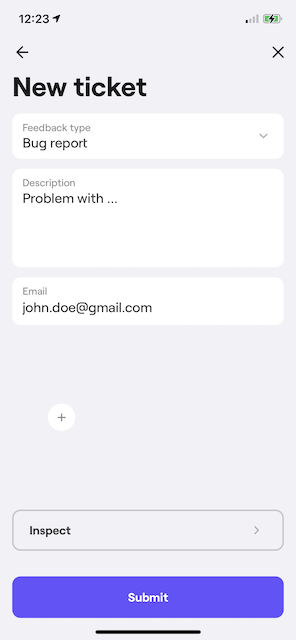
## Hide the *Inspect* button[](#hide-the-inspect-button "Direct link to hide-the-inspect-button")
If you don’t want to show *Inspect* button to a user, hide it using the following method:
* Javascript
* Typescript
index.js
```
Copy
Shake.setEnableInspectScreen(false);
```
index.ts
```
Copy
Shake.setEnableInspectScreen(false);
```
---
# Protect sensitive data
> As with any third-party service, it’s important for you to understand and have the ability to manage what data is sent to Shake servers. Shake SDK allows you to filter out sensitive data on the mobile device itself, so it never reaches the Shake servers.
You're viewing the React Native docs. Other platforms → [iOS](/docs/ios/configuration-and-data/manage-sensitive-data.md) [Android](/docs/android/configuration-and-data/manage-sensitive-data.md) [Flutter](/docs/flutter/configuration-and-data/manage-sensitive-data.md) [Web](/docs/web/configuration-and-data/manage-sensitive-data.md)
## Automatically redacted sensitive data[](#automatically-redacted-sensitive-data "Direct link to Automatically redacted sensitive data")
Shake automatically redacts these sensitive data from your notifications, touch events and network requests:
* email addresses
* IP addresses
* credit card numbers
* bearer tokens
Shake also redacts network header values if the header key is:
* password
* secret
* passwd
* api\_key
* apikey
* access\_token
* auth\_token
* credentials
* mysql\_pwd
* stripetoken
* Authorization
* Proxy-Authorization
* card\[number]
* token
To disable this privacy feature, use the method below:
* Javascript
* Typescript
index.js
```
Copy
Shake.setSensitiveDataRedactionEnabled(false);
```
index.ts
```
Copy
Shake.setSensitiveDataRedactionEnabled(false);
```
## Views[](#views "Direct link to Views")

| |
| - |
You can mark any view as private, and it'll automatically be deleted from the [auto screenshot](/docs/react/configuration-and-data/auto-screenshot.md). Private views are stored as a weak reference. They get cleared from the memory when not used anymore.
note
These methods won't delete sensitive views from auto screen recording — only from the auto screenshot.
note
When marking a *View* as private, also add the `collapsable={false}` flag to it in order to avoid the "Trying to resolve view with tag number which doesn’t exist" error.
Let's suppose you're building a shopping app and you want to delete the credit card number view from the auto screenshot:
* Javascript
* Typescript
index.js
```
Copy
let viewRef = useRef(null);
Copy
{this.state.cardNumber}
```
index.ts
```
Copy
let viewRef = useRef(null);
Copy
{this.state.cardNumber}
```
This is how you mark view as a private:
* Javascript
* Typescript
index.js
```
Copy
import Shake from '@shakebugs/react-native-shake';
Copy
Shake.addPrivateView(viewRef.current);
```
index.ts
```
Copy
import Shake from '@shakebugs/react-native-shake';
Copy
Shake.addPrivateView(viewRef.current);
```
To remove a view from private views use the following method:
* Javascript
* Typescript
index.js
```
Copy
import Shake from '@shakebugs/react-native-shake';
Copy
Shake.removePrivateView(viewRef.current);
```
index.ts
```
Copy
import Shake from '@shakebugs/react-native-shake';
Copy
Shake.removePrivateView(viewRef.current);
```
If you want to delete an entire screen from the auto screenshot, simply mark the root of the screen as private.
To clear all the private views, use the following method:
* Javascript
* Typescript
index.js
```
Copy
import Shake from '@shakebugs/react-native-shake';
Copy
Shake.clearPrivateViews();
```
index.ts
```
Copy
import Shake from '@shakebugs/react-native-shake';
Copy
Shake.clearPrivateViews();
```
## Touch events[](#touch-events "Direct link to Touch events")
Marking a view as private will automatically delete its touch events' text properties too. Consequently, you'll see them as `data_redacted` strings in ticket's [Activity history](/docs/react/configuration-and-data/activity-history.md). The view's ID, accessibility labels and tags remain visible.
## Network requests[](#network-requests "Direct link to Network requests")
Network requests may contain sensitive data which you may not want to send to Shake servers. Use the `Shake.setNetworkRequestsFilter()` method to obfuscate sensitive parts of those requests, or to entirely prevent certain network requests from being logged. As an example, if you'd like to obfuscate the *Authorization* header in all network requests sent from your app, do this:
* Javascript
* Typescript
index.js
```
Copy
import Shake from '@shakebugs/react-native-shake';
const setupNetworkFilter = () => {
Copy
Shake.setNetworkRequestsFilter((networkRequest) => {
let headers = networkRequest.getRequestHeaders();
if (headers.Authorization) {
headers.Authorization = '***';
}
return networkRequest;
});
}
```
index.ts
```
Copy
import Shake, {NetworkRequestBuilder} from '@shakebugs/react-native-shake';
const setupNetworkFilter = () => {
Copy
Shake.setNetworkRequestsFilter((networkRequest: NetworkRequestBuilder): NetworkRequestBuilder | null => {
let headers: { [key: string]: string } = networkRequest.getRequestHeaders();
if (headers.Authorization) {
headers.Authorization = '***';
}
return networkRequest;
});
}
```
If you don't want to log specific network requests, return `null` from the `NetworkRequestsFilter` as shown below:
* Javascript
* Typescript
index.js
```
Copy
import Shake from '@shakebugs/react-native-shake';
const setupNetworkFilter = () => {
Copy
Shake.setNetworkRequestsFilter((networkRequest) => {
if (networkRequest.getUrl().startsWith('https://api.myapp.com/cards')) {
return null;
}
return networkRequest;
});
}
```
index.ts
```
Copy
import Shake, {NetworkRequestBuilder} from '@shakebugs/react-native-shake';
const setupNetworkFilter = () => {
Copy
Shake.setNetworkRequestsFilter((networkRequest: NetworkRequestBuilder): NetworkRequestBuilder | null => {
if (networkRequest.getUrl().startsWith('https://api.myapp.com/cards')) {
return null;
}
return networkRequest;
});
}
```
To clear the network requests filter, use `Shake.setNetworkRequestsFilter(null)`.
## Notification events[](#notification-events "Direct link to Notification events")
If your app notifications contain sensitive data, use the `Shake.setNotificationEventsFilter()` method to fully or partially obfuscate those notifications.
For example, if you'd like to obfuscate the description of the notification event that contains an email, do this:
* Javascript
* Typescript
index.js
```
Copy
import Shake from '@shakebugs/react-native-shake';
const setupNotificationsFilter = () => {
Copy
Shake.setNotificationEventsFilter((notificationEvent) => {
if (notificationEvent.getTitle() === 'E-mail changed') {
notificationEvent.setDescription('***@gmail.com');
}
return notificationEvent;
});
}
```
index.ts
```
Copy
import Shake, {NotificationEventBuilder} from '@shakebugs/react-native-shake';
const setupNotificationsFilter = () => {
Copy
Shake.setNotificationEventsFilter((notificationEvent: NotificationEventBuilder): NotificationEventBuilder | null => {
if (notificationEvent.getTitle() === 'E-mail changed') {
notificationEvent.setDescription('***@gmail.com');
}
return notificationEvent;
});
}
```
If you do not want to track a specific notification event, return `null` from the `NotificationEventsFilter` like below:
* Javascript
* Typescript
index.js
```
Copy
import Shake from '@shakebugs/react-native-shake';
const setupNotificationsFilter = () => {
Copy
Shake.setNotificationEventsFilter((notificationEvent) => {
if (notificationEvent.getTitle() === 'E-mail changed') {
return null;
}
return notificationEvent;
});
}
```
index.ts
```
Copy
import Shake, {NotificationEventBuilder} from '@shakebugs/react-native-shake';
const setupNotificationsFilter = () => {
Copy
Shake.setNotificationEventsFilter((notificationEvent: NotificationEventBuilder): NotificationEventBuilder | null => {
if (notificationEvent.getTitle() === 'E-mail changed') {
return null;
}
return notificationEvent;
});
}
```
To clear the notification events filter, use `Shake.setNotificationEventsFilter(null)`.
---
# Overview
> Customize both the elements of Shake's New ticket screen and the data Shake collects.
You're viewing the React Native docs. Other platforms → [iOS](/docs/ios/configuration-and-data/overview.md) [Android](/docs/android/configuration-and-data/overview.md) [Flutter](/docs/flutter/configuration-and-data/overview.md) [Web](/docs/web/configuration-and-data/overview.md)
## Introduction[](#introduction "Direct link to Introduction")
Whatever you tweak, your configuration settings apply to the [Feedback](/docs/react/user-feedback/overview.md) module.
## Elements of the New ticket screen[](#elements-of-the-new-ticket-screen "Direct link to Elements of the New ticket screen")
Your users send you their feedback from the New ticket screen. Read how to customize it:
* [Custom forms](/docs/react/configuration-and-data/custom-forms.md)
## Collected data[](#collected-data "Direct link to Collected data")
Shake attaches useful data to user feedback. Read all about it:

[Custom forms](/docs/react/configuration-and-data/custom-forms.md)

[Data attached by default](/docs/react/configuration-and-data/data-attached-by-default.md)

[Auto screenshot](/docs/react/configuration-and-data/auto-screenshot.md)

[Auto screen recording](/docs/react/configuration-and-data/auto-screen-recording.md)

[Activity history](/docs/react/configuration-and-data/activity-history.md)

[Black box](/docs/react/configuration-and-data/black-box.md)

[Custom Ticket data](/docs/react/configuration-and-data/ticket-metadata.md)

[Auto attach files](/docs/react/configuration-and-data/auto-attach-files.md)
## Data privacy[](#data-privacy "Direct link to Data privacy")
Decide what needs to stay private and learn everything about data Shake collects:
* [Protect sensitive data](/docs/react/configuration-and-data/manage-sensitive-data.md)
* [Data privacy disclosure](/docs/react/configuration-and-data/data-privacy-disclosure.md)
⚡️ Shake is improved every week. Stumbled upon a [bug](https://feedback.shakebugs.com/bugs)? Want a [new feature](https://feedback.shakebugs.com/feature-requests) to be added? Create new tickets and upvote existing ones on the Public feedback board.
---
# Ticket metadata
> Every app is unique so the [Data attached by default](/docs/react/configuration-and-data/data-attached-by-default.md) sent with each ticket are often not enough. That's why Shake also allows you to automatically attach any custom data from your app to the ticket.
You're viewing the React Native docs. Other platforms → [iOS](/docs/ios/configuration-and-data/ticket-metadata.md) [Android](/docs/android/configuration-and-data/ticket-metadata.md) [Flutter](/docs/flutter/configuration-and-data/ticket-metadata.md) [Web](/docs/web/configuration-and-data/ticket-metadata.md)
## How to use[](#how-to-use "Direct link to How to use")
To set ticket metadata, call `Shake.setMetadata` and pass the data you want to receive on your Shake dashboard as a *String* pair. You can call `Shake.setMetadata` anywhere in your app, but be careful because any subsequent calls with the same *String* key will override the former *String* value.
Let’s say you want to send yourself a roomID after a user successfully joins a chat room. You would do this:
* Javascript
* Typescript
index.js
```
Copy
import Shake from '@shakebugs/react-native-shake';
const onChatRoomJoined = (roomId) => {
Copy
Shake.setMetadata('roomId', roomId);
}
```
index.ts
```
Copy
import Shake from '@shakebugs/react-native-shake';
const onChatRoomJoined = (roomId: string) => {
Copy
Shake.setMetadata('roomId', roomId);
}
```
## Clear Ticket metadata[](#clear-ticket-metadata "Direct link to Clear Ticket metadata")
If you want to clear existing ticket metadata, you can use the `Shake.clearMetadata` method.
For example, you want to clear ticket metadata when the user leaves a chat room:
* Javascript
* Typescript
index.js
```
Copy
import Shake from '@shakebugs/react-native-shake';
const onChatRoomClosed = () => {
chatService.logout();
Copy
Shake.clearMetadata();
}
```
index.ts
```
Copy
import Shake from '@shakebugs/react-native-shake';
const onChatRoomClosed = () => {
chatService.logout();
Copy
Shake.clearMetadata();
}
```
## Ticket metadata vs. User metadata[](#ticket-metadata-vs-user-metadata "Direct link to Ticket metadata vs. User metadata")
Use Ticket metadata to attach useful custom data to tickets. Examples are statuses of various app variables at the moment of ticket being sent:
* Current chat room ID
* List of items currently in a shopping cart
* Task synced true/false
* Number of search results
* List sorted by what
* Video muted true/false
Use [User metadata](/docs/react/users/update-user-metadata.md) to attach custom data to users. Examples are:
* First and last name
* User ID
* Address
* Subscription status
* Date of birth
---
# Ticket tags
> Sometimes you'll want to tag your tickets for easier management and organization on the dashboard. There are three different options you can use to add tags to the tickets.
You're viewing the React Native docs. Other platforms → [iOS](/docs/ios/configuration-and-data/ticket-tags.md) [Android](/docs/android/configuration-and-data/ticket-tags.md) [Flutter](/docs/flutter/configuration-and-data/ticket-tags.md) [Web](/docs/web/configuration-and-data/ticket-tags.md)
## Adding tags from the code[](#adding-tags-from-the-code "Direct link to Adding tags from the code")
To add tags to a ticket from the code, simply set a list of tags to the tags property of the Shake configuration.
Here's an example how you can add a tag to the ticket:
* Javascript
* Typescript
index.js
```
Copy
Shake.setTags(['tag']);
```
index.ts
```
Copy
Shake.setTags(['tag']);
```
## Adding tags using the ticket title[](#adding-tags-using-the-ticket-title "Direct link to Adding tags using the ticket title")
Use ticket title to add tags to the ticket.
Shake automatically identifies and converts any *#some #hashtags* found in the title of your tickets into the tags.
They will automatically become tags on your [Shake dashboard](https://app.shakebugs.com/).
## Adding tags using the form picker[](#adding-tags-using-the-form-picker "Direct link to Adding tags using the form picker")
Use form picker to add tags to the ticket.
Depending on the picker item selected by the user, Shake will automatically add defined tag to the ticket.
Learn more about [Shake form picker element](/docs/react/configuration-and-data/custom-forms.md#picker).
---
# Import from Instabug
> Shake offers an option to easily migrate your bugs from Instabug to our platform. This feature allows you to seamlessly transition your bugs without losing important data, even after closing Instabug account.
You're viewing the React Native docs. Other platforms → [iOS](/docs/ios/import-from-instabug.md) [Android](/docs/android/import-from-instabug.md) [Flutter](/docs/flutter/import-from-instabug.md) [Web](/docs/web/import-from-instabug.md)
## How to migrate Instabug bugs?[](#how-to-migrate-instabug-bugs "Direct link to How to migrate Instabug bugs?")
### Step 1: Export bugs from the Instabug[](#step-1-export-bugs-from-the-instabug "Direct link to Step 1: Export bugs from the Instabug")
To begin the migration process, you must first export your bugs from the Instabug. To do this, log into your Instabug account and navigate to the *Bugs* tab in the sidebar. From there, select the issues you want to export, press *⋯* button and then press *Export CSV* button.
note
With Instabug, you have a unified React Native app for reporting both iOS and Android bugs. In contrast, Shake requires separate apps for each platform, and it's recommended to create separate export files for iOS and Android bugs to be imported into the respective Shake app. However, it is possible to create a single export file with a mixture of both iOS and Android bugs, which can then be imported into both Shake apps. Any bugs that don't match the platform won't be imported.
note
Before export, you'll be prompted to select data you want to export into the CSV file. Feel free to ignore some of the data if you want, Shake is still able to import bugs if some data is missing.
You'll receive an email with a download link for the exported CSV file.
### Step 2: Download .csv export file[](#step-2-download-csv-export-file "Direct link to Step 2: Download .csv export file")
Check your email which you are using for Instabug login and download the CSV file from the email sent by Instabug.
### Step 3: Import bugs into the Shake[](#step-3-import-bugs-into-the-shake "Direct link to Step 3: Import bugs into the Shake")
Once you've downloaded the CSV file, log into your Shake account and navigate to the [Workspace administration → Apps](https://app.shakebugs.com) page. Select the app where you want to import Instabug bugs and press *Choose a file* button under the *Feedback → Import tickets* section.
Now, you'll be prompted to select the CSV file that you want to import. Max import file size is *100MB*, if you have larger file you can divide it into separate files.
Once you've selected the file, the import process will begin. This process can take up some time, depending on the number of bugs you're migrating and size of attached files to the bugs.
note
Only Instabug bugs that match the platform of the Shake app (Android or iOS) will be imported during the import process. Ensure that you import bugs into the correct app. Also, if Shake encounters bugs with a different data structure than expected, those bugs won't be imported.
When the import is completed, you'll be notified by email and you'll be able to view and track migrated tickets within the Shake.
## Migrated data[](#migrated-data "Direct link to Migrated data")
The migration tool allows you to migrate a variety of data from Instabug to Shake, such as title, description, status, and more. Here is a list of data fields that are provided in Instabug export file and that can be successfully migrated to the Shake.
* Title (ticket title)
* Email (reporter email)
* Status (ticket status)
* Priority (ticket priority)
* Assignee (always imported as unassigned)
* App Version (app version name)
* Bundle version (app version code)
* Device (device name)
* Locale (device locale)
* Screen Size (device screen size)
* Density (device screen density)
* Location (device location)
* OS version (device os version)
* Current View (opened screen at the report time)
* Metadata (contains *User Data* and *User Attributes* from Instabug)
* Activity history (console logs, custom logs, user taps and view events)
* Attachments (videos, images and other files are copied to our infrastructure)
* Reported time (ticket created date and time)
* Tags (tickets tags, with additional *imported* tag by default)
## Notes[](#notes "Direct link to Notes")
Please contact the support team if you need assistance with the migration process or have any questions regarding the format of the CSV file.
---
# Installation
> Learn how to add Shake to your React Native app.
You're viewing the React Native docs. Other platforms → [iOS](/docs/ios/install/spm.md) [Android](/docs/android/installation.md) [Flutter](/docs/flutter/installation.md) [Web](/docs/web/install/npm.md) [Chrome extension](/docs/chrome-extension/installation.md)
## Create a new app on Dashboard[](#create-a-new-app-on-dashboard "Direct link to Create a new app on Dashboard")
Visit your [Shake Dashboard](https://app.shakebugs.com) and add a new Android/iOS React Native app by clicking the *Add new app* button located in the bottom right corner.

| |
| - |
Once you're done, you're ready to proceed with the steps below.
## Add Shake dependency to your package.json file[](#add-shake-dependency-to-your-packagejson-file "Direct link to Add Shake dependency to your package.json file")
### React Native CLI[](#react-native-cli "Direct link to React Native CLI")
Execute the `npm install` command in your terminal:
Terminal
```
Copy
npm install @shakebugs/react-native-shake
```
Install pods from the project root directory:
Terminal
```
Copy
cd ios && pod install && cd ..
```
After the installation also run `pod update Shake` to be perfectly sure that you're using the latest Shake .
### Expo[](#expo "Direct link to Expo")
If you are using Expo, recommended way to install packages is by using `expo install` command:
Terminal
```
Copy
npx expo install @shakebugs/react-native-shake
```
note
Shake is not supported in Expo Go, you need to set up [development builds](https://docs.expo.dev/develop/development-builds/create-a-build/) in order to use Shake with Expo.
## Initialize Shake[](#initialize-shake "Direct link to Initialize Shake")
Call `Shake.start()` in your *index.js* file. Replace `ios-app-api-key` and `android-app-api-key` with the actual values you have in [your apps settings](https://app.shakebugs.com/administration/apps):
* Javascript
* Typescript
index.js
```
Copy
import { Platform } from 'react-native';
import Shake from '@shakebugs/react-native-shake';
AppRegistry.registerComponent(appName, () => App);
Copy
const apiKey = Platform.OS === 'ios' ? 'ios-app-api-key' : 'android-app-api-key';
Shake.start(apiKey);
```
index.ts
```
Copy
import { Platform } from 'react-native';
import Shake from '@shakebugs/react-native-shake';
AppRegistry.registerComponent(appName, () => App);
Copy
const apiKey: string = Platform.OS === 'ios' ? 'ios-app-api-key' : 'android-app-api-key';
Shake.start(apiKey);
```
Bundle your project code by running `npm run start` command in the terminal. Then use `npm run android` or `npm run ios` command to run your app on the device.
## Conditional initialization[](#conditional-initialization "Direct link to Conditional initialization")
We recommend initializing Shake in the entry point of your app. However, depending on your app, you'll want to initialize Shake just in a specific conditions, depending on your app data. You can do it as shown in the example below when your app data is available:
* Javascript
* Typescript
index.js
```
Copy
import { Platform } from 'react-native';
import Shake from '@shakebugs/react-native-shake';
const MainScreen = () => {
useEffect(() => {
if (User.isTester) {
Copy
const apiKey = Platform.OS === 'ios' ? 'ios-app-api-key' : 'android-app-api-key';
Shake.start(apiKey);
}
}, []);
};
```
index.ts
```
Copy
import { Platform } from 'react-native';
import Shake from '@shakebugs/react-native-shake';
const MainScreen = () => {
useEffect(() => {
if (User.isTester) {
Copy
const apiKey: string = Platform.OS === 'ios' ? 'ios-app-api-key' : 'android-app-api-key';
Shake.start(apiKey);
}
}, []);
};
```
## Visit your Shake dashboard[](#visit-your-shake-dashboard "Direct link to Visit your Shake dashboard")
Follow the instructions there to send your first feedback with Shake and you're all set.
## SDK customizations[](#sdk-customizations "Direct link to SDK customizations")
Now that Shake SDK is in your app and you have sent the first feedback for fun, everything else is optional. As the next step, try the three most popular SDK customizations:

[Turn on auto screen recording](/docs/react/configuration-and-data/auto-screen-recording.md)

[Tweak logging to your debugging needs](/docs/react/configuration-and-data/activity-history.md)

[Custom Ticket data](/docs/react/configuration-and-data/ticket-metadata.md)
---
# Overview
## Modules[](#modules "Direct link to Modules")
> Shake React Native SDK has two modules that work together nicely. Use any one of them, or both — whatever suits your needs.
You're viewing the React Native docs. Other platforms → [iOS](/docs/ios/overview.md) [Android](/docs/android/overview.md) [Flutter](/docs/flutter/overview.md) [Web](/docs/web/overview.md) [Chrome extension](/docs/chrome-extension/overview.md)
[](/docs/react/user-feedback/overview.md)
### [Feedback](/docs/react/user-feedback/overview.md)
[Testers and users can send you bug reports, questions and suggestions seamlessly.](/docs/react/user-feedback/overview.md)
[](/docs/react/users/overview.md)
### [Users](/docs/react/users/overview.md)
[List of all your app users, their attributes and reported tickets, plus live chat.](/docs/react/users/overview.md)
## Configuration and data[](#configuration-and-data "Direct link to Configuration and data")
> Customize how Shake behaves and looks in your app, and what data is automatically attached to tickets your users send.

[Invoke Shake](/docs/react/user-feedback/invoke.md)

[Data attached by default](/docs/react/configuration-and-data/data-attached-by-default.md)

[Auto screen recording](/docs/react/configuration-and-data/auto-screen-recording.md)

[Auto steps to reproduce](/docs/react/configuration-and-data/activity-history.md)

[Black box](/docs/react/configuration-and-data/black-box.md)

[Auto attach files](/docs/react/configuration-and-data/auto-attach-files.md)

[Custom Ticket data](/docs/react/configuration-and-data/ticket-metadata.md)

[Custom User data](/docs/react/users/update-user-metadata.md)

[Protect sensitive data](/docs/react/configuration-and-data/manage-sensitive-data.md)
## Latest version[](#latest-version "Direct link to Latest version")
The [latest available Shake SDK version](/docs/react/releases.md) is .
## Minimum requirements[](#minimum-requirements "Direct link to Minimum requirements")
Shake SDK works on:
* React Native 0.56 or newer
* Android 5.0 or newer
* iOS 12.0 or newer
\*Since 17.1.0 version, Shake RN SDK is using RN new architecture. If your app is running on old architecture you should use Shake RN SDK 17.0.x.
⚡️ Shake is improved every week. Stumbled upon a [bug](https://feedback.shakebugs.com/bugs)? Want a [new feature](https://feedback.shakebugs.com/feature-requests) to be added? Create new tickets and upvote existing ones on the Public feedback board.
---
# Release notes
> This page lists all updates to the Shake React Native SDK.
Other platforms → [iOS](/docs/ios/releases.md) [Android](/docs/android/releases.md) [Flutter](/docs/flutter/releases.md) [Web](/docs/web/releases.md) [Chrome extension](/docs/chrome-extension/releases.md)
## What's next?[](#whats-next "Direct link to What's next?")
What would you like us to build next? Upvote upcoming features and suggest new ideas on the [Public feedback board](https://feedback.shakebugs.com/).
## 18.0.0[](#1800 "Direct link to 18.0.0")
October 1, 2026 Latest version
#### What's new[](#whats-new "Direct link to What's new")
Shake now automatically tracks app sessions, giving you visibility into network traffic and device coverage for each release right from your Shake dashboard. Learn more in [Releases](/docs/react/releases/overview.md).
## 17.2.2[](#1722 "Direct link to 17.2.2")
January 16, 2026
#### Bug fixes[](#bug-fixes "Direct link to Bug fixes")
We fixed a few minor bugs that were causing problems.
## 17.1.3[](#1713 "Direct link to 17.1.3")
August 21, 2025
#### Bug fixes[](#bug-fixes-1 "Direct link to Bug fixes")
We fixed a few minor bugs that were causing problems. Shake is now more stable and runs even smoother.
## 17.1.2[](#1712 "Direct link to 17.1.2")
May 28, 2025
#### What's new[](#whats-new-1 "Direct link to What's new")
Shake now supports React Native 0.79.
#### Bug fixes[](#bug-fixes-2 "Direct link to Bug fixes")
We fixed Shake custom theme background color and added a few defensive try catch blocks to ensure app doesn't crash.
## 17.1.1[](#1711 "Direct link to 17.1.1")
April 18, 2025
#### What's new[](#whats-new-2 "Direct link to What's new")
* Shake now support Expo apps
* Collecting **fetch** type network requests together with **xhr**
#### Bug fixes[](#bug-fixes-3 "Direct link to Bug fixes")
* Screen recording on Android 15 fixed
* Network requests status code fixed
## 17.1.0[](#1710 "Direct link to 17.1.0")
December 16, 2024
#### What's new[](#whats-new-3 "Direct link to What's new")
We've updated our SDK to use React Native new architecture. If your project is still running on old architecture, use 17.0.x version.
## 17.0.1[](#1701 "Direct link to 17.0.1")
September 9, 2024
#### Bug fixes[](#bug-fixes-4 "Direct link to Bug fixes")
Fixed issue with setting custom form, now Shake picker "key" value is working as intended.
## 17.0.0[](#1700 "Direct link to 17.0.0")
May 27, 2024
#### What's new[](#whats-new-4 "Direct link to What's new")
We've introduced api keys. Use api key instead client id and client secret for [starting Shake](/docs/react/installation.md#initialize-shake). This improves security and control - you can create multiple api keys or delete old ones if needed.
## 16.2.1[](#1621 "Direct link to 16.2.1")
December 12, 2023 Latest version
#### What's new[](#whats-new-5 "Direct link to What's new")
We know it's important to keep your dashboard clean and well organized, that's why you can now simply [add tags](/docs/react/configuration-and-data/ticket-tags.md) to your tickets programmatically via code.
#### Bug fixes[](#bug-fixes-5 "Direct link to Bug fixes")
We fixed a few minor bugs that were causing problems. Shake is now more stable and runs even smoother.
## 16.2.0[](#1620 "Direct link to 16.2.0")
September 19, 2023
#### What's new[](#whats-new-6 "Direct link to What's new")
We’ve made it possible for users to open a New [chat](/docs/react/user-feedback/invoke.md) without submitting a New ticket. Additionally, you can [customize Shake home screen buttons](/docs/react/configuration-and-data/home-screen.md) according to your taste.
Chat notifications are upgraded with push notifications, so users can [receive chat notifications even when app is closed](/docs/react/users/chat.md#notifications). Also, there’s now a neat seen indicator that tells you exactly if the message was seen or not. 🚀
From now, you can [execute a block of code](/docs/react/configuration-and-data/callbacks.md) when certain actions are triggered within Shake.
This version now contains Turkish, Korean and Dutch translations, which additionally extend [the lists of languages into which Shake's been translated](https://help.shakebugs.com/en/articles/3392092-which-languages-has-shake-sdk-been-translated-to).
#### Bug fixes[](#bug-fixes-6 "Direct link to Bug fixes")
We fixed a few minor bugs that were causing problems. Shake is now more stable and runs even smoother.
## 16.1.0[](#1610 "Direct link to 16.1.0")
July 6, 2023
#### What's new[](#whats-new-7 "Direct link to What's new")
Introducing [Custom branding](/docs/react/configuration-and-data/custom-branding.md)! 🎨️
From now you can customize the appearance of the Shake SDK with your brand's colors, fonts, and more and align the SDK with your brand's identity for a consistent user experience.
## 16.0.0[](#1600 "Direct link to 16.0.0")
April 18, 2023
#### What's new[](#whats-new-8 "Direct link to What's new")
We're excited to announce the latest feature in our SDK, which allows you to [create a custom feedback form](/docs/react/configuration-and-data/custom-forms.md). Now you can collect even more detailed information from your users and tailor the form to your specific needs. Say goodbye to generic feedback form and hello to personalized data collection!
## 15.3.0[](#1530 "Direct link to 15.3.0")
June 23, 2022
#### What's new[](#whats-new-9 "Direct link to What's new")
The [unread chat messages listener](/docs/react/users/chat.md#unread-messages) is now available in Shake. Anywhere in your app, you can show a user how many unread messages in Shake they have.
#### Bug fixes[](#bug-fixes-7 "Direct link to Bug fixes")
Whoops! If you passed null to Shake user register or update methods, that would crash your app. Is crashing any good? No — so we knew what to do. Now everything works smoothly. While we were at it, we patched a few other obscure edge cases that you were not even aware of.
## 15.2.0[](#1520 "Direct link to 15.2.0")
April 19, 2022
#### What's new[](#whats-new-10 "Direct link to What's new")
The former Inspect screen has turned into an entire [Inspect section](/docs/react/shake-ui/inspect-section.md). Your testers can now browse, filter and share ticket's Activity history, inspect every log, see Ticket metadata, User metadata and the stack trace — all without ever leaving your app.
#### Bug fixes[](#bug-fixes-8 "Direct link to Bug fixes")
We fixed a few minor bugs that were causing problems. Shake is now more stable and runs even smoother.
## 15.1.0[](#1510 "Direct link to 15.1.0")
December 24, 2021 Latest version
#### What's new[](#whats-new-11 "Direct link to What's new")
[Chat](/docs/react/shake-ui/chat-screen.md), the most popular feature on the Public feedback board, is now available.
#### Bug fixes[](#bug-fixes-9 "Direct link to Bug fixes")
There were a few minor bugs that caused problems, like bugs do. We fixed those, and improved the SDK stability too.
## 15.0.0[](#1500 "Direct link to 15.0.0")
October 14, 2021
#### What's new[](#whats-new-12 "Direct link to What's new")
We've completely [redesigned Shake](/docs/react/shake-ui/home-screen.md) to continue delivering you more and more options in a scalable manner. It also started supporting dark and light themes, so it can beautifully fit into your app in either case.
We introduced a [Home screen](/docs/react/shake-ui/home-screen.md) where [your users](/docs/react/users/overview.md) can see tickets they previously reported.
This version now contains Russian, Italian, Polish, Latvian, Estonian and Thai translations, which additionally extend [the lists of languages into which Shake's been translated](https://help.shakebugs.com/en/articles/3392092-which-languages-has-shake-sdk-been-translated-to). Your users whose default device language is set to one of these will automatically see Shake in their language.
---
# Network requests
> Unlike session data, network request tracking requires you to forward requests to Shake first.
You're viewing the React Native docs. Other platforms → [iOS](/docs/ios/releases/network-requests.md) [Android](/docs/android/releases/network-requests.md) [Flutter](/docs/flutter/releases/network-requests.md) [Web](/docs/web/releases/network-requests.md)
## Why it matters[](#why-it-matters "Direct link to Why it matters")
This data is what lets you see, per release, which endpoints are slowest and which have the highest error rates on your Shake dashboard — so you can catch performance and reliability regressions before they reach more users.
## Setup[](#setup "Direct link to Setup")
If you've already set up network tracking for [Activity history](/docs/react/configuration-and-data/activity-history.md), no extra work is needed — session network tracking uses the same data.
Otherwise, enable automatic tracking:
* Javascript
* Typescript
index.js
```
Copy
Shake.setNetworkRequestsEnabled(true);
```
index.ts
```
Copy
Shake.setNetworkRequestsEnabled(true);
```
If you need to insert requests manually, use `Shake.insertNetworkRequest(networkRequestBuilder)` with a `NetworkRequestBuilder` instead.
## What's tracked[](#whats-tracked "Direct link to What's tracked")
For each request, Shake tracks the URL (query parameters and fragment stripped), method, status code, average duration, and call count.
* Requests to the same URL and method but with different status codes (for example, `200` vs. `500`) are tracked as separate entries.
* Path parameters aren't normalized — `/users/123` and `/users/456` are tracked as distinct endpoints.
Request and response bodies and headers are never included in this data — those are only collected for [Activity history](/docs/react/configuration-and-data/activity-history.md) on bug reports.
---
# Overview
> Shake automatically tracks app sessions to give you visibility into how each release of your app is performing, right from your Shake dashboard.
You're viewing the React Native docs. Other platforms → [iOS](/docs/ios/releases/overview.md) [Android](/docs/android/releases/overview.md) [Flutter](/docs/flutter/releases/overview.md) [Web](/docs/web/releases/overview.md)
## Introduction[](#introduction "Direct link to Introduction")
As soon as the SDK initializes, Shake starts tracking sessions in the background — no setup required. A session represents a continuous period of app use, and each one carries a snapshot of the device it ran on, plus a summary of the network requests made during it.
## What gets collected[](#what-gets-collected "Direct link to What gets collected")
Every session automatically collects:
* **[Session data](/docs/react/releases/session-data.md)** — a snapshot of the device (model, OS version, locale, timezone, orientation, screen size, network type) and how long the session lasted.
* **[Network requests](/docs/react/releases/network-requests.md)** — a summary of the HTTP calls made during the session (URL, method, status code, average duration), once you've set up network request tracking.
## Enabled by default[](#enabled-by-default "Direct link to Enabled by default")
Session tracking requires no configuration — it starts the moment `Shake.start()` is called, with no extra flag or method call needed.
A session ends after 5 minutes of inactivity (the app being backgrounded); returning to the app sooner continues the same session. Sessions shorter than 5 seconds are discarded, so quick launches or accidental app switches don't skew your data — unless the session ended in a crash, which is always reported no matter how short it was.
## Offline support[](#offline-support "Direct link to Offline support")
Session data is always stored locally first, so nothing is lost if the device is offline. Once online, pending sessions and their network request data sync to Shake in a single batch, at most every 30 minutes.
---
# Session data
> Each session carries a lightweight snapshot of the device it ran on.
You're viewing the React Native docs. Other platforms → [iOS](/docs/ios/releases/session-data.md) [Android](/docs/android/releases/session-data.md) [Flutter](/docs/flutter/releases/session-data.md) [Web](/docs/web/releases/session-data.md)
## What's included[](#whats-included "Direct link to What's included")
Every session sent to Shake includes:
* Device model
* OS version
* Locale
* Timezone
* App version
* Device orientation
* Screen width and height
* Network type
* Auth state (whether the device has a lock screen secured)
App version is pulled automatically from your project's configuration — you don't need to set it manually.
If you've set any custom key-value data with [`Shake.setMetadata`](/docs/react/configuration-and-data/ticket-metadata.md), it's included as well.
note
This is a lighter snapshot than the one attached to bug reports — it doesn't include battery, memory, disk space, or permissions. Those are only collected when a user actually submits a ticket.
## Crash detection[](#crash-detection "Direct link to Crash detection")
If your app crashes, Shake records that the session ended in a crash. This happens automatically — it's used purely to mark the session's end reason, not to generate a crash report.
Because crashes tend to happen moments after launch, a session that ended in a crash is reported even when it was shorter than the 5-second minimum that normally applies.
---
# Chat screen
> You and your app users can live chat about every ticket they have submitted to you.
You're viewing the React Native docs. Other platforms → [iOS](/docs/ios/shake-ui/chat-screen.md) [Android](/docs/android/shake-ui/chat-screen.md) [Flutter](/docs/flutter/shake-ui/chat-screen.md) [Web](/docs/web/shake-ui.md#chat-screen)

| |
| - |
If you [register app users](/docs/react/users/register-user.md) with Shake, they will have all their previous tickets listed on the [Home screen](/docs/react/shake-ui/home-screen.md). Tapping any ticket there opens its Chat screen.
Your app users can reply to your messages and provide you with more details about the bugs and feedback they've sent, all without ever leaving your app. Fix issues more easily and keep your app users happy.
Visit [Chat](/docs/react/users/chat.md) to learn more.
---
# Drawing screen
> Users can draw on images attached to the ticket, and blur their parts.
You're viewing the React Native docs. Other platforms → [iOS](/docs/ios/shake-ui/drawing-screen.md) [Android](/docs/android/shake-ui/drawing-screen.md) [Flutter](/docs/flutter/shake-ui/drawing-screen.md)

| |
| - |
They access this screen by tapping any of the images attached to their ticket on the [New ticket screen](/docs/react/shake-ui/new-ticket-screen.md).
---
# Home screen
> The Home screen is a central part of the Shake UI.
You're viewing the React Native docs. Other platforms → [iOS](/docs/ios/shake-ui/home-screen.md) [Android](/docs/android/shake-ui/home-screen.md) [Flutter](/docs/flutter/shake-ui/home-screen.md) [Web](/docs/web/shake-ui.md#home-screen)
## Introduction[](#introduction "Direct link to Introduction")
Here, your user can see:
* A welcome message that you can change from [Shake SDK](/docs/react/configuration-and-data/home-screen.md#home-screen-subtitle).
* A button to submit a new ticket. This section can be [customized](/docs/react/configuration-and-data/home-screen.md#setting-up-custom-actions).
* All their previous tickets. To show them their previous tickets, [register your users](/docs/react/users/overview.md) with Shake.

| |
| - |
## Show[](#show "Direct link to Show")
To show the Home screen to an app user, call the `Shake.show` method with the `ShakeScreen.HOME` argument. Visit [Invocations](/docs/react/user-feedback/invoke.md#invoke-through-code) to learn more.
---
# Inspect section
> Before submitting a ticket, your users can freely inspect [Data attached by default](/docs/react/configuration-and-data/data-attached-by-default.md), [Ticket metadata](/docs/react/configuration-and-data/ticket-metadata.md) and [User metadata](/docs/react/users/update-user-metadata.md).
You're viewing the React Native docs. Other platforms → [iOS](/docs/ios/shake-ui/inspect-section.md) [Android](/docs/android/shake-ui/inspect-section.md) [Flutter](/docs/flutter/shake-ui/inspect-section.md)
## Introduction[](#introduction "Direct link to Introduction")
They access the Inspect section by tapping the *Inspect* button on the [New ticket screen](/docs/react/shake-ui/new-ticket-screen.md).
## Screens[](#screens "Direct link to Screens")
The Inspect section consists of five screens. Here's how they're related:

| |
| - |
and here's how they look like:

| |
| - |
## Hide the Inspect button[](#hide-the-inspect-button "Direct link to Hide the Inspect button")
The *Inspect* button is an optional element and [can be disabled](/docs/react/configuration-and-data/custom-forms.md#inspect-button).
---
# New ticket screen
> Your users submit tickets from this screen.
You're viewing the React Native docs. Other platforms → [iOS](/docs/ios/shake-ui/new-ticket-screen.md) [Android](/docs/android/shake-ui/new-ticket-screen.md) [Flutter](/docs/flutter/shake-ui/new-ticket-screen.md) [Web](/docs/web/shake-ui.md#new-ticket)
## Introduction[](#introduction "Direct link to Introduction")
The New ticket screen contains various elements, which can be tweaked according to your needs. Visit [Elements of the New ticket screen](/docs/react/configuration-and-data/overview.md#elements-of-the-new-ticket-screen) for more details.

| |
| - |
## How to show this screen[](#how-to-show-this-screen "Direct link to How to show this screen")
This screen is shown when your users invoke Shake manually. To show this screen programmatically, call `Shake.show` with no arguments since it's the default option. Visit [Invocations](/docs/react/user-feedback/invoke.md) to read about various ways to invoke Shake.
---
# Overview
> Shake's user interface explained and instructions on how to customize it.
You're viewing the React Native docs. Other platforms → [iOS](/docs/ios/shake-ui/overview.md) [Android](/docs/android/shake-ui/overview.md) [Flutter](/docs/flutter/shake-ui/overview.md) [Web](/docs/web/shake-ui.md)
## Screens[](#screens "Direct link to Screens")
The Shake UI consists of five screens, and here's how they're related:
.svg)
| |
| - |
## Opening Shake[](#opening-shake "Direct link to Opening Shake")
You can decide to open either Shake's Home screeen or New ticket screen, depending on the flow you want to achieve. Listed below are some common use cases that show where you might like to add Shake to your app. Of course, it's up to you to decide what best suits your app UX.
### Internal feedback collection[](#internal-feedback-collection "Direct link to Internal feedback collection")
This entry point is often used during internal testing. Your testers or office colleagues are told to invoke Shake whenever they notice a bug or have a suggestion. In this case, instruct Shake to open the [New ticket screen](/docs/react/shake-ui/new-ticket-screen.md):

| |
| - |
### Production ticketing system[](#production-ticketing-system "Direct link to Production ticketing system")
In production, apps usually add Shake under **My account or Settings → Help**. There, they have a **Submit feedback** button that opens Shake's [Home screen](/docs/react/shake-ui/home-screen.md):

| |
| - |
## Design and customizations[](#design-and-customizations "Direct link to Design and customizations")
Shake supports dark and light mode out of the box, there is no need to code anything. Its UI will automatically adapt depending on your app design settings.
Shake also supports white labeling, you can change its colors and text from the code.
Lastly, Shake mobile UI has been localized to support [numerous languages](https://help.shakebugs.com/en/articles/3392092-which-languages-has-shake-sdk-been-translated-to). Your users whose default device language is set to one of those will automatically use Shake in their native language.
⚡️ Shake is improved every week. Stumbled upon a [bug](https://feedback.shakebugs.com/bugs)? Want a [new feature](https://feedback.shakebugs.com/feature-requests) to be added? Create new tickets and upvote existing ones on the Public feedback board.
---
# Enable
> The Feedback module is enabled by default.
You're viewing the React Native docs. Other platforms → [iOS](/docs/ios/user-feedback/enable.md) [Android](/docs/android/user-feedback/enable.md) [Flutter](/docs/flutter/user-feedback/enable.md)
This is how you disable it:
1. First, set the `setUserFeedbackEnabled` flag to `false`.
2. Then, call the `Shake.start` method.
* Javascript
* Typescript
index.js
```
Copy
Shake.setUserFeedbackEnabled(false);
```
index.ts
```
Copy
Shake.setUserFeedbackEnabled(false);
```
---
# Intro message
> There's a simple way to let all your app users or testers know how to send you feedback.
You're viewing the React Native docs. Other platforms → [iOS](/docs/ios/user-feedback/intro-message.md) [Android](/docs/android/user-feedback/intro-message.md) [Flutter](/docs/flutter/user-feedback/intro-message.md)

| |
| - |
If enabled, a one-off intro message will be shown to your users as soon as they open your app for the first time. Its text is automatically set based on the [manual invocations you use](/docs/react/user-feedback/invoke.md#invoke-manually), so you don't need to write anything. This message is disabled by default. Enable it easily using the following method:
* Javascript
* Typescript
index.js
```
Copy
Shake.setShowIntroMessage(true);
```
index.ts
```
Copy
Shake.setShowIntroMessage(true);
```
---
# Invoke
> Decide how you want Shake user feedback to be invoked.
You're viewing the React Native docs. Other platforms → [iOS](/docs/ios/user-feedback/invoke.md) [Android](/docs/android/user-feedback/invoke.md) [Flutter](/docs/flutter/user-feedback/invoke.md) [Web](/docs/web/user-feedback/invoke.md)
## Invoke manually[](#invoke-manually "Direct link to Invoke manually")
By default, Shake user feedback is invoked when a user shakes their device. You don't need to code anything:

| |
| - |
But if you want to, you can customize that.
Let's look at an example where you want Shake user feedback to be invoked either when your users shake their device or when they take a screenshot:
* Javascript
* Typescript
index.js
```
Copy
Shake.setInvokeShakeOnShakeDeviceEvent(true);
Shake.setInvokeShakeOnScreenshot(true);
Shake.start('app-api-key');
```
index.ts
```
Copy
Shake.setInvokeShakeOnShakeDeviceEvent(true);
Shake.setInvokeShakeOnScreenshot(true);
Shake.start('app-api-key');
```
You can also change the preferred invocation event on-the-fly during runtime. Here’s a list of all available options. Feel free to use any combination of these:
* Javascript
* Typescript
index.js
```
Copy
Shake.setInvokeShakeOnShakeDeviceEvent(true);
Shake.setInvokeShakeOnScreenshot(true);
Shake.setShowFloatingReportButton(true);
```
index.ts
```
Copy
Shake.setInvokeShakeOnShakeDeviceEvent(true);
Shake.setInvokeShakeOnScreenshot(true);
Shake.setShowFloatingReportButton(true);
```
Also, feel free to change which Shake screen is shown when Shake user feedback is invoked manually:
* [New ticket screen](/docs/react/shake-ui/new-ticket-screen.md) (default)
* [Home screen](/docs/react/shake-ui/home-screen.md)
* [Chat screen](/docs/react/shake-ui/chat-screen.md)
- Javascript
- Typescript
index.js
```
Copy
import Shake, {ShakeScreen} from '@shakebugs/react-native-shake';
Copy
Shake.setDefaultScreen(ShakeScreen.NEW);
Shake.setDefaultScreen(ShakeScreen.HOME);
Shake.setDefaultScreen(ShakeScreen.CHAT);
```
index.ts
```
Copy
import Shake, {ShakeScreen} from '@shakebugs/react-native-shake';
Copy
Shake.setDefaultScreen(ShakeScreen.NEW);
Shake.setDefaultScreen(ShakeScreen.HOME);
Shake.setDefaultScreen(ShakeScreen.CHAT);
```
If you are showing Shake chat screen, make sure that you have [registered](/docs/react/users/register-user.md) your app user. Otherwise Shake home screen will be shown.
### Shaking gesture[](#shaking-gesture "Direct link to Shaking gesture")
By default, the shaking gesture opens Shake user feedback.
note
If you are testing Shake SDK on your computer, keep in mind that the Android Emulator’s "shaking gesture" is too weak to invoke Shake. You can decrease Shake's threshold as described below, or use another invocation method.
The shaking threshold can be fine-tuned too. Let's decrease it, for example, so that Shake user feedback is easier to invoke:
* Javascript
* Typescript
index.js
```
Copy
Shake.setShakingThreshold(400); // Default value is 600.
```
index.ts
```
Copy
Shake.setShakingThreshold(400); // Default value is 600.
```
A valid threshold value range is `1 - 1000`. Higher values represent higher thresholds, meaning that a stronger motion gesture will be required to invoke Shake user feedback.
### Floating button[](#floating-button "Direct link to Floating button")
This invocation event creates a floating button on top of your app's UI which your users will be able to see and drag around the screen at all times.
note
In the Android Emulator, you might need to click the button twice if one click doesn’t do it. Also, system interface elements [may sometimes get in the way](https://help.shakebugs.com/en/articles/3321805-the-report-a-bug-button-is-hidden-behind-an-interface-element) of the button.
### Taking a screenshot[](#taking-a-screenshot "Direct link to Taking a screenshot")
Shake user feedback will be invoked when your user takes a screenshot while using your app.
note
The only way for any SDK to realize that a screenshot has been captured is to monitor the screenshots directory. Because of that, if you opt for this invocation method, storage permission will be requested from a user when they launch your app.
### Right edge pan[](#right-edge-pan "Direct link to Right edge pan")
Shake user feedback will be invoked with a one-finger swiping gesture from the right edge of the screen.
note
The right edge pan gesture won’t work if performed over a ListView or ScrollView. Use one of the alternative ways to invoke Shake instead.
## Invoke through code[](#invoke-through-code "Direct link to Invoke through code")
Invoke Shake user feedback through code by calling the `Shake.show` method anywhere after `Shake.start`.
The `show` method can be called with the argument `ShakeScreen` which determines the first presented screen in the Shake UI. The default value is `ShakeScreen.NEW`.
* Javascript
* Typescript
index.js
```
Copy
import Shake, {ShakeScreen} from '@shakebugs/react-native-shake';
const onReportProblemPressed = () => {
// Displays Shake with the New Ticket screen at the top of the stack.
Copy
Shake.show();
}
const onFeedbackCenterPressed = () => {
// Displays Shake starting at the Home screen.
Copy
Shake.show(ShakeScreen.HOME);
}
const onStartChatPressed = () => {
// Displays Shake empty chat screen.
Copy
Shake.show(ShakeScreen.CHAT);
}
```
index.ts
```
Copy
import Shake, {ShakeScreen} from '@shakebugs/react-native-shake';
const onReportProblemPressed = () => {
// Displays Shake with the New Ticket screen at the top of the stack.
Copy
Shake.show();
}
const onFeedbackCenterPressed = () => {
// Displays Shake starting at the Home screen.
Copy
Shake.show(ShakeScreen.HOME);
}
const onStartChatPressed = () => {
// Displays Shake empty chat screen.
Copy
Shake.show(ShakeScreen.CHAT);
}
```
If an [auto screenshot](/docs/react/configuration-and-data/auto-screenshot.md) and [auto screen recording](/docs/react/configuration-and-data/auto-screen-recording.md) are enabled, when you call `ShakeScreen.NEW` they will be automatically attached to a ticket.
If enabled, [activity history](/docs/react/configuration-and-data/activity-history.md), [black box](/docs/react/configuration-and-data/black-box.md) and all other data are also automatically attached. No additional code is required.
If you are showing Shake chat screen, make sure that you have [registered](/docs/react/users/register-user.md) your app user. Otherwise Shake home screen will be shown.
---
# Overview
> The Feedback module allows your users and testers to seamlessly report their feedback to you.
You're viewing the React Native docs. Other platforms → [iOS](/docs/ios/user-feedback/overview.md) [Android](/docs/android/user-feedback/overview.md) [Flutter](/docs/flutter/user-feedback/overview.md) [Web](/docs/web/user-feedback/overview.md)
## Introduction[](#introduction "Direct link to Introduction")
When this module is enabled, you have various options for how, when and where to invoke Shake in your app. Explore the docs and customize Shake's Feedback module to your needs. To get you started, here are just two examples:

| |
| - |
Common internal testing setup: Make Shake's [New ticket screen](/react/shake-ui/new-ticket-screen/) available from anywhere

| |
| - |
Common production setup: A button on your Help screen that opens Shake's [Home screen](/react/shake-ui/home-screen/)
## Shared configuration[](#shared-configuration "Direct link to Shared configuration")
Feedback module pulls your [Configuration and data](/docs/react/configuration-and-data/overview.md) settings.
This means that all user feedback comes to you with an [auto screenshot](/docs/react/configuration-and-data/auto-screenshot.md), an [auto screen recording](/docs/react/configuration-and-data/auto-screen-recording.md) of what happened before the ticket was submitted, [activity history](/docs/react/configuration-and-data/activity-history.md) and other useful data.
⚡️ Shake is improved every week. Stumbled upon a [bug](https://feedback.shakebugs.com/bugs)? Want a [new feature](https://feedback.shakebugs.com/feature-requests) to be added? Create new tickets and upvote existing ones on the Public feedback board.
---
# Silent user feedback
> Send yourself feedback from the app background, without showing [Shake UI](/docs/react/shake-ui/overview.md).
You're viewing the React Native docs. Other platforms → [iOS](/docs/ios/user-feedback/silent-user-feedback.md) [Android](/docs/android/user-feedback/silent-user-feedback.md) [Flutter](/docs/flutter/user-feedback/silent-user-feedback.md) [Web](/docs/web/user-feedback/silent-user-feedback.md)
## Overview[](#overview "Direct link to Overview")
You can send silent user feedback to yourself by calling the `Shake.silentReport` method anywhere after `Shake.start`. Feel free to add your own description to it as well.
*ShakeReportConfiguration* determines which data is attached to the silent user feedback:
* [Auto attached files](/docs/react/configuration-and-data/auto-attach-files.md)
* [Auto screen recording](/docs/react/configuration-and-data/auto-screen-recording.md) if the feature is turned on
* Etc.
- Javascript
- Typescript
index.js
```
Copy
import Shake, {ShakeFile, ShakeReportConfiguration} from '@shakebugs/react-native-shake';
const sendSilentReport = () => {
Copy
const configuration = new ShakeReportConfiguration();
configuration.blackBoxData = true;
configuration.activityHistoryData = true;
configuration.screenshot = true;
configuration.video = false;
Shake.silentReport(
'Description #tag1 #tag2',
[ShakeFile.create(path)],
configuration);
}
```
index.ts
```
Copy
import Shake, {ShakeFile, ShakeReportConfiguration} from '@shakebugs/react-native-shake';
const sendSilentReport = () => {
Copy
const configuration: ShakeReportConfiguration = new ShakeReportConfiguration();
configuration.blackBoxData = true;
configuration.activityHistoryData = true;
configuration.screenshot = true;
configuration.video = false;
Shake.silentReport(
'Description #tag1 #tag2',
[ShakeFile.create(path)],
configuration);
}
```
## Show the Ticket submitted message[](#show-the-ticket-submitted-message "Direct link to Show the Ticket submitted message")
To optionally notify your user that a silent user feedback has just been submitted, change the `ShakeReportConfiguration` and use that configuration object when sending the silent user feedback with the `Shake.silentReport` method:
* Javascript
* Typescript
index.js
```
Copy
const configuration = new ShakeReportConfiguration();
configuration.showReportSentMessage = true;
```
index.ts
```
Copy
const configuration: ShakeReportConfiguration = new ShakeReportConfiguration();
configuration.showReportSentMessage = true;
```
---
# Advanced usage
> Some apps might want to register the device itself as an app user or make a transition from the anonymous user to the identified app user.
You're viewing the React Native docs. Other platforms → [iOS](/docs/ios/users/advanced-usage.md) [Android](/docs/android/users/advanced-usage.md) [Flutter](/docs/flutter/users/advanced-usage.md) [Web](/docs/web/users/advanced-usage.md)
## Register an anonymous app user[](#register-an-anonymous-app-user "Direct link to Register an anonymous app user")
Let's take an app like *Reddit* for example. Their app users can browse the app as guests for months before deciding to sign up.
As soon as your app user opens your app — and way before they sign up — you can identify them as an anonymous app user so both of you instantly get all the benefits of the app Users module.
You would do so by calling `Shake.registerUser(UUID)`, where the `UUID` is a randomly generated unique device ID persisted in the app storage.
## Anonymous app user → `Shake.updateUserId`[](#anonymous-app-user--shakeupdateuserid "Direct link to anonymous-app-user--shakeupdateuserid")
Let's suppose this anonymous app user decides to sign up one day, and you want to **keep** their app User entity:
* They will have the ability to see all their previously reported tickets.
* You consider them as the same app user and want to keep all their app User metadata.

| |
| - |
You would call the `Shake.updateUserId` method with the new app user identifier.
note
We recommend performing this transition only in one direction: Anonymous → Identified. The other way around could lead to an undesired result of linking the previously-identified app user to the now-anonymous app user ie. device.
## Anonymous app user → `Shake.registerUser`[](#anonymous-app-user--shakeregisteruser "Direct link to anonymous-app-user--shakeregisteruser")
Let's suppose an anonymous app user decides to sign up one day, but you want to treat the newly signed-up app user as a **new** app User entity instead:
* You want a fresh new app User.
* This app user won't see tickets they reported before they signed up, while being an anonymous app user.

| |
| - |
You would call the `Shake.registerUser` method with the new app user identifier.
### Switch back to the anonymous app user[](#switch-back-to-the-anonymous-app-user "Direct link to Switch back to the anonymous app user")
When an identified app user decides to delete their account or log out, you might want to switch back to the anonymous app User.
To achieve that, instead of calling `Shake.unregisterUser` you would do a switch back to the device identifier by calling `Shake.registerUser(UUID)` again.
This app User will again see the tickets they had reported before they signed up.
---
# Chat
> If needed, your app users can [chat with you](/docs/react/shake-ui/chat-screen.md) to provide you more details about their reported bugs, crashes or feedback. You will be able to fix issues faster and make your customers happier.
You're viewing the React Native docs. Other platforms → [iOS](/docs/ios/users/chat.md) [Android](/docs/android/users/chat.md) [Flutter](/docs/flutter/users/chat.md) [Web](/docs/web/users/chat.md)
## Enable[](#enable "Direct link to Enable")
Once your app user is [registered](/docs/react/users/register-user.md) with Shake, the chat feature is enabled automatically. Each ticket they send you will be a separate conversation.
This feature is tightly integrated with and follows the lifecycle of your *User* registration, which means that calling `Shake.unregisterUser` also *disconnects* the current app user from chat and they won't receive any new messages until registered again.
## Notifications[](#notifications "Direct link to Notifications")
Shake can notify your app [users](/docs/react/users/register-user.md) about new messages sent from the Shake dashboard.
Both remote and local notifications are supported, but are mutually exclusive.
## Android notifications[](#android-notifications "Direct link to Android notifications")
### Set up Firebase SDK[](#set-up-firebase-sdk "Direct link to Set up Firebase SDK")
Shake uses Firebase for sending push notifications to your Android app.
If you didn't add Firebase to your project yet, follow the official documentation for [adding Firebase into the project](https://rnfirebase.io/#installation).
You'll also have to [set up Firebase Cloud Messaging](https://rnfirebase.io/messaging/usage#installation) in your app.
### Forwarding device token to the Shake[](#forwarding-device-token-to-the-shake "Direct link to Forwarding device token to the Shake")
To target the specific Android device, Shake needs the device Firebase token.
Forward Firebase token to the Shake by calling `Shake.setPushNotificationsToken` method on the app start like shown below:
* Javascript
* Typescript
index.js
```
Copy
import { AppRegistry, Platform } from 'react-native';
import Shake from '@shakebugs/react-native-shake';
import messaging from '@react-native-firebase/messaging';
Copy
const setShakePushNotificationsToken = async () => {
if (Platform.OS === 'android') {
const fcmToken = await messaging().getToken();
Shake.setPushNotificationsToken(fcmToken);
}
};
Copy
setShakePushNotificationsToken();
Shake.start('app-api-key');
AppRegistry.registerComponent(appName, () => App);
```
index.ts
```
Copy
import { AppRegistry, Platform } from 'react-native';
import Shake from '@shakebugs/react-native-shake';
import messaging from '@react-native-firebase/messaging';
Copy
const setShakePushNotificationsToken = async (): Promise => {
if (Platform.OS === 'android') {
const fcmToken: string = await messaging().getToken();
Shake.setPushNotificationsToken(fcmToken);
}
};
Copy
setShakePushNotificationsToken();
Shake.start('app-api-key');
AppRegistry.registerComponent(appName, () => App);
```
### Presenting notifications to the app users[](#presenting-notifications-to-the-app-users "Direct link to Presenting notifications to the app users")
Shake sends Firebase *data* push notifications to the device which are not presented by default.
In order to present data notifications to the app users you'll have to use `onMessage` and `setBackgroundMessageHandler` callbacks and call `Shake.showChatNotification` like shown below:
* Javascript
* Typescript
index.js
```
Copy
import { AppRegistry, Platform } from 'react-native';
import Shake from '@shakebugs/react-native-shake';
import messaging from '@react-native-firebase/messaging';
Copy
const presentShakePushNotifications = async () => {
if (Platform.OS === 'android') {
// Showing chat notifications when app in the background
messaging().setBackgroundMessageHandler(
async remoteMessage => {
await Shake.start('app-api-key'); // Start Shake with your key
Shake.showChatNotification(remoteMessage.data);
}
);
// Showing chat notifications when app in the foreground
messaging().onMessage(
async remoteMessage => {
Shake.showChatNotification(remoteMessage.data);
}
);
}
};
Copy
presentShakePushNotifications();
Shake.start('app-api-key');
AppRegistry.registerComponent(appName, () => App);
```
index.ts
```
Copy
import { AppRegistry, Platform } from 'react-native';
import Shake from '@shakebugs/react-native-shake';
import messaging, { FirebaseMessagingTypes } from '@react-native-firebase/messaging';
Copy
const presentShakePushNotifications = async (): Promise => {
if (Platform.OS === 'android') {
// Showing chat notifications when app in the background
messaging().setBackgroundMessageHandler(
async (remoteMessage: FirebaseMessagingTypes.RemoteMessage) => {
await Shake.start('app-api-key'); // Start Shake with your key
Shake.showChatNotification(remoteMessage.data);
}
);
// Showing chat notifications when app in the foreground
messaging().onMessage(
async (remoteMessage: FirebaseMessagingTypes.RemoteMessage) => {
Shake.showChatNotification(remoteMessage.data);
}
);
}
};
Copy
presentShakePushNotifications();
Shake.start('app-api-key');
AppRegistry.registerComponent(appName, () => App);
```
note
Don't forget to request notifications permission or notifications won't be shown
### Customizing notification title and icon[](#customizing-notification-title-and-icon "Direct link to Customizing notification title and icon")
If you want to change chat notification title or icon, you can do it by adding metadata in the manifest file inside the application element:
AndroidManifest.xml
```
Copy
```
### Set up Service Account credentials on the Shake dashboard[](#set-up-service-account-credentials-on-the-shake-dashboard "Direct link to Set up Service Account credentials on the Shake dashboard")
The last thing you'll have to do is to upload Firebase Cloud Messaging *Service Account* credentials to the Shake Dashboard.
Navigate to the *Project Settings → Service accounts → Generate new private key → Generate key* on the Firebase and upload *Service Account* credentials to the *Workspace Administration → App settings* on the Shake dashboard.
### Local notifications[](#local-notifications "Direct link to Local notifications")
If for some reason, you don't want to configure remote notifications for your app, Shake can still schedule them locally.
To enable these, you still need to request the user permission, but there is no need for additional steps or code.
note
Important thing to note is that local notifications are not shown when app is in the background.
Shake uses `Shake.setPushNotificationsToken` function to determine if the app is configured to receive remote notifications. If that method is called in your app, Shake will disable local notifications and assume that you want to enable remote ones.
## iOS notifications[](#ios-notifications "Direct link to iOS notifications")
### Creating a Push Notifications certificate[](#creating-a-push-notifications-certificate "Direct link to Creating a Push Notifications certificate")
Shake supports iOS Remote notifications but your application needs the [APS Environment Entitlement](https://developer.apple.com/documentation/bundleresources/entitlements/aps-environment) enabled.
After enabling this app *Capability*, Shake needs your certificate to establish a [certificate based connection with APNS](https://developer.apple.com/documentation/usernotifications/setting_up_a_remote_notification_server/establishing_a_certificate-based_connection_to_apns). Follow the Apple docs and generate a [new Push Notifications certificate](https://developer.apple.com/account/resources/certificates/add) in the *Member Center*.
Once the certificate is generated and downloaded to your local machine, *double click* on the certificate to import it to the KeychainAccess application. If done correctly, the *Certificate+PrivateKey* combination will be present in your KeychainAccess application under the *Certificates* tab.
Export the *Certificate+PrivateKey* combination as a *.p12* file and upload the file to Shake *Dashboard*.
### Registering iOS application for remote notifications[](#registering-ios-application-for-remote-notifications "Direct link to Registering iOS application for remote notifications")
To target the specific iOS device, Shake needs the device APNS token.
Call the native `registerForRemoteNotifications` method during the application launch, to always obtain a fresh copy of the device APNS token and forward it to Shake.
* Objective-C
* Swift
AppDelegate.m
```
@implementation AppDelegate
- (BOOL)application:(UIApplication *)application
didFinishLaunchingWithOptions:(NSDictionary *)launchOptions {
Copy
[UIApplication.sharedApplication registerForRemoteNotifications];
/// Rest of the application and Shake setup
return true;
}
Copy
- (void)application:(UIApplication *)application
didRegisterForRemoteNotificationsWithDeviceToken:(NSData *)deviceToken {
[SHKShake didRegisterForRemoteNotificationsWithDeviceToken:deviceToken];
}
@end
```
AppDelegate.swift
```
class AppDelegate: UIResponder, UIApplicationDelegate {
override func application(_ application: UIApplication, didFinishLaunchingWithOptions launchOptions: [UIApplication.LaunchOptionsKey: Any]?) -> Bool {
Copy
UIApplication.shared.registerForRemoteNotifications()
/// Rest of the application and Shake setup
return true
}
Copy
override func application(_ application: UIApplication, didRegisterForRemoteNotificationsWithDeviceToken deviceToken: Data) {
Shake.didRegisterForRemoteNotifications(withDeviceToken: deviceToken)
}
}
```
### Presenting iOS notifications[](#presenting-ios-notifications "Direct link to Presenting iOS notifications")
To handle *foreground* notifications, application needs to set itself as the `UNUserNotificationCenterDelegate` , and implement the *didReceiveResponse*, *willPresentNotification* methods.
To remain customizable and minimally intrusive to an existing notification logic of your app, Shake requires some additional setup.
Use `Shake.report(center: UNUserNotificationCenter ...)` methods to delegate notification presentation logic to Shake.
`Shake.isShakeNotification` method can be used to perform an early check for Shake originated notifications and delegate processing so that Shake internally calls Apple completion handlers.
* Objective-C
* Swift
AppDelegate.m
```
Copy
@import Shake;
@import UserNotifications;
Copy
@implementation AppDelegate
- (BOOL)application:(UIApplication *)application didFinishLaunchingWithOptions:(NSDictionary *)launchOptions {
Copy
UNUserNotificationCenter.currentNotificationCenter.delegate = self;
[SHKShake startWithApiKey:@"app-api-key"];
return YES;
}
Copy
- (void)userNotificationCenter:(UNUserNotificationCenter *)center didReceiveNotificationResponse:(UNNotificationResponse *)response withCompletionHandler:(void (^)(void))completionHandler {
if ([SHKShake isShakeNotification:response.notification]){
[SHKShake reportNotificationCenter:center didReceiveNotificationResponse:response withCompletionHandler:completionHandler];
return;
}
completionHandler();
}
Copy
- (void)userNotificationCenter:(UNUserNotificationCenter *)center willPresentNotification:(UNNotification *)notification withCompletionHandler:(void (^)(UNNotificationPresentationOptions))completionHandler {
if ([SHKShake isShakeNotification:notification]){
[SHKShake reportNotificationCenter:center willPresentNotification:notification withCompletionHandler:completionHandler];
return;
}
completionHandler(UNNotificationPresentationOptionAlert | UNNotificationPresentationOptionSound);
}
@end
```
AppDelegate.swift
```
Copy
class AppDelegate: UIResponder, UIApplicationDelegate, UNUserNotificationCenterDelegate {
override func application(_ application: UIApplication, didFinishLaunchingWithOptions launchOptions: [UIApplication.LaunchOptionsKey: Any]?) -> Bool {
Copy
UNUserNotificationCenter.current().delegate = self
Shake.start(apiKey: "app-api-key")
return true
}
Copy
override func userNotificationCenter(_ center: UNUserNotificationCenter, didReceive response: UNNotificationResponse, withCompletionHandler completionHandler: @escaping () -> Void) {
if Shake.isShakeNotification(response.notification) {
Shake.report(center, didReceive: response, withCompletionHandler: completionHandler)
return;
}
completionHandler()
}
Copy
override func userNotificationCenter(_ center: UNUserNotificationCenter, willPresent notification: UNNotification, withCompletionHandler completionHandler: @escaping (UNNotificationPresentationOptions) -> Void) {
if Shake.isShakeNotification(notification) {
Shake.report(center, willPresent: notification, withCompletionHandler: completionHandler)
return;
}
completionHandler([.badge, .sound, .alert])
}
}
```
* Objective-C
* Swift
AppDelegate.h
```
Copy
#import
#import
@import UserNotifications;
@interface AppDelegate : RCTAppDelegate
@end
```
AppDelegate.h
```
Not needed for Swift
```
With the setup like above, notifications that originate from Shake are handled by Shake, and all other notifications are handled by your app.
This keeps Shake isolated and configurable, but we do recommend using the above snippets because Shake will internally determine if notification should be presented, and also perform expected actions when notifications are tapped.
note
Don't forget to request notifications permission or notifications won't be shown
### Local notifications[](#local-notifications-1 "Direct link to Local notifications")
If for some reason, you don't want to configure remote notifications for your app, Shake can still schedule them locally.
To enable these, you still need to request the user permission, but there is no need to generate any additional certificates or register the iOS application for remote notifications with `registerForRemoteNotifications` method.
note
Important thing to note is that local notifications are not shown when app is in the background.
Shake uses `isRegisteredForRemoteNotifications` property to determine if the app is configured to receive remote notifications. If that method returns `true`, Shake will disable local notifications and assume that you want to enable remote ones.
## Requesting Notifications permissions[](#requesting-notifications-permissions "Direct link to Requesting Notifications permissions")
To show any kind of notifications to your user, you must request a permission.
Requesting a notifications permission triggers a native alert dialog and can be displayed to a user only once.
Make sure to find a proper place and time to ask for this permission, because if the user doesn't grant permission via the alert dialog, all notifications are disabled and must be enabled manually in the *Settings* app.
* Javascript
* Typescript
index.js
```
Copy
import {PermissionsAndroid, Platform} from 'react-native';
import PushNotificationIOS from '@react-native-community/push-notification-ios';
Copy
const requestNotificationsPermission = () => {
if (Platform.OS === 'android') {
PermissionsAndroid.request(PermissionsAndroid.PERMISSIONS.POST_NOTIFICATIONS);
} else {
PushNotificationIOS.requestPermissions();
}
};
```
index.ts
```
Copy
import {PermissionsAndroid, Platform} from 'react-native';
import PushNotificationIOS from '@react-native-community/push-notification-ios';
Copy
const requestNotificationsPermission = () => {
if (Platform.OS === 'android') {
PermissionsAndroid.request(PermissionsAndroid.PERMISSIONS.POST_NOTIFICATIONS);
} else {
PushNotificationIOS.requestPermissions();
}
};
```
## Unread messages[](#unread-messages "Direct link to Unread messages")
If you want to show number of unread chat messages somewhere in your app, you can set the unread messages listener. The listener is called immediately when set and on each change in the number of unread messages for a registered app user:
* Javascript
* Typescript
index.js
```
Copy
import Shake from '@shakebugs/react-native-shake';
Copy
Shake.setUnreadMessagesListener(count => {
// Update number in your text element
});
```
index.ts
```
Copy
import Shake from '@shakebugs/react-native-shake';
Copy
Shake.setUnreadMessagesListener((count: number) => {
// Update number in your text element
});
```
To remove the unread messages listener, use `Shake.setUnreadMessagesListener(null)`.
---
# Overview
> The Users module enables you to see a list of your app users, their attributes and tickets on your Shake dashboard. In parallel, it allows them to see their previously submitted tickets.
You're viewing the React Native docs. Other platforms → [iOS](/docs/ios/users/overview.md) [Android](/docs/android/users/overview.md) [Flutter](/docs/flutter/users/overview.md) [Web](/docs/web/users/overview.md)

| |
| - |
Current features include:
* Your app users can see their previously sent tickets on the [Home screen](/docs/react/shake-ui/home-screen.md).
* You have all your app users listed in one place on your Shake dashboard.
* Your [users' custom attributes](/docs/react/users/update-user-metadata.md) are tracked automatically.
* You and your app users can [live chat](/docs/react/users/chat.md) with each other.
Soon, these features will be available too:
* On your Shake dashboard, you will see an app User which has submitted a Ticket. And all Tickets sent by a particular app User.
* You will be able to see your MAU and DAU charts.
Start by [registering your app users](/docs/react/users/register-user.md).
⚡️ Shake is improved every week. Stumbled upon a [bug](https://feedback.shakebugs.com/bugs)? Want a [new feature](https://feedback.shakebugs.com/feature-requests) to be added? Create new tickets and upvote existing ones on the Public feedback board.
---
# Register app user
> Register your app users with Shake by calling the `Shake.registerUser` method.
You're viewing the React Native docs. Other platforms → [iOS](/docs/ios/users/register-user.md) [Android](/docs/android/users/register-user.md) [Flutter](/docs/flutter/users/register-user.md) [Web](/docs/web/users/register-user.md)
The passed *user identifier* argument should ideally reflect the identifier that uniquely represents the app user in your database. Often it is the app user's email address, but it may be their User ID, or their device's UUID. Shake's public method is intentionally called *register* and not *logIn* because app user identification context is different in different apps.
Most apps communicate with their backend through the network layer which performs the URL request and asynchronously receives a callback with the request result. That callback's body is a common place where developers call the `Shake.registerUser` method, but maybe your context is different. Make sure to call this method at the place where it fits your app's flow perfectly.

| |
| - |
A common case is to register app users from your app's Login screen
* Javascript
* Typescript
index.js
```
const logInUser = (email, password) => {
networkService.login(email, password,
user => {
Copy
Shake.registerUser(user.id);
handleLogin(user);
},
message => {
// Handle failed login
});
}
```
index.ts
```
const logInUser = (email: string, password: string) => {
networkService.login(email, password,
(user: User) => {
Copy
Shake.registerUser(user.id);
handleLogin(user);
},
(message: string) => {
// Handle failed login
});
}
```
note
Keep in mind that if your app is already published, some users will be already logged in into the app. To handle this case, we recommend calling `Shake.registerUser` method also on the first screen app shows. Registered user is stored locally and this method won't send registration request if it not needed.
---
# Unregister app user
> Unregistering an app user should be done when your app user decides to *log out* and use your app as a *guest* or when you no longer want the subsequent tickets to be associated with the current app user.
You're viewing the React Native docs. Other platforms → [iOS](/docs/ios/users/unregister-user.md) [Android](/docs/android/users/unregister-user.md) [Flutter](/docs/flutter/users/unregister-user.md) [Web](/docs/web/users/unregister-user.md)
Unregistering is done by calling the `Shake.unregisterUser` method:
* Javascript
* Typescript
index.js
```
const logOut = (email) => {
networkService.logOut(email,
() => {
Copy
Shake.unregisterUser();
handleLogOut();
},
message => {
// Handle failed log out
});
}
```
index.ts
```
const logOut = (email: string) => {
networkService.logOut(email,
() => {
Copy
Shake.unregisterUser();
handleLogOut();
},
(message: string) => {
// Handle failed log out
});
}
```
---
# Update app user identifier
> You can update the app user identifier you had used to register the app user. In most app flows, this is a method that's rarely called.
You're viewing the React Native docs. Other platforms → [iOS](/docs/ios/users/update-user-identifier.md) [Android](/docs/android/users/update-user-identifier.md) [Flutter](/docs/flutter/users/update-user-identifier.md) [Web](/docs/web/users/update-user-identifier.md)
For example, suppose that you have registered your app user with an email. The app user would be able to subsequently change their email in app settings and still continue using your service as the same entity.
Calling `Shake.updateUserId` on an already registered app user:
1. Updates the app user identifier in the Shake database.
2. It becomes the new app user identifier.
3. You continue to pass this new app user identifier to `Shake.registerUser` on this app user's subsequent logins.
caution
Updating the app user identifier allows various possibilities for how this feature can be used but can also lead to possibly unwanted results. Read the documentation carefully to fully understand possible usages and scenarios.
The code snippet below showcases a common scenario in which the app user identifier is updated. It's assumed that the app user was previously registered with an email:
* Javascript
* Typescript
index.js
```
const changeEmail = email => {
networkService.updateUserEmail(email,
user => {
Copy
Shake.updateUserId(user.email);
handleEmailChange(user);
},
message => {
// Handle failed update
});
}
```
index.ts
```
const changeEmail = (email: string) => {
networkService.updateUserEmail(email,
(user: User) => {
Copy
Shake.updateUserId(user.email);
handleEmailChange(user);
},
(message: string) => {
// Handle failed update
});
}
```
---
# Update app user metadata
> Once you have registered your app user, you can attach a map with key-value pairs which contain additional data about the app user and their behavior.
You're viewing the React Native docs. Other platforms → [iOS](/docs/ios/users/update-user-metadata.md) [Android](/docs/android/users/update-user-metadata.md) [Flutter](/docs/flutter/users/update-user-metadata.md) [Web](/docs/web/users/update-user-metadata.md)
Update app user metadata by calling the `Shake.updateUserMetadata` method anywhere in your code after registering the app User.
## Special keys[](#special-keys "Direct link to Special keys")
Values from these two keys will be presented nicely on the Shake dashboard, so we suggest you use them:
* `first_name`
* `last_name`
## Updates[](#updates "Direct link to Updates")
Updates to the app user metadata are *merged*. This allows you to update user metadata in segments from various parts of your app, even when offline.
A common approach developers take is updating **generic** app user metadata from one place in your code upon every app user change
* Javascript
* Typescript
index.js
```
const onLoggedIn = (user) => {
Copy
const metadata = {
first_name: user.firstName,
last_name: user.lastName,
email: user.email,
status: user.status
};
Shake.updateUserMetadata(metadata);
}
```
index.ts
```
const onLoggedIn = (user: User) => {
Copy
const metadata: { [key: string]: string } = {
first_name: user.firstName,
last_name: user.lastName,
email: user.email,
status: user.status
};
Shake.updateUserMetadata(metadata);
}
```
and updating **specific** app user metadata in their respective contexts:
* Javascript
* Typescript
index.js
```
const onUserSettingsConfigured = (userSettings) => {
fetchUserInformation();
Copy
const metadata = {
userSettings: userSettings.toString()
};
Shake.updateUserMetadata(metadata);
}
```
index.ts
```
const onUserSettingsConfigured = (userSettings: UserSettings) => {
fetchUserInformation();
Copy
const metadata: { [key: string]: string } = {
userSettings: userSettings.toString()
};
Shake.updateUserMetadata(metadata);
}
```
## Limitations[](#limitations "Direct link to Limitations")
The total map size of the app user metadata must not exceed 50 KB. If this validation fails, the update method is dropped with the appropriate console message.
## App user metadata vs. Ticket metadata[](#app-user-metadata-vs-ticket-metadata "Direct link to App user metadata vs. Ticket metadata")
Track app User metadata to understand and describe your app User better. Examples are:
* First and last name
* App user ID
* Address
* Subscription status
* Date of birth
Use [Ticket metadata](/docs/react/configuration-and-data/ticket-metadata.md) to attach useful custom data to each ticket. Examples are statuses of various app variables at the moment the ticket is sent:
* Current chat room ID
* List of items currently in a shopping cart
* Task synced true/false
* Number of search results
* List sorted by what
* Video muted true/false
---
# Accounts
Manage team members and access control for your organization.
## Get Team Members[](#get-team-members "Direct link to Get Team Members")
Retrieve a list of all team members in your organization.
```
GET /accounts/members
```
### Authentication[](#authentication "Direct link to Authentication")
Required. Use your REST API key in the `X-API-KEY` header.
### Response[](#response "Direct link to Response")
Returns an array of team member objects.
#### Response Schema[](#response-schema "Direct link to Response Schema")
```
[
{
"id": "uuid",
"user": {
"id": "uuid",
"email": "string",
"name": "string",
"picture": "string"
},
"role": "string"
}
]
```
### Example Request[](#example-request "Direct link to Example Request")
```
curl -H "X-API-KEY: your_rest_api_key_here" \
https://dashboard-api.shakebugs.com/api/rest/accounts/members
```
### Example Response[](#example-response "Direct link to Example Response")
```
[
{
"id": "550e8400-e29b-41d4-a716-446655440000",
"user": {
"id": "660e8400-e29b-41d4-a716-446655440000",
"email": "john.doe@example.com",
"name": "John Doe",
"picture": "https://example.com/avatar.jpg"
},
"role": "admin"
},
{
"id": "770e8400-e29b-41d4-a716-446655440000",
"user": {
"id": "880e8400-e29b-41d4-a716-446655440000",
"email": "jane.smith@example.com",
"name": "Jane Smith",
"picture": "https://example.com/avatar2.jpg"
},
"role": "member"
}
]
```
## Check Allowed Methods[](#check-allowed-methods "Direct link to Check Allowed Methods")
Check which HTTP methods are allowed for the team members endpoint.
```
OPTIONS /accounts/members
```
### Response[](#response-1 "Direct link to Response")
Returns a `204 No Content` status with an `Allow` header indicating permitted methods.
### Example Request[](#example-request-1 "Direct link to Example Request")
```
curl -X OPTIONS -H "X-API-KEY: your_rest_api_key_here" \
https://dashboard-api.shakebugs.com/api/rest/accounts/members
```
### Response Headers[](#response-headers "Direct link to Response Headers")
```
Allow: GET, OPTIONS
```
---
# Crashes
Access and manage crash reports, crash groups, and related data.
## Crash Groups[](#crash-groups "Direct link to Crash Groups")
### List Crash Groups[](#list-crash-groups "Direct link to List Crash Groups")
Get a paginated list of crash groups for your application.
```
GET /crash_reporting/crash_groups
```
#### Query Parameters[](#query-parameters "Direct link to Query Parameters")
| Parameter | Type | Required | Default | Range | Description |
| --------- | ------- | -------- | ------- | ----- | ------------------------- |
| `limit` | integer | No | 20 | 1-100 | Number of items to return |
| `offset` | integer | No | 0 | 0+ | Number of items to skip |
#### Response[](#response "Direct link to Response")
```
{
"total": 150,
"items": [
{
"id": "uuid",
"key": 1,
"app_id": "uuid",
"created": "2024-01-01T00:00:00Z",
"updated": "2024-01-01T00:00:00Z",
"active": true,
"report_type": "crash",
"exception_type": "NullPointerException",
"title": "Crash in MainActivity",
"subtitle": "at com.example.MainActivity.onCreate",
"status": {
"status": "New"
},
"priority": {
"priority": "High"
},
"assignee": {
"assignee_id": "uuid"
},
"tags": ["android"],
"crash_events_count": 42,
"last_event": "uuid"
}
]
}
```
#### Example Request[](#example-request "Direct link to Example Request")
```
curl -H "X-API-KEY: your_rest_api_key_here" \
"https://dashboard-api.shakebugs.com/api/rest/crash_reporting/crash_groups?limit=20&offset=0"
```
### Get Crash Group Details[](#get-crash-group-details "Direct link to Get Crash Group Details")
Get detailed information about a specific crash group.
```
GET /crash_reporting/crash_groups/{crash_group_id}
```
#### Path Parameters[](#path-parameters "Direct link to Path Parameters")
| Parameter | Type | Required | Description |
| ---------------- | ------ | -------- | ------------------------------------ |
| `crash_group_id` | string | Yes | Unique identifier of the crash group |
#### Example Request[](#example-request-1 "Direct link to Example Request")
```
curl -H "X-API-KEY: your_rest_api_key_here" \
https://dashboard-api.shakebugs.com/api/rest/crash_reporting/crash_groups/550e8400-e29b-41d4-a716-446655440000
```
### Update Crash Group[](#update-crash-group "Direct link to Update Crash Group")
Update crash group properties using JSON Patch format.
```
PATCH /crash_reporting/crash_groups/{crash_group_id}
```
#### Request Body[](#request-body "Direct link to Request Body")
Use JSON Patch operations to update specific fields:
```
[
{
"op": "replace",
"path": "/status",
"value": "In progress"
},
{
"op": "replace",
"path": "/priority",
"value": "high"
},
{
"op": "replace",
"path": "/assignee_id",
"value": "550e8400-e29b-41d4-a716-446655440000"
}
]
```
#### Allowed Patch Paths[](#allowed-patch-paths "Direct link to Allowed Patch Paths")
* `/active` - Boolean
* `/status` - String: "New", "In progress", "Closed", or "Locked"
* `/priority` - Priority value: "Low", "Medium", or "High"
* `/assignee_id` - UUID of team member
* `/tags` - Array of tag strings
#### Example Request[](#example-request-2 "Direct link to Example Request")
```
curl -X PATCH \
-H "X-API-KEY: your_rest_api_key_here" \
-H "Content-Type: application/json" \
-d '[{"op":"replace","path":"/status","value":"In progress"}]' \
https://dashboard-api.shakebugs.com/api/rest/crash_reporting/crash_groups/550e8400-e29b-41d4-a716-446655440000
```
### Delete Crash Group[](#delete-crash-group "Direct link to Delete Crash Group")
Delete a crash group and all its crash events.
```
DELETE /crash_reporting/crash_groups/{crash_group_id}
```
#### Example Request[](#example-request-3 "Direct link to Example Request")
```
curl -X DELETE \
-H "X-API-KEY: your_rest_api_key_here" \
https://dashboard-api.shakebugs.com/api/rest/crash_reporting/crash_groups/550e8400-e29b-41d4-a716-446655440000
```
## Crash Events[](#crash-events "Direct link to Crash Events")
### List Crash Events for a Group[](#list-crash-events-for-a-group "Direct link to List Crash Events for a Group")
Get a paginated list of crash events for a specific crash group.
```
GET /crash_reporting/crash_groups/{crash_group_id}/crash_events
```
#### Query Parameters[](#query-parameters-1 "Direct link to Query Parameters")
| Parameter | Type | Required | Default | Range | Description |
| --------- | ------- | -------- | ------- | ----- | ------------------------- |
| `limit` | integer | No | 20 | 1-100 | Number of items to return |
| `offset` | integer | No | 0 | 0+ | Number of items to skip |
#### Example Request[](#example-request-4 "Direct link to Example Request")
```
curl -H "X-API-KEY: your_rest_api_key_here" \
"https://dashboard-api.shakebugs.com/api/rest/crash_reporting/crash_groups/550e8400-e29b-41d4-a716-446655440000/crash_events?limit=20"
```
### Get Crash Event Details[](#get-crash-event-details "Direct link to Get Crash Event Details")
Get detailed information about a specific crash event.
```
GET /crash_reporting/crash_events/{crash_event_id}
```
#### Response[](#response-1 "Direct link to Response")
Returns detailed crash event information including device info, stack trace, and custom fields.
```
{
"id": "uuid",
"title": "NullPointerException in MainActivity",
"app_version": "1.2.3",
"build_version": "123",
"device": "Samsung Galaxy S21",
"os_name": "Android",
"os_version": "12",
"issue_reported_time": "2024-01-01T12:00:00Z",
"screenshot_url": "https://...",
"video_url": "https://...",
"files": [
{
"id": "uuid",
"url": "https://...",
"filename": "crash_log.txt"
}
],
"custom_fields": [
{
"type": "string",
"label": "User ID",
"value": "12345"
}
],
"app_user": {
"id": "uuid",
"end_user_id": "user@example.com"
}
}
```
#### Example Request[](#example-request-5 "Direct link to Example Request")
```
curl -H "X-API-KEY: your_rest_api_key_here" \
https://dashboard-api.shakebugs.com/api/rest/crash_reporting/crash_events/660e8400-e29b-41d4-a716-446655440000
```
### Update Crash Event[](#update-crash-event "Direct link to Update Crash Event")
Update crash event properties using JSON Patch format.
```
PATCH /crash_reporting/crash_events/{crash_event_id}
```
#### Request Body[](#request-body-1 "Direct link to Request Body")
```
[
{
"op": "replace",
"path": "/title",
"value": "Updated crash title"
}
]
```
#### Allowed Patch Paths[](#allowed-patch-paths-1 "Direct link to Allowed Patch Paths")
* `/title` - String
#### Example Request[](#example-request-6 "Direct link to Example Request")
```
curl -X PATCH \
-H "X-API-KEY: your_rest_api_key_here" \
-H "Content-Type: application/json" \
-d '[{"op":"replace","path":"/title","value":"Updated crash title"}]' \
https://dashboard-api.shakebugs.com/api/rest/crash_reporting/crash_events/660e8400-e29b-41d4-a716-446655440000
```
## Crash Event Chat[](#crash-event-chat "Direct link to Crash Event Chat")
### Get Chat Messages[](#get-chat-messages "Direct link to Get Chat Messages")
Get chat conversation for a crash event.
```
GET /crash_reporting/crash_events/{crash_event_id}/chat
```
#### Response[](#response-2 "Direct link to Response")
```
{
"chat": [
{
"id": "uuid",
"message": "Looking into this crash",
"is_note": false,
"is_read": true,
"created": "2024-01-01T12:00:00Z",
"updated": "2024-01-01T12:00:00Z"
}
],
"activity": [
{
"id": "uuid",
"activity_type": "status_change",
"activity_description": "Status changed to In Progress",
"created": "2024-01-01T12:00:00Z"
}
]
}
```
### Add Chat Message[](#add-chat-message "Direct link to Add Chat Message")
Add a new message to the crash event chat.
```
POST /crash_reporting/crash_events/{crash_event_id}/chat
```
#### Request Body[](#request-body-2 "Direct link to Request Body")
```
{
"message": "This crash is fixed in version 1.2.4",
"assignee_id": "550e8400-e29b-41d4-a716-446655440000",
"is_note": false
}
```
| Field | Type | Required | Description |
| ------------- | ------------- | -------- | ----------------------------- |
| `message` | string | Yes | Chat message content |
| `assignee_id` | string (uuid) | Yes | Team member ID |
| `is_note` | boolean | No | Internal note or send to user |
#### Example Request[](#example-request-7 "Direct link to Example Request")
```
curl -X POST \
-H "X-API-KEY: your_rest_api_key_here" \
-H "Content-Type: application/json" \
-d '{"message":"Investigating this issue","assignee_id":"550e8400-e29b-41d4-a716-446655440000","is_note":false}' \
https://dashboard-api.shakebugs.com/api/rest/crash_reporting/crash_events/660e8400-e29b-41d4-a716-446655440000/chat
```
## Crash Event Logs[](#crash-event-logs "Direct link to Crash Event Logs")
### Get Activity Logs[](#get-activity-logs "Direct link to Get Activity Logs")
Get activity logs for a crash event including user actions, network requests, and system events.
```
GET /crash_reporting/crash_events/{crash_event_id}/logs
```
#### Response[](#response-3 "Direct link to Response")
```
{
"id": "uuid",
"user_actions": [...],
"network_requests": [...],
"system_events": [...],
"view_controller_history": [...],
"notification_events": [...],
"custom_log_events": [...],
"console_log_events": [...],
"created": "2024-01-01T12:00:00Z",
"updated": "2024-01-01T12:00:00Z"
}
```
#### Example Request[](#example-request-8 "Direct link to Example Request")
```
curl -H "X-API-KEY: your_rest_api_key_here" \
https://dashboard-api.shakebugs.com/api/rest/crash_reporting/crash_events/660e8400-e29b-41d4-a716-446655440000/logs
```
---
# Feedback
Track and manage user feedback including bug reports, feature requests, and questions.
## Feedback[](#feedback-1 "Direct link to Feedback")
### List user feedback[](#list-user-feedback "Direct link to List user feedback")
Get a paginated list of user feedback for your application.
```
GET /issue_tracking/issues
```
#### Query Parameters[](#query-parameters "Direct link to Query Parameters")
| Parameter | Type | Required | Default | Range | Description |
| --------- | ------- | -------- | ------- | ----- | ------------------------- |
| `limit` | integer | No | 20 | 1-100 | Number of items to return |
| `offset` | integer | No | 0 | 0+ | Number of items to skip |
#### Response[](#response "Direct link to Response")
```
{
"total": 245,
"current_month_issues": 18,
"items": [
{
"id": "uuid",
"key": 1,
"app_id": "uuid",
"title": "Login button not working",
"app_version": "2.1.0",
"issue_reported_time": "2024-01-01T10:30:00Z",
"created": "2024-01-01T10:30:00Z",
"updated": "2024-01-02T14:20:00Z",
"status": {
"status": "New",
"updated": "2024-01-01T10:30:00Z"
},
"priority": {
"priority": "High",
"updated": "2024-01-01T10:30:00Z"
},
"assignee": {
"assignee_id": "uuid",
"name": "John Doe",
"email": "john@example.com",
"updated": "2024-01-01T11:00:00Z"
},
"tags": ["bug", "ui"],
"screenshot_url": "https://...",
"video_url": "https://...",
"app_user": {
"id": "uuid",
"end_user_id": "user@example.com"
},
"custom_fields": [
{
"type": "string",
"label": "Device Type",
"value": "Mobile"
}
],
"files": [
{
"id": "uuid",
"url": "https://...",
"filename": "screenshot.png"
}
]
}
]
}
```
#### Example Request[](#example-request "Direct link to Example Request")
```
curl -H "X-API-KEY: your_rest_api_key_here" \
"https://dashboard-api.shakebugs.com/api/rest/issue_tracking/issues?limit=20&offset=0"
```
### Get user feedback details[](#get-user-feedback-details "Direct link to Get user feedback details")
Get detailed information about a specific user feedback.
```
GET /issue_tracking/issues/{issue_id}
```
#### Path Parameters[](#path-parameters "Direct link to Path Parameters")
| Parameter | Type | Required | Description |
| ---------- | ------ | -------- | -------------------------------------- |
| `issue_id` | string | Yes | Unique identifier of the user feedback |
#### Response[](#response-1 "Direct link to Response")
Returns comprehensive user feedback details including device information, environment data, permissions, and user context.
```
{
"id": "uuid",
"key": 42,
"app_id": "uuid",
"title": "Login button not working",
"issue_reported_time": "2024-01-01T10:30:00Z",
"device": "iPhone 13 Pro",
"os_name": "iOS",
"os_version": "16.0",
"app_version": "2.1.0",
"build_version": "210",
"sdk_version": "15.1.0",
"locale": "en_US",
"timezone": "America/New_York",
"battery_level": 0.75,
"battery_status": 2,
"available_memory": 4096000000,
"used_memory": 2048000000,
"network_type": "wifi",
"screenshot_url": "https://...",
"video_url": "https://...",
"session_replay_url": "https://...",
"public_url": "https://...",
"permalink": "https://...",
"status": {
"status": "New",
"updated": "2024-01-01T10:30:00Z"
},
"priority": {
"priority": "high",
"updated": "2024-01-01T10:30:00Z"
},
"assignee": {
"assignee_id": "uuid",
"name": "John Doe",
"email": "john@example.com",
"updated": "2024-01-01T11:00:00Z"
},
"tags": ["bug"],
"permissions": [
{
"id": "uuid",
"name": "camera",
"state": "granted",
"created": "2024-01-01T10:30:00Z"
}
],
"app_user": {
"id": "uuid",
"end_user_id": "user@example.com",
"metadata_": {},
"banned": false,
"city": "New York",
"country": "United States"
},
"custom_fields": [
{
"type": "string",
"label": "User Role",
"value": "Premium"
}
]
}
```
#### Example Request[](#example-request-1 "Direct link to Example Request")
```
curl -H "X-API-KEY: your_rest_api_key_here" \
https://dashboard-api.shakebugs.com/api/rest/issue_tracking/issues/550e8400-e29b-41d4-a716-446655440000
```
### Update user feedback[](#update-user-feedback "Direct link to Update user feedback")
Update user feedback properties using JSON Patch format.
```
PATCH /issue_tracking/issues/{issue_id}
```
#### Request Body[](#request-body "Direct link to Request Body")
Use JSON Patch operations to update specific fields:
```
[
{
"op": "replace",
"path": "/status",
"value": "In progress"
},
{
"op": "replace",
"path": "/priority",
"value": "High"
},
{
"op": "replace",
"path": "/assignee_id",
"value": "550e8400-e29b-41d4-a716-446655440000"
},
{
"op": "replace",
"path": "/title",
"value": "Updated issue title"
}
]
```
#### Allowed Patch Paths[](#allowed-patch-paths "Direct link to Allowed Patch Paths")
* `/title` - String
* `/active` - Boolean
* `/status` - String: "New", "In progress", or "Closed"
* `/priority` - Priority value: "Low", "Medium", or "High"
* `/assignee_id` - UUID of team member
* `/tags` - Array of tag strings
#### Example Request[](#example-request-2 "Direct link to Example Request")
```
curl -X PATCH \
-H "X-API-KEY: your_rest_api_key_here" \
-H "Content-Type: application/json" \
-d '[{"op":"replace","path":"/status","value":"In progress"},{"op":"replace","path":"/assignee_id","value":"550e8400-e29b-41d4-a716-446655440000"}]' \
https://dashboard-api.shakebugs.com/api/rest/issue_tracking/issues/550e8400-e29b-41d4-a716-446655440000
```
### Delete user feedback[](#delete-user-feedback "Direct link to Delete user feedback")
Delete a user feedback by ID.
```
DELETE /issue_tracking/issues/{issue_id}
```
#### Response[](#response-2 "Direct link to Response")
Returns `204 No Content` on success.
#### Example Request[](#example-request-3 "Direct link to Example Request")
```
curl -X DELETE \
-H "X-API-KEY: your_rest_api_key_here" \
https://dashboard-api.shakebugs.com/api/rest/issue_tracking/issues/550e8400-e29b-41d4-a716-446655440000
```
## Feedback chat[](#feedback-chat "Direct link to Feedback chat")
### Get Chat Messages[](#get-chat-messages "Direct link to Get Chat Messages")
Get chat conversation for a user feedback.
```
GET /issue_tracking/issues/{issue_id}/chat
```
#### Response[](#response-3 "Direct link to Response")
```
{
"chat": [
{
"id": "uuid",
"message": "Thanks for reporting this! We're looking into it.",
"is_note": false,
"is_read": true,
"created": "2024-01-01T12:00:00Z",
"updated": "2024-01-01T12:00:00Z",
"edited_at": null
},
{
"id": "uuid",
"message": "Internal note: This is a known issue in v2.1.0",
"is_note": true,
"is_read": true,
"created": "2024-01-01T12:05:00Z",
"updated": "2024-01-01T12:05:00Z",
"edited_at": null
}
],
"activity": [
{
"id": "uuid",
"activity_type": "status_change",
"activity_description": "Status changed from New to In Progress",
"activity_url": null,
"created": "2024-01-01T12:10:00Z",
"updated": "2024-01-01T12:10:00Z"
}
]
}
```
#### Example Request[](#example-request-4 "Direct link to Example Request")
```
curl -H "X-API-KEY: your_rest_api_key_here" \
https://dashboard-api.shakebugs.com/api/rest/issue_tracking/issues/550e8400-e29b-41d4-a716-446655440000/chat
```
### Add Chat Message[](#add-chat-message "Direct link to Add Chat Message")
Add a new message to the user feedback chat.
```
POST /issue_tracking/issues/{issue_id}/chat
```
#### Request Body[](#request-body-1 "Direct link to Request Body")
```
{
"message": "This issue has been fixed and will be included in the next release.",
"assignee_id": "550e8400-e29b-41d4-a716-446655440000",
"is_note": false
}
```
| Field | Type | Required | Description |
| ------------- | ------------- | -------- | ------------------------------------------------- |
| `message` | string | Yes | Chat message content |
| `assignee_id` | string (uuid) | Yes | Team member ID |
| `is_note` | boolean | No | If true, message is internal and not sent to user |
#### Response[](#response-4 "Direct link to Response")
Returns the updated chat and activity data.
#### Example Request[](#example-request-5 "Direct link to Example Request")
```
curl -X POST \
-H "X-API-KEY: your_rest_api_key_here" \
-H "Content-Type: application/json" \
-d '{"message":"We have identified the issue and are working on a fix.","assignee_id":"550e8400-e29b-41d4-a716-446655440000","is_note":false}' \
https://dashboard-api.shakebugs.com/api/rest/issue_tracking/issues/550e8400-e29b-41d4-a716-446655440000/chat
```
## Feedback activity logs[](#feedback-activity-logs "Direct link to Feedback activity logs")
### Get Activity Logs[](#get-activity-logs "Direct link to Get Activity Logs")
Get activity logs for a user feedback including user actions, network requests, system events, and custom logs.
```
GET /issue_tracking/issues/{issue_id}/logs
```
#### Response[](#response-5 "Direct link to Response")
```
{
"id": "uuid",
"user_actions": [
{
"timestamp": "2024-01-01T10:29:45Z",
"action": "button_tap",
"element": "login_button"
}
],
"network_requests": [
{
"timestamp": "2024-01-01T10:29:50Z",
"method": "POST",
"url": "https://api.example.com/login",
"status_code": 500,
"response_time": 1234
}
],
"system_events": [
{
"timestamp": "2024-01-01T10:29:55Z",
"event": "memory_warning",
"details": "Low memory warning received"
}
],
"view_controller_history": [
{
"timestamp": "2024-01-01T10:29:00Z",
"view": "LoginViewController"
}
],
"notification_events": [
{
"timestamp": "2024-01-01T10:28:00Z",
"notification": "push_notification_received",
"title": "New message"
}
],
"custom_log_events": [
{
"timestamp": "2024-01-01T10:29:30Z",
"level": "error",
"message": "Failed to authenticate user"
}
],
"console_log_events": [
{
"timestamp": "2024-01-01T10:29:35Z",
"level": "error",
"message": "Network request failed: timeout"
}
],
"created": "2024-01-01T10:30:00Z",
"updated": "2024-01-01T10:30:00Z"
}
```
#### Example Request[](#example-request-6 "Direct link to Example Request")
```
curl -H "X-API-KEY: your_rest_api_key_here" \
https://dashboard-api.shakebugs.com/api/rest/issue_tracking/issues/550e8400-e29b-41d4-a716-446655440000/logs
```
## Common Fields[](#common-fields "Direct link to Common Fields")
### Status Values[](#status-values "Direct link to Status Values")
User feedback can have the following status values:
* `New` - User feedback has been reported but not yet addressed
* `In progress` - Team is actively working on the user feedback
* `Closed` - User feedback has been resolved or dismissed
### Priority Values[](#priority-values "Direct link to Priority Values")
User feedback can have the following priority values:
* `Low` - Low priority
* `Medium` - Medium priority
* `High` - High priority
### Tags[](#tags "Direct link to Tags")
Tags are flexible labels that can be used to categorize and filter user feedback. Tags are provided as an array of strings.
Example:
```
["bug", "ui", "high-priority"]
```
### Custom Fields[](#custom-fields "Direct link to Custom Fields")
User feedback supports custom fields for additional metadata:
```
{
"type": "string",
"label": "Field Name",
"value": "Field Value"
}
```
---
# Overview
## Shake REST API[](#shake-rest-api "Direct link to Shake REST API")
> The Shake REST API provides programmatic access to your Shake data, allowing you to manage user feedback, crash reports, and team members.
## Base URL[](#base-url "Direct link to Base URL")
```
https://dashboard-api.shakebugs.com/api/rest
```
## Authentication[](#authentication "Direct link to Authentication")
All API requests require authentication using a REST API key, which you can find in [your Shake dashboard](https://app.shakebugs.com/administration/apps/): Choose an app › General › scroll down to the Authentication keys section.
Include your REST API key in the request header:
```
X-API-KEY: your_rest_api_key_here
```
### Example Request[](#example-request "Direct link to Example Request")
```
curl -H "X-API-KEY: your_rest_api_key_here" \
https://dashboard-api.shakebugs.com/api/rest/crash_reporting/crash_groups
```
## Rate Limits[](#rate-limits "Direct link to Rate Limits")
The API enforces rate limiting to ensure fair usage and system stability.
**Limit**: 200 requests per hour
### Rate Limit Headers[](#rate-limit-headers "Direct link to Rate Limit Headers")
Every API response includes headers that indicate your current rate limit status:
| Header | Description | Example |
| ----------------------- | -------------------------------------------------- | ------------ |
| `x-ratelimit-limit` | Maximum number of requests allowed per hour | `200` |
| `x-ratelimit-remaining` | Number of requests remaining in the current window | `199` |
| `x-ratelimit-reset` | Unix timestamp when the rate limit window resets | `1767826558` |
### Example Response Headers[](#example-response-headers "Direct link to Example Response Headers")
```
x-ratelimit-limit: 200
x-ratelimit-remaining: 199
x-ratelimit-reset: 1767826558
```
### Handling Rate Limits[](#handling-rate-limits "Direct link to Handling Rate Limits")
When you exceed the rate limit, the API returns a `429 Too Many Requests` status code. Your application should:
1. Monitor the `x-ratelimit-remaining` header
2. When approaching the limit, implement exponential backoff
3. Use the `x-ratelimit-reset` timestamp to know when to retry
```
// Example: Check rate limit before making requests
const response = await fetch('https://dashboard-api.shakebugs.com/api/rest/crash_reporting/crash_groups', {
headers: {
'X-API-KEY': 'your_rest_api_key_here'
}
});
const remaining = response.headers.get('x-ratelimit-remaining');
const resetTime = response.headers.get('x-ratelimit-reset');
if (remaining < 10) {
console.warn(`Only ${remaining} requests remaining until ${new Date(resetTime * 1000)}`);
}
```
## API Features[](#api-features "Direct link to API Features")
The Shake REST API provides three main categories of endpoints:
### Feedback[](#feedback "Direct link to Feedback")
Track and manage user-reported feedback including:
* User feedback management and lifecycle
* Chat conversations with users
* Activity logs and history
### Crashes[](#crashes "Direct link to Crashes")
Access and manage crash reports, crash groups, and related data including:
* Crash groups and crash events
* Chat conversations
* Activity logs
### Team members[](#team-members "Direct link to Team members")
Manage team members and access control for your organization.
## Request Format[](#request-format "Direct link to Request Format")
The API accepts JSON-formatted request bodies for POST and PATCH requests.
```
Content-Type: application/json
```
## Response Format[](#response-format "Direct link to Response Format")
All responses are returned in JSON format:
```
Content-Type: application/json
```
## Pagination[](#pagination "Direct link to Pagination")
List endpoints support pagination using `limit` and `offset` query parameters:
| Parameter | Type | Default | Range | Description |
| --------- | ------- | ------- | ----- | ------------------------- |
| `limit` | integer | 20 | 1-100 | Number of items to return |
| `offset` | integer | 0 | 0+ | Number of items to skip |
### Example[](#example "Direct link to Example")
```
# Get the first 50 crash groups
curl -H "X-API-KEY: your_rest_api_key_here" \
"https://dashboard-api.shakebugs.com/api/rest/crash_reporting/crash_groups?limit=50&offset=0"
# Get the next 50 crash groups
curl -H "X-API-KEY: your_rest_api_key_here" \
"https://dashboard-api.shakebugs.com/api/rest/crash_reporting/crash_groups?limit=50&offset=50"
```
## HTTP Methods[](#http-methods "Direct link to HTTP Methods")
The API uses standard HTTP methods:
| Method | Description |
| --------- | --------------------------------------------- |
| `GET` | Retrieve resources |
| `POST` | Create new resources |
| `PATCH` | Update existing resources (JSON Patch format) |
| `DELETE` | Delete resources |
| `OPTIONS` | Check allowed methods for an endpoint |
## Error Responses[](#error-responses "Direct link to Error Responses")
The API uses standard HTTP status codes:
| Status Code | Description |
| ----------- | --------------------------------------- |
| `200` | Success |
| `204` | Success with no content |
| `404` | Resource not found |
| `422` | Unprocessable entity (validation error) |
| `429` | Too many requests (rate limit exceeded) |
### Error Response Format[](#error-response-format "Direct link to Error Response Format")
```
{
"status": 404,
"message": "Resource not found"
}
```
## API Reference[](#api-reference "Direct link to API Reference")
Want to dive deeper into the API specifications? We've got you covered!
### OpenAPI Specification[](#openapi-specification "Direct link to OpenAPI Specification")
The complete OpenAPI (Swagger) specification is available at:
```
https://dashboard-api.shakebugs.com/api/rest/swagger.json
```
This JSON file contains the full technical specification of all endpoints, request/response schemas, and parameters.
### Try It Out[](#try-it-out "Direct link to Try It Out")
You can test API endpoints and explore the interactive documentation at:
```
https://dashboard-api.shakebugs.com/api/rest/
```
Feel free to experiment there!
## Next Steps[](#next-steps "Direct link to Next Steps")
Explore the API through our docs:
* [Feedback](/docs/rest-api/modules/user-feedback.md)
* [Crashes](/docs/rest-api/modules/crash-reporting.md)
* [Team members](/docs/rest-api/modules/accounts.md)
## Feedback[](#feedback-1 "Direct link to Feedback")
If you'd like to see additional endpoints or features in the Rest API, please let us know at [feedback.shakebugs.com](https://feedback.shakebugs.com).
---
# Activity history
> Shake tracks user's interaction with your app, their network traffic, logs and system events, and automatically attaches all of those to the ticket.
You're viewing the Web docs. Other platforms → [iOS](/docs/ios/configuration-and-data/activity-history.md) [Android](/docs/android/configuration-and-data/activity-history.md) [React Native](/docs/react/configuration-and-data/activity-history.md) [Flutter](/docs/flutter/configuration-and-data/activity-history.md)
## Setup[](#setup "Direct link to Setup")
Shake activity history feature is enabled by default once you start Shake in your app. You have flexibility to disable specific data type from the activity history as needed.
Here's a list of data that is collected in the activity history.
### User actions[](#user-actions "Direct link to User actions")
Shake automatically monitors taps made on your app's UI elements, providing insights into user interactions within your application.
You can enable or disable user actions data like shown below:
* Javascript
* Typescript
index.js
```
Copy
Shake.report.isUserActionsEnabled = true;
```
index.ts
```
Copy
Shake.report.isUserActionsEnabled = true;
```
### Network traffic[](#network-traffic "Direct link to Network traffic")
Shake automatically tracks network requests sent from your app, along with detailed information such as request body and headers, response body and headers, method, status code, duration and timestamp
You can enable or disable network traffic data like shown below:
* Javascript
* Typescript
index.js
```
Copy
Shake.report.isNetworkRequestsEnabled = true;
```
index.ts
```
Copy
Shake.report.isNetworkRequestsEnabled = true;
```
### System events[](#system-events "Direct link to System events")
Shake automatically tracks system events, you can see when user navigated away and returned to your app by changing the browser tab.
You can enable or disable system events data like shown below:
* Javascript
* Typescript
index.js
```
Copy
Shake.report.isSystemEventsEnabled = true;
```
index.ts
```
Copy
Shake.report.isSystemEventsEnabled = true;
```
### Screen changes[](#screen-changes "Direct link to Screen changes")
Screen automatically tracks url changes which helps with understanding how user navigated through the app.
You can enable or disable screen changes data like shown below:
* Javascript
* Typescript
index.js
```
Copy
Shake.report.isScreenChangesEnabled = true;
```
index.ts
```
Copy
Shake.report.isScreenChangesEnabled = true;
```
note
Shake capture URL changes, if your app is a single page app than we recommend using custom logs for tracking screen changes.
### Custom logs[](#custom-logs "Direct link to Custom logs")
You can manually add custom logs to the activity history to capture important events:
* Javascript
* Typescript
index.js
```
Copy
Shake.log(LogLevel.DEBUG, 'Hello world');
```
index.ts
```
Copy
Shake.log(LogLevel.DEBUG, 'Hello world');
```
You can enable or disable custom logs data like shown below:
* Javascript
* Typescript
index.js
```
Copy
Shake.report.isCustomLogsEnabled = true;
```
index.ts
```
Copy
Shake.report.isCustomLogsEnabled = true;
```
### Console logs[](#console-logs "Direct link to Console logs")
Shake automatically tracks console logs, providing additional information useful for debugging and understanding application states.
You can enable or disable console logs data like shown below:
* Javascript
* Typescript
index.js
```
Copy
Shake.report.isConsoleLogsEnabled = true;
```
index.ts
```
Copy
Shake.report.isConsoleLogsEnabled = true;
```
## Disable[](#disable "Direct link to Disable")
If you don't want to send activity history data with the reports, you can disable it like shown below:
* Javascript
* Typescript
index.js
```
Copy
Shake.report.enableActivityHistory(false);
```
index.ts
```
Copy
Shake.report.enableActivityHistory(false);
```
---
# Custom branding
> This feature enables you to customize the look and feel of the Shake SDK. You can reflect your brand's identity by modifying colors, fonts, and other attributes of screen elements.
You're viewing the Web docs. Other platforms → [iOS](/docs/ios/configuration-and-data/custom-branding.md) [Android](/docs/android/configuration-and-data/custom-branding.md) [React Native](/docs/react/configuration-and-data/custom-branding.md) [Flutter](/docs/flutter/configuration-and-data/custom-branding.md)
## Setting up a custom theme[](#setting-up-a-custom-theme "Direct link to Setting up a custom theme")
You can use CSS variables to customize appearance of the Shake SDK.
For example, if you want to set *red* color as brand color of your app instead the default one, you can do it like shown below:
index.css
```
:root {
--shake-sdk-color-accent: red !important;
}
```
note
To make sure that CSS variable is applied correctly and to avoid CSS importance problem, we recommend using `!important` flag when changing Shake SDK CSS variables.
Here is a list of default CSS variables - you can use those variables to set your own look and feel:
index.css
```
:root {
/* Global Shake SDK css */
/* Use this css variables to design components globally */
--shake-sdk-font-family: "Roobert", serif;
--shake-sdk-overlay: rgba(0, 0, 0, 0.5);
--shake-sdk-color-accent: var(--shake-sdk-purple);
--shake-sdk-box-shadow: 0 2px 1px 0 #00000014;
--shake-sdk-active-box-shadow: 0 0 0 3px rgba(102,82,255,0.25);
/* Primary colors */
--shake-sdk-background-color-primary: var(--shake-sdk-dirtyWhite);
--shake-sdk-highlight-color-primary: var(--shake-sdk-pureWhite);
--shake-sdk-outline-color-primary: var(--shake-sdk-grey30);
--shake-sdk-text-color-primary-title: var(--shake-sdk-grey90);
--shake-sdk-text-color-primary-subtitle: var(--shake-sdk-grey60);
--shake-sdk-icon-color-primary: var(--shake-sdk-grey70);
--shake-sdk-scrollbar-color-primary: var(--shake-sdk-grey20);
--shake-sdk-divider-color-primary: var(--shake-sdk-grey20);
/* Secondary colors */
--shake-sdk-background-color-secondary: var(--shake-sdk-black);
--shake-sdk-highlight-color-secondary: var(--shake-sdk-grey100);
--shake-sdk-outline-color-secondary: var(--shake-sdk-grey90);
--shake-sdk-text-color-secondary-title: var(--shake-sdk-grey30);
--shake-sdk-text-color-secondary-subtitle: var(--shake-sdk-grey40);
--shake-sdk-icon-color-secondary: var(--shake-sdk-grey50);
--shake-sdk-scrollbar-color-secondary: var(--shake-sdk-grey100);
--shake-sdk-divider-color-secondary: var(--shake-sdk-grey90);
--shake-sdk-border-radius-xsmall: 5px;
--shake-sdk-border-radius-small: 10px;
--shake-sdk-border-radius-medium: 20px;
--shake-sdk-border-radius-large: 22px;
/* Shake SDK Components css */
/* Use this css variables to design each component more specifically */
/* Accent button */
--shake-sdk-button-accent-color: var(--shake-sdk-color-accent);
--shake-sdk-button-accent-text-color: var(--shake-sdk-white);
--shake-sdk-button-accent-border: 1px solid #0000004D;
--shake-sdk-button-accent-border-radius: var(--shake-sdk-border-radius-small);
--shake-sdk-button-accent-box-shadow: var(--shake-sdk-box-shadow);
/* Regular button */
--shake-sdk-button-color: var(--shake-sdk-highlight-color-secondary);
--shake-sdk-button-text-color: var(--shake-sdk-grey30);
--shake-sdk-button-border: 1px solid #0000004D;
--shake-sdk-button-border-radius: var(--shake-sdk-border-radius-small);
--shake-sdk-button-box-shadow: var(--shake-sdk-box-shadow);
/* Main card */
--shake-sdk-main-card-background: var(--shake-sdk-background-color-primary);
--shake-sdk-main-card-border: 1px solid var(--shake-sdk-outline-color-primary);
--shake-sdk-main-card-border-radius: var(--shake-sdk-border-radius-medium);
--shake-sdk-main-card-box-shadow: var(--shake-sdk-box-shadow);
--shake-sdk-main-card-scroll-bar: var(--shake-sdk-scrollbar-color-primary);
/* Attachment card */
--shake-sdk-attachments-card-background: var(--shake-sdk-background-color-secondary);
--shake-sdk-attachments-card-border: none;
--shake-sdk-attachments-card-border-radius: var(--shake-sdk-border-radius-medium);
--shake-sdk-attachments-card-scroll-bar: var(--shake-sdk-scrollbar-color-secondary);
/* Context menu */
--shake-sdk-context-menu-backgroud: var(--shake-sdk-highlight-color-secondary);
--shake-sdk-context-menu-text-color: var(--shake-sdk-text-color-secondary-title);
--shake-sdk-context-menu-border: none;
--shake-sdk-context-menu-border-radius: var(--shake-sdk-border-radius-small);
--shake-sdk-context-menu-hover-color: var(--shake-sdk-outline-color-secondary);
--shake-sdk-context-menu-icon-color: var(--shake-sdk-icon-color-secondary);
/* Sheet */
--shake-sdk-sheet-backgroud: var(--shake-sdk-background-color-primary);
--shake-sdk-sheet-text-color: var(--shake-sdk-text-color-primary-title);
--shake-sdk-sheet-border: none;
--shake-sdk-sheet-border-radius: var(--shake-sdk-border-radius-medium) var(--shake-sdk-border-radius-medium) 0 0;
--shake-sdk-sheet-hover-color: var(--shake-sdk-outline-color-primary);
/* Tooltip */
--shake-sdk-tooltip-background: var(--shake-sdk-highlight-color-primary);
--shake-sdk-tooltip-text-color: var(--shake-sdk-text-color-primary-title);
--shake-sdk-tooltip-border: 1px solid var(--shake-sdk-outline-color-primary);
--shake-sdk-tooltip-border-radius: var(--shake-sdk-border-radius-xsmall);
--shake-sdk-tooltip-box-shadow: var(--shake-sdk-box-shadow);
--shake-sdk-tooltip-background-dark: var(--shake-sdk-highlight-color-secondary);
--shake-sdk-tooltip-text-color-dark: var(--shake-sdk-text-color-secondary-title);
--shake-sdk-tooltip-border-dark: 1px solid var(--shake-sdk-outline-color-secondary);
--shake-sdk-tooltip-border-radius-dark: var(--shake-sdk-border-radius-xsmall);
/* Drawing */
--shake-sdk-drawing-background-color: var(--shake-sdk-highlight-color-secondary);
--shake-sdk-drawing-unselected-color: var(--shake-sdk-grey70);
--shake-sdk-drawing-separator-color: var(--shake-sdk-grey90);
--shake-sdk-drawing-border: 1px solid var(--shake-sdk-outline-color-secondary);
--shake-sdk-drawing-border-radius: var(--shake-sdk-border-radius-large);
/* Toolbar */
--shake-sdk-toolbar-text-color: var(--shake-sdk-text-color-primary-title);
--shake-sdk-toolbar-button-icon-color: var(--shake-sdk-icon-color-primary);
--shake-sdk-toolbar-button-background-color: var(--shake-sdk-highlight-color-primary);
--shake-sdk-toolbar-button-border: 1px solid var(--shake-sdk-outline-color-primary);
--shake-sdk-toolbar-button-box-shadow: var(--shake-sdk-box-shadow);
--shake-sdk-toolbar-divider-color: var(--shake-sdk-divider-color-primary);
/* Subtitle */
--shake-sdk-subtitle-text-color: var(--shake-sdk-text-color-primary-subtitle);
/* Picker */
--shake-sdk-picker-title-color: var(--shake-sdk-text-color-primary-subtitle);
--shake-sdk-picker-text-color: var(--shake-sdk-text-color-primary-title);
--shake-sdk-picker-background-color: var(--shake-sdk-highlight-color-primary);
--shake-sdk-picker-hover-color: var(--shake-sdk-outline-color-primary);
--shake-sdk-picker-border: 1px solid var(--shake-sdk-outline-color-primary);
--shake-sdk-picker-border-selected: 1px solid var(--shake-sdk-color-accent);
--shake-sdk-picker-box-shadow: var(--shake-sdk-box-shadow);
--shake-sdk-picker-active-box-shadow: var(--shake-sdk-active-box-shadow);
--shake-sdk-picker-border-radius: var(--shake-sdk-border-radius-small);
/* Text area */
--shake-sdk-textarea-title-color: var(--shake-sdk-text-color-primary-subtitle);
--shake-sdk-textarea-text-color: var(--shake-sdk-text-color-primary-title);
--shake-sdk-textarea-background-color: var(--shake-sdk-highlight-color-primary);
--shake-sdk-textarea-border: 1px solid var(--shake-sdk-outline-color-primary);
--shake-sdk-textarea-border-selected: 1px solid var(--shake-sdk-color-accent);
--shake-sdk-textarea-box-shadow: var(--shake-sdk-box-shadow);
--shake-sdk-textarea-active-box-shadow:var(--shake-sdk-active-box-shadow);
--shake-sdk-textarea-border-radius: var(--shake-sdk-border-radius-small);
/* Submit button */
--shake-sdk-submit-button-color: var(--shake-sdk-button-accent-color);
--shake-sdk-submit-button-text-color: var(--shake-sdk-button-accent-text-color);
--shake-sdk-submit-button-border-radius: var(--shake-sdk-button-accent-border-radius);
/* Home buttons */
--shake-sdk-home-buttons-background: var(--shake-sdk-highlight-color-primary);
--shake-sdk-home-buttons-border-radius: var(--shake-sdk-border-radius-small);
--shake-sdk-home-buttons-border: 1px solid var(--shake-sdk-outline-color-primary);
--shake-sdk-home-buttons-box-shadow: var(--shake-sdk-box-shadow);
/* Ticket item */
--shake-sdk-ticket-item-title-color: var(--shake-sdk-text-color-primary-title);
--shake-sdk-ticket-item-subtitle-color: var(--shake-sdk-text-color-primary-subtitle);
--shake-sdk-ticket-item-time-color: var(--shake-sdk-text-color-primary-subtitle);
--shake-sdk-ticket-item-image-border: 1px solid var(--shake-sdk-outline-color-primary);
--shake-sdk-ticket-item-image-border-radius: var(--shake-sdk-border-radius-small);
/* Bottom navigation */
--shake-sdk-bottom-navigation-selected-color: var(--shake-sdk-color-accent);
--shake-sdk-bottom-navigation-unselected-color: var(--shake-sdk-text-color-primary-subtitle);
--shake-sdk-bottom-navigation-separator-color: var(--shake-sdk-highlight-color-primary);
/* Chat bubble */
--shake-sdk-chat-bubble-sender-background: var(--shake-sdk-button-accent-color);
--shake-sdk-chat-bubble-sender-text-color: var(--shake-sdk-button-accent-text-color);
--shake-sdk-chat-bubble-sender-border-radius: var(--shake-sdk-border-radius-large);
--shake-sdk-chat-bubble-sender-box-shadow: var(--shake-sdk-box-shadow);
--shake-sdk-chat-bubble-recipient-background: var(--shake-sdk-highlight-color-primary);
--shake-sdk-chat-bubble-recipient-text-color: var(--shake-sdk-text-color-primary-title);
--shake-sdk-chat-bubble-recipient-border-radius: var(--shake-sdk-border-radius-large);
--shake-sdk-chat-bubble-recipient-border: 1px solid var(--shake-sdk-outline-color-primary);
--shake-sdk-chat-bubble-recipient-box-shadow: var(--shake-sdk-box-shadow);
--shake-sdk-chat-bubble-info-text-color: var(--shake-sdk-text-color-primary-subtitle);
/* Chat input */
--shake-sdk-chat-message-input-background: var(--shake-sdk-highlight-color-primary);
--shake-sdk-chat-message-input-text-color: var(--shake-sdk-text-color-primary-title);
--shake-sdk-chat-message-input-hint-color: var(--shake-sdk-text-color-primary-subtitle);
--shake-sdk-chat-message-input-border: 1px solid var(--shake-sdk-outline-color-primary);
--shake-sdk-chat-message-input-border-radius: var(--shake-sdk-border-radius-large);
--shake-sdk-chat-message-input-box-shadow: var(--shake-sdk-box-shadow);
--shake-sdk-chat-message-send-button-color: var(--shake-sdk-button-accent-color);
--shake-sdk-chat-message-send-icon-color: var(--shake-sdk-button-accent-text-color);
--shake-sdk-chat-message-send-box-shadow: var(--shake-sdk-box-shadow);
/* Toast */
--shake-sdk-toast-background-color: var(--shake-sdk-highlight-color-secondary);
--shake-sdk-toast-title-color: var(--shake-sdk-text-color-secondary-title);
--shake-sdk-toast-message-color: var(--shake-sdk-text-color-secondary-subtitle);
--shake-sdk-toast-border: 1px solid var(--shake-sdk-outline-color-secondary);
--shake-sdk-toast-border-radius: var(--shake-sdk-border-radius-small);
--shake-sdk-toast-close-color: var(--shake-sdk-icon-color-secondary);
/* Shake floating button */
--shake-sdk-floating-button-border-radius: 40px;
--shake-sdk-floating-button-border-size: 2px;
--shake-sdk-floating-button-border-color: linear-gradient(91.04deg, #4FCF70 2.28%, #FAD648 26.49%, #A767E5 50.69%, #12BCFE 74.9%, #44CE7B 99.11%);
--shake-sdk-floating-button-background-color: black;
--shake-sdk-floating-button-content-padding-vertical: 9px;
--shake-sdk-floating-button-content-padding-horizontal: 16px;
--shake-sdk-floating-button-text-color: white;
--shake-sdk-floating-button-font-size: 16px;
--shake-sdk-floating-button-font-weight: 700;
--shake-sdk-floating-button-font-family: var(--shake-sdk-font-family);
--shake-sdk-floating-button-letter-spacing: none;
--shake-sdk-floating-button-icon-left: url("../assets/icons/shake-sdk-ic-pen-draw.svg");
--shake-sdk-floating-button-icon-left-visibility: block;
--shake-sdk-floating-button-icon-right: none;
--shake-sdk-floating-button-icon-right-visibility: none;
--shake-sdk-floating-button-shadow: none;
}
```
## Customize invoke button style[](#customize-invoke-button-style "Direct link to Customize invoke button style")
Shake provides several different styles for Shake invoke button. You can select one that best suits your app design.
note
Using one of predefined styles for Shake invoke button will add a custom CSS class to the html document, make sure that you don't clear it by accident.
### Jupiter[](#jupiter "Direct link to Jupiter")

| |
| - |
This is the *default* one. If you want to switch back to this style, you can do it with the following code snippet:
* Javascript
* Typescript
index.js
```
Copy
import Shake, { ShakeButtonStyle } from '@shakebugs/browser';
Copy
Shake.config.floatingButtonStyle = ShakeButtonStyle.JUPITER;
```
index.ts
```
Copy
import Shake, { ShakeButtonStyle } from '@shakebugs/browser';
Copy
Shake.config.floatingButtonStyle = ShakeButtonStyle.JUPITER;
```
### Venus[](#venus "Direct link to Venus")

| |
| - |
Add this code snippet to use this style:
* Javascript
* Typescript
index.js
```
Copy
import Shake, { ShakeButtonStyle } from '@shakebugs/browser';
Copy
Shake.config.floatingButtonStyle = ShakeButtonStyle.VENUS;
```
index.ts
```
Copy
import Shake, { ShakeButtonStyle } from '@shakebugs/browser';
Copy
Shake.config.floatingButtonStyle = ShakeButtonStyle.VENUS;
```
### Earth[](#earth "Direct link to Earth")
| |
| - |
Add this code snippet to use this style:
* Javascript
* Typescript
index.js
```
Copy
import Shake, { ShakeButtonStyle } from '@shakebugs/browser';
Copy
Shake.config.floatingButtonStyle = ShakeButtonStyle.EARTH;
```
index.ts
```
Copy
import Shake, { ShakeButtonStyle } from '@shakebugs/browser';
Copy
Shake.config.floatingButtonStyle = ShakeButtonStyle.EARTH;
```
### Mercury[](#mercury "Direct link to Mercury")

| |
| - |
Add this code snippet to use this style:
* Javascript
* Typescript
index.js
```
Copy
import Shake, { ShakeButtonStyle } from '@shakebugs/browser';
Copy
Shake.config.floatingButtonStyle = ShakeButtonStyle.MERCURY;
```
index.ts
```
Copy
import Shake, { ShakeButtonStyle } from '@shakebugs/browser';
Copy
Shake.config.floatingButtonStyle = ShakeButtonStyle.MERCURY;
```
### Mars[](#mars "Direct link to Mars")
| |
| - |
Add this code snippet to use this style:
* Javascript
* Typescript
index.js
```
Copy
import Shake, { ShakeButtonStyle } from '@shakebugs/browser';
Copy
Shake.config.floatingButtonStyle = ShakeButtonStyle.MARS;
```
index.ts
```
Copy
import Shake, { ShakeButtonStyle } from '@shakebugs/browser';
Copy
Shake.config.floatingButtonStyle = ShakeButtonStyle.MARS;
```
If you want more styling options for Shake invoke button you can do it through Shake CSS variables explained in the section above.
If you want to completely change style and layout of Shake invoke button, we recommend you to implement your own button and [invoke Shake through code](/docs/web/user-feedback/invoke.md#invoke-through-code) on a button click.
## Dark and light mode[](#dark-and-light-mode "Direct link to Dark and light mode")
If you want to use different color scheme for dark and light mode, you can use *prefers-color-scheme* media query:
index.css
```
:root {
--shake-sdk-background-color-primary: white !important;
}
@media (prefers-color-scheme: dark) {
:root {
--shake-sdk-background-color-primary: black !important;
}
}
```
Optionally, if you need to change theme on a button click, you can create two distinct CSS classes (one for a light mode and one for a dark mode) and apply classes to the document element of your app when needed.
Keep in mind that CSS variables are assigned at the creation time so you'll need to update them accordingly.
index.css
```
.dark-mode {
--shake-sdk-background-color-primary: black;
--shake-sdk-main-card-background: var(--shake-sdk-background-color-primary);
}
.light-mode {
--shake-sdk-background-color-primary: white;
--shake-sdk-main-card-background: var(--shake-sdk-background-color-primary);
}
```
* Javascript
* Typescript
settings.js
```
const onThemeChanged = (theme) => {
document.documentElement.classList.remove('dark-mode');
document.documentElement.classList.remove('light-mode');
Copy
document.documentElement.classList.add(theme === 'dark' ? 'dark-mode' : 'light-mode');
}
```
settings.ts
```
const onThemeChanged = (theme: string) => {
document.documentElement.classList.remove('dark-mode');
document.documentElement.classList.remove('light-mode');
Copy
document.documentElement.classList.add(theme === 'dark' ? 'dark-mode' : 'light-mode');
}
```
---
# Custom forms
> Learn how to create or modify a form displayed on the [New ticket screen](/docs/web/shake-ui.md#new-ticket).
You're viewing the Web docs. Other platforms → [iOS](/docs/ios/configuration-and-data/custom-forms.md) [Android](/docs/android/configuration-and-data/custom-forms.md) [React Native](/docs/react/configuration-and-data/custom-forms.md) [Flutter](/docs/flutter/configuration-and-data/custom-forms.md)
## Default form[](#default-form "Direct link to Default form")
Shake provides a default feedback form that enables users to submit valuable input to the reported tickets. This pre-designed form includes a variety of useful elements for collecting detailed information from the user.
* **Title** The form requires the user to provide a title for their ticket, ensuring that the issue is shortly described. This field is mandatory, meaning that users cannot submit a ticket without providing a title.
* **Feedback type** Users can also select the type of feedback they are submitting, choosing from a several categories: bug, question, or suggestion. This categorization helps dashboard users to quickly identify and prioritize tickets based on their type.
- **Attachments** The form includes the option to attach additional files, such as screenshots or video recordings, to the ticket. This allows users to provide more detailed information about the issue they are reporting and can help support devs to quickly identify and resolve the problem.
## Custom form[](#custom-form "Direct link to Custom form")
Depending on your requirements, you may want to customize the form to collect additional or specific data from your users. Shake offers several customizable elements that can be added to the Shake form:
* **[Title](#title)** This element allows users to provide a short and descriptive title for their ticket, helping to quickly identify and understand the nature of the submission.
* **[Text input](#text-input)** This element captures additional information beyond the title, allowing users to provide more detailed information about their submission. This can include descriptions, comments, or other relevant details.
* **[Email input](#email-input)** This element accepts email input only, allowing users to provide their email address for follow-up communication or account verification. This can be particularly useful when addressing account-specific issues or when users want to be kept up-to-date on the status of their submission.
* **[Picker](#picker)** This element allows you to define a set of options for the user to select from, helping to streamline the submission process and ensure that submissions are properly categorized for easier management and resolution.
- **[Attachments](#attachments)** This element allows users to attach files or other relevant materials to their submission, providing additional context and information to help facilitate resolution. This can include images, videos, documents, or other relevant files.
note
Note that the Title and Attachments elements can only be added to the form one-time. If multiple instances of these components are included, only the first instance will be displayed on the screen
### Title[](#title "Direct link to Title")

| |
| - |
A component that lets users provide a short and descriptive title for their issue or request.
Properties:
* key **string** - represents element on the Shake dashboard
* label **string** - user facing label
* value **string?** - input value
* required **boolean?** - if true, user can't submit the ticket while the input is empty
* lines **number?** - initial number of input lines
Example:
* Javascript
* Typescript
index.js
```
Copy
const title = new ShakeTitle('title', 'Title', '', true, 1);
```
index.ts
```
Copy
const title: ShakeTitle = new ShakeTitle('title', 'Title', '', true, 1);
```
note
Here's a tip that quality assurance teams often find helpful. If *#some #hashtags* are added anywhere in the title, they will automatically become tags on your [Shake dashboard](https://app.shakebugs.com/).
### Text input[](#text-input "Direct link to Text input")

| |
| - |
This element allows your users to leave textual input with the ticket they're submitting.
Properties:
* key **string** - represents element on the Shake dashboard
* label **string** - user facing label
* value **string?** - input value
* required **boolean?** - if true, user can't submit the ticket while the input is empty
* lines **number?** - initial number of input lines
Example:
* Javascript
* Typescript
index.js
```
Copy
const description = new ShakeTextInput('steps_to_reproduce', 'Steps to reproduce', '', false, 3);
```
index.ts
```
Copy
const description: ShakeTextInput = new ShakeTextInput('steps_to_reproduce', 'Steps to reproduce', '', false, 3);
```
### Email input[](#email-input "Direct link to Email input")

| |
| - |
This element allows your users to leave email address with the ticket they're submitting.
Properties:
* key **string** - represents element on the Shake dashboard
* label **string** - user facing label
* value **string?** - input value
* required **boolean?** - if true, user can't submit the ticket while the input is empty
Example:
* Javascript
* Typescript
index.js
```
Copy
const email = new ShakeEmail('email', 'Email to contact you on', '', true);
```
index.ts
```
Copy
const email: ShakeEmail = new ShakeEmail('email', 'Email to contact you on', '', true);
```
note
Keep in mind that email field with key **email** will be automatically hidden if app user is registered and your app user has metadata with key **email** set.
### Picker[](#picker "Direct link to Picker")

| |
| - |
This element enables your users to select an option from a pre-defined list of choices.
#### Picker item[](#picker-item "Direct link to Picker item")
Properties:
* key **string** - represents element on the Shake dashboard
* label **string** - user facing label
* icon **string?** - represents picker item icon
* tag **string?** - if item is selected, tag will be automatically added to the ticket
Example:
* Javascript
* Typescript
index.js
```
Copy
const item = new ShakePickerItem('playbox-mini', 'Playbox Mini', icon, "playbox-mini");
```
index.ts
```
Copy
const item: ShakePickerItem = new ShakePickerItem('playbox-mini', 'Playbox Mini', icon, "playbox-mini");
```
#### Picker[](#picker-1 "Direct link to Picker")
Properties:
* key **string** - represents element on the Shake dashboard
* label **string** - user facing label
* items **array** - list of items in the picker
* value **number?** - index of selected item
Example:
* Javascript
* Typescript
index.js
```
Copy
const picker = new ShakePicker('console', 'Choose your console', items, 0);
```
index.ts
```
Copy
const picker: ShakePicker = new ShakePicker('console', 'Choose your console', items, 0);
```
### Attachments[](#attachments "Direct link to Attachments")

| |
| - |
This element allows your users to attach additional images, videos or files to the ticket.
Example:
* Javascript
* Typescript
index.js
```
Copy
const attachments = new ShakeAttachments();
```
index.ts
```
Copy
const attachments: ShakeAttachments = new ShakeAttachments();
```
## Examples[](#examples "Direct link to Examples")
### Creating a custom form[](#creating-a-custom-form "Direct link to Creating a custom form")
The code snippet below provides an example of how to create a custom form with a range of useful elements
* Title
* Description (Text input)
* Email (Email input)
* Category (Picker)
* Attachments
The Title and Description fields are required and cannot be left blank, while the Email field is optional and includes a predefined value that users can modify or delete as needed. The Category field allows users to select a category for their ticket, which creates a corresponding tag to help with organization and management. The Attachments enables users to upload additional files or other materials to provide context and support their submission.
* Javascript
* Typescript
index.js
```
Copy
import Shake, {
ShakeAttachments,
ShakeForm,
ShakePicker,
ShakePickerItem,
ShakeTitle,
ShakeTextInput,
ShakeEmail
} from '@shakebugs/browser';
Copy
const title = new ShakeTitle('title', 'Title', '', true);
const desc = new ShakeTextInput('description', 'Description', '', true);
const email = new ShakeEmail('email', 'Email', 'john.doe@gmail.com', false);
const pickerItems = [
new ShakePickerItem('bug', 'Bug', bugIcon, 'bug'),
new ShakePickerItem('bug', 'Suggestion', suggestionIcon, 'suggestion'),
new ShakePickerItem('bug', 'Question', questionIcon, 'question'),
];
const picker = new ShakePicker('feedback_type', 'Feedback type', pickerItems);
const attachments = new ShakeAttachments();
const shakeForm = new ShakeForm([title, desc, email, picker, attachments]);
Shake.config.shakeForm = shakeForm;
```
index.ts
```
Copy
import Shake, {
ShakeAttachments,
ShakeForm,
ShakePicker,
ShakePickerItem,
ShakeTitle,
ShakeTextInput,
ShakeEmail
} from '@shakebugs/browser';
Copy
const title: ShakeTitle = new ShakeTitle('title', 'Title', '', true);
const desc: ShakeTextInput = new ShakeTextInput('description', 'Description', '', true);
const email: ShakeEmail = new ShakeEmail('email', 'Email', 'john.doe@gmail.com', false);
const pickerItems: ShakePickerItem[] = [
new ShakePickerItem('bug', 'Bug', bugIcon, 'bug'),
new ShakePickerItem('bug', 'Suggestion', suggestionIcon, 'suggestion'),
new ShakePickerItem('bug', 'Question', questionIcon, 'question'),
];
const picker: ShakePicker = new ShakePicker('feedback_type', 'Feedback type', pickerItems);
const attachments: ShakeAttachments = new ShakeAttachments();
const shakeForm: ShakeForm = new ShakeForm([title, desc, email, picker, attachments]);
Shake.config.shakeForm = shakeForm;
```
### Using multiple custom forms[](#using-multiple-custom-forms "Direct link to Using multiple custom forms")
Sometimes, you’ll want to display different Shake forms for different use cases within your app. For example, you might want to show one form layout when the user taps the **Report a bug** button, and a different layout when they tap the **Send feedback** button.
You can accomplish this using Shake’s custom forms, as shown in the example below:
* Javascript
* Typescript
index.js
```
Copy
import Shake, {
ShakeForm,
ShakeTitle,
ShakeTextInput,
ShakeEmail
} from '@shakebugs/browser';
Copy
const onBugReportClick = () => {
const title = new ShakeTitle('title', 'Title', '', true);
const repro = new ShakeTextInput('repro', 'Repro steps', '', true);
const email = new ShakeEmail('email', 'Email', 'john.doe@gmail.com', false);
const shakeForm = new ShakeForm([title, repro, email]);
Shake.config.shakeForm = shakeForm;
Shake.show();
}
const onSendFeedbackClick = () => {
const title = new ShakeTitle('title', 'Title', '', true);
const like = new ShakeTextInput('like', 'What do you like most about the app?', '', true);
const dislike = new ShakeTextInput('dislike', 'Is there anything you dislike about the app?', '', true);
const email = new ShakeEmail('email', 'Email', 'john.doe@gmail.com', false);
const shakeForm = new ShakeForm([title, like, dislike, email]);
Shake.config.shakeForm = shakeForm;
Shake.show();
}
```
index.ts
```
Copy
import Shake, {
ShakeForm,
ShakeTitle,
ShakeTextInput,
ShakeEmail
} from '@shakebugs/browser';
Copy
const onBugReportClick = () => {
const title: ShakeTitle = new ShakeTitle('title', 'Title', '', true);
const repro: ShakeTextInput = new ShakeTextInput('repro', 'Repro steps', '', true);
const email: ShakeEmail = new ShakeEmail('email', 'Email', 'john.doe@gmail.com', false);
const shakeForm: ShakeForm = new ShakeForm([title, repro, email]);
Shake.config.shakeForm = shakeForm;
Shake.show();
}
const onSendFeedbackClick = () => {
const title: ShakeTitle = new ShakeTitle('title', 'Title', '', true);
const like: ShakeTextInput = new ShakeTextInput('like', 'What do you like most about the app?', '', true);
const dislike: ShakeTextInput = new ShakeTextInput('dislike', 'Is there anything you dislike about the app?', '', true);
const email: ShakeEmail = new ShakeEmail('email', 'Email', 'john.doe@gmail.com', false);
const shakeForm: ShakeForm = new ShakeForm([title, like, dislike, email]);
Shake.config.shakeForm = shakeForm;
Shake.show();
}
```
### Change default feedback type[](#change-default-feedback-type "Direct link to Change default feedback type")
By default, the Shake form’s feedback type picker is set to **Bug**. However, you can change this to any other feedback type you prefer.
For example, if you want to set **Suggestion** as the default option instead of **Bug**, you can do it like this:
* Javascript
* Typescript
index.js
```
Copy
import Shake, {
DefaultFormKeys,
defaultShakeForm,
} from '@shakebugs/browser';
Copy
const setDefaultFeedbackType = () => {
const shakeForm = defaultShakeForm();
const picker = shakeForm.items.find(
(i) => i.key === DefaultFormKeys.feedbackType
);
// bug=0,suggestion=1,question=2
const tmpItem = picker.items[0];
picker.items[0] = picker.items[1];
picker.items[1] = tmpItem;
Shake.config.shakeForm = shakeForm;
}
```
index.ts
```
Copy
import Shake, {
DefaultFormKeys,
defaultShakeForm,
ShakeForm,
ShakePicker,
ShakePickerItem,
} from '@shakebugs/browser';
Copy
const setDefaultFeedbackType = () => {
const shakeForm: ShakeForm = defaultShakeForm();
const picker: ShakePicker = shakeForm.items.find(
(i) => i.key === DefaultFormKeys.feedbackType
) as ShakePicker;
// bug=0,suggestion=1,question=2
const tmpItem: ShakePickerItem = picker.items[0];
picker.items[0] = picker.items[1];
picker.items[1] = tmpItem;
Shake.config.shakeForm = shakeForm;
}
```
### Creating a form translated to different languages[](#creating-a-form-translated-to-different-languages "Direct link to Creating a form translated to different languages")
The following code snippet is an example of how to create a custom form that has elements with labels translated into different languages.
To achieve this, you should listen for language changes in you app and set a new form with proper labels when language is changed. Note that component `key` is used for presenting values on the Shake dashboard, and it shouldn't be translated.
Here's an example how to translate your form:
* Javascript
* Typescript
index.js
```
Copy
import Shake, {
ShakeTitle,
ShakeTextInput,
ShakeForm
} from '@shakebugs/browser';
Copy
const strings = {
'en': {
'title': 'Title',
'repro': 'Steps to reproduce'
},
'de': {
'title': 'Titel',
'repro': 'Schritte zum Reproduzieren'
},
'fr': {
'title': 'Titre',
'repro': 'Étapes à reproduire'
}
}
Copy
// This function should be called when language change is detected
const onLanguageChanged = (languageCode) => {
const title = new ShakeTitle('title', strings[languageCode].title, '', true);
const repro = new ShakeTextInput('steps_to_reproduce', strings[languageCode].repro, '', true);
const shakeForm = new ShakeForm([title, repro]);
Shake.config.shakeForm = shakeForm;
}
```
index.ts
```
Copy
import Shake, {
ShakeTitle,
ShakeTextInput,
ShakeForm
} from '@shakebugs/browser';
Copy
const strings: any = {
'en': {
'title': 'Title',
'repro': 'Steps to reproduce'
},
'de': {
'title': 'Titel',
'repro': 'Schritte zum Reproduzieren'
},
'fr': {
'title': 'Titre',
'repro': 'Étapes à reproduire'
}
}
Copy
// This function should be called when language change is detected
const onLanguageChanged = (languageCode: string) => {
const title: ShakeTitle = new ShakeTitle('title', strings[languageCode].title, '', true);
const repro: ShakeTextInput = new ShakeTextInput('steps_to_reproduce', strings[languageCode].repro, '', true);
const shakeForm: ShakeForm = new ShakeForm([title, repro]);
Shake.config.shakeForm = shakeForm;
}
```
### Removing Attachments from the default form[](#removing-attachments-from-the-default-form "Direct link to Removing Attachments from the default form")
If you like the default form but want to make some modifications, you can easily do so by editing the Shake default form. For example, you may wish to remove the Attachments from the default form to prevent users from attaching ticket data, while keeping the other form elements intact.
* Javascript
* Typescript
index.js
```
Copy
import Shake, {
DefaultFormKeys,
} from '@shakebugs/browser';
Copy
const setCustomForm = () => {
const shakeForm = Shake.config.shakeForm;
shakeForm.items = shakeForm.items.filter(i => i.key !== DefaultFormKeys.attachments);
Shake.config.shakeForm = shakeForm;
}
```
index.ts
```
Copy
import Shake, {
DefaultFormKeys,
defaultShakeForm,
ShakeForm
} from '@shakebugs/browser';
Copy
const setCustomForm = () => {
const shakeForm: ShakeForm = defaultShakeForm();
shakeForm.items = shakeForm.items.filter(i => i.key !== DefaultFormKeys.attachments);
Shake.config.shakeForm = shakeForm;
}
```
---
# Data attached by default
> This is the data Shake automatically attaches to every ticket you receive. All of this is done out of the box, you don't need to code anything.
You're viewing the Web docs. Other platforms → [iOS](/docs/ios/configuration-and-data/data-attached-by-default.md) [Android](/docs/android/configuration-and-data/data-attached-by-default.md) [React Native](/docs/react/configuration-and-data/data-attached-by-default.md) [Flutter](/docs/flutter/configuration-and-data/data-attached-by-default.md) [Chrome extension](/docs/chrome-extension/configuration-and-data/data-attached-by-default.md)
## Automatically attached[](#automatically-attached "Direct link to Automatically attached")

Time when the ticket was reported

Device OS

Device model

Location

Connectivity details

Font scale

Screen the ticket was reported from

Time zone

Battery status

Locale

Browser name and version

Browser permissions 1

Browser resolution

Screen resolution

Screen orientation

Website mode

Cookies
1 Shake tracks the status of [these permissions](https://developer.mozilla.org/en-US/docs/Web/API/Permissions_API#browser_compatibility)
On your Shake dashboard, only those permissions that the user has granted access to are listed. The ones you don't see were either denied or not requested at all.
## Attach more data[](#attach-more-data "Direct link to Attach more data")
If you want Shake to attach custom data to your tickets, you can do that as well. Read about attaching your own variables to tickets with [Ticket metadata](/docs/web/configuration-and-data/ticket-metadata.md).
---
# Data privacy disclosure
> When users send you tickets, Shake "magically" and automatically captures a lot of other data, too. Although it feels like magic, it's not. We want you to fully understand and control it.
You're viewing the Web docs. Other platforms → [iOS](/docs/ios/configuration-and-data/data-privacy-disclosure.md) [Android](/docs/android/configuration-and-data/data-privacy-disclosure.md) [React Native](/docs/react/configuration-and-data/data-privacy-disclosure.md) [Flutter](/docs/flutter/configuration-and-data/data-privacy-disclosure.md) [Chrome extension](/docs/chrome-extension/configuration-and-data/data-privacy-disclosure.md)
## Collected data[](#collected-data "Direct link to Collected data")
| Data | Attributes and sensitivity | Description |
| --------------------------------------------------------------------------- | ------------------------------ | ----------------------------------------------------------------------------------------------------------------------------------------------------------------------------------------------------------------------------------------------------------------------------------------------------------------------------------------------------------------------------------------------------------------------------------------------------------------------------------------------------------------------------------------------------------------------------------------------------------------------------------------------------------------------------------------------------------------------------------------------- |
| Phone number | | Not collected. |
| Name | | Not collected. |
| Email address | | Not collected. |
| Physical address | | Not collected. |
| Other contact information | | Not collected. |
| Health or fitness data | | Not collected. |
| Payment, credit or other financial info | | Not collected. |
| Precise or coarse location | | Not collected. |
| Sensitive info | | Not collected. |
| User's contacts, emails or text messages | | Not collected. |
| Photos, videos or other user's files | Optional May contain PII | Shake does not automatically collect the contents of the user Gallery or similar locations. However, keep in mind that your users can decide to attach any of their files by browsing their device themselves, and those files could contain PII. |
| Audio or gameplay data | | Not collected. |
| Customer support or other user content | | Not collected. |
| Browsing, purchase or search history | | Not collected. |
| Device ID | Non-PII | Bundle identifier, DeviceID, platform and operating system. Not used for advertising. |
| Product interaction | Optional May contain PII | Shake's [Activity history](/docs/web/configuration-and-data/activity-history.md) shows a timeline of all user actions (every tap), their network requests (request header and body, response header and body), system events (app status changes), screen changes (the user navigating your app), custom logs and application console logs. Shake SDK [automatically deletes as much PII as possible](/docs/web/configuration-and-data/manage-sensitive-data.md#automatically-redacted-sensitive-data) on the device itself. It also [gives you additional methods](/docs/web/configuration-and-data/manage-sensitive-data.md) to manage, delete and obfuscate any potential PII on the device itself before anything is sent to Shake servers. |
| Advertising data | | Not collected. |
| Other usage data | | Not collected. |
| Crash data | | Not collected. |
| Performance data | | Not collected. |
| Other diagnostic data | | Not collected. |
| [Screenshot](/docs/web/configuration-and-data/screen-capture.md) | Optional May contain PII | A screenshot of the user's screen at the moment Shake is invoked. In the case of manual invocation, your users can additionally blur or delete the screenshot before submitting the ticket. |
| [Screen recording](/docs/web/configuration-and-data/screen-recording.md) | Optional May contain PII | User can attach screen recording if he wants, it's not attached automatically. |
| [Permissions](/docs/web/configuration-and-data/data-attached-by-default.md) | Non-PII | A list of permissions the user has granted to your app. |
| [User email](/docs/web/configuration-and-data/custom-forms.md) | Optional May contain PII | The user that's submitting a ticket enters this data themselves. If you decide you don't want to collect this data, you can hide this field. |
| Time | Non-PII | A timestamp of the moment Shake was invoked. |
| OS | Non-PII | The operating system version of the user’s device. |
| Device | Non-PII | The user device model, Samsung Galaxy S8 for example. |
| App version | Non-PII | The build version of your app, 1.5.42 for example. |
| Network | Non-PII | The network connection type (WiFi, cellular or offline) and name. |
| Current view | Non-PII | The app screen on which Shake was invoked. |
| Timezone | Non-PII | The system settings timezone. |
| City and country | Non-PII | The city from which the ticket was sent. As with any network header on the Internet — that's how the Internet works — Shake SDK's header also contains the sender's IP address. Shake servers read only the request's city (nothing more geographically precise than that), saves that city name and never saves the IP address. Even though some don't consider the IP address PII, we choose to err on the side of caution and want to ensure everyone’s complete safety and security by not saving it. |
| Locale | Non-PII | The system settings locale, en-US for example. |
| Battery status | Non-PII | The battery percentage and whether the device was being charged at that moment. |
| Your app memory usage | Non-PII | How much memory your app was using. |
| Used storage | Non-PII | How much storage is still available on the user's device. |
| Authentication to unlock device | | Not collected. |
| Resolution | Non-PII | The screen width ✕ height in pixels. |
| Orientation | Non-PII | The device orientation at the moment when the feedback was submitted, landscape for example. |
| Density | Non-PII | The screen pixel density, XHDPI for example. |
| Shake SDK | Non-PII | The version of Shake SDK that was used to submit the ticket. |
| [Metadata](/docs/web/configuration-and-data/ticket-metadata.md) | Optional May contain PII | You can send yourself a value of any variable from your app. Use this feature safely and respectfully. |
| Custom files | | Not collected. |
## Additional notes[](#additional-notes "Direct link to Additional notes")
You may receive PII if you don't use Shake carefully so please:
* Double-check additional files and data you attach to tickets.
* Openly disclose collected data with the regulating authority, such as the app store.
* [Protect sensitive data](/docs/web/configuration-and-data/manage-sensitive-data.md) to avoid capturing and sending PII to Shake servers.
---
# Language
> Configure Shake user interface language
## Overview[](#overview "Direct link to Overview")
By default, Shake automatically translates its interface to the language set in the browser settings. [Here's a list](https://help.shakebugs.com/en/articles/3392092-which-languages-has-shake-sdk-been-translated-to-language-options-for-shake) of all languages supported by Shake SDK.
Shake interface language is set by this priority:
1. Language set in code
2. Language set in browser settings
3. Default English
## Setting language from code[](#setting-language-from-code "Direct link to Setting language from code")
Sometimes, you may want to hardcode a specific language in your app—especially if you're targeting users from a particular language group.
In such cases, you can configure Shake to always use that language, ensuring a consistent localized experience:
* Javascript
* Typescript
index.js
```
Copy
import Shake, { Language } from '@shakebugs/browser';
Copy
Shake.config.language = Language.ENGLISH;
```
index.ts
```
Copy
import Shake, { Language } from '@shakebugs/browser';
Copy
Shake.config.language = Language.ENGLISH;
```
These are available options in `Language` enum:
index.js
```
Language.CZECH
Language.DANISH
Language.GERMAN
Language.ENGLISH
Language.SPANISH
Language.ESTONIAN
Language.FRENCH
Language.HUNGARIAN
Language.ITALIAN
Language.JAPANESE
Language.KOREAN
Language.LATVIAN
Language.DUTCH
Language.POLISH
Language.PORTUGUESE
Language.RUSSIAN
Language.THAI
Language.TURKISH
Language.CHINESE_SIMPLIFIED
Language.CHINESE_TRADITIONAL
```
---
# Protect sensitive data
> As with any third-party service, it’s important for you to understand and have the ability to manage what data is sent to Shake servers. Shake SDK allows you to filter out sensitive data on the device itself, so it never reaches the Shake servers.
You're viewing the Web docs. Other platforms → [iOS](/docs/ios/configuration-and-data/manage-sensitive-data.md) [Android](/docs/android/configuration-and-data/manage-sensitive-data.md) [React Native](/docs/react/configuration-and-data/manage-sensitive-data.md) [Flutter](/docs/flutter/configuration-and-data/manage-sensitive-data.md)
## Automatically redacted sensitive data[](#automatically-redacted-sensitive-data "Direct link to Automatically redacted sensitive data")
Shake automatically redacts these sensitive data from your touch events and network requests:
* email addresses
* IP addresses
* credit card numbers
* bearer tokens
Shake also redacts network header values if the header key is:
* password
* secret
* passwd
* api\_key
* apikey
* access\_token
* auth\_token
* credentials
* mysql\_pwd
* stripetoken
* Authorization
* Proxy-Authorization
* card\[number]
* token
To disable this privacy feature, use the method below:
* Javascript
* Typescript
index.js
```
Shake.config.sensitiveDataRedaction = false;
```
index.ts
```
Shake.config.sensitiveDataRedaction = false;
```
## Network requests[](#network-requests "Direct link to Network requests")
Network requests may contain sensitive data which you may not want to send to Shake servers. Use the `Shake.config.networkRequestsFilter` property to obfuscate sensitive parts of those requests, or to entirely prevent certain network requests from being logged. As an example, if you'd like to obfuscate the *Authorization* header in all network requests sent from your app, do this:
* Javascript
* Typescript
index.js
```
Copy
import Shake from '@shakebugs/browser';
Copy
Shake.config.networkRequestsFilter = (networkRequest) => {
const headers = networkRequest.request_headers;
if (Object.keys(headers).includes('Authorization')) {
headers['Authorization'] = '***';
}
return networkRequest;
};
```
index.ts
```
Copy
import Shake, {NetworkRequest} from '@shakebugs/browser';
Copy
Shake.config.networkRequestsFilter = (networkRequest: NetworkRequest) => {
const headers: { [key: string]: string } = networkRequest.request_headers;
if (Object.keys(headers).includes('Authorization')) {
headers['Authorization'] = '***';
}
return networkRequest;
};
```
If you don't want to log specific network requests, return `null` from the `NetworkRequestsFilter` as shown below:
* Javascript
* Typescript
index.js
```
import Shake from '@shakebugs/browser';
Copy
Shake.config.networkRequestsFilter = (networkRequest) => {
if (networkRequest.url.startsWith('https://api.myapp.com/cards')) {
return null;
}
return networkRequest;
};
```
index.ts
```
Copy
import Shake, {NetworkRequest} from '@shakebugs/browser';
Copy
Shake.config.networkRequestsFilter = (networkRequest: NetworkRequest) => {
if (networkRequest.url.startsWith('https://api.myapp.com/cards')) {
return null;
}
return networkRequest;
};
```
To clear the network requests filter, use `Shake.config.networkRequestsFilter = null;`.
---
# Overview
> Customize both the data Shake collects and the way Shake behaves
You're viewing the Web docs. Other platforms → [iOS](/docs/ios/configuration-and-data/overview.md) [Android](/docs/android/configuration-and-data/overview.md) [React Native](/docs/react/configuration-and-data/overview.md) [Flutter](/docs/flutter/configuration-and-data/overview.md)
## Introduction[](#introduction "Direct link to Introduction")
Shake automatically attaches useful data to the user tickets. Also, you can set up custom data you want to attach to the tickets before ticket is created to make it even more useful.
## Elements of the New ticket screen[](#elements-of-the-new-ticket-screen "Direct link to Elements of the New ticket screen")
Your users send you their feedback from the New ticket screen. Read how to customize it:
* [Custom forms](/docs/web/configuration-and-data/custom-forms.md)
## Collected data[](#collected-data "Direct link to Collected data")
Shake attaches useful data to user feedback. Read all about it:

[Custom forms](/docs/web/configuration-and-data/custom-forms.md)

[Data attached by default](/docs/web/configuration-and-data/data-attached-by-default.md)

[Activity history](/docs/web/configuration-and-data/activity-history.md)

[Screen capture](/docs/web/configuration-and-data/screen-capture.md)

[Screen recording](/docs/web/configuration-and-data/screen-recording.md)

[Custom Ticket data](/docs/web/configuration-and-data/ticket-metadata.md)
## Data privacy[](#data-privacy "Direct link to Data privacy")
Decide what needs to stay private and learn everything about data Shake collects:
* [Data privacy disclosure](/docs/web/configuration-and-data/data-privacy-disclosure.md)
⚡️ Shake is improved every week. Stumbled upon a [bug](https://feedback.shakebugs.com/bugs)? Want a [new feature](https://feedback.shakebugs.com/feature-requests) to be added? Create new tickets and upvote existing ones on the Public feedback board.
---
# Screen capture
> When Shake's interface is invoked, a screenshot is automatically attached to it. Or it can be attached manually by users.
You're viewing the Web docs. Other platforms → [iOS](/docs/ios/configuration-and-data/auto-screenshot.md) [Android](/docs/android/configuration-and-data/auto-screenshot.md) [React Native](/docs/react/configuration-and-data/auto-screenshot.md) [Flutter](/docs/flutter/configuration-and-data/auto-screenshot.md)
## Automatic screenshot[](#automatic-screenshot "Direct link to Automatic screenshot")
When Shake is invoked, it automatically captures screen of the app and adds screenshot to the user ticket.
Users can manually remove automatically taken screenshot before sending a ticket.
You can disable automatic screenshot using the following snippet:
* Javascript
* Typescript
index.js
```
Copy
Shake.report.screenshotIncluded = false;
```
index.ts
```
Copy
Shake.report.screenshotIncluded = false;
```
## Manual screenshot[](#manual-screenshot "Direct link to Manual screenshot")
Shake allows its users to attach additional screenshots using in-built screen capture tool. Screenshots are a useful way to enrich and describe your feedback and bug reports.
Screenshot can be attached by user by pressing **Grab screenshot** button in the **Attachments** section.
## Privacy[](#privacy "Direct link to Privacy")
Shake captures just element of the host app - screen elements from other apps or user desktop won't be visible.
Also, user has an in-built option to draw on the screenshots and mask sensitive data if he wants.
---
# Screen recording
> You can rely on your testers to record a video of their screen and attach it to their feedback reports.
You're viewing the Web docs. Other platforms → [iOS](/docs/ios/configuration-and-data/auto-screen-recording.md) [Android](/docs/android/configuration-and-data/auto-screen-recording.md) [React Native](/docs/react/configuration-and-data/auto-screen-recording.md) [Flutter](/docs/flutter/configuration-and-data/auto-screen-recording.md)
## Manual recording[](#manual-recording "Direct link to Manual recording")
Shake allows its users to attach additional screen recording using in-built screen recorder. Screen recordings are a useful way to enrich and describe your feedback and bug reports.
Screen recording is not attached automatically, instead it is attached by user by pressing **Record screen** button in the **Attachments** section.
## Privacy[](#privacy "Direct link to Privacy")
When user starts screen recording, user must select screen section he wants to record.
User can choose to record just one tab, whole window or whole screen. In the case whole screen is selected, screen recording will also capture other apps and desktop instead just host app.
---
# Session replay
> You can attach replays to each report without requiring any additional action from the user.
## Automatic recording[](#automatic-recording "Direct link to Automatic recording")
Session Replay allows you to automatically capture user interactions within your web app and attach them to feedback or bug reports. This feature provides valuable insights into user behavior, helping you reproduce issues and improve your app.
Session replays are recorded automatically and require no additional setup. You can enable or disable this feature use the method below:
* Javascript
* Typescript
index.js
```
Copy
Shake.report.isSessionReplayEnabled = true;
```
index.ts
```
Copy
Shake.report.isSessionReplayEnabled = true;
```
## Limitations[](#limitations "Direct link to Limitations")
* Session replays are limited to DOM-based interactions (e.g., canvas or video elements may not be fully captured).
* Session replays recreate web app on the dashboard, so if some elements aren't able to be accessed (like CSS or images), the replay won't be displayed fully.
* Depending on the complexity of your app, session replays may differ in length.
---
# Ticket metadata
> Every app is unique so the [Data attached by default](/docs/web/configuration-and-data/data-attached-by-default.md) sent with each ticket are often not enough. That's why Shake also allows you to automatically attach any custom data from your app to the ticket.
You're viewing the Web docs. Other platforms → [iOS](/docs/ios/configuration-and-data/ticket-metadata.md) [Android](/docs/android/configuration-and-data/ticket-metadata.md) [React Native](/docs/react/configuration-and-data/ticket-metadata.md) [Flutter](/docs/flutter/configuration-and-data/ticket-metadata.md)
## How to use[](#how-to-use "Direct link to How to use")
To set ticket metadata, call `Shake.setMetadata` and pass the data you want to receive on your Shake dashboard as a *String* pair.
note
You can call `Shake.setMetadata` anywhere in your app, but be careful because any subsequent calls with the same *String* key will override the former *String* value.
Let’s say you want to send yourself a roomID after a user successfully joins a chat room. You would do this:
* Javascript
* Typescript
index.js
```
const onChatRoomJoined = (room) => {
Copy
Shake.setMetadata('roomId', room.id);
}
```
index.ts
```
const onChatRoomJoined = (room: Room) => {
Copy
Shake.setMetadata('roomId', room.id);
}
```
## Clear Ticket metadata[](#clear-ticket-metadata "Direct link to Clear Ticket metadata")
If you want to clear existing ticket metadata, you can use the `Shake.clearMetadata` method.
For example, you want to clear ticket metadata when the user leaves a chat room:
* Javascript
* Typescript
index.js
```
const onChatRoomClosed = () => {
chatService.close();
Copy
Shake.clearMetadata();
}
```
index.ts
```
const onChatRoomClosed = () => {
chatService.close();
Copy
Shake.clearMetadata();
}
```
## Examples[](#examples "Direct link to Examples")
Use Ticket metadata to attach useful custom data to tickets. Examples are statuses of various app variables at the moment of ticket being sent:
* Current chat room ID
* List of items currently in a shopping cart
* Task synced true/false
* Number of search results
* List sorted by what
* Video muted true/false
---
# Ticket tags
> Sometimes you'll want to tag your tickets for easier management and organization on the dashboard. There are three different options you can use to add tags to the tickets.
You're viewing the Web docs. Other platforms → [iOS](/docs/ios/configuration-and-data/ticket-tags.md) [Android](/docs/android/configuration-and-data/ticket-tags.md) [React Native](/docs/react/configuration-and-data/ticket-tags.md) [Flutter](/docs/flutter/configuration-and-data/ticket-tags.md)
## Adding tags from the code[](#adding-tags-from-the-code "Direct link to Adding tags from the code")
To add tags to a ticket from the code, simply set a list of tags to the tags property of the Shake configuration.
Here's an example how you can add a tag to the ticket:
* Javascript
* Typescript
index.js
```
Copy
Shake.report.tags = ['tag']
```
index.ts
```
Copy
Shake.report.tags = ['tag']
```
## Adding tags using the ticket title[](#adding-tags-using-the-ticket-title "Direct link to Adding tags using the ticket title")
Use ticket title to add tags to the ticket.
Shake automatically identifies and converts any *#some #hashtags* found in the title of your tickets into the tags.
They will automatically become tags on your [Shake dashboard](https://app.shakebugs.com/).
## Adding tags using the form picker[](#adding-tags-using-the-form-picker "Direct link to Adding tags using the form picker")
Use form picker to add tags to the ticket.
Depending on the picker item selected by the user, Shake will automatically add defined tag to the ticket.
Learn more about [Shake form picker element](/docs/web/configuration-and-data/custom-forms.md#picker).
---
# Import from Instabug
> Shake offers an option to easily migrate your bugs from Instabug to our platform. This feature allows you to seamlessly transition your bugs without losing important data, even after closing Instabug account.
You're viewing the Web docs. Other platforms → [iOS](/docs/ios/import-from-instabug.md) [Android](/docs/android/import-from-instabug.md) [React Native](/docs/react/import-from-instabug.md) [Flutter](/docs/flutter/import-from-instabug.md)
## How to migrate Instabug bugs?[](#how-to-migrate-instabug-bugs "Direct link to How to migrate Instabug bugs?")
### Step 1: Export bugs from the Instabug[](#step-1-export-bugs-from-the-instabug "Direct link to Step 1: Export bugs from the Instabug")
To begin the migration process, you must first export your bugs from the Instabug. To do this, log into your Instabug account and navigate to the *Bugs* tab in the sidebar. From there, select the issues you want to export, press *⋯* button and then press *Export CSV* button.
note
Before export, you'll be prompted to select data you want to export into the CSV file. Feel free to ignore some of the data if you want, Shake is still able to import bugs if some data is missing.
You'll receive an email with a download link for the exported CSV file.
### Step 2: Download .csv export file[](#step-2-download-csv-export-file "Direct link to Step 2: Download .csv export file")
Check your email which you are using for Instabug login and download the CSV file from the email sent by Instabug.
### Step 3: Import bugs into the Shake[](#step-3-import-bugs-into-the-shake "Direct link to Step 3: Import bugs into the Shake")
Once you've downloaded the CSV file, log into your Shake account and navigate to the [Workspace administration → Apps](https://app.shakebugs.com) page. Select the app where you want to import Instabug bugs and press *Choose a file* button under the *Feedback → Import tickets* section.
Now, you'll be prompted to select the CSV file that you want to import. Max import file size is *100MB*, if you have larger file you can divide it into separate files.
Once you've selected the file, the import process will begin. This process can take up some time, depending on the number of bugs you're migrating and size of attached files to the bugs.
note
Only Instabug bugs that match the platform of the Shake app (Web) will be imported during the import process. Ensure that you import bugs into the correct app. Also, if Shake encounters bugs with a different data structure than expected, those bugs won't be imported.
When the import is completed, you'll be notified by email and you'll be able to view and track migrated tickets within the Shake.
## Migrated data[](#migrated-data "Direct link to Migrated data")
The migration tool allows you to migrate a variety of data from Instabug to Shake, such as title, description, status, and more. Here is a list of data fields that are provided in Instabug export file and that can be successfully migrated to the Shake.
* Title (ticket title)
* Email (reporter email)
* Status (ticket status)
* Priority (ticket priority)
* Assignee (always imported as unassigned)
* App Version (app version name)
* Bundle version (app version code)
* Device (device name)
* Locale (device locale)
* Screen Size (device screen size)
* Density (device screen density)
* Location (device location)
* OS version (device os version)
* Current View (opened screen at the report time)
* Metadata (contains *User Data* and *User Attributes* from Instabug)
* Activity history (console logs, custom logs, user taps and view events)
* Attachments (videos, images and other files are copied to our infrastructure)
* Reported time (ticket created date and time)
* Tags (tickets tags, with additional *imported* tag by default)
## Notes[](#notes "Direct link to Notes")
Please contact the support team if you need assistance with the migration process or have any questions regarding the format of the CSV file.
---
# CDN
> Learn how to add Shake to your Web app using CDN.
You're viewing the Web docs. Other platforms → [iOS](/docs/ios/install/spm.md) [Android](/docs/android/installation.md) [React Native](/docs/react/installation.md) [Flutter](/docs/flutter/installation.md) [Chrome extension](/docs/chrome-extension/installation.md)
## Create a new app on Dashboard[](#create-a-new-app-on-dashboard "Direct link to Create a new app on Dashboard")
Visit your [Shake Dashboard](https://app.shakebugs.com) and add a new Web app by clicking the *Add new app* button located in the bottom right corner.

| |
| - |
Once you're done, you're ready to proceed with the steps below.
## Add script element to your page[](#add-script-element-to-your-page "Direct link to Add script element to your page")
Shake can be added to your project through CDN. Bundle is delivered through JSDelivr CDN.
Add the following script to your code:
index.html
```
Copy
```
Make sure that you're using the latest Shake .
## Initialize Shake[](#initialize-shake "Direct link to Initialize Shake")
Call `Shake.start()` in your main file. Replace `app-api-key` with the actual value you have in [your app settings](https://app.shakebugs.com/administration/apps):
index.js
```
Copy
window.Shake.start('app-api-key');
```
Now build and run your project. Shake should be working, as simple as that.
### Setting your app version[](#setting-your-app-version "Direct link to Setting your app version")
Unlike native mobile apps, web apps don't have a built-in versioning system, so Shake can't detect your app version automatically. Pass it as the optional second argument to `Shake.start()`:
index.js
```
window.Shake.start('app-api-key', '1.0.0');
```
If you don't pass a version, it defaults to `"1.0.0"`. This version is shown alongside each session on your [Releases dashboard](/docs/web/releases/overview.md).
## Conditional initialization[](#conditional-initialization "Direct link to Conditional initialization")
We recommend initializing Shake in the entry point of your app. However, depending on your app, you'll want to initialize Shake just in a specific conditions, depending on your app data. You can do it as shown in the example below when your app data is available:
index.js
```
if (User.isTester) {
Copy
window.Shake.start('app-api-key');
}
```
## Visit your Shake dashboard[](#visit-your-shake-dashboard "Direct link to Visit your Shake dashboard")
Follow the instructions there to send your first feedback with Shake and you're all set.
## SDK customizations[](#sdk-customizations "Direct link to SDK customizations")
Now that Shake SDK is in your app and you have sent the first feedback for fun, everything else is optional. As the next step, try the three most popular SDK customizations:

[Screen recording](/docs/web/configuration-and-data/screen-recording.md)

[Custom Ticket data](/docs/web/configuration-and-data/ticket-metadata.md)
---
# npm
> Learn how to add Shake to your Web app using npm.
You're viewing the Web docs. Other platforms → [iOS](/docs/ios/install/spm.md) [Android](/docs/android/installation.md) [React Native](/docs/react/installation.md) [Flutter](/docs/flutter/installation.md) [Chrome extension](/docs/chrome-extension/installation.md)
note
Shake SDK npm package contains javascript code and CSS styles for Shake SDK. Make sure that your project supports ES6 imports and that you are using CSS loader if you are using npm package. Otherwise, we recommend using Shake from [CDN](/docs/web/install/cdn.md).
## Create a new app on Dashboard[](#create-a-new-app-on-dashboard "Direct link to Create a new app on Dashboard")
Visit your [Shake Dashboard](https://app.shakebugs.com) and add a new Web app by clicking the *Add new app* button located in the bottom right corner.

| |
| - |
Once you're done, you're ready to proceed with the steps below.
## Add Shake dependency to your package.json file[](#add-shake-dependency-to-your-packagejson-file "Direct link to Add Shake dependency to your package.json file")
Execute the `npm install` command in your terminal:
Terminal
```
Copy
npm install @shakebugs/browser
```
Make sure that you're using the latest Shake .
## Initialize Shake[](#initialize-shake "Direct link to Initialize Shake")
Call `Shake.start()` in your main file. Replace `app-api-key` with the actual value you have in [your app settings](https://app.shakebugs.com/administration/apps):
index.js
```
Copy
import Shake from '@shakebugs/browser';
Copy
Shake.start('app-api-key');
```
Now build and run your project. Shake should be working, as simple as that.
### Setting your app version[](#setting-your-app-version "Direct link to Setting your app version")
Unlike native mobile apps, web apps don't have a built-in versioning system, so Shake can't detect your app version automatically. Pass it as the optional second argument to `Shake.start()`:
index.js
```
Shake.start('app-api-key', '1.0.0');
```
If you don't pass a version, it defaults to `"1.0.0"`. This version is shown alongside each session on your [Releases dashboard](/docs/web/releases/overview.md).
## Conditional initialization[](#conditional-initialization "Direct link to Conditional initialization")
We recommend initializing Shake in the entry point of your app. However, depending on your app, you'll want to initialize Shake just in a specific conditions, depending on your app data. You can do it as shown in the example below when your app data is available:
MainScreen.js
```
Copy
import Shake from '@shakebugs/browser';
const MainScreen = (props) => {
useEffect(() => {
if (User.isTester) {
Copy
Shake.start('app-api-key');
}
}, []);
};
```
## Visit your Shake dashboard[](#visit-your-shake-dashboard "Direct link to Visit your Shake dashboard")
Follow the instructions there to send your first feedback with Shake and you're all set.
## SDK customizations[](#sdk-customizations "Direct link to SDK customizations")
Now that Shake SDK is in your app and you have sent the first feedback for fun, everything else is optional. As the next step, try the three most popular SDK customizations:

[Screen recording](/docs/web/configuration-and-data/screen-recording.md)

[Custom Ticket data](/docs/web/configuration-and-data/ticket-metadata.md)
---
# Overview
## Modules[](#modules "Direct link to Modules")
> Shake Web SDK has a feedback module that enables your users to easily send feedback and bug reports to the Shake dashboard.
You're viewing the Web docs. Other platforms → [iOS](/docs/ios/overview.md) [Android](/docs/android/overview.md) [React Native](/docs/react/overview.md) [Flutter](/docs/flutter/overview.md) [Chrome extension](/docs/chrome-extension/overview.md)
[](/docs/web/user-feedback/overview.md)
### [Feedback](/docs/web/user-feedback/overview.md)
[Testers and users can send you bug reports, questions and suggestions seamlessly.](/docs/web/user-feedback/overview.md)
## Configuration and data[](#configuration-and-data "Direct link to Configuration and data")
> Customize how Shake behaves and looks in your app, and what data is automatically attached to tickets your users send.

[Invoke Shake](/docs/web/user-feedback/invoke.md)

[Data attached by default](/docs/web/configuration-and-data/data-attached-by-default.md)

[Custom Ticket data](/docs/web/configuration-and-data/ticket-metadata.md)
## Latest version[](#latest-version "Direct link to Latest version")
The [latest available Shake SDK version](/docs/web/releases.md) is .
## Minimum requirements[](#minimum-requirements "Direct link to Minimum requirements")
| Chrome | Edge | Firefox | Opera | Safari | WebView |
| ------ | ---- | ------- | ----- | ------ | ------- |
| 73 | 79 | 101 | 60 | 16.4 | 73 |
[Report problems with this compatibility data on Slack](https://shk.sh/join-slack)
⚡️ Shake is improved every week. Stumbled upon a [bug](https://feedback.shakebugs.com/bugs)? Want a [new feature](https://feedback.shakebugs.com/feature-requests) to be added? Create new tickets and upvote existing ones on the Public feedback board.
---
# Release notes
> This page lists all updates to the Shake Web SDK.
Other platforms → [iOS](/docs/ios/releases.md) [Android](/docs/android/releases.md) [React Native](/docs/react/releases.md) [Flutter](/docs/flutter/releases.md) [Chrome extension](/docs/chrome-extension/releases.md)
## What's next?[](#whats-next "Direct link to What's next?")
What would you like us to build next? Upvote upcoming features and suggest new ideas on the [Public feedback board](https://feedback.shakebugs.com/).
## 4.0.1[](#401 "Direct link to 4.0.1")
October 12, 2026 Latest version
#### Bug fixes[](#bug-fixes "Direct link to Bug fixes")
Fixed the Shake dialog's transparent background in Safari on macOS when dark mode is enabled.
## 4.0.0[](#400 "Direct link to 4.0.0")
October 1, 2026
#### What's new[](#whats-new "Direct link to What's new")
Shake now automatically tracks app sessions, giving you visibility into network traffic and device coverage for each release right from your Shake dashboard. Learn more in [Releases](/docs/web/releases/overview.md).
## 3.3.3[](#333 "Direct link to 3.3.3")
July 31, 2026
#### Bug fixes[](#bug-fixes-1 "Direct link to Bug fixes")
Fixed screenshot cropping position when app content is scrolled.
## 3.3.2[](#332 "Direct link to 3.3.2")
March 20, 2026
#### Bug fixes[](#bug-fixes-2 "Direct link to Bug fixes")
OS version information is now fixed and supported only in Chromium based browsers.
## 3.3.1[](#331 "Direct link to 3.3.1")
December 18, 2025
#### Bug fixes[](#bug-fixes-3 "Direct link to Bug fixes")
We fixed a few minor bugs that were causing problems.
## 3.3.0[](#330 "Direct link to 3.3.0")
December 3, 2025
#### What's new[](#whats-new-1 "Direct link to What's new")
This release of the SDK introduces powerful new features, improved capture quality, and several refinements to deliver a smoother, more reliable bug-reporting experience.
The new AI Suggestions feature helps users craft clearer reports by automatically analyzing inputs and offering meaningful description suggestion.
Shake now has a screenshot delay option that allows users to stage the screen before capturing.
We’ve upgraded to html2canvas-pro for more accurate visual rendering and improved performance.
#### Bug fixes[](#bug-fixes-4 "Direct link to Bug fixes")
This update also fixes several issues, including incorrect screenshot colors on some websites and layout problems with long names in the workspace picker.
## 3.2.0[](#320 "Direct link to 3.2.0")
November 5, 2025
#### What's new[](#whats-new-2 "Direct link to What's new")
This release brings improvements to privacy, usability, and overall stability.
## 3.1.2[](#312 "Direct link to 3.1.2")
October 8, 2025
#### What's new[](#whats-new-3 "Direct link to What's new")
We improved performance of session replay recording which was slowing down websites.
## 3.1.1[](#311 "Direct link to 3.1.1")
September 22, 2025
#### What's new[](#whats-new-4 "Direct link to What's new")
This update introduces a brand-new screenshot capture flow — users can now choose to capture just part of the screen instead of the entire display.
We’ve also added sound effects for a more interactive experience and made several minor design improvements to polish the interface.
#### Bug fixes[](#bug-fixes-5 "Direct link to Bug fixes")
A bug related to streaming network requests has been fixed for smoother performance.
## 3.0.1[](#301 "Direct link to 3.0.1")
September 2, 2025
#### Bug fixes[](#bug-fixes-6 "Direct link to Bug fixes")
The white background color issue of the Shake extension on some websites has been fixed.
A bug that caused pages to freeze on certain websites has been resolved.
## 3.0.0[](#300 "Direct link to 3.0.0")
August 1, 2025
#### What's new[](#whats-new-5 "Direct link to What's new")
We’ve redesigned the Shake extension interface to provide a cleaner, more intuitive experience that’s easier and more pleasant to use.
#### Bug fixes[](#bug-fixes-7 "Direct link to Bug fixes")
We’ve fixed several bugs that were causing the interface to freeze, resulting in a smoother and more stable experience overall.
## 2.12.3[](#2123 "Direct link to 2.12.3")
June 6, 2025
#### Bug fixes[](#bug-fixes-8 "Direct link to Bug fixes")
We improved app archiving mechanism, network requests are now not sent if your app is archived on the dashboard.
## 2.12.2[](#2122 "Direct link to 2.12.2")
May 12, 2025
#### Bug fixes[](#bug-fixes-9 "Direct link to Bug fixes")
We fixed a few minor bugs in network requests interceptor.
## 2.12.1[](#2121 "Direct link to 2.12.1")
May 6, 2025
#### Bug fixes[](#bug-fixes-10 "Direct link to Bug fixes")
We fixed a few minor bugs that were causing problems. Shake is now more stable and runs even smoother.
## 2.12.0[](#2120 "Direct link to 2.12.0")
April 18, 2025
#### What's new[](#whats-new-6 "Direct link to What's new")
We've improved Shake performance and feel. Shake is now more stable and runs even smoother.
## 2.11.0[](#2110 "Direct link to 2.11.0")
March 28, 2025
#### What's new[](#whats-new-7 "Direct link to What's new")
* [Shake's been translated](https://help.shakebugs.com/en/articles/3392092-which-languages-has-shake-sdk-been-translated-to) to other languages
* Collecting full URL instead relative path
* Performance optimization
## 2.10.0[](#2100 "Direct link to 2.10.0")
March 13, 2025
#### What's new[](#whats-new-8 "Direct link to What's new")
* Marking bugs on screenshots is now smoother and easier
* Shake now tracks *fetch* network requests together with *xhr*
#### Bug fixes[](#bug-fixes-11 "Direct link to Bug fixes")
We fixed a few minor bugs that were causing problems.
## 2.9.0[](#290 "Direct link to 2.9.0")
November 26, 2024
#### What's new[](#whats-new-9 "Direct link to What's new")
We've added a new feature - [Session replay](/docs/web/configuration-and-data/session-replay.md).
## 2.8.0[](#280 "Direct link to 2.8.0")
November 22, 2024
#### What's new[](#whats-new-10 "Direct link to What's new")
We've improved Shake performance and feel. Shake is now more stable and runs even smoother.
## 2.7.0[](#270 "Direct link to 2.7.0")
November 8, 2024
#### What's new[](#whats-new-11 "Direct link to What's new")
Shake SDK install process is now smoother - you don't need to set domain name in Shake.start method anymore. Instead, control permitted domains from your dashboard.
## 2.6.0[](#260 "Direct link to 2.6.0")
October 31, 2024
#### What's new[](#whats-new-12 "Direct link to What's new")
Introducing [Custom branding](/docs/web/configuration-and-data/custom-branding.md)! 🎨️
From now you can customize the appearance of the Shake SDK with your brand's colors, fonts, and more and align the SDK with your brand's identity for a consistent user experience.
## 2.5.1[](#251 "Direct link to 2.5.1")
October 11, 2024
#### Bug fixes[](#bug-fixes-12 "Direct link to Bug fixes")
We fixed a few minor bugs that were causing problems. Shake is now more stable and runs even smoother.
## 2.5.0[](#250 "Direct link to 2.5.0")
October 2, 2024
#### What's new[](#whats-new-13 "Direct link to What's new")
[Data privacy is enhanced](/docs/web/configuration-and-data/manage-sensitive-data.md) by filtering sensitive information directly on the device, ensuring it never reaches Shake servers. Shake also allows you to manage and control what network requests data is sent to third-party services.
#### Bug fixes[](#bug-fixes-13 "Direct link to Bug fixes")
* Console logs with multiple output parameters are properly captured.
* Speed of opening Shake when new message is received is improved.
## 2.4.0[](#240 "Direct link to 2.4.0")
September 19, 2024
#### What's new[](#whats-new-14 "Direct link to What's new")
We're excited to announce the latest feature in our SDK, which allows you to [create a custom feedback form](/docs/web/configuration-and-data/custom-forms.md). Now you can collect even more detailed information from your users and tailor the form to your specific needs. Say goodbye to generic feedback form and hello to personalized data collection!
## 2.3.1[](#231 "Direct link to 2.3.1")
September 11, 2024
#### Bug fixes[](#bug-fixes-14 "Direct link to Bug fixes")
We fixed a few minor bugs that were causing problems. Shake is now more stable and runs even smoother.
## 2.3.0[](#230 "Direct link to 2.3.0")
September 5, 2024
#### What's new[](#whats-new-15 "Direct link to What's new")
[App users module](/docs/web/users/overview.md) is added.
This module enables you to see a list of your app users, their attributes and tickets on your Shake dashboard. You can now chat with app users to provide you more details about their reported tickets.
## 2.2.0[](#220 "Direct link to 2.2.0")
August 28, 2024
#### What's new[](#whats-new-16 "Direct link to What's new")
We've integrated Shake with Fullstory. If your website is using Fullstory for customer behavior analytics, Fullstory session link will automatically be visible on Shake dashboard.
## 2.1.3[](#213 "Direct link to 2.1.3")
July 25, 2024
#### Bug fixes[](#bug-fixes-15 "Direct link to Bug fixes")
We fixed a few minor bugs that were causing problems. Shake is now more stable and runs even smoother.
## 2.1.2[](#212 "Direct link to 2.1.2")
July 19, 2024
#### What's new[](#whats-new-17 "Direct link to What's new")
We've added a few animations, redesigned drawing toolbox and fixed a few minor issues
## 2.1.1[](#211 "Direct link to 2.1.1")
June 21, 2024
#### Bug fixes[](#bug-fixes-16 "Direct link to Bug fixes")
We've fixed a bug that blocks sending reports on some devices.
## 2.1.0[](#210 "Direct link to 2.1.0")
June 6, 2024
#### What's new[](#whats-new-18 "Direct link to What's new")
Users can now attach additional files together with regular screenshot and videos directly from the Shake. This new feature makes it easier to provide detailed feedback in bug reports.
## 2.0.0[](#200 "Direct link to 2.0.0")
May 27, 2024
#### What's new[](#whats-new-19 "Direct link to What's new")
We've introduced api keys. Use api key instead client id and client secret for [starting Shake](/docs/web/install/npm.md#initialize-shake). This improves security and control - you can create multiple api keys or delete old ones if needed.
## 1.1.0[](#110 "Direct link to 1.1.0")
May 15, 2024
#### What's new[](#whats-new-20 "Direct link to What's new")
We've added [activity history](/docs/web/configuration-and-data/activity-history.md) feature to the SDK. Shake tracks user's interaction with your app, their network traffic, logs and system events, and automatically attaches all of those to the ticket.
Now you can get rid of bugs easier!
## 1.0.0[](#100 "Direct link to 1.0.0")
April 16, 2024
#### What's new[](#whats-new-21 "Direct link to What's new")
First version of Shake SDK for browsers, built completely in pure Javascript. This version supports basic operations for User Feedback module like sending tickets with automatically attached data, silent reports, custom metadata and attaching manual screen recording and screenshot.
---
# Network requests
> Network request tracking works automatically — there's nothing extra to set up.
You're viewing the Web docs. Other platforms → [iOS](/docs/ios/releases/network-requests.md) [Android](/docs/android/releases/network-requests.md) [React Native](/docs/react/releases/network-requests.md) [Flutter](/docs/flutter/releases/network-requests.md)
## Why it matters[](#why-it-matters "Direct link to Why it matters")
This data is what lets you see, per release, which endpoints are slowest and which have the highest error rates on your Shake dashboard — so you can catch performance and reliability regressions before they reach more users.
## Setup[](#setup "Direct link to Setup")
Once `Shake.start()` runs, Shake automatically tracks requests made via `fetch` and `XMLHttpRequest`. This same data feeds both [Activity history](/docs/web/configuration-and-data/activity-history.md) and your session network data — there's no separate step to enable one or the other.
If you'd like to turn this off, set `Shake.report.isNetworkRequestsEnabled` to `false` — see [Activity history](/docs/web/configuration-and-data/activity-history.md) for details.
## What's tracked[](#whats-tracked "Direct link to What's tracked")
For each request, Shake tracks the URL (query parameters and fragment stripped), method, status code, average duration, and call count.
* Requests to the same URL and method but with different status codes (for example, `200` vs. `500`) are tracked as separate entries.
* Path parameters aren't normalized — `/users/123` and `/users/456` are tracked as distinct endpoints.
Request and response bodies and headers are never included in this data — those are only collected for [Activity history](/docs/web/configuration-and-data/activity-history.md) on bug reports.
---
# Overview
> Shake automatically tracks app sessions to give you visibility into how each release of your app is performing, right from your Shake dashboard.
You're viewing the Web docs. Other platforms → [iOS](/docs/ios/releases/overview.md) [Android](/docs/android/releases/overview.md) [React Native](/docs/react/releases/overview.md) [Flutter](/docs/flutter/releases/overview.md)
## Introduction[](#introduction "Direct link to Introduction")
As soon as the SDK initializes, Shake starts tracking sessions in the background — no setup required. A session represents a continuous period of time your app is open in a browser tab, and each one carries a snapshot of the device it ran on, plus a summary of the network requests made during it.
## What gets collected[](#what-gets-collected "Direct link to What gets collected")
Every session automatically collects:
* **[Session data](/docs/web/releases/session-data.md)** — a snapshot of the device (browser, OS, locale, timezone, orientation, screen size, network type) and how long the session lasted.
* **[Network requests](/docs/web/releases/network-requests.md)** — a summary of the HTTP calls made during the session (URL, method, status code, average duration).
## Enabled by default[](#enabled-by-default "Direct link to Enabled by default")
Session tracking requires no configuration — it starts the moment `Shake.start()` is called, with no extra flag or method call needed.
A session ends when the tab is hidden for more than 5 minutes; switching back sooner continues the same session. Sessions shorter than 5 seconds are discarded, so quick tab switches don't skew your data — unless the session ended in a crash, which is always reported no matter how short it was.
## Offline support[](#offline-support "Direct link to Offline support")
Session data is always stored locally first, so nothing is lost if the browser is offline. Once online, pending sessions and their network request data sync to Shake in a single batch, at most every 30 minutes.
---
# Session data
> Each session carries a lightweight snapshot of the device it ran on.
You're viewing the Web docs. Other platforms → [iOS](/docs/ios/releases/session-data.md) [Android](/docs/android/releases/session-data.md) [React Native](/docs/react/releases/session-data.md) [Flutter](/docs/flutter/releases/session-data.md)
## What's included[](#whats-included "Direct link to What's included")
Every session sent to Shake includes:
* Device type
* Browser name and version
* OS name and version
* Locale
* Timezone
* App version
* Device orientation
* Screen width and height
* Network type
Since web apps don't have a built-in versioning system, App version comes from the optional second argument to [`Shake.start()`](/docs/web/install/npm.md#initialize-shake) — it defaults to `"1.0.0"` if you don't pass one.
If you've set any custom key-value data with [`Shake.setMetadata`](/docs/web/configuration-and-data/ticket-metadata.md), it's included as well.
note
This is a lighter snapshot than the one attached to bug reports — some device details are only collected when a user actually submits a ticket.
## Crash detection[](#crash-detection "Direct link to Crash detection")
If your app crashes, or an unhandled JavaScript error occurs, Shake records that the session ended in a crash. This happens automatically — it's used purely to mark the session's end reason, not to generate a crash report.
Because crashes tend to happen moments after launch, a session that ended in a crash is reported even when it was shorter than the 5-second minimum that normally applies.
---
# Shake UI
> Shake's user interface explained and instructions on how to customize it.
You're viewing the Web docs. Other platforms → [iOS](/docs/ios/shake-ui/overview.md) [Android](/docs/android/shake-ui/overview.md) [React Native](/docs/react/shake-ui/overview.md) [Flutter](/docs/flutter/shake-ui/overview.md)
## Screens[](#screens "Direct link to Screens")
The Shake UI consists of several different screens:
### New ticket[](#new-ticket "Direct link to New ticket")
Used to provide additional details about the user feedback. For example - description and file.
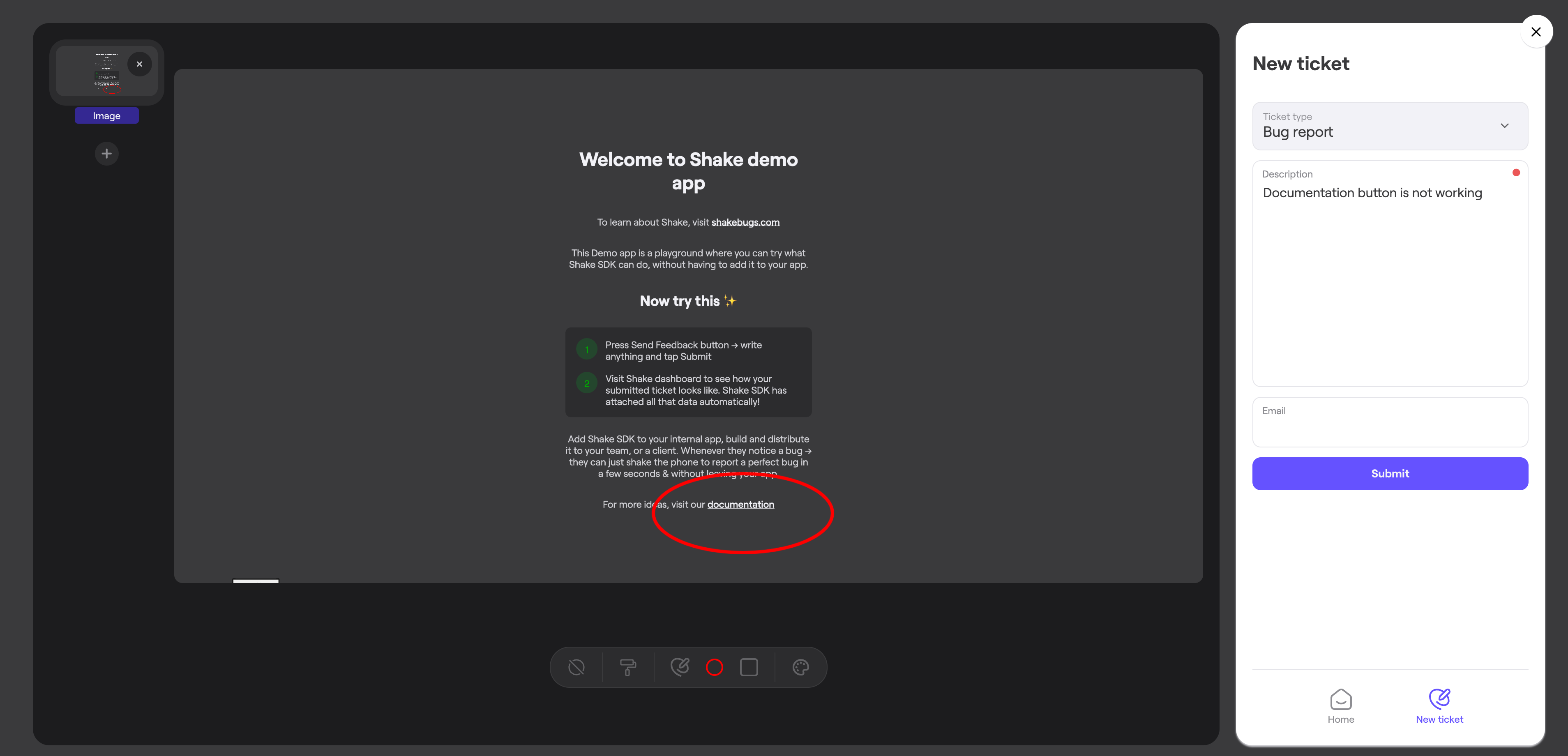
| |
| - |
### Home screen[](#home-screen "Direct link to Home screen")
Central place for registered app user where all user tickets are listed.
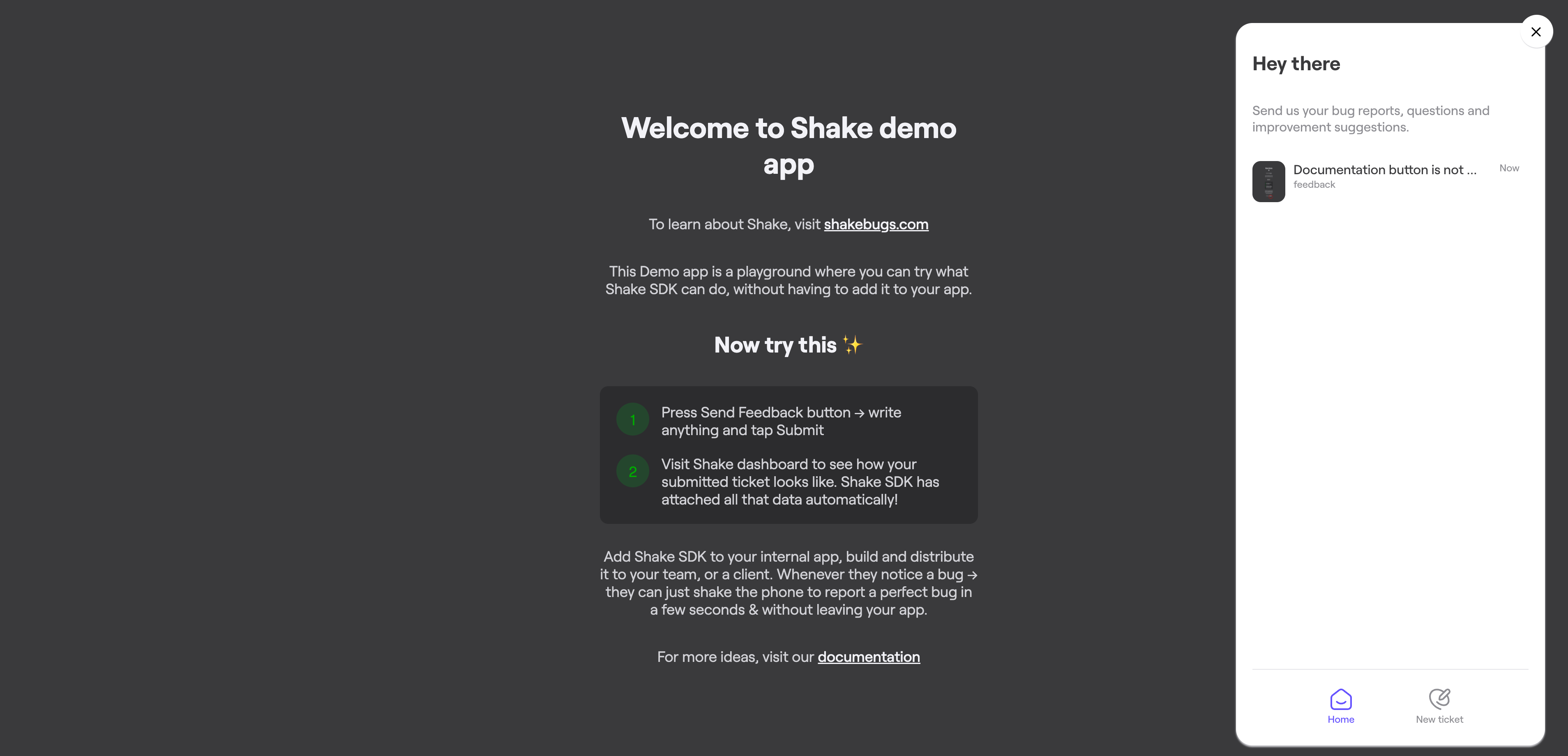
| |
| - |
### Chat screen[](#chat-screen "Direct link to Chat screen")
Used to chat and provide more details to the Shake dashboard users.
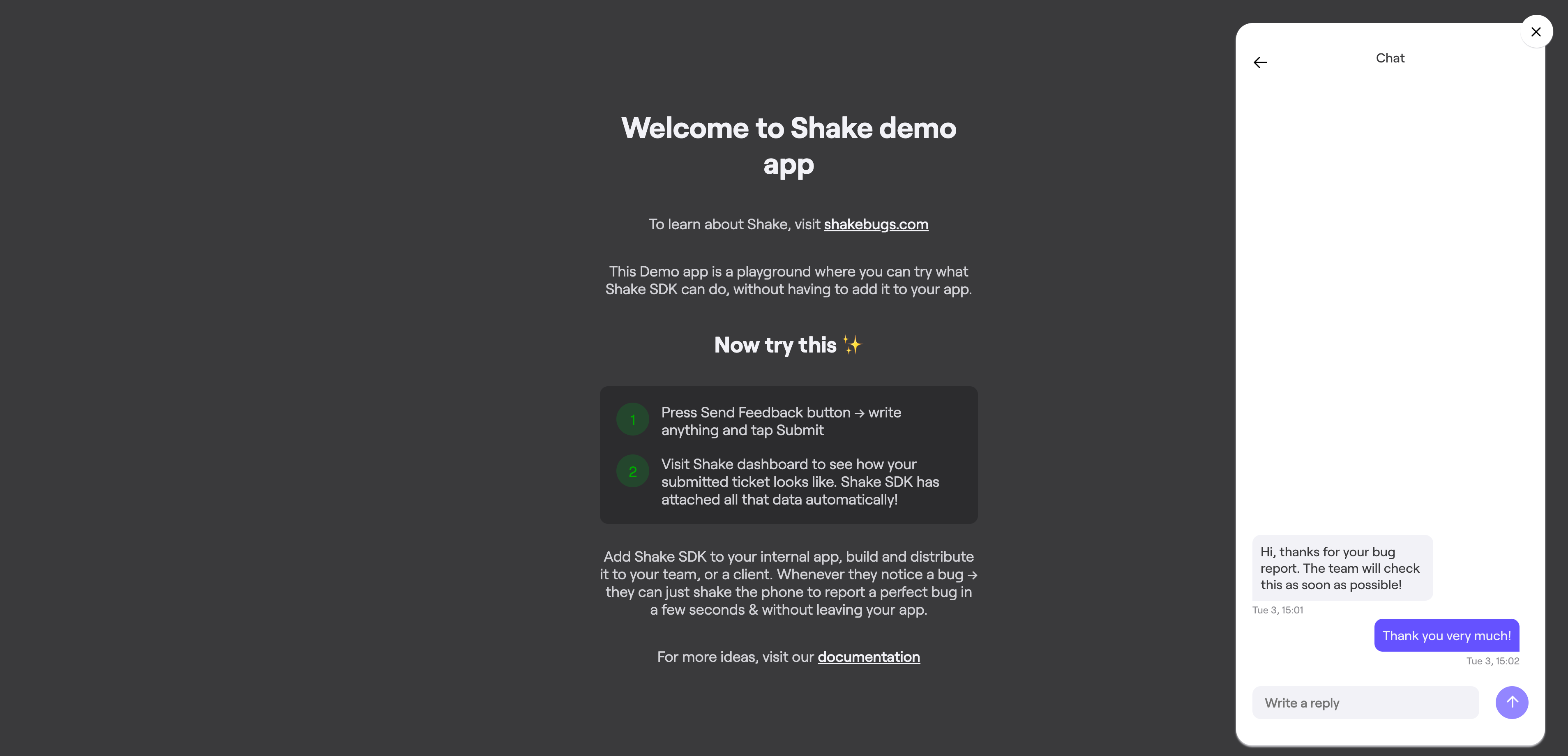
| |
| - |
## Opening Shake[](#opening-shake "Direct link to Opening Shake")
You can decide to open Shake screen either using default floating button or from the code, depending on the flow you want to achieve. Listed below are some common use cases that show where you might like to add Shake to your app. Of course, it's up to you to decide what best suits your app UX.
### Internal feedback collection[](#internal-feedback-collection "Direct link to Internal feedback collection")
This entry point is often used during internal testing. Your testers or office colleagues are told to invoke Shake whenever they notice a bug or have a suggestion. In this case, you'll probably want to use default floating button to open Shake. You don't need to code anything, the button is available after Shake is initialized.
### Production ticketing system[](#production-ticketing-system "Direct link to Production ticketing system")
In production, apps usually add Shake under **My account or Settings → Help**. There, they have a **Submit feedback** button that opens Shake's screen. In this case, you'll want to show Shake when a button is clicked.
For more details check [how to invoke Shake](/docs/web/user-feedback/invoke.md).
## Mobile design[](#mobile-design "Direct link to Mobile design")
Shake UI is build completely with responsive design on mind. It means that it will automatically adjust its user interface to the screen resolution it is used on, both for mobile and tablet devices.
---
# Invoke
> Decide how you want Shake user feedback to be invoked.
You're viewing the Web docs. Other platforms → [iOS](/docs/ios/user-feedback/invoke.md) [Android](/docs/android/user-feedback/invoke.md) [React Native](/docs/react/user-feedback/invoke.md) [Flutter](/docs/flutter/user-feedback/invoke.md)
## Invoke manually[](#invoke-manually "Direct link to Invoke manually")
By default, Shake screen is invoked by pressing **Send feedback** floating button.
Send feedback button is automatically added to the screen after `Shake.start` method is called, you don't need to code anything.
### Default screen[](#default-screen "Direct link to Default screen")
Shake will show **New ticket screen** when invoked. Feel free to change which Shake screen is shown on invocation:
* [New ticket screen](/docs/web/shake-ui.md#new-ticket)
* [Home screen](/docs/web/shake-ui.md#home-screen)
- Javascript
- Typescript
index.js
```
Copy
Shake.config.defaultScreen = ShakeScreen.NEW_TICKET;
Shake.config.defaultScreen = ShakeScreen.HOME_SCREEN;
```
index.ts
```
Copy
Shake.config.defaultScreen = ShakeScreen.NEW_TICKET;
Shake.config.defaultScreen = ShakeScreen.HOME_SCREEN;
```
### Disable Send Feedback[](#disable-send-feedback "Direct link to Disable Send Feedback")
You can disable default send feedback button if you want using the code below:
* Javascript
* Typescript
index.js
```
Copy
Shake.config.floatingButtonEnabled = false;
```
index.ts
```
Copy
Shake.config.floatingButtonEnabled = false;
```
## Invoke through code[](#invoke-through-code "Direct link to Invoke through code")
Shake can be invoked through code by calling the `Shake.show` method anywhere after `Shake.start`.
The `show` method can be called with the argument `ShakeScreen` which determines the first presented screen in the Shake UI.
* Javascript
* Typescript
index.js
```
Copy
Shake.show();
Shake.show(ShakeScren.NEW_TICKET);
Shake.show(ShakeScren.HOME_SCREEN);
```
index.ts
```
Copy
Shake.show(ShakeScren.NEW_TICKET); // Same as Shake.show()
Shake.show(ShakeScren.HOME_SCREEN);
```
If enabled, [activity history](/docs/web/configuration-and-data/activity-history.md), and all other data are also automatically attached. No additional code is required.
---
# Overview
> The Feedback module allows your users and testers to seamlessly report their feedback to you.
You're viewing the Web docs. Other platforms → [iOS](/docs/ios/user-feedback/overview.md) [Android](/docs/android/user-feedback/overview.md) [React Native](/docs/react/user-feedback/overview.md) [Flutter](/docs/flutter/user-feedback/overview.md)
## Introduction[](#introduction "Direct link to Introduction")
You have various options for how, when and where to invoke Shake in your app. Explore the docs and customize Shake's Feedback module to your needs.
To get you started, here are just two examples:
1. Open Shake screen using the default Shake floating button. You don't have to code anything.
2. Open Shake screen from the code by pressing custom "Send feedback" button in the about screen.
## Configuration & data[](#configuration--data "Direct link to Configuration & data")
Feedback module pulls your [Configuration and data](/docs/web/configuration-and-data/overview.md) settings.
This means that all user feedback comes to you with an [auto screenshot](/docs/web/configuration-and-data/screen-capture.md), of what happened before the ticket was submitted and other useful data.
⚡️ Shake is improved every week. Stumbled upon a [bug](https://feedback.shakebugs.com/bugs)? Want a [new feature](https://feedback.shakebugs.com/feature-requests) to be added? Create new tickets and upvote existing ones on the Public feedback board.
---
# Silent user feedback
> Send yourself feedback from the app background, without showing [Shake UI](/docs/web/shake-ui.md).
You're viewing the Web docs. Other platforms → [iOS](/docs/ios/user-feedback/silent-user-feedback.md) [Android](/docs/android/user-feedback/silent-user-feedback.md) [React Native](/docs/react/user-feedback/silent-user-feedback.md) [Flutter](/docs/flutter/user-feedback/silent-user-feedback.md)
## Overview[](#overview "Direct link to Overview")
You can send silent user feedback to yourself by calling the `Shake.silentReport` method anywhere after `Shake.start`. Feel free to add your own description to it as well.
*SilentReportConfig* determines the behavior and data attached to the silent user feedback:
* [Auto screenshot](/docs/web/configuration-and-data/screen-capture.md) if the feature is turned on
* Javascript
* Typescript
index.js
```
const sendSilentReport = () => {
Copy
Shake.silentReport("Description #tag1 #tag2");
}
```
index.ts
```
const sendSilentReport = () => {
Copy
Shake.silentReport("Description #tag1 #tag2");
}
```
## Show the Ticket submitted message[](#show-the-ticket-submitted-message "Direct link to Show the Ticket submitted message")
To optionally notify your user that a silent user feedback has just been submitted, change the `SilentReportConfig` and use that configuration object when sending the silent user feedback with the `Shake.silentReport` method:
* Javascript
* Typescript
index.js
```
const sendSilentReport = () => {
Copy
const config = {
takeScreenshot: true,
showSuccessMessage: true,
includeSessionReplay: true
}
Shake.silentReport("Description #tag1 #tag2", config);
}
```
index.ts
```
const sendSilentReport = () => {
Copy
const config: SilentReportConfig = {
takeScreenshot: true,
showSuccessMessage: true,
includeSessionReplay: true
}
Shake.silentReport("Description #tag1 #tag2", config);
}
```
---
# Advanced usage
> Some apps might want to register the device itself as an app user or make a transition from the anonymous app user to the identified user.
You're viewing the Web docs. Other platforms → [iOS](/docs/ios/users/advanced-usage.md) [Android](/docs/android/users/advanced-usage.md) [React Native](/docs/react/users/advanced-usage.md) [Flutter](/docs/flutter/users/advanced-usage.md)
## Register an anonymous app user[](#register-an-anonymous-app-user "Direct link to Register an anonymous app user")
Let's take an app like *Reddit* for example. Their app users can browse the app as guests for months before deciding to sign up.
As soon as your app user opens your app — and way before they sign up — you can identify them as an anonymous app user so both of you instantly get all the benefits of the app Users module.
You would do so by calling `Shake.registerUser(UUID)`, where the `UUID` is a randomly generated unique device ID persisted in the app storage.
## Anonymous app user → `Shake.updateUserId`[](#anonymous-app-user--shakeupdateuserid "Direct link to anonymous-app-user--shakeupdateuserid")
Let's suppose this anonymous app user decides to sign up one day, and you want to **keep** their app User entity:
* They will have the ability to see all their previously reported tickets.
* You consider them as the same app user and want to keep all their app User metadata.

| |
| - |
You would call the `Shake.updateUserId` method with the new app user identifier.
note
We recommend performing this transition only in one direction: Anonymous → Identified. The other way around could lead to an undesired result of linking the previously-identified app user to the now-anonymous app user ie. device.
## Anonymous app user → `Shake.registerUser`[](#anonymous-app-user--shakeregisteruser "Direct link to anonymous-app-user--shakeregisteruser")
Let's suppose an anonymous app user decides to sign up one day, but you want to treat the newly signed-up app user as a **new** app User entity instead:
* You want a fresh new app User.
* This app user won't see tickets they reported before they signed up, while being an anonymous app user.

| |
| - |
You would call the `Shake.registerUser` method with the new app user identifier.
### Switch back to the anonymous app user[](#switch-back-to-the-anonymous-app-user "Direct link to Switch back to the anonymous app user")
When an identified app user decides to delete their account or log out, you might want to switch back to the anonymous app User.
To achieve that, instead of calling `Shake.unregisterUser` you would do a switch back to the device identifier by calling `Shake.registerUser(UUID)` again.
This app User will again see the tickets they had reported before they signed up.
---
# Chat
> If needed, your app users can [chat with you](/docs/web/shake-ui.md#chat-screen) to provide you more details about their reported bugs, crashes or feedback. You will be able to fix issues faster and make your customers happier.
You're viewing the Web docs. Other platforms → [iOS](/docs/ios/users/chat.md) [Android](/docs/android/users/chat.md) [React Native](/docs/react/users/chat.md) [Flutter](/docs/flutter/users/chat.md)
## Enable[](#enable "Direct link to Enable")
Once your app user is [registered](/docs/web/users/register-user.md) with Shake, the chat feature is enabled automatically. Each ticket they send you will be a separate conversation.
This feature is tightly integrated with and follows the lifecycle of your *User* registration, which means that calling `Shake.unregisterUser` also *disconnects* the current app user from chat and they won't receive any new messages until registered again.
## Notifications[](#notifications "Direct link to Notifications")
Shake notifies your [app users](/docs/web/users/register-user.md) about new messages sent from the Shake dashboard. When a new message notification is received, Shake will automatically pop up on the screen and present chat where message was sent.
Additionally, if app user email is provided using [update user metadata](/docs/web/users/update-user-metadata.md) method - app user will be automatically notified about new chat messages by email. Otherwise, if app user email is not specified user has an option to leave contact email in Shake new ticket screen.
---
# Overview
> The Users module enables you to see a list of your app users, their attributes and tickets on your Shake dashboard. In parallel, it allows them to see their previously submitted tickets.
You're viewing the Web docs. Other platforms → [iOS](/docs/ios/users/overview.md) [Android](/docs/android/users/overview.md) [React Native](/docs/react/users/overview.md) [Flutter](/docs/flutter/users/overview.md)

| |
| - |
Current features include:
* Your app users can see their previously sent tickets on the [Home screen](/docs/web/shake-ui.md#home-screen).
* You have all your app users listed in one place on your Shake dashboard.
* Your [users' custom attributes](/docs/web/users/update-user-metadata.md) are tracked automatically.
* You and your app users can [live chat](/docs/web/users/chat.md) with each other.
Soon, these features will be available too:
* On your Shake dashboard, you will see an app User which has submitted a Ticket. And all Tickets sent by a particular app User.
* You will be able to see your MAU and DAU charts.
Start by [registering your app users](/docs/web/users/register-user.md).
⚡️ Shake is improved every week. Stumbled upon a [bug](https://feedback.shakebugs.com/bugs)? Want a [new feature](https://feedback.shakebugs.com/feature-requests) to be added? Create new tickets and upvote existing ones on the Public feedback board.
---
# Register app user
> Register your app users with Shake by calling the `Shake.registerUser` method.
You're viewing the Web docs. Other platforms → [iOS](/docs/ios/users/register-user.md) [Android](/docs/android/users/register-user.md) [React Native](/docs/react/users/register-user.md) [Flutter](/docs/flutter/users/register-user.md)
The passed *user identifier* argument should ideally reflect the identifier that uniquely represents the app user in your database. Often it is the app user's email address, but it may be their app User ID, or their device's UUID. Shake's public method is intentionally called *register* and not *logIn* because app user identification context is different in different apps.
Most apps communicate with their backend through the network layer which performs the URL request and asynchronously receives a callback with the request result. That callback's body is a common place where developers call the `Shake.registerUser` method, but maybe your context is different. Make sure to call this method at the place where it fits your app's flow perfectly.

| |
| - |
A common case is to register app users from your app's Login screen
* Javascript
* Typescript
login.js
```
const onLoginClick = async (email, password) => {
const user = await networkService.login(email, password);
Copy
Shake.registerUser(user.id);
}
```
login.ts
```
const onLoginClick = async (email: string, password: string) => {
const user: User = await networkService.login(email, password);
Copy
Shake.registerUser(user.id);
}
```
note
Keep in mind that if your app is already published, some users will be already logged in into the app. To handle this case, we recommend calling `Shake.registerUser` method also on the first screen app shows. Registered user is stored locally and this method won't send registration request if it not needed.
---
# Unregister app user
> Unregistering an app user should be done when your app user decides to *log out* and use your app as a *guest* or when you no longer want the subsequent tickets to be associated with the current app user.
You're viewing the Web docs. Other platforms → [iOS](/docs/ios/users/unregister-user.md) [Android](/docs/android/users/unregister-user.md) [React Native](/docs/react/users/unregister-user.md) [Flutter](/docs/flutter/users/unregister-user.md)
Unregistering is done by calling the `Shake.unregisterUser` method:
* Javascript
* Typescript
profile.js
```
const onLogoutClick = async () => {
const success = await networkService.logout();
Copy
Shake.unregisterUser();
}
```
profile.ts
```
const onLogoutClick = async () => {
const success: boolean = await networkService.logout();
Copy
Shake.unregisterUser();
}
```
---
# Update app user identifier
> You can update the app user identifier you had used to register the app user. In most app flows, this is a method that's rarely called.
You're viewing the Web docs. Other platforms → [iOS](/docs/ios/users/update-user-identifier.md) [Android](/docs/android/users/update-user-identifier.md) [React Native](/docs/react/users/update-user-identifier.md) [Flutter](/docs/flutter/users/update-user-identifier.md)
For example, suppose that you have registered your app user with an email. The app user would be able to subsequently change their email in app settings and still continue using your service as the same entity.
Calling `Shake.updateUserId` on an already registered app user:
1. Updates the app user identifier in the Shake database.
2. It becomes the new app user identifier.
3. You continue to pass this new app user identifier to `Shake.registerUser` on this app user's subsequent logins.
caution
Updating the app user identifier allows various possibilities for how this feature can be used but can also lead to possibly unwanted results. Read the documentation carefully to fully understand possible usages and scenarios.
The code snippet below showcases a common scenario in which the app user identifier is updated. It's assumed that the app user was previously registered with an email:
* Javascript
* Typescript
profile.js
```
const changeEmail = async (email) => {
const user = await networkService.updateUserEmail(email);
Copy
Shake.updateUserId(user.email);
}
```
profile.ts
```
const changeEmail = async (email: string) => {
const user: User = await networkService.updateUserEmail(email);
Copy
Shake.updateUserId(user.email);
}
```
---
# Update app user metadata
> Once you have registered your app user, you can attach a map with key-value pairs which contain additional data about the app user and their behavior.
You're viewing the Web docs. Other platforms → [iOS](/docs/ios/users/update-user-metadata.md) [Android](/docs/android/users/update-user-metadata.md) [React Native](/docs/react/users/update-user-metadata.md) [Flutter](/docs/flutter/users/update-user-metadata.md)
Update app user metadata by calling the `Shake.updateUserMetadata` method anywhere in your code after registering the User.
## Special keys[](#special-keys "Direct link to Special keys")
Values from these two keys will be presented nicely on the Shake dashboard, so we suggest you use them:
* `first_name`
* `last_name`
If you want to [notify your users](/docs/web/users/chat.md#notifications) about new chat messages by email, provide the following metadata key:
* `email`
## Updates[](#updates "Direct link to Updates")
Updates to the app user metadata are *merged*. This allows you to update user metadata in segments from various parts of your app, even when offline.
A common approach developers take is updating **generic** app user metadata from one place in your code upon every app user change
* Javascript
* Typescript
login.js
```
const onLoggedIn = (user) => {
Copy
const metadata = {
'first_name': user.firstName,
'last_name': user.lastName,
'email': user.email,
'status': user.status,
}
Shake.updateUserMetadata(metadata);
}
```
login.ts
```
const onLoggedIn = (user: User) => {
Copy
const metadata = {
'first_name': user.firstName,
'last_name': user.lastName,
'email': user.email,
'status': user.status,
}
Shake.updateUserMetadata(metadata);
}
```
and updating **specific** app user metadata in their respective contexts:
* Javascript
* Typescript
settings.js
```
const onUserSettingsChanged = (settings) => {
Copy
const metadata = {
'user_settings': settings.value,
}
Shake.updateUserMetadata(metadata);
}
```
settings.ts
```
const onUserSettingsChanged = (settings: UserSettings) => {
Copy
const metadata = {
'user_settings': settings.value,
}
Shake.updateUserMetadata(metadata);
}
```
## Limitations[](#limitations "Direct link to Limitations")
The total map size of the app user metadata must not exceed 50 KB. If this validation fails, the update method is dropped with the appropriate console message.
## App user metadata vs. Ticket metadata[](#app-user-metadata-vs-ticket-metadata "Direct link to App user metadata vs. Ticket metadata")
Track app User metadata to understand and describe your app User better. Examples are:
* First and last name
* App user ID
* Address
* Subscription status
* Date of birth
Use [Ticket metadata](/docs/web/configuration-and-data/ticket-metadata.md) to attach useful custom data to each ticket. Examples are statuses of various app variables at the moment the ticket is sent:
* Current chat room ID
* List of items currently in a shopping cart
* Task synced true/false
* Number of search results
* List sorted by what
* Video muted true/false
---